
Content Templates
Content templates let you build reusable message bodies for emails and texts that your entire team can apply with one click. Instead of rewriting outreach from scratch, templates ensure consistent messaging and automatically insert contact-specific details like names and property addresses using dynamic variables.
Step-by-Step Guide
Section titled “Step-by-Step Guide”-
Navigate to the Templates page
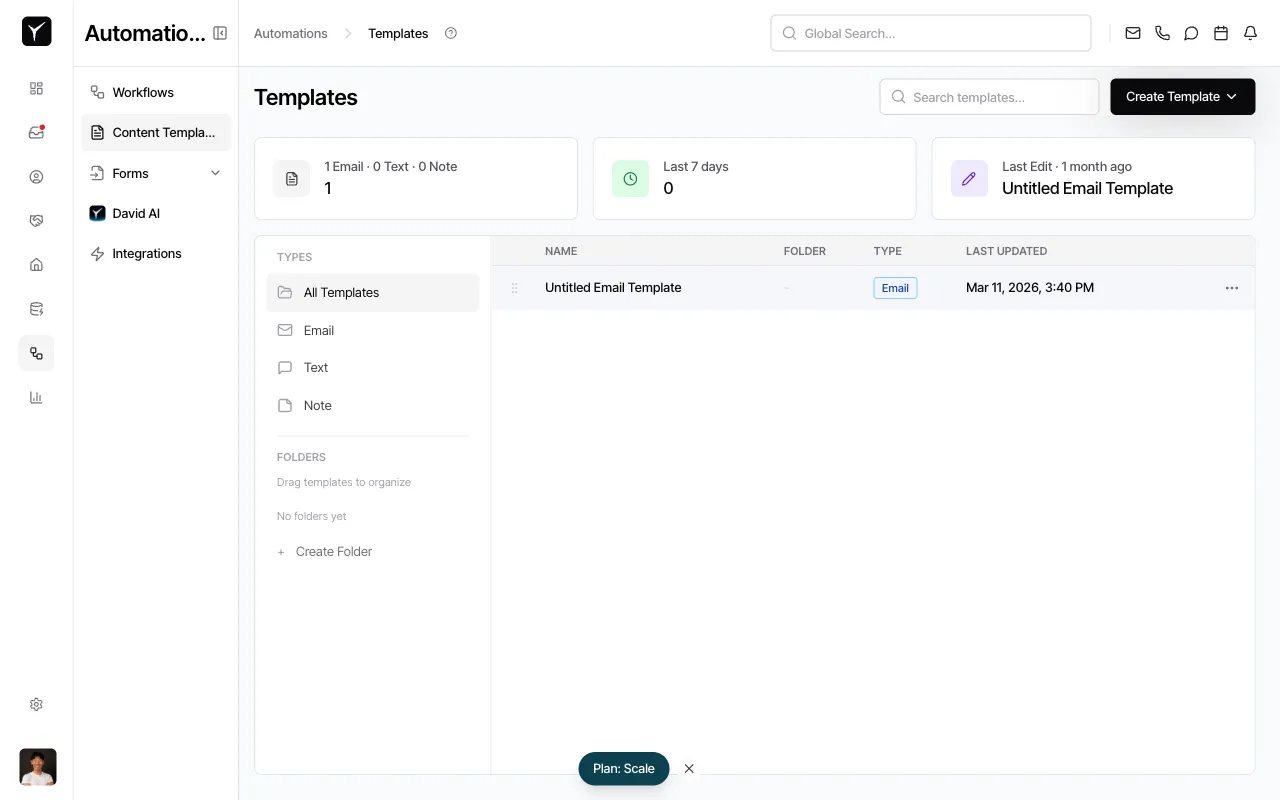
From the left sidebar, click Automations, then select Content Templates. You’ll see a list of existing templates organized by type.
-
Start creating a new template
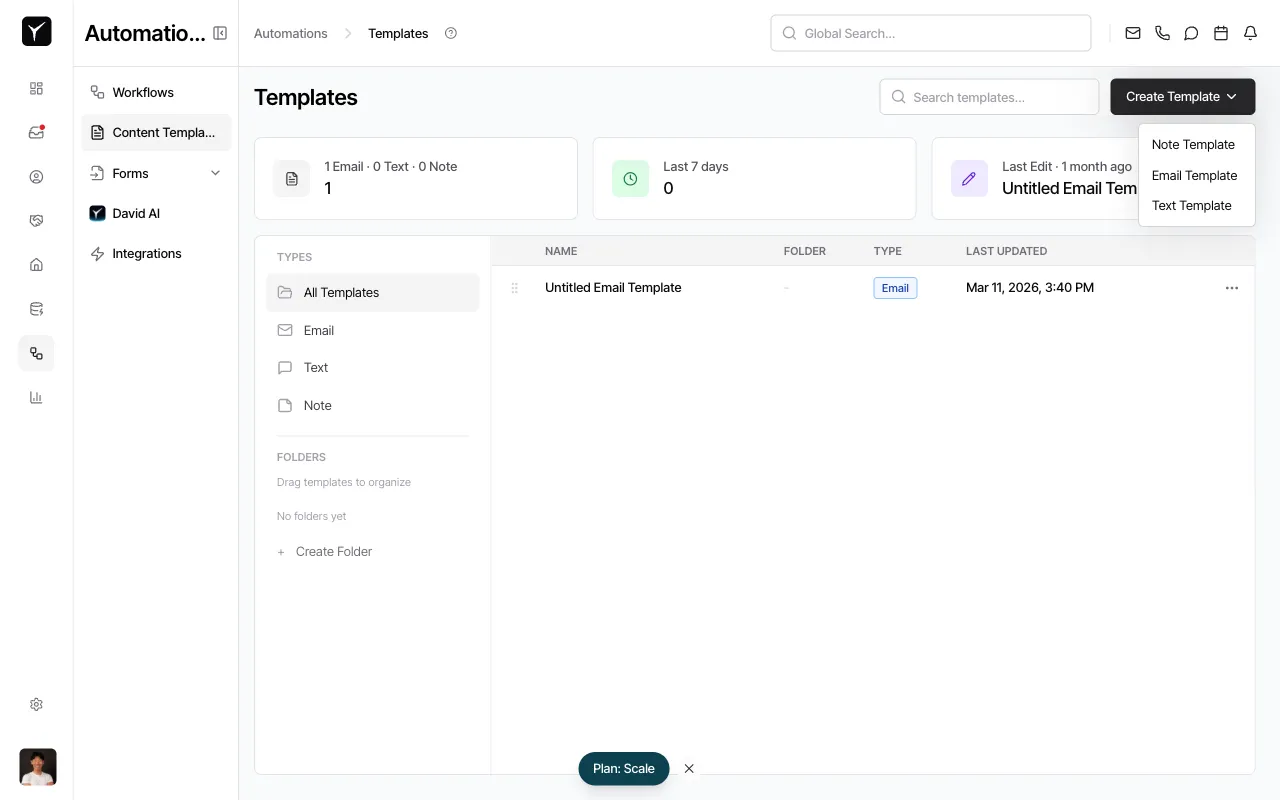
Click the Create Template button in the top right. A dropdown will appear with three options: Note Template, Email Template, and Text Template.
-
Select Text Template
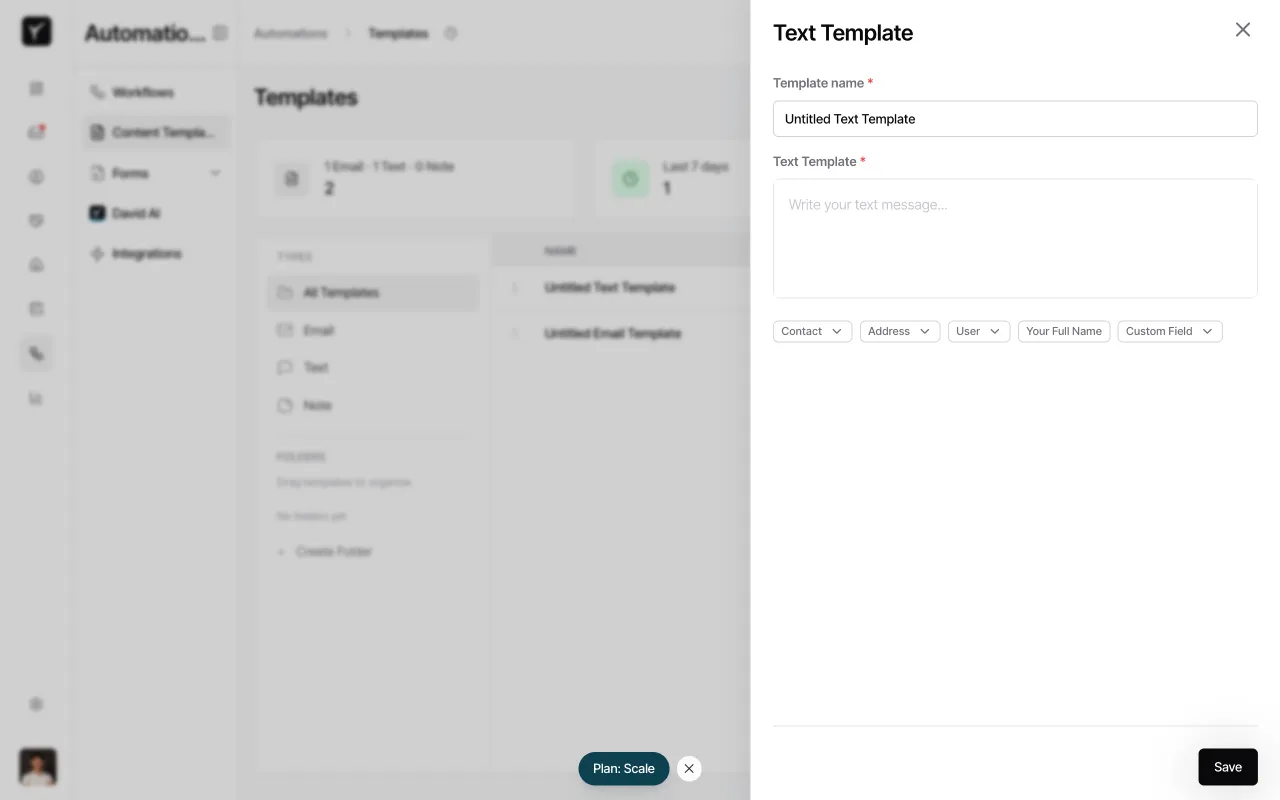
Click Text Template to create an SMS message template. The template editor will open in a side panel.
-
Name your template
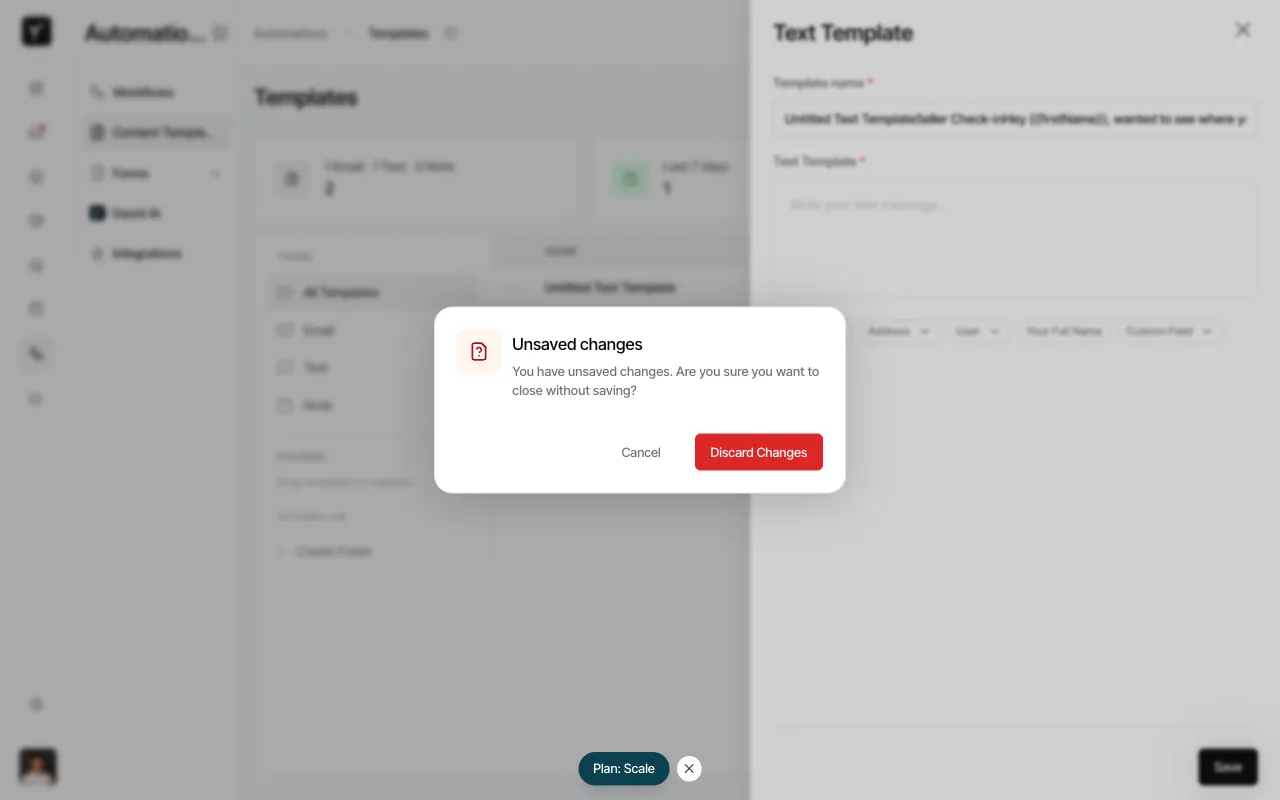
In the Template name field, enter a descriptive name that identifies the purpose of the message. Keep it specific so team members can quickly find the right template.
-
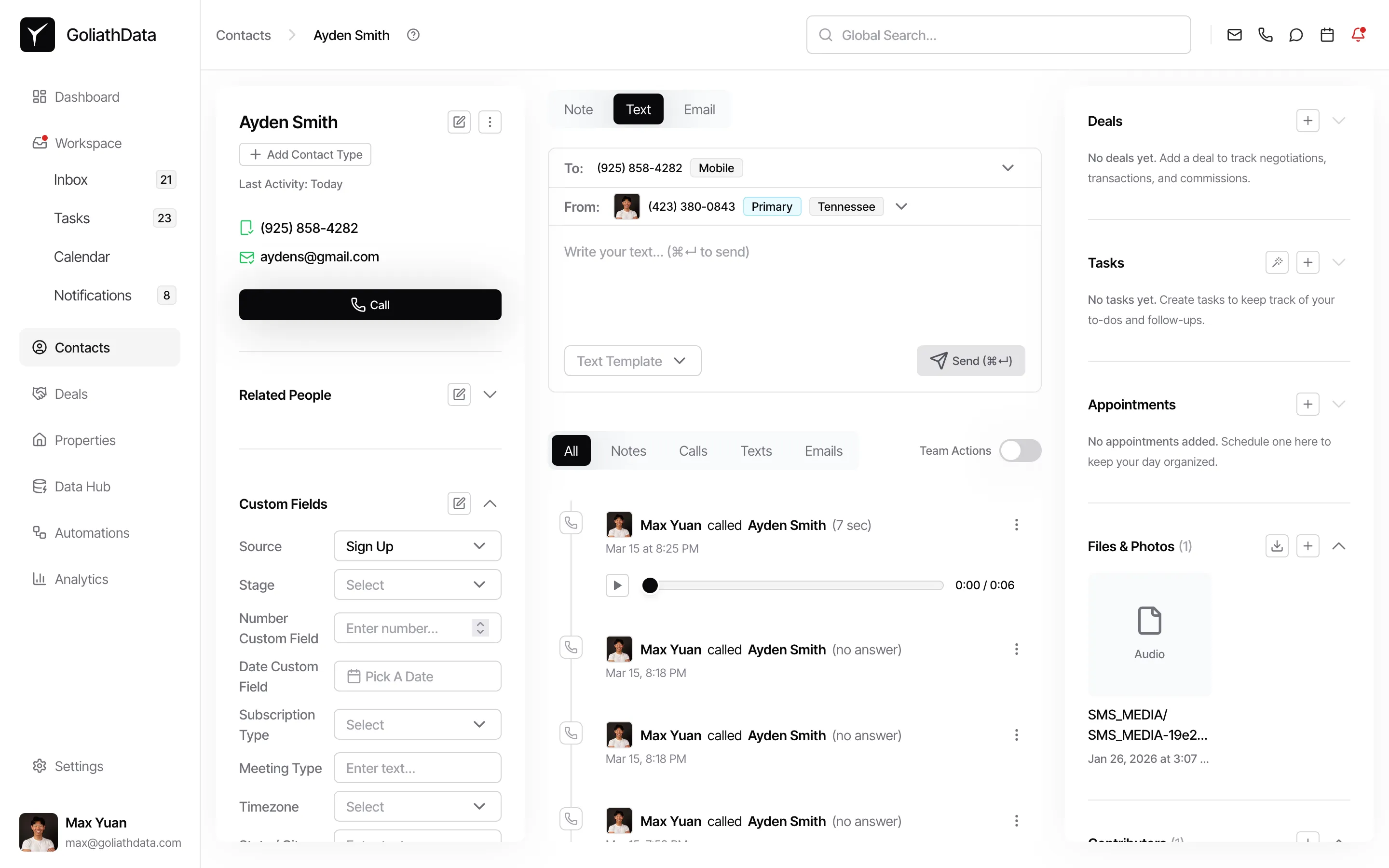
Open a contact to test your template
Navigate to Contacts and click any contact name to open their detail panel.
-
Compose your message with dynamic variables
Click the Text tab in the contact detail panel. Use the variable buttons (Contact, Address, User, Your Full Name, Custom Field) to insert dynamic placeholders like
{{firstName}}or{{propertyAddress}}. These auto-fill with the recipient’s data when the template is applied.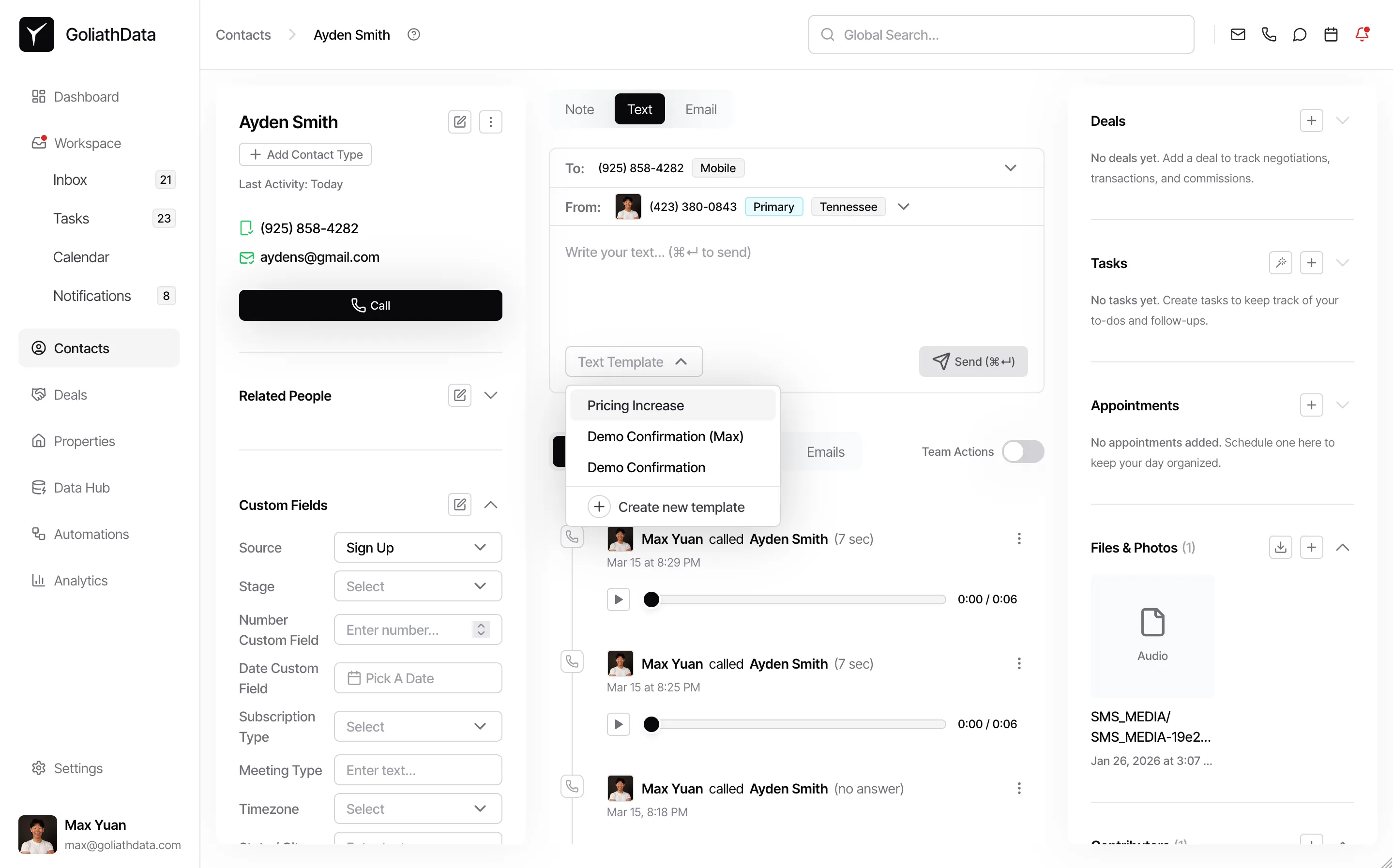
-
Save the template
Click Save. Your template is now available for use across all contacts and workflows.
Frequently Asked Questions
Section titled “Frequently Asked Questions”Q: What happens if a contact is missing a variable value?
Section titled “Q: What happens if a contact is missing a variable value?”If a contact doesn’t have a value for a variable (e.g., no property address), the variable typically resolves to an empty string, leaving a blank space in the message.
Q: Can I preview a template before sending?
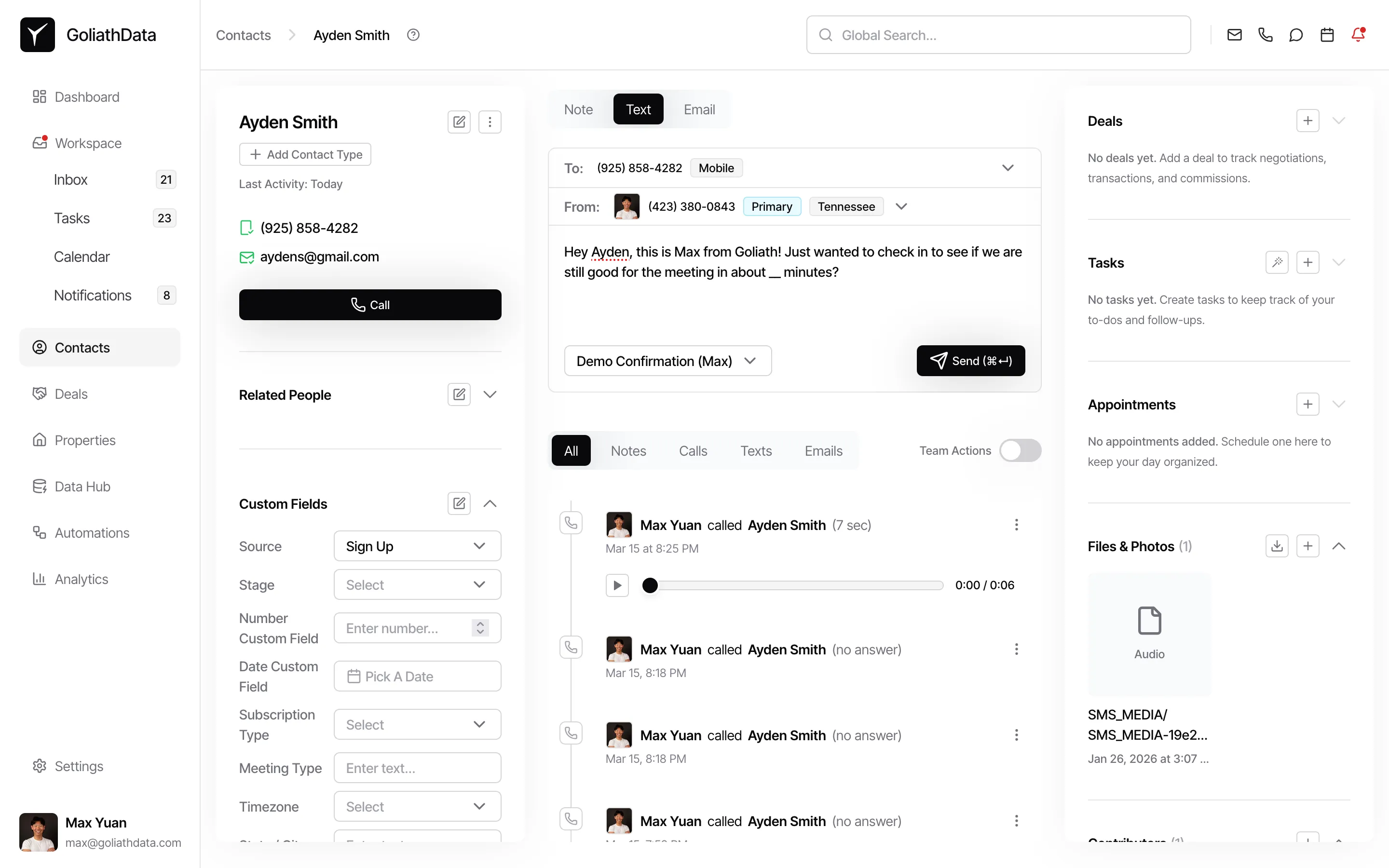
Section titled “Q: Can I preview a template before sending?”Yes. Apply the template in the composer for a specific contact, and you’ll see the variables auto-filled with that contact’s data before you hit send.
Q: Can templates include attachments?
Section titled “Q: Can templates include attachments?”Email templates can include attachments, but text templates cannot due to MMS complexity and cost considerations.
Q: Who can create and edit templates?
Section titled “Q: Who can create and edit templates?”Templates are organization-wide. All team members can use them, but only organization admins can create, rename, or delete templates.
Q: Where can I use templates?
Section titled “Q: Where can I use templates?”Templates work in three places: manual sends from a contact’s detail panel, workflow Send Email and Send Text actions, and bulk messaging to multiple contacts at once.