
How Do I Create an Email Template?
Email templates let you save reusable messages with dynamic variables that auto-fill contact and property details. Once created, templates can be used in one-off emails, automated workflow sequences, and bulk sends—making them a cornerstone of scalable outreach. Invest time building quality templates and your entire team benefits across every touchpoint.
Step-by-Step Guide
Section titled “Step-by-Step Guide”-
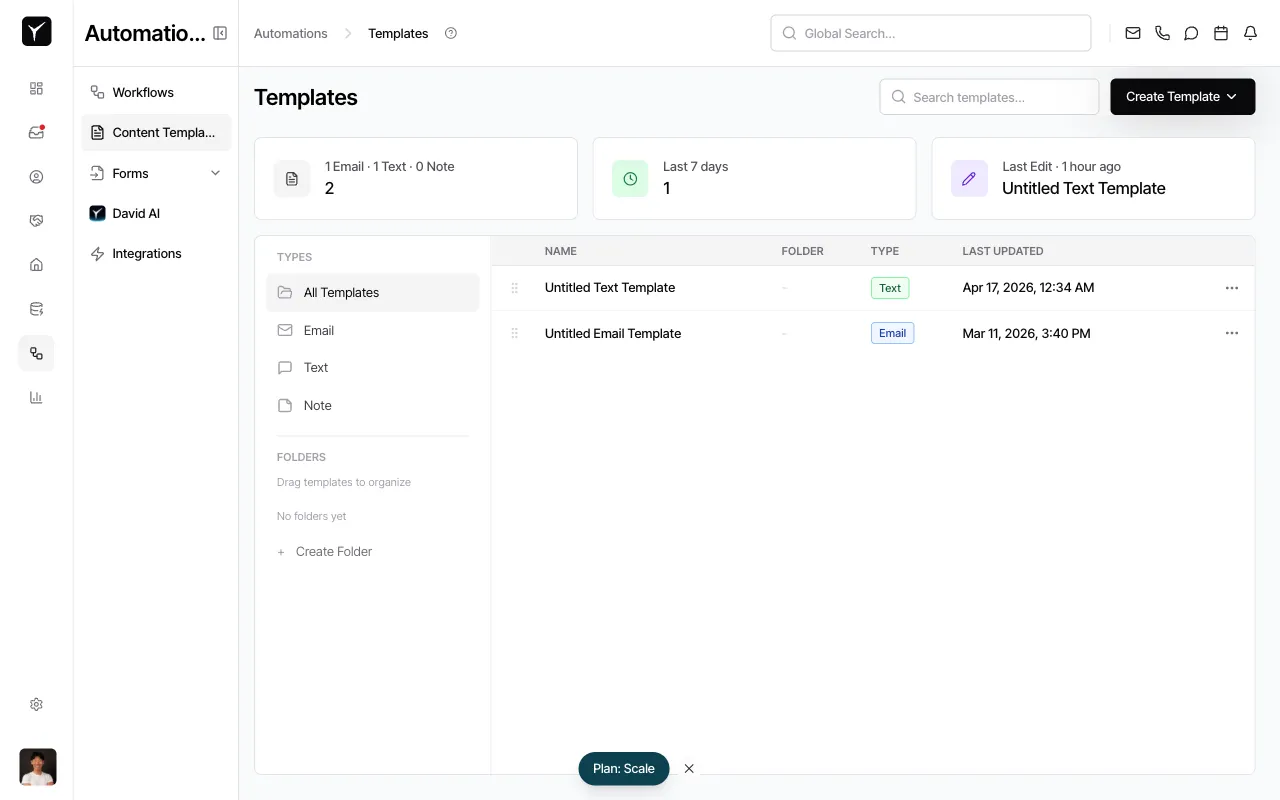
Navigate to the Templates page
From the left sidebar, click Content Templates under the Automations section. You’ll see your existing templates organized by type (Email, Text, Note) and folders.
-
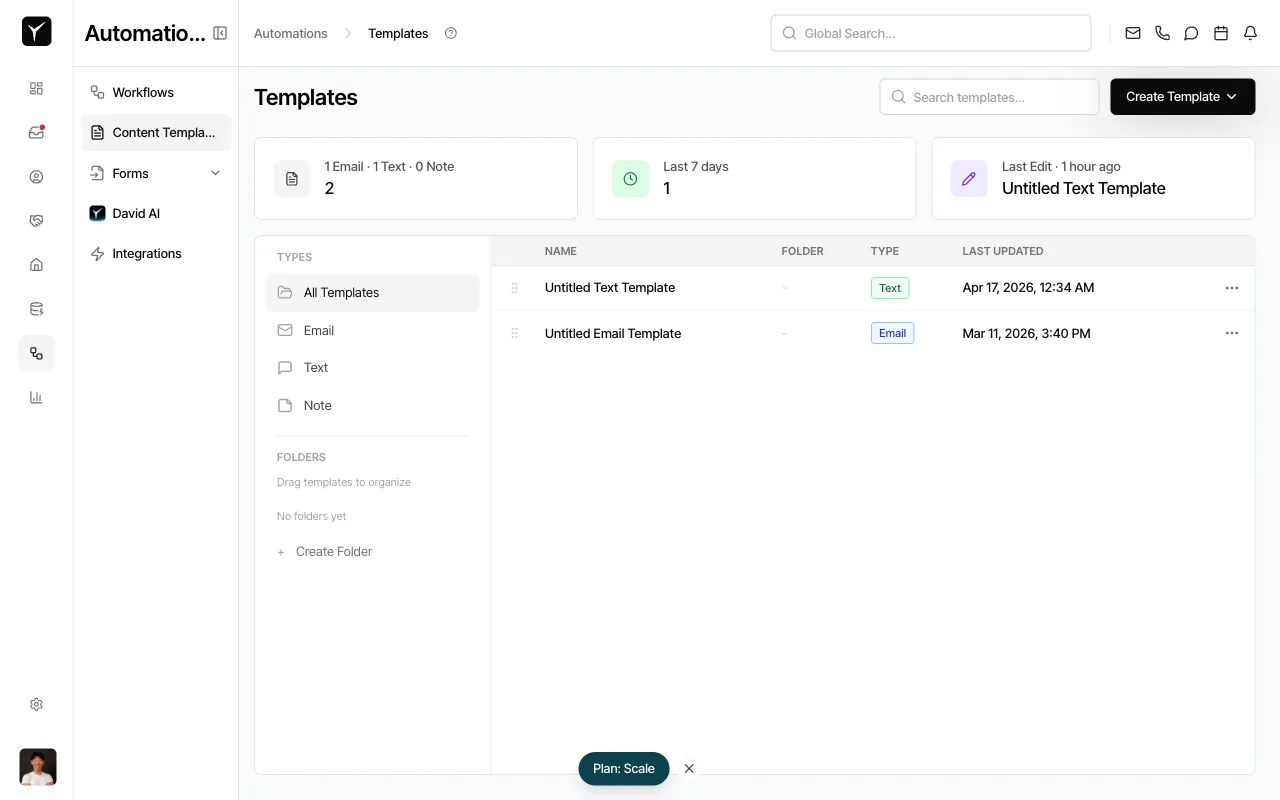
Open the Create Template menu
Click the Create Template button in the top-right corner. A dropdown menu will appear with template type options.
-
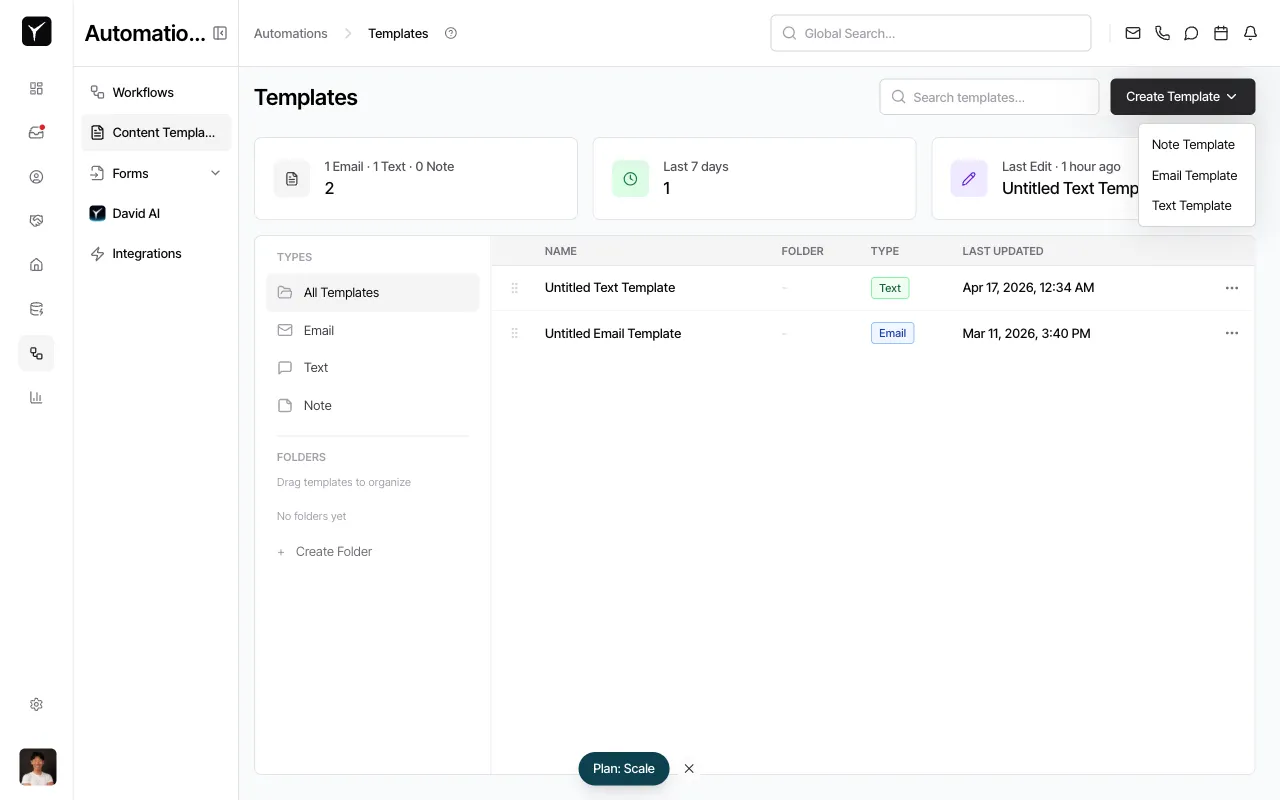
Select Email Template
Choose Email Template from the dropdown. This opens the email template editor.
-
Fill in the template name, subject, and body
The editor has three main fields:
- Template name: A descriptive internal name to help you find this template later (e.g., “Seller Follow-Up Week 1”)
- Subject: The email subject line, which can include dynamic variables
- Email Template body: The rich-text message content
Use the formatting toolbar to style your message (Bold, Italic, Underline, Bullet List, Ordered List, Link, etc.). Below the body editor, you’ll see variable buttons: Contact, Address, User, Your Full Name, and Custom Field. Click any button to insert dynamic merge tags like
{{firstName}},{{propertyAddress}}, or{{assigneeName}}.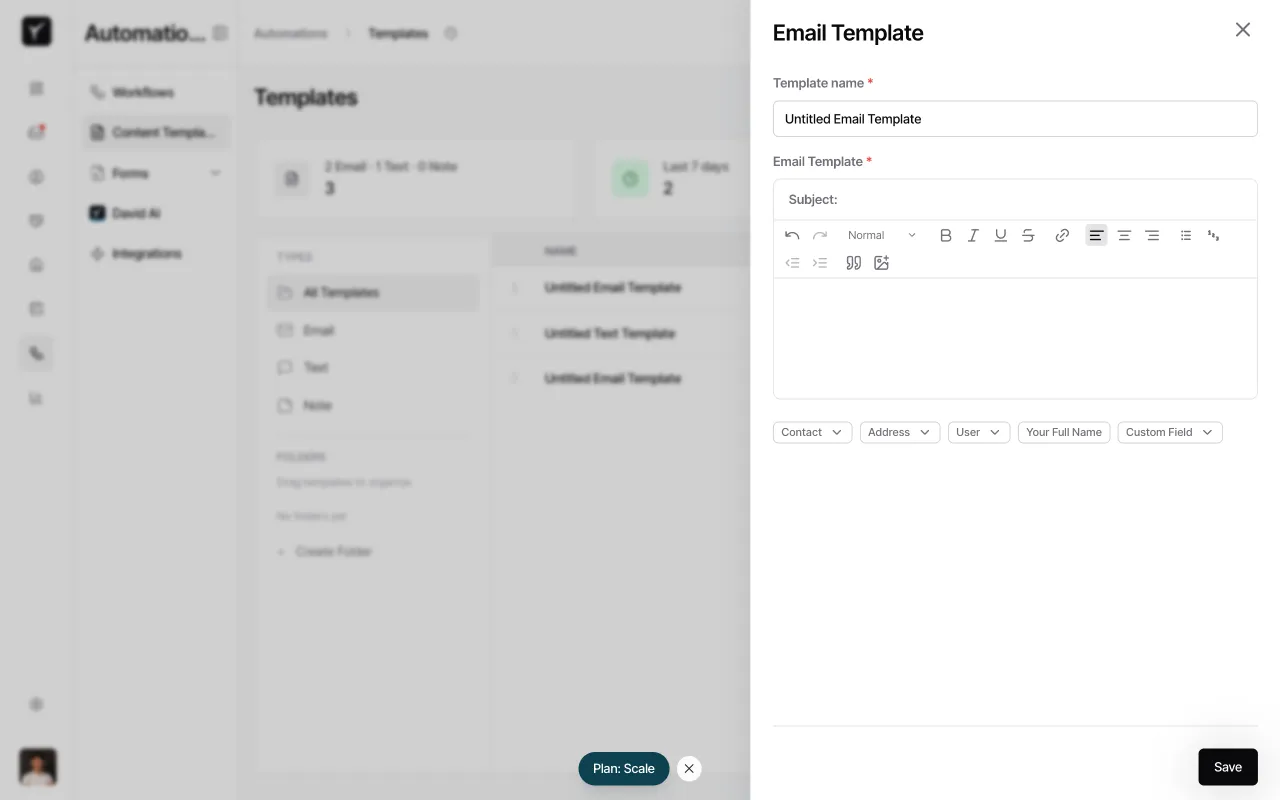
-
Save the template
When your content is ready, click the Save button in the bottom-right corner. Your new template is now available in the template picker across Goliath.
Frequently Asked Questions
Section titled “Frequently Asked Questions”Q: What dynamic variables can I use?
Section titled “Q: What dynamic variables can I use?”Goliath supports {{firstName}}, {{lastName}}, {{propertyAddress}}, {{assigneeName}}, {{orgName}}, and any custom fields you’ve defined. Click the variable buttons below the editor to insert them with correct syntax.
Q: Can I share a template with only part of my team?
Section titled “Q: Can I share a template with only part of my team?”Templates are organization-wide by default. All team members can see and use any saved template, so establish naming conventions to help users find the right one quickly.
Q: What happens if a variable has no value for a contact?
Section titled “Q: What happens if a variable has no value for a contact?”Goliath will replace the merge tag with an empty string. To avoid awkward phrasing, write copy that degrades gracefully—for example, use “I noticed the property” instead of “I noticed {{propertyAddress}}” if the address might be missing.
Q: Can I A/B test different email templates?
Section titled “Q: Can I A/B test different email templates?”Yes, through workflow branching. Set up a workflow that randomly splits contacts into two paths and sends a different template to each group, then compare open and reply rates.
Q: Where can I learn more about using templates in workflows?
Section titled “Q: Where can I learn more about using templates in workflows?”See Creating a Workflow for how to add a Send Email action and select your template. For applying templates in one-off messages, check How Do I Use Email Templates.