
How Do I Create a Deal?
A deal represents a single transaction moving through your pipeline, from initial lead to closed won or lost. Creating a deal lets you track progress, assign team members, and attach properties and contacts for full context. You can create deals from the pipeline board, contact records, or property detail pages.
Step-by-Step Guide
Section titled “Step-by-Step Guide”-
Open the deal creation form
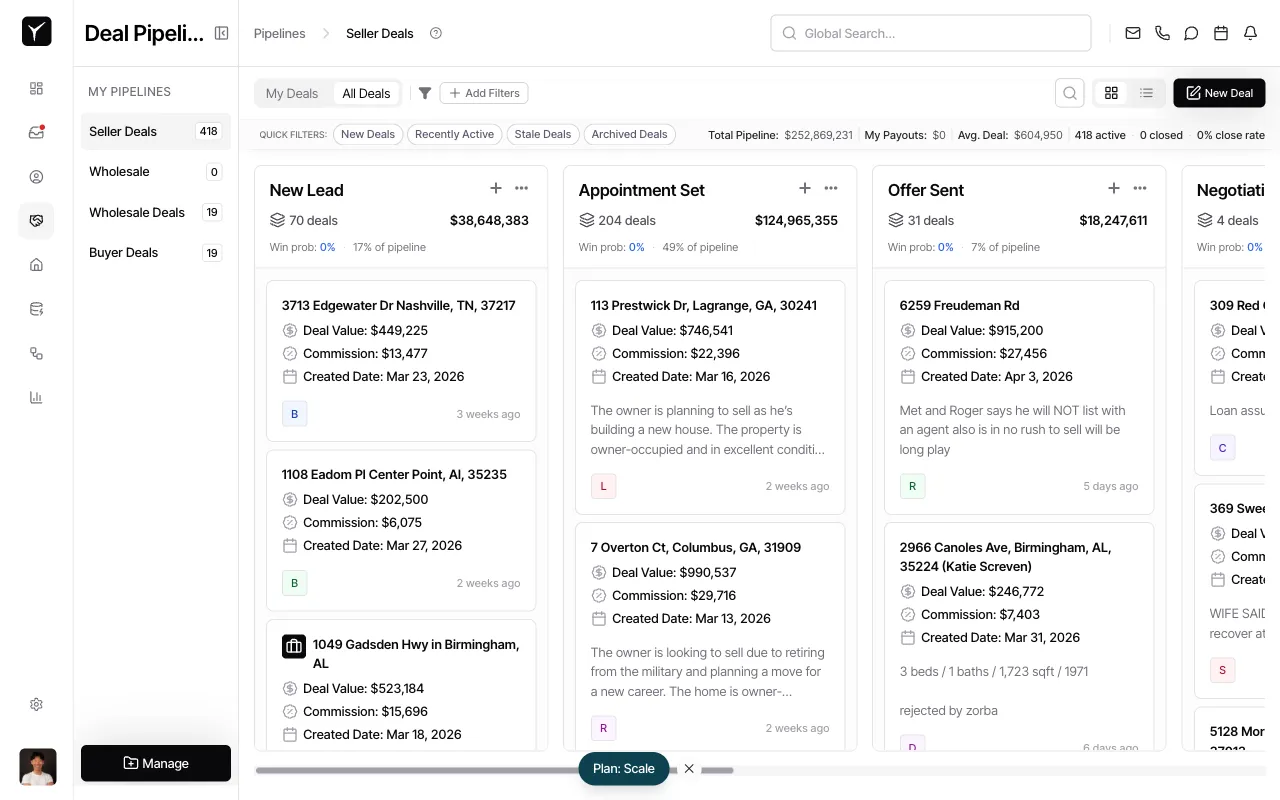
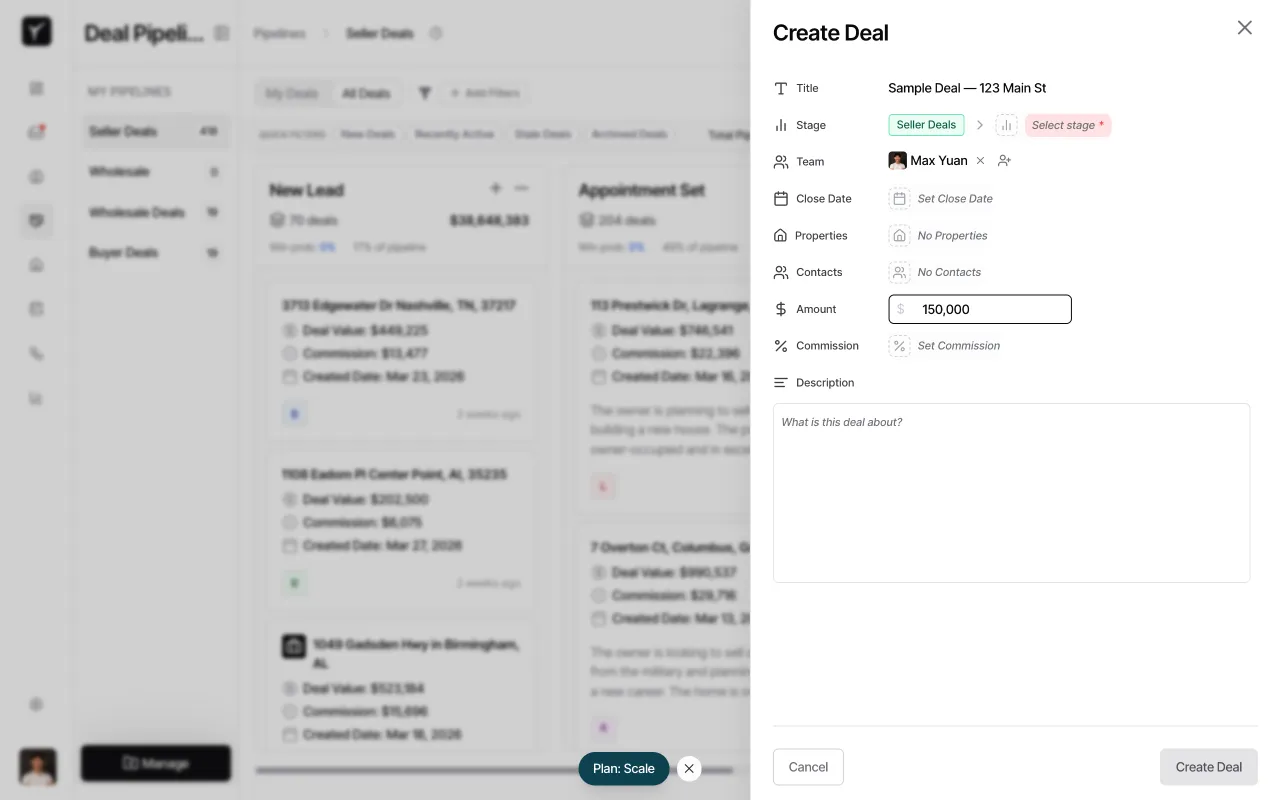
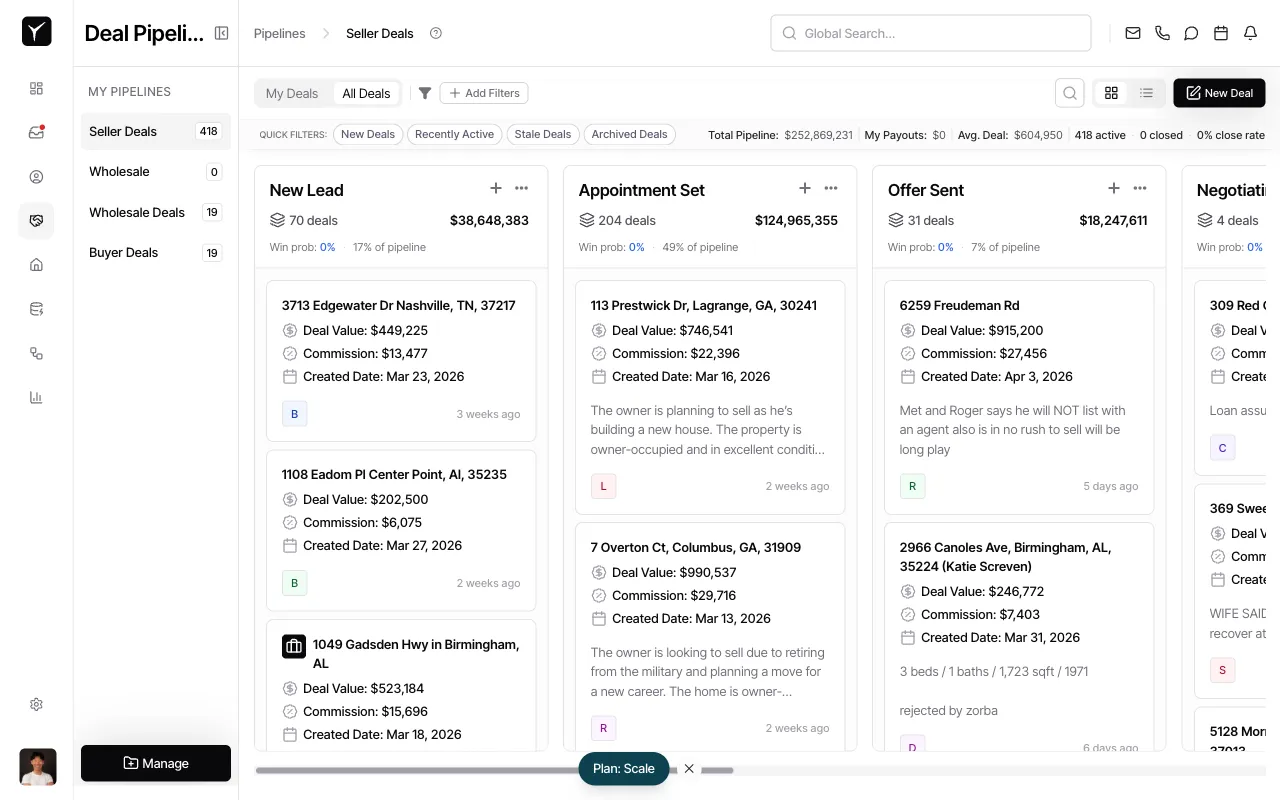
From the pipeline board, click the New Deal button in the top-right toolbar. The Create Deal panel slides in from the right side of the screen.
-
Enter the deal title
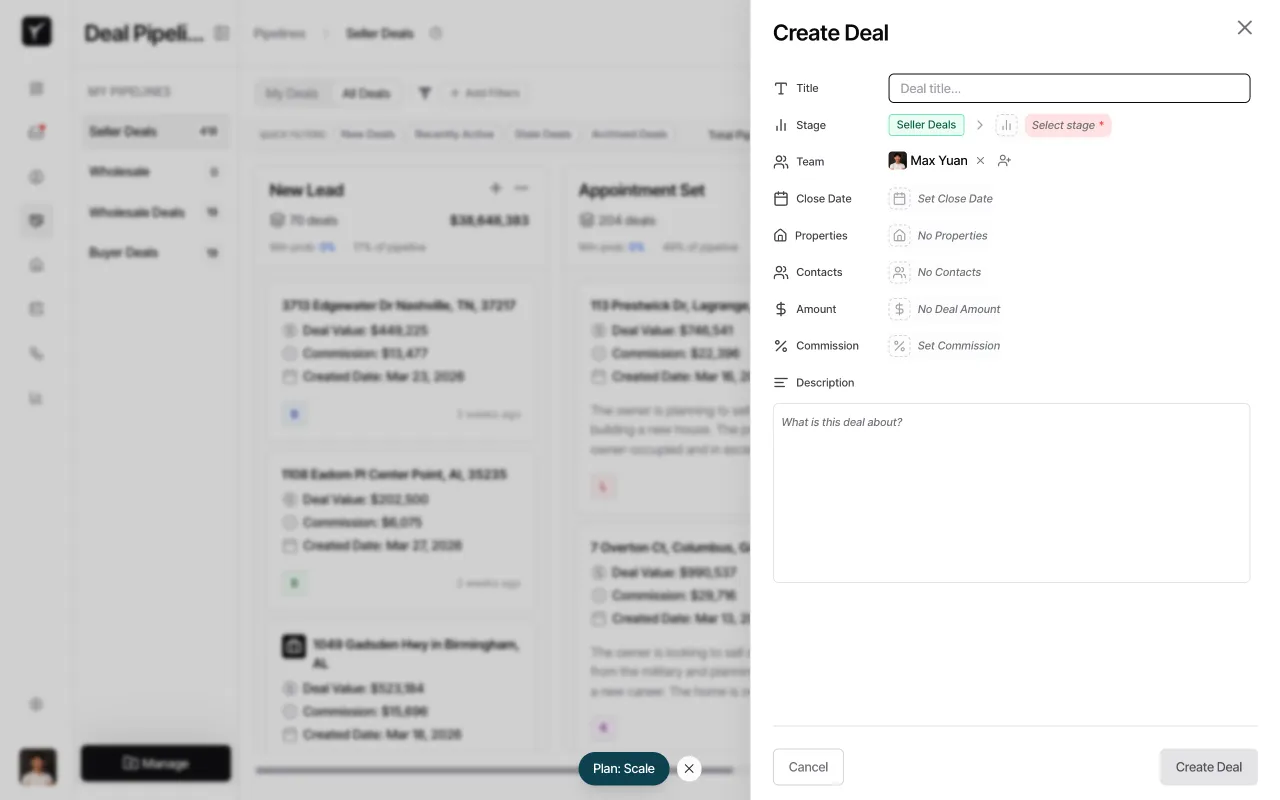
In the Title field, type a descriptive name for the deal. Use a format that helps you identify the opportunity at a glance, such as property address or contact name plus project type.
-
Select the pipeline and stage
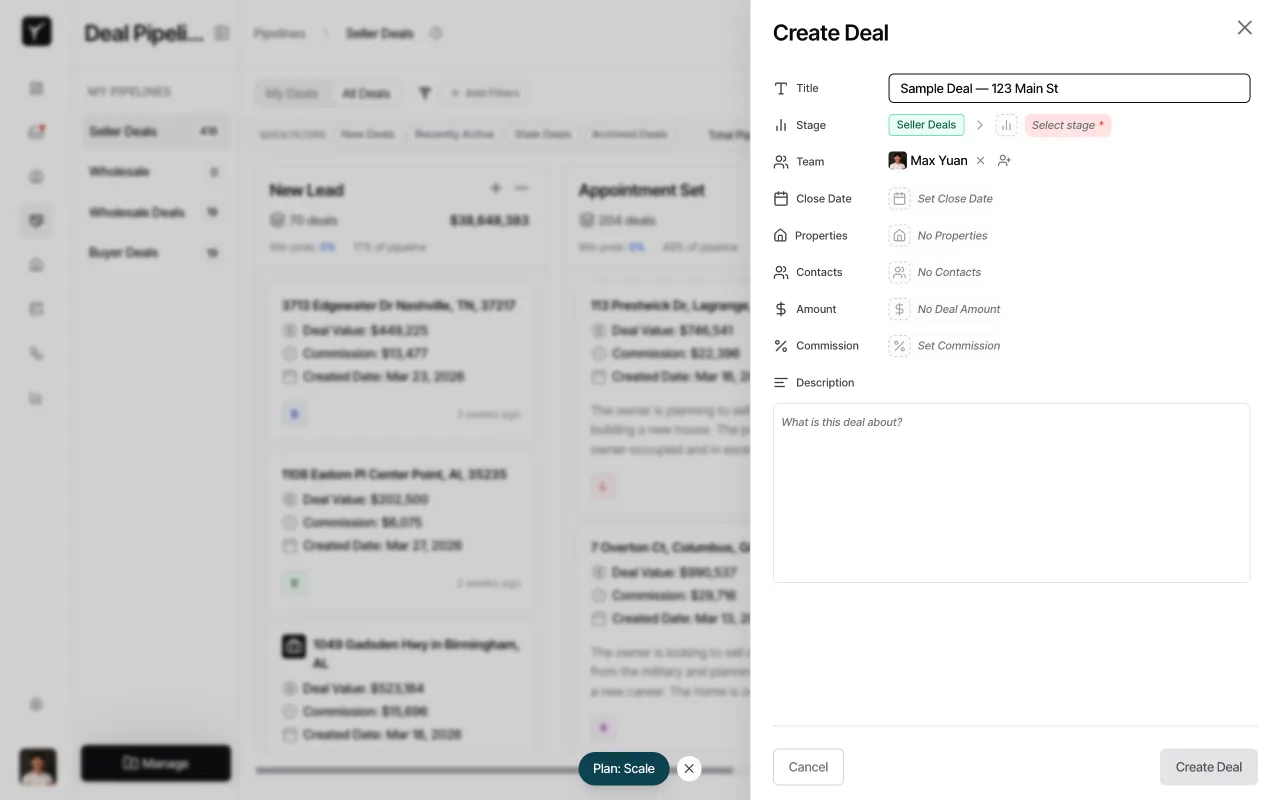
The Stage field shows the currently selected pipeline (e.g., Seller Deals). If your organization uses multiple pipelines, click the pipeline selector to choose the correct one. The deal defaults to the first stage in the selected pipeline. You can move it to a different stage later via drag-and-drop or the deal detail sheet.
-
Add the deal amount (optional)
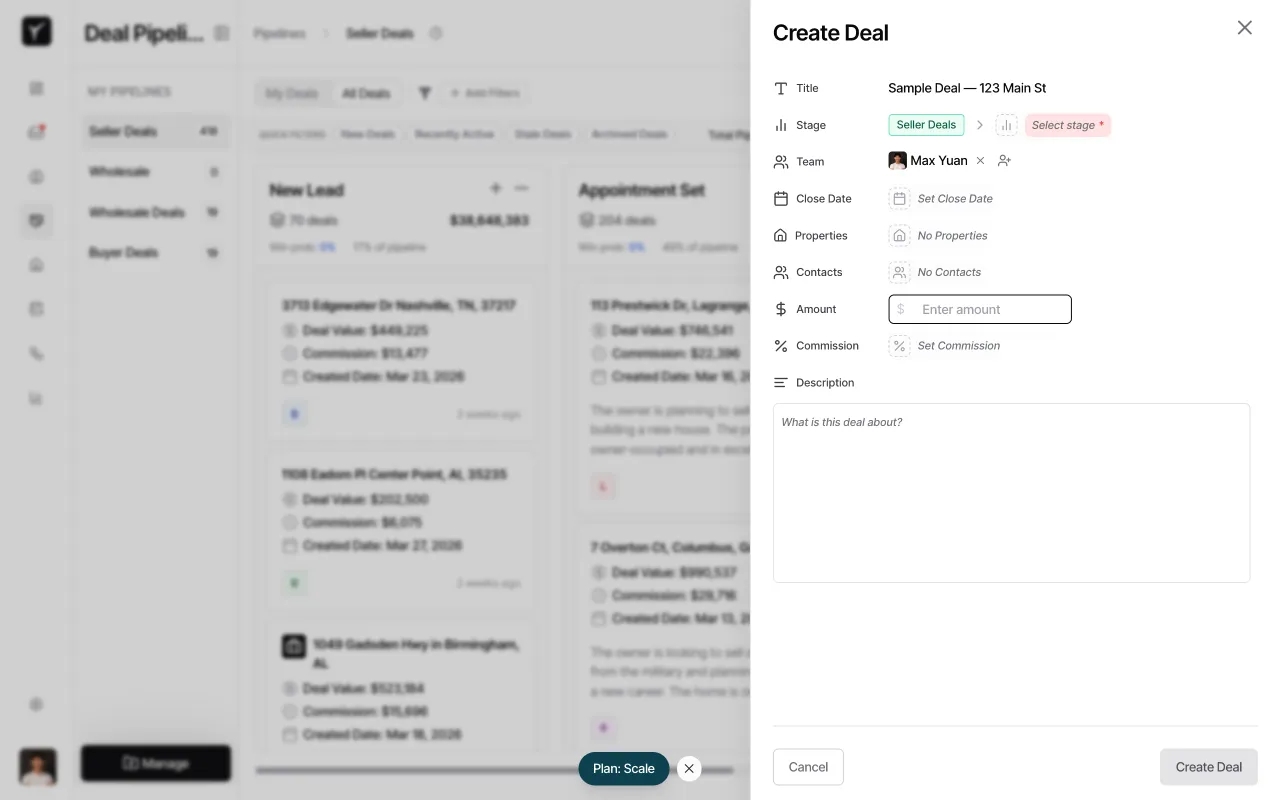
Click the Amount field and enter the estimated value of the deal. This value appears on the pipeline board and rolls up into your total pipeline metrics. You can update it as negotiations progress.
-
Set the amount and finalize
Enter the numeric value (Goliath formats it as currency automatically). Review the remaining fields—Team, Close Date, Properties, Contacts, Commission, and Description—and fill in any that are relevant. When ready, click Create Deal at the bottom-right to save.
-
Confirm the deal appears in your pipeline
The newly created deal now appears in the selected pipeline stage. You can drag it to a new stage, click it to open the detail sheet, or attach properties and contacts by editing the deal.
Frequently Asked Questions
Section titled “Frequently Asked Questions”Q: Can a deal belong to multiple pipelines?
Section titled “Q: Can a deal belong to multiple pipelines?”No. Each deal lives in exactly one pipeline. If you need to move a deal to a different pipeline (e.g., from Seller Deals to Wholesale Deals), open the deal detail sheet and change the pipeline selector there.
Q: What happens if I create a deal without linking a contact or property?
Section titled “Q: What happens if I create a deal without linking a contact or property?”The deal saves successfully, but you lose context for automated outreach and reporting. Linking a contact gives you access to email, call, and text actions directly from the deal card. Linking a property auto-populates address and valuation data. You can add both later from the deal detail sheet.
Q: Can I bulk-create deals or import them from a spreadsheet?
Section titled “Q: Can I bulk-create deals or import them from a spreadsheet?”Goliath does not have a built-in bulk import UI for deals. For mass creation, use a Zapier integration or a custom workflow that triggers deal creation based on an external event (e.g., new rows in a Google Sheet).
Q: Why can’t I see certain custom fields when creating a deal?
Section titled “Q: Why can’t I see certain custom fields when creating a deal?”Custom fields are pipeline-specific. If you select Seller Deals as your pipeline, only fields configured for that pipeline appear. Switch to a different pipeline in the Stage selector to see its fields.