
How Do I Edit a Contact?
You can edit any field on a contact record in Goliath, including name, phone numbers, email addresses, mailing address, contact type, assignment, tags, and custom fields. Changes are saved to the contact’s record and tracked in the activity timeline, so your team can see who updated what and when.
Step-by-Step Guide
Section titled “Step-by-Step Guide”-
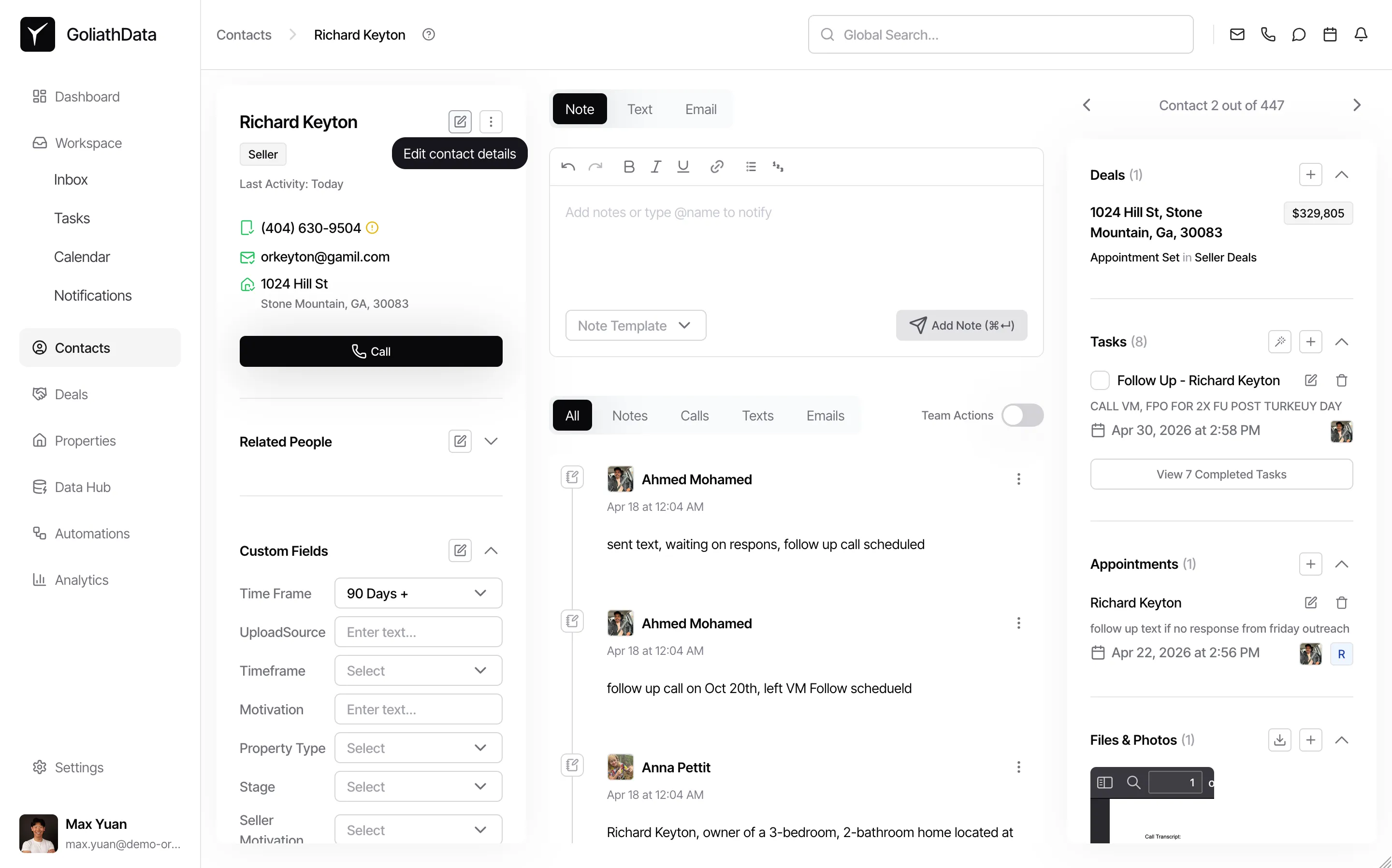
Click the Edit contact details button
On the contact detail panel, click the pencil icon next to the contact’s name at the top left. A tooltip reading Edit contact details confirms the button. This opens the All Contact Info dialog.
-
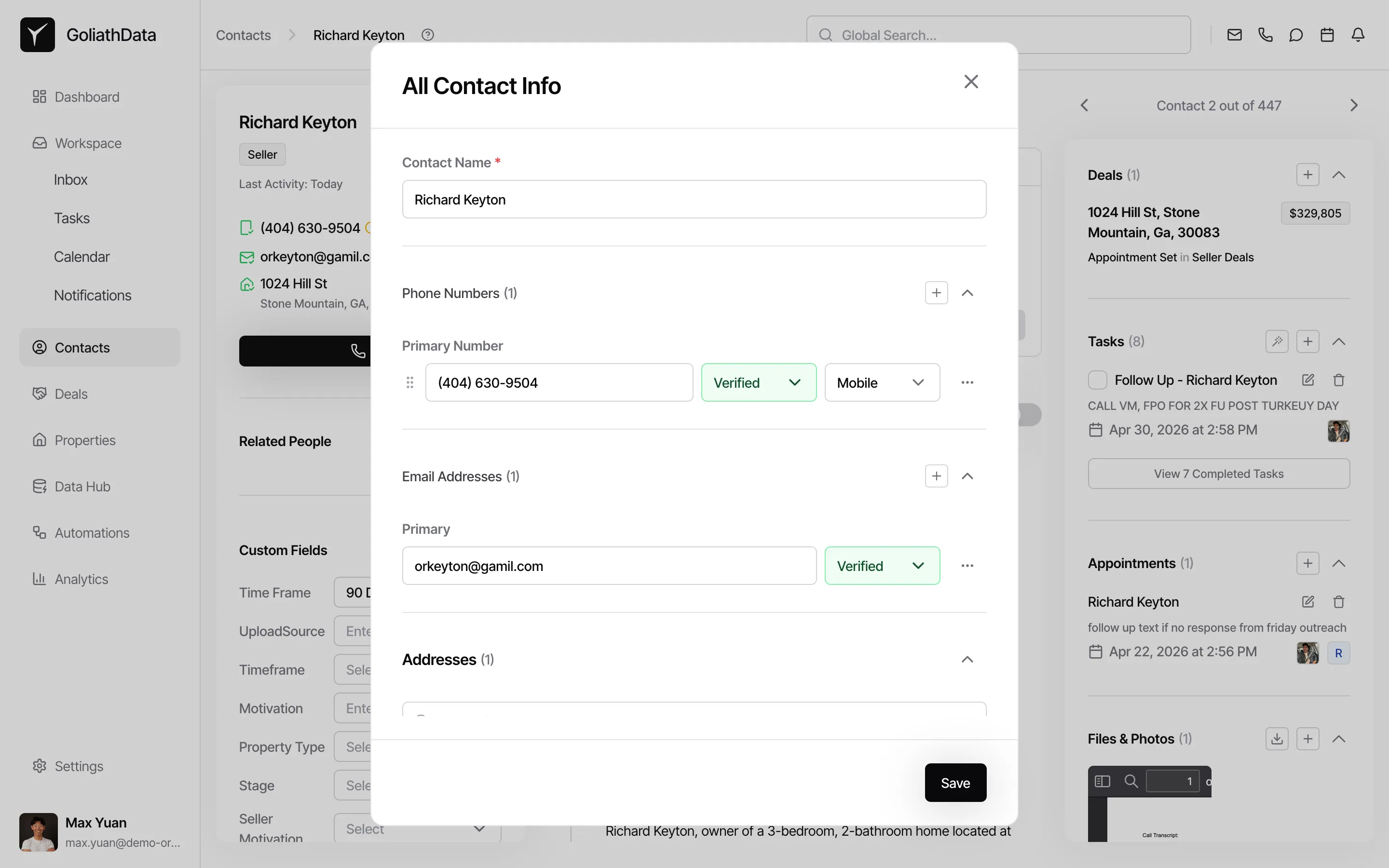
Update contact information
In the All Contact Info dialog, modify the Contact Name, add or edit Phone Numbers (with verification status and type), update Email Addresses, and change Addresses. Each phone number shows its verification status (Verified/Unverified) and type (Mobile, Home, etc.). Use the + icon next to any section to add additional entries.
-
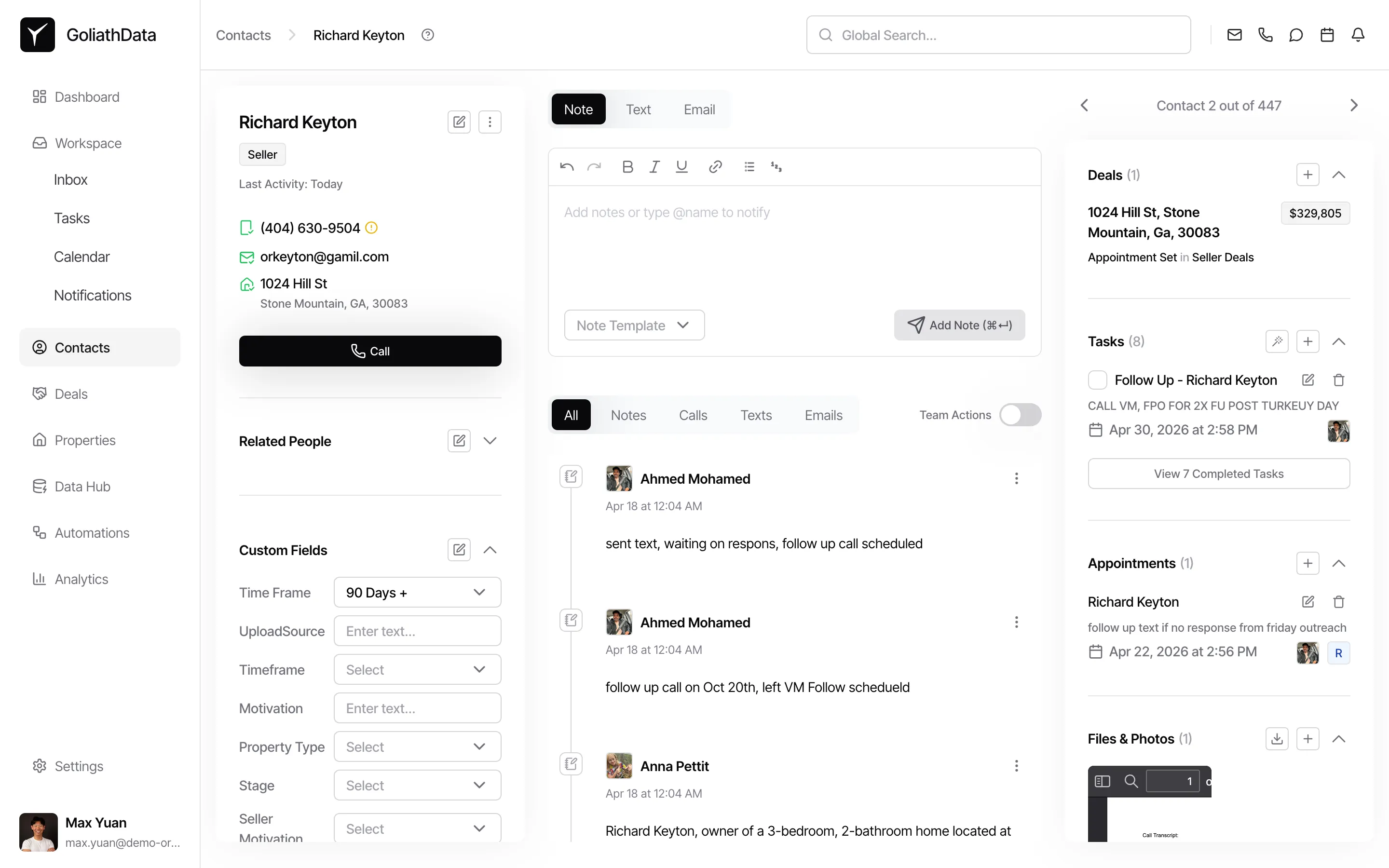
Save your changes
Click the Save button at the bottom of the dialog. Your changes are applied immediately to the contact record.
Frequently Asked Questions
Section titled “Frequently Asked Questions”Q: Can I edit custom fields for a contact?
Section titled “Q: Can I edit custom fields for a contact?”Yes. Click Edit custom fields in the contact detail panel or use the All Contact Info dialog to update any custom fields like Time Frame, Motivation, Property Type, Stage, and others specific to your workflow.
Q: What happens if I don’t click Save?
Section titled “Q: What happens if I don’t click Save?”If you close the dialog or click Cancel without clicking Save, all your changes will be discarded and the contact record will remain unchanged.
Q: Can I see who edited a contact and when?
Section titled “Q: Can I see who edited a contact and when?”Yes. All edits are logged in the contact’s activity timeline under the Team Actions toggle. You can view the history of changes, including who made them and when.
Q: Can I add additional phone numbers or emails?
Section titled “Q: Can I add additional phone numbers or emails?”Yes. In the All Contact Info dialog, click the + icon next to Phone Numbers or Email Addresses to add more entries. Each phone number can be labeled (e.g., Mobile, Home) and marked as verified or unverified.