
Viewing Deal Details
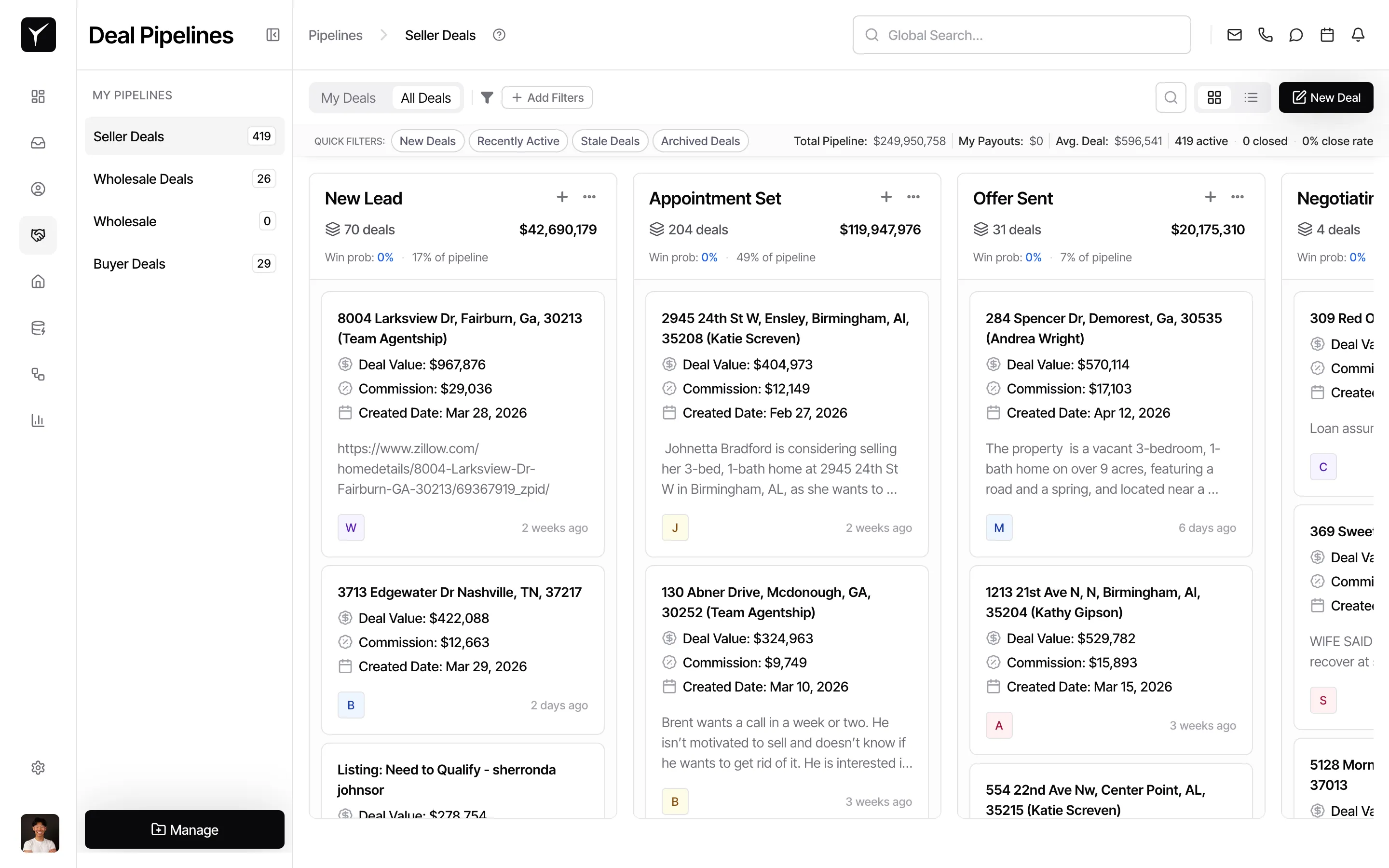
The deal detail sheet is a slide-out panel that consolidates everything about a single deal in one place. It opens when you click any deal card in the pipeline, letting you review and edit deal information, contact details, linked properties, and activity history without leaving the Kanban board. This makes it ideal for quick reviews, team handoffs, and weekly check-ins.
Step-by-Step Guide
Section titled “Step-by-Step Guide”-
Open a deal card
Click any deal card in the pipeline. The detail sheet slides in from the right side of the screen.
-
Review deal details
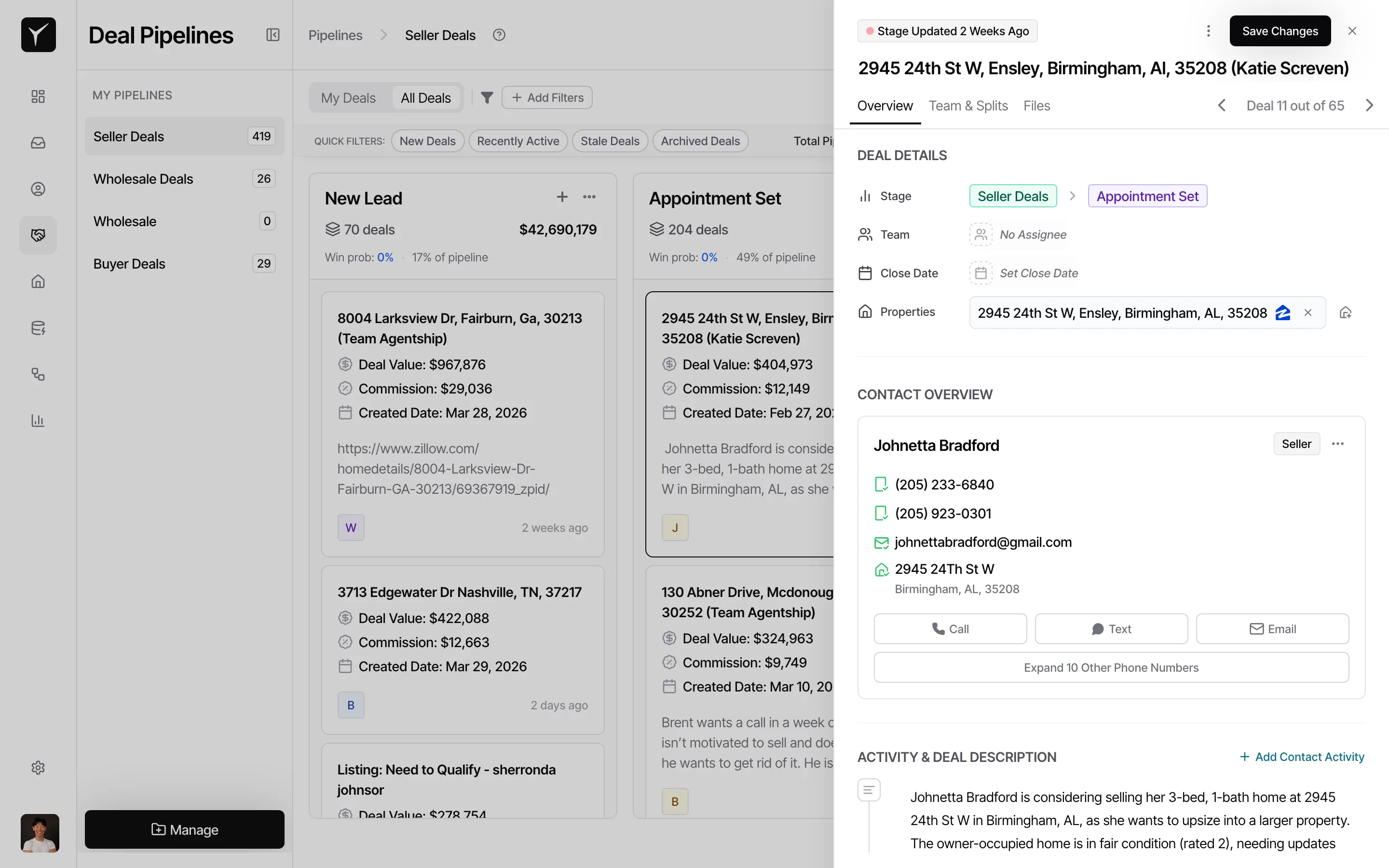
The top section shows DEAL DETAILS, including the current Stage, assigned Team member, Close Date, and linked Properties. Click the Stage dropdown to move the deal to a different stage. Click No Assignee to assign a team member. Most fields save automatically when edited.
-
View contact info, notes, and activity
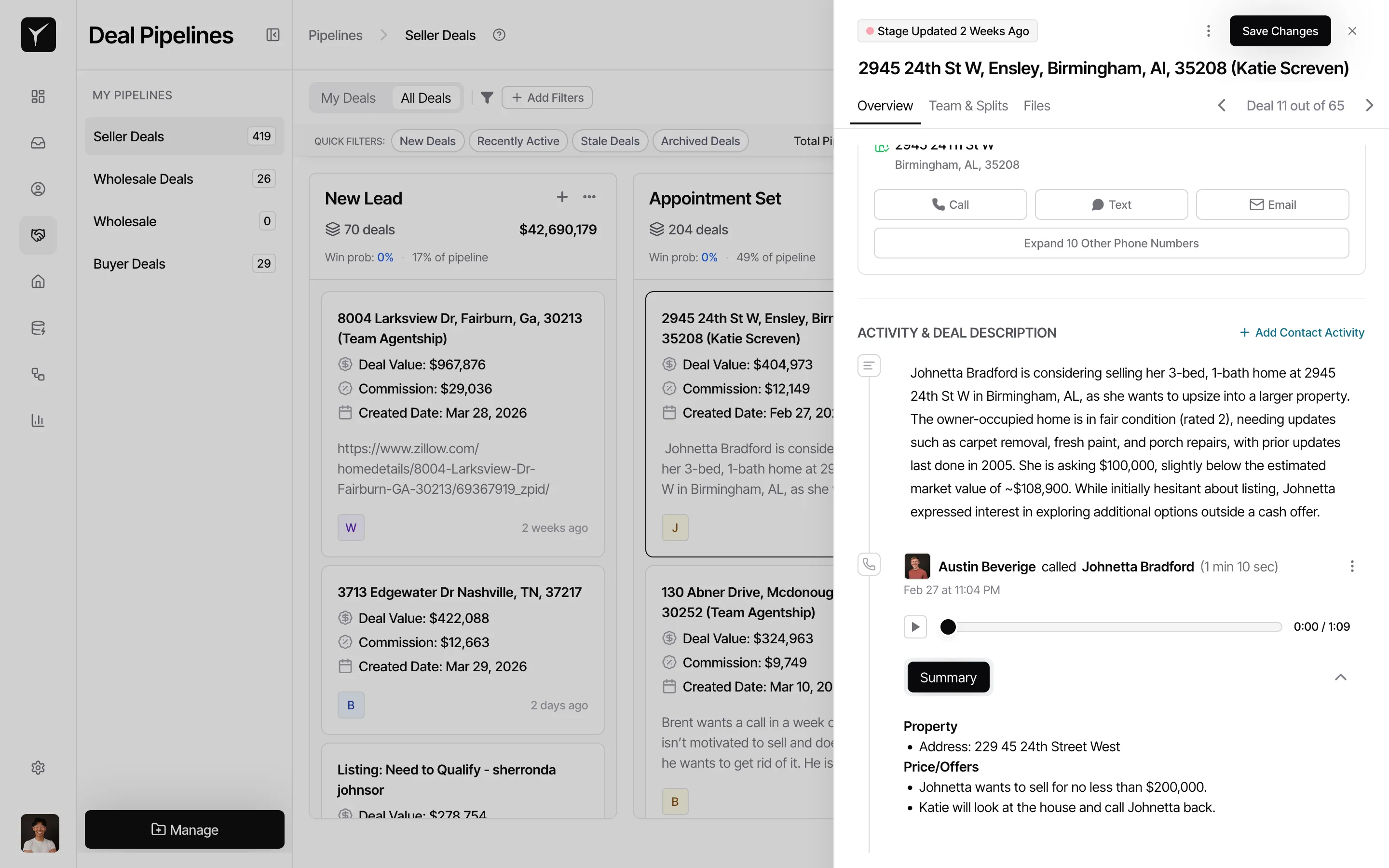
Scroll down to see the CONTACT OVERVIEW section — showing the primary contact’s role, phone, email, and address with quick Call, Text, and Email buttons. Below that, the ACTIVITY & DEAL DESCRIPTION section logs every stage move, note, task, call, and email. Click + Add Contact Activity to record a new interaction.
-
Review team assignments and commission splits
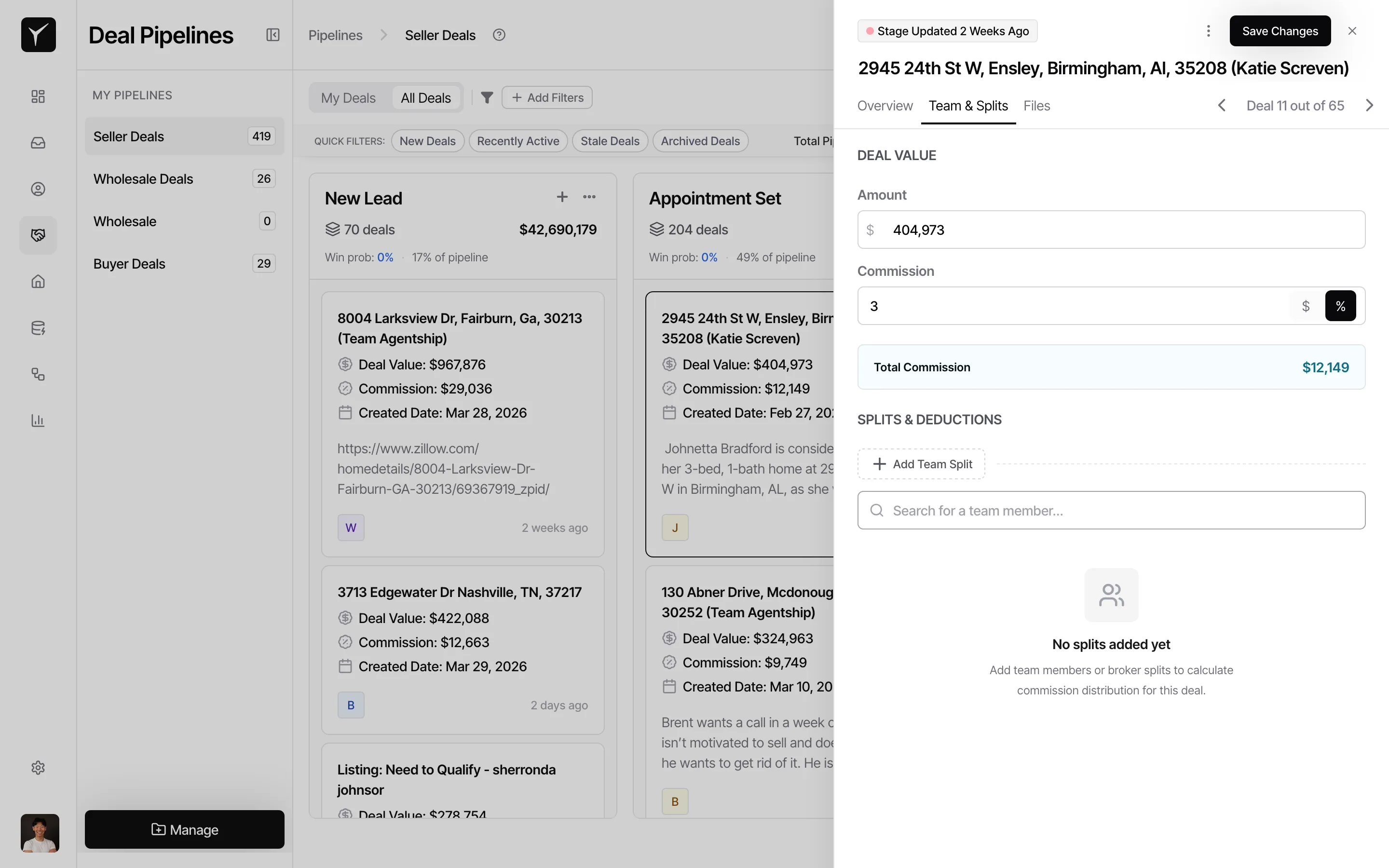
Click the Team & Splits tab at the top of the detail sheet to manage team member assignments and configure commission splits for the deal.
-
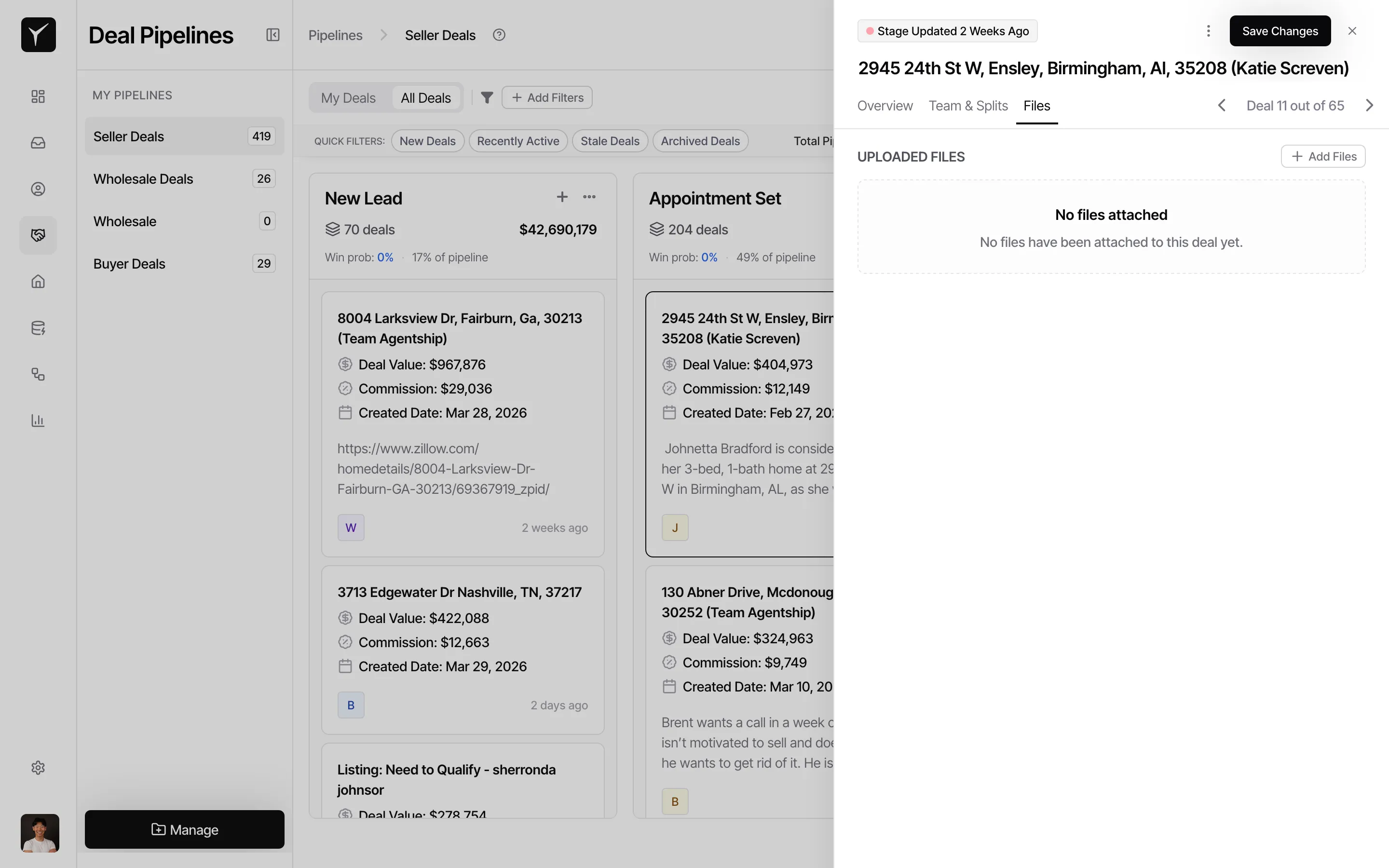
Upload and manage files
Click the Files tab to upload documents, contracts, or any attachments associated with the deal.
Frequently Asked Questions
Section titled “Frequently Asked Questions”Q: Can I edit the deal stage from the detail sheet?
Section titled “Q: Can I edit the deal stage from the detail sheet?”Yes. Click the Stage dropdown in the DEAL DETAILS section and select a new stage. This updates the deal’s position on the Kanban board immediately.
Q: How do I add a property to a deal?
Section titled “Q: How do I add a property to a deal?”Click the Add property button in the Properties field. You can search for an existing property in Goliath or add a new one.
Q: What appears in the activity timeline?
Section titled “Q: What appears in the activity timeline?”Every stage move, note, task, call, email, and contact activity is logged with a timestamp and the user who performed the action. This creates a complete audit trail for the deal.
Q: Can I remove a contact from a deal?
Section titled “Q: Can I remove a contact from a deal?”Yes. Use the contact actions menu (three dots) next to the contact name in the CONTACT OVERVIEW section to manage or remove contacts.