
How Do I Tag Properties?
Tags are lightweight labels you can apply to properties to categorize them beyond Goliath’s built-in fields. Use tags to mark properties for follow-up (e.g., “Hot Lead”, “Drive-By Scheduled”), track condition (“Needs Rehab”), or segment by campaign (“Q3 Direct Mail”). A property can have multiple tags, and you can filter properties by tag or use tags in automation workflows.
Step-by-Step Guide
Section titled “Step-by-Step Guide”-
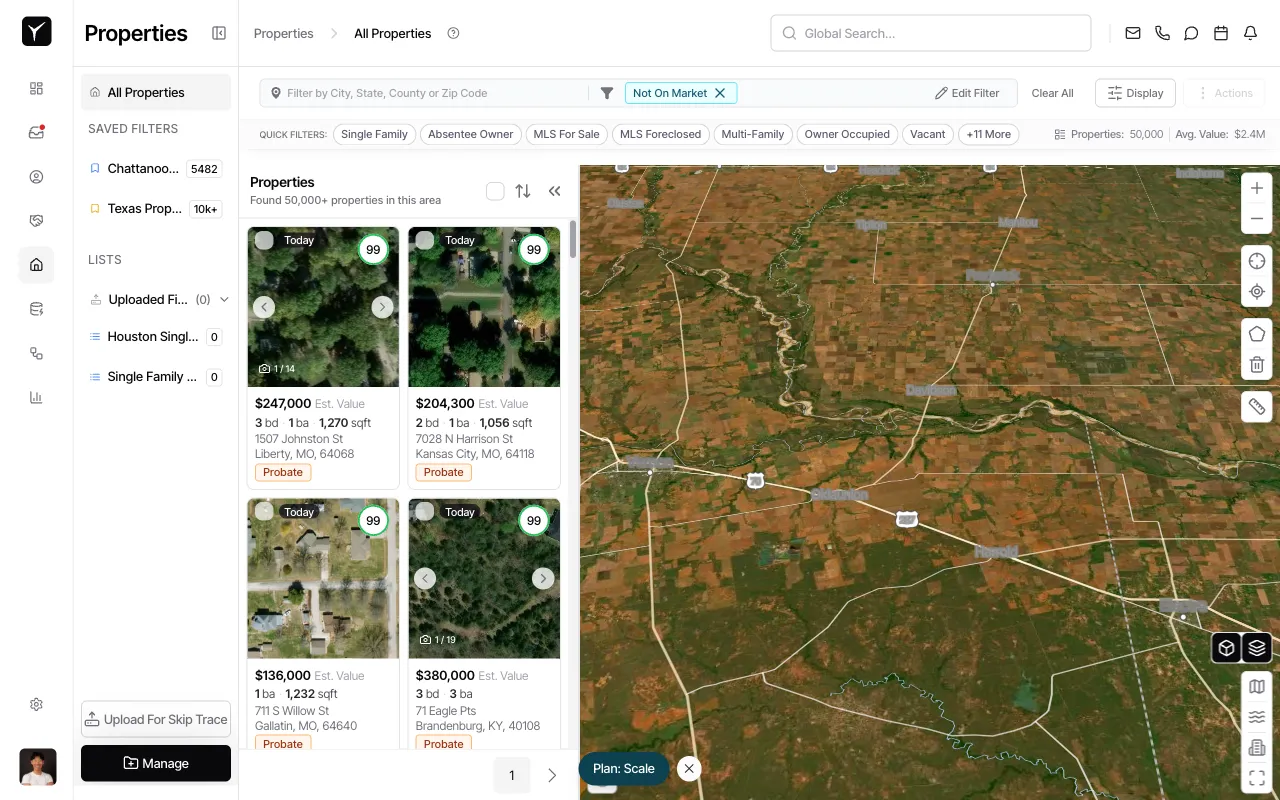
Open the property detail page
From the property list, click on any property card to open its detail page. The Overview section on the right displays property details, owner information, and tracking controls.
-
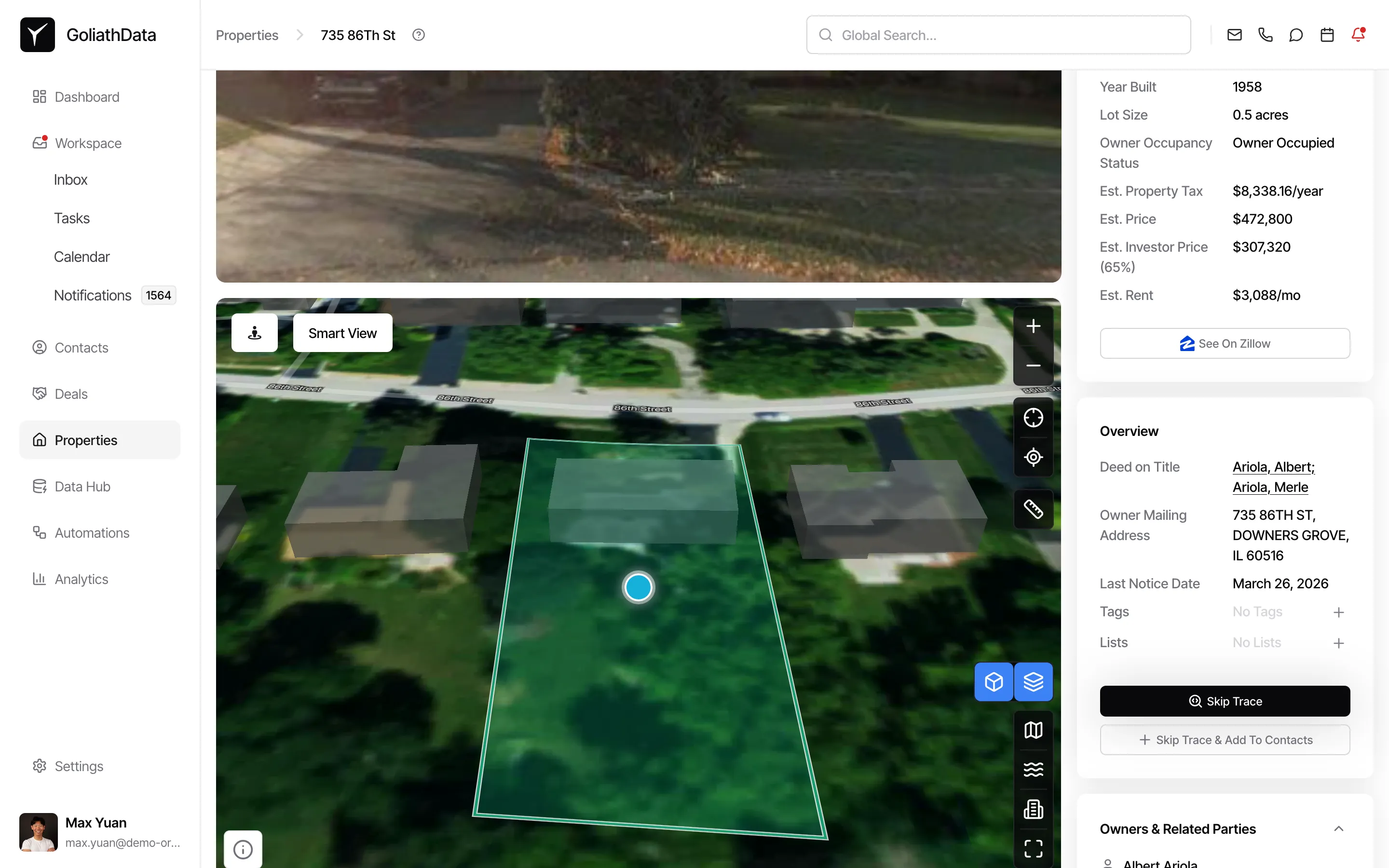
Click the ”+” button in the Tags section
Scroll to the Tags section in the right sidebar of the property detail page. If no tags are applied, you’ll see “No Tags” displayed. Click the + button to open the tag picker dialog.
-
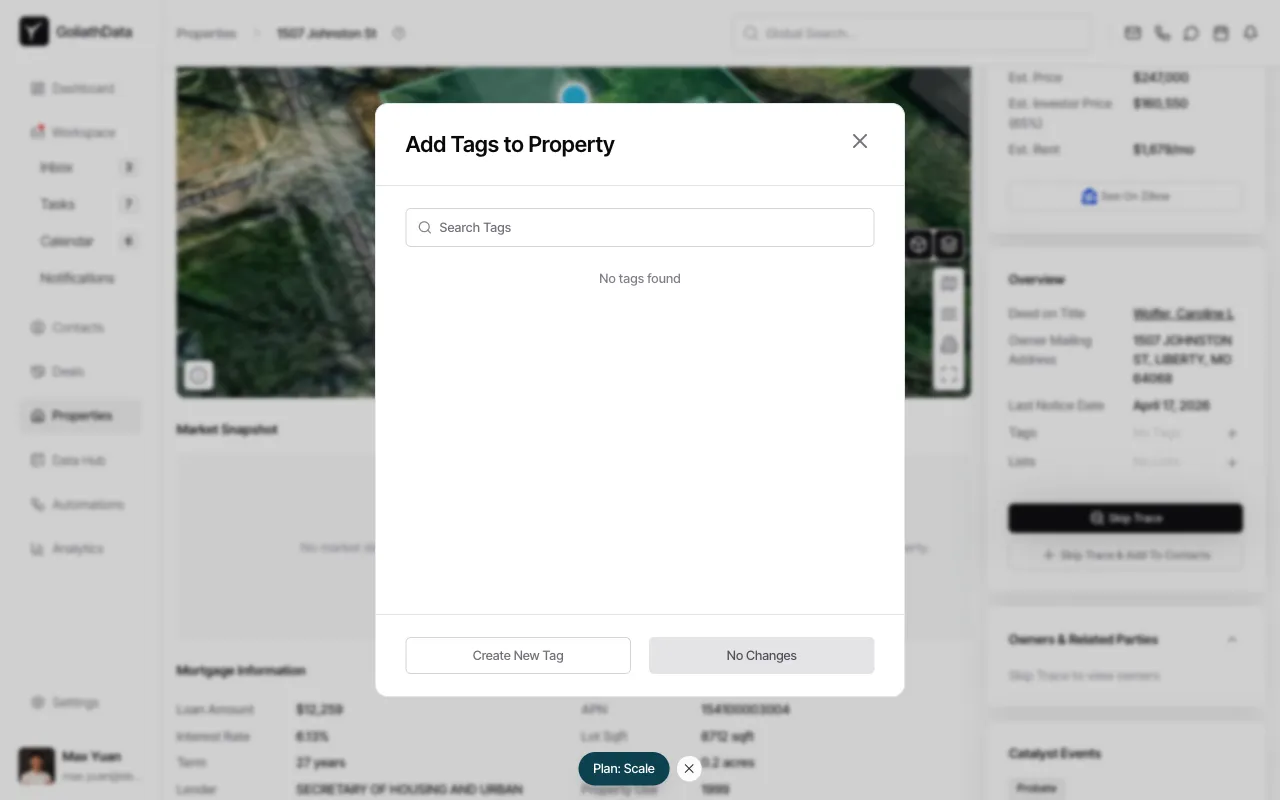
Search or create a tag
The Add Tags to Property dialog appears with a search field. Start typing to filter existing tags from your organization. If the tag you need doesn’t exist, click Create New Tag to add a new label. Select one or more tags, then click outside the dialog or press No Changes to close without saving, or confirm your selection to apply the tags to the property.
Frequently Asked Questions
Section titled “Frequently Asked Questions”Q: What’s the difference between tags and lists?
Section titled “Q: What’s the difference between tags and lists?”Tags are attributes you apply to individual properties from the detail page — think of them as labels. A property can have many tags at once. Lists are curated groups of properties you add from the bulk Actions menu on the property list page. Use tags for cross-cutting attributes, and lists for specific campaigns or workflows.
Q: Can I create new tags on the fly?
Section titled “Q: Can I create new tags on the fly?”Yes. Any team member can create a new tag by typing a label in the Search Tags field and clicking Create New Tag. Once created, the tag is available to everyone in your organization.
Q: How do I find all properties with a specific tag?
Section titled “Q: How do I find all properties with a specific tag?”From the property list page, click Edit Filter and add a tag filter under the Lists & Tracking section. Select the tag(s) you want to filter by, then apply the filter to see matching properties.