
Smart Property Filter Ideas
Goliath’s filter system becomes most powerful when you combine multiple criteria to surface specific investment opportunities. By stacking filters from Property Basics, Ownership & Occupancy, and Signals & Motivation, you can identify off-market deals, distressed properties, and motivated sellers that fit your acquisition strategy. This guide demonstrates a proven filter combination for finding out-of-state single-family properties with significant equity.
Step-by-Step Guide
Section titled “Step-by-Step Guide”-
Open the filter panel
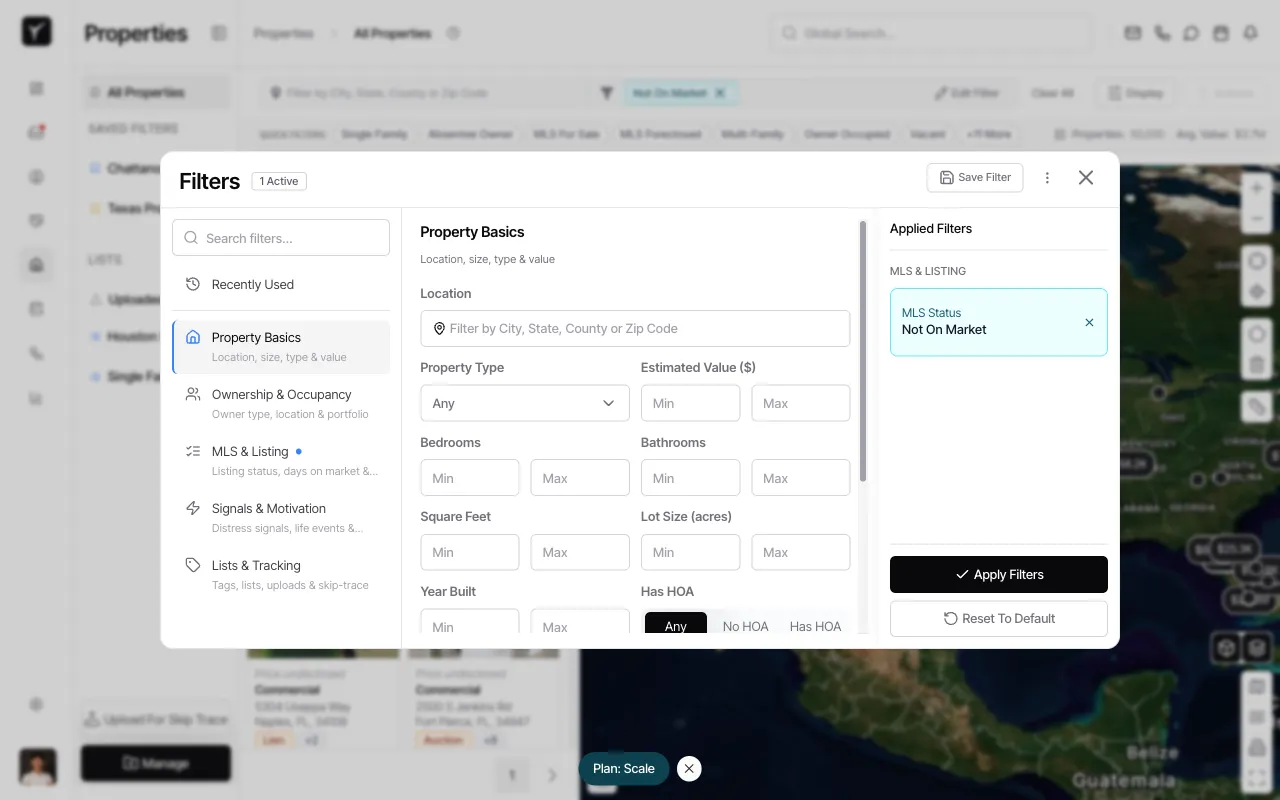
Start from the All Properties view and click the Edit Filter button to open the filters panel. You’ll see filter categories on the left and an Applied Filters summary on the right.
-
Navigate to Property Basics
Click Property Basics in the left sidebar to access location, size, and property type filters. This category controls the fundamental characteristics of the properties you’re targeting.
-
Expand the Property Type dropdown
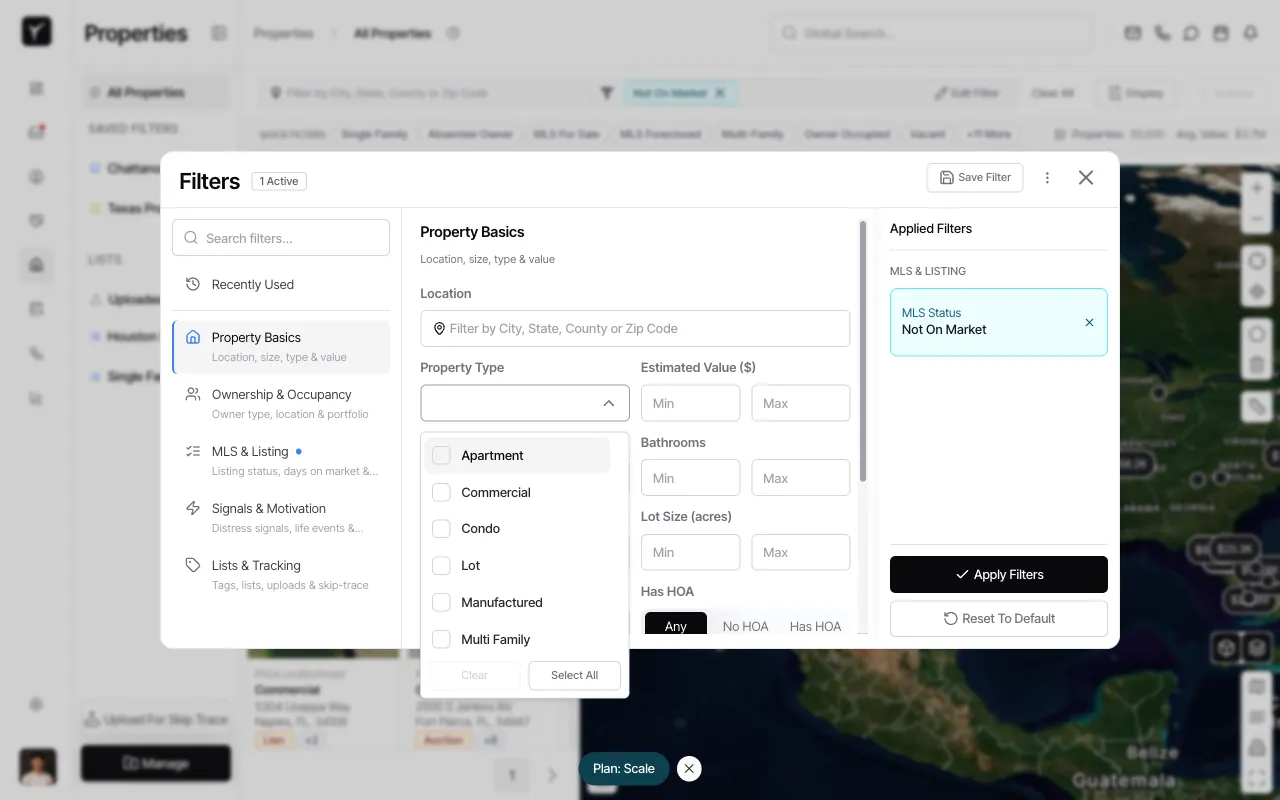
Click the Property Type dropdown to view all available property types. Goliath shows options including Apartment, Commercial, Condo, Lot, Manufactured, Multi Family, Single Family, and Townhouse.
-
Select Single Family
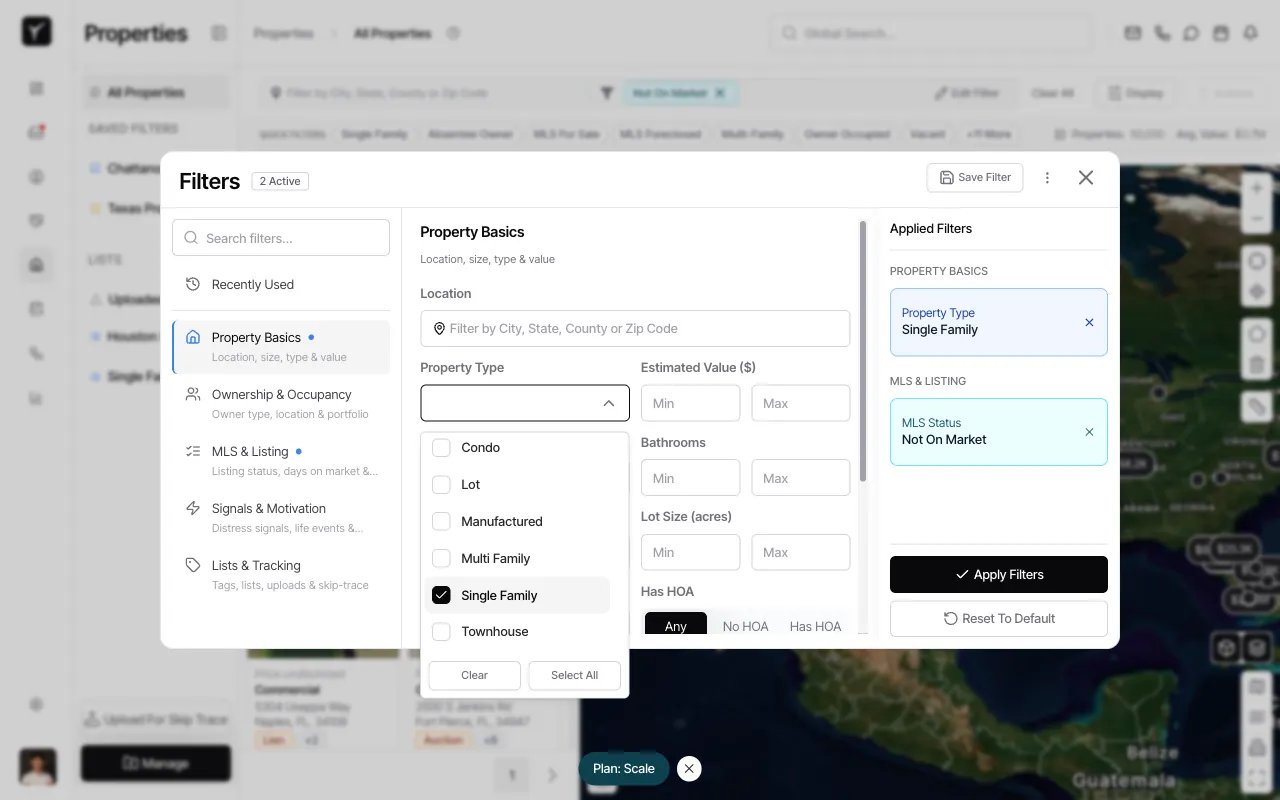
Check the Single Family option to narrow results to single-family residences. The filter counter at the top will update to show 2 Active filters, and the Applied Filters panel will reflect your selection under PROPERTY BASICS.
-
Switch to Ownership & Occupancy
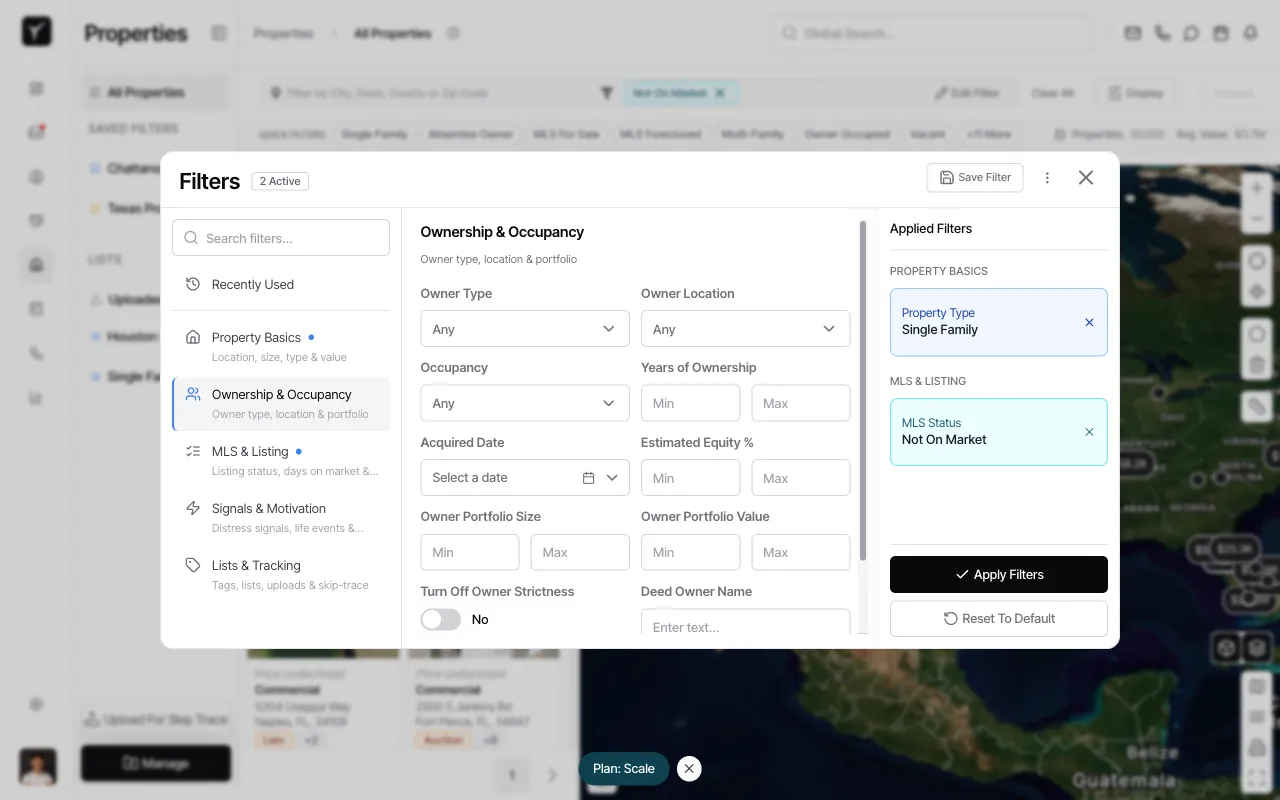
Click Ownership & Occupancy in the left sidebar to access owner-specific filters. This category includes owner location, equity, portfolio size, and occupancy status—key indicators for finding motivated sellers.
-
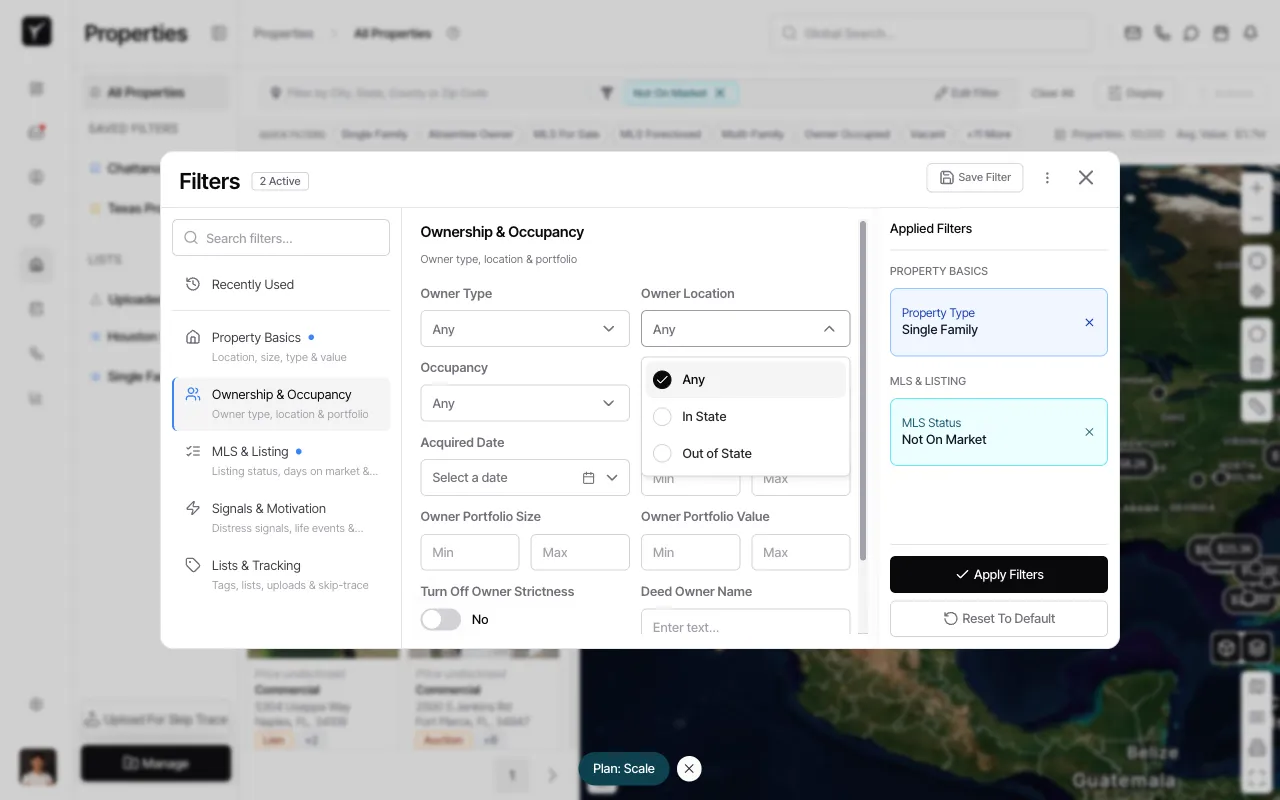
Open the Owner Location dropdown
Click the Owner Location dropdown to reveal location options: Any, In State, or Out of State. Out-of-state owners are often absentee landlords or inherited property holders who may be more motivated to sell.
-
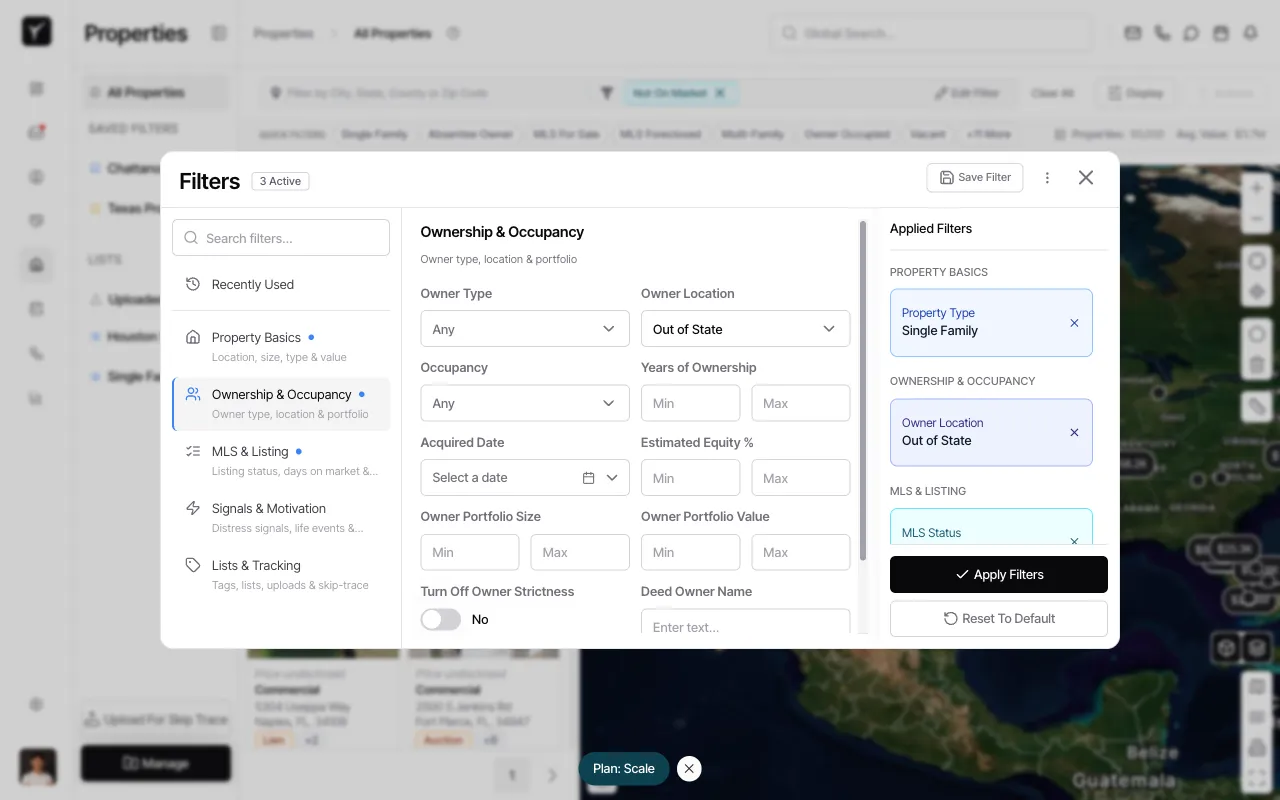
Select Out of State
Choose Out of State to filter for properties where the owner’s mailing address is outside the property’s state. The Applied Filters panel now shows 3 Active filters including Owner Location: Out of State under OWNERSHIP & OCCUPANCY.
-
Set a minimum Estimated Equity %
Scroll down to the Estimated Equity % field and enter a minimum value (e.g.,
25) to target properties with at least 25% equity. High-equity owners have more flexibility to negotiate and accept creative financing. Click Apply Filters when ready. -
Review your results
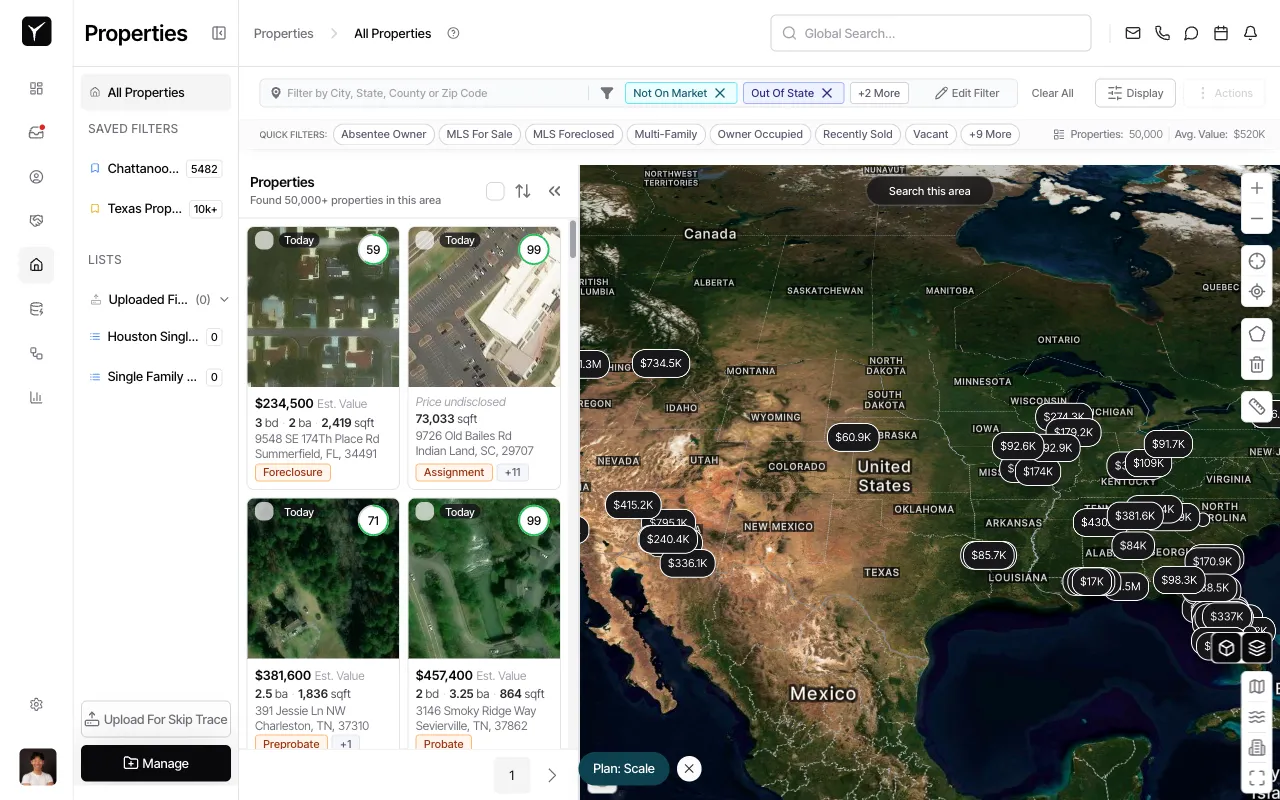
Goliath displays properties matching all three criteria: single-family homes with out-of-state owners and significant equity. The map clusters results geographically, and the list view shows property details. Notice the filter pills at the top (Not On Market, Out Of State, +2 More) confirming your active filters.
Frequently Asked Questions
Section titled “Frequently Asked Questions”Q: What other filter combinations work well for off-market deals?
Section titled “Q: What other filter combinations work well for off-market deals?”Try Tax Delinquent + High Equity (30%+) to find distressed owners with financial pressure but enough equity to transact. Or use Absentee Owner + Long Ownership Tenure to target out-of-area landlords who’ve held properties for 10+ years.
Q: Why do my filter results sometimes return empty or very small counts?
Section titled “Q: Why do my filter results sometimes return empty or very small counts?”In demo or regional datasets, certain filter combinations may have limited matches. The filter logic itself is still valid—adjust your geographic search area or loosen one criterion (e.g., reduce minimum equity) to expand results.
Q: Can I combine MLS filters with ownership filters?
Section titled “Q: Can I combine MLS filters with ownership filters?”Yes. Layer MLS Status: Not On Market with ownership and equity filters to focus exclusively on off-market properties. You can also stack MLS For Sale or Recently Sold to analyze active listings or recent comps within your target criteria.
Q: How do I share a saved filter with my team?
Section titled “Q: How do I share a saved filter with my team?”After clicking Save Filter, choose the option to save as a Team Filter (if available in your plan). Team filters appear in the SAVED FILTERS sidebar for all team members, ensuring consistent sourcing criteria across your acquisitions workflow.