
How Do I Archive a Contact?
Archiving a contact removes it from your default contact views without deleting any data. All activity history, linked properties and deals, enriched data, notes, and communication logs are preserved in full. Use archiving to hide stale leads, contacts who requested no further outreach, or duplicates pending review.
Step-by-Step Guide
Section titled “Step-by-Step Guide”Goliath offers two ways to archive contacts: bulk archiving from the contacts list, or archiving a single contact from the contact detail page.
Method 1: Bulk Archive from the Contacts List
Section titled “Method 1: Bulk Archive from the Contacts List”Use this method to archive multiple contacts at once — ideal for cleaning up after a campaign, removing a stale list segment, or bulk-archiving cold leads.
-
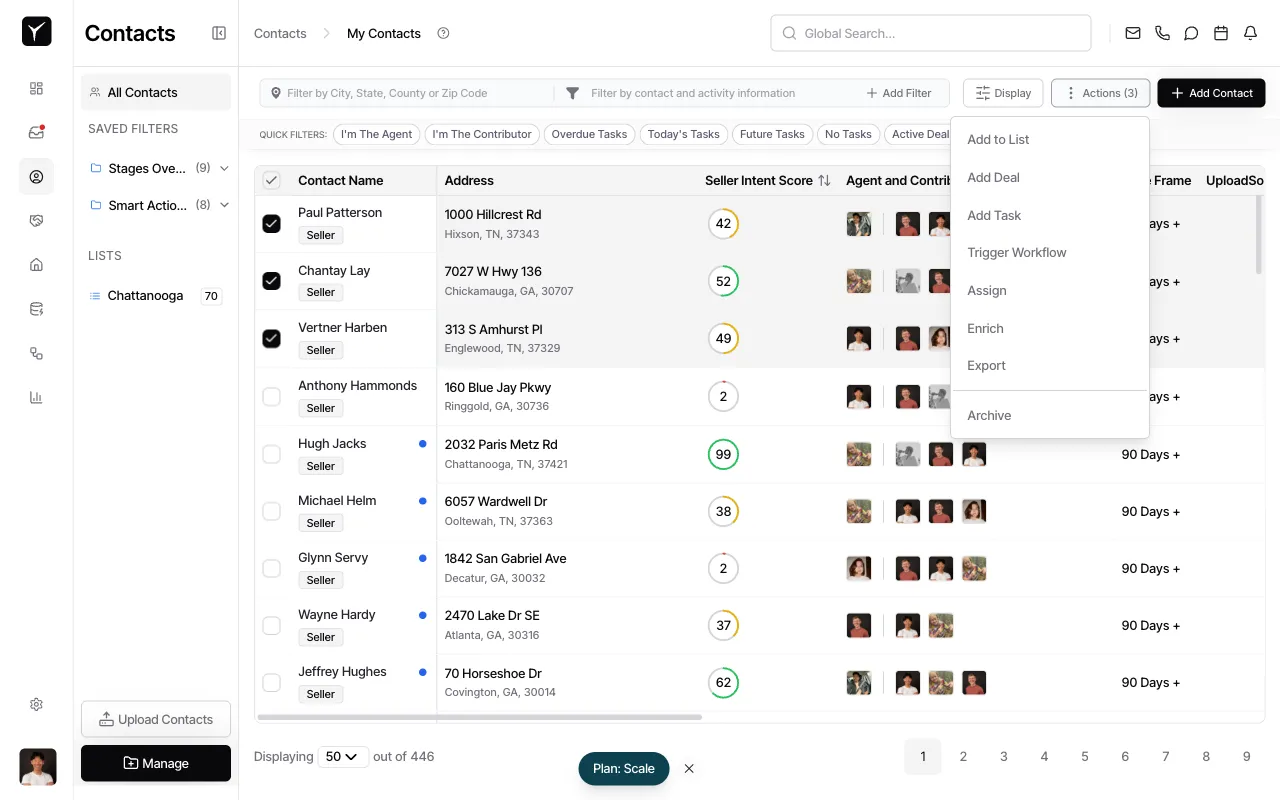
Select contacts to archive
Check the checkbox next to each contact you want to archive. You can select one or many at once.
-
Open Actions and click Archive
Click the Actions button in the toolbar, then select Archive. All selected contacts will be archived immediately and removed from the default contact list view.
Method 2: Archive from the Contact Detail Page
Section titled “Method 2: Archive from the Contact Detail Page”Use this method to archive a single contact during a review or after a conversation that confirms they are not a fit.
-
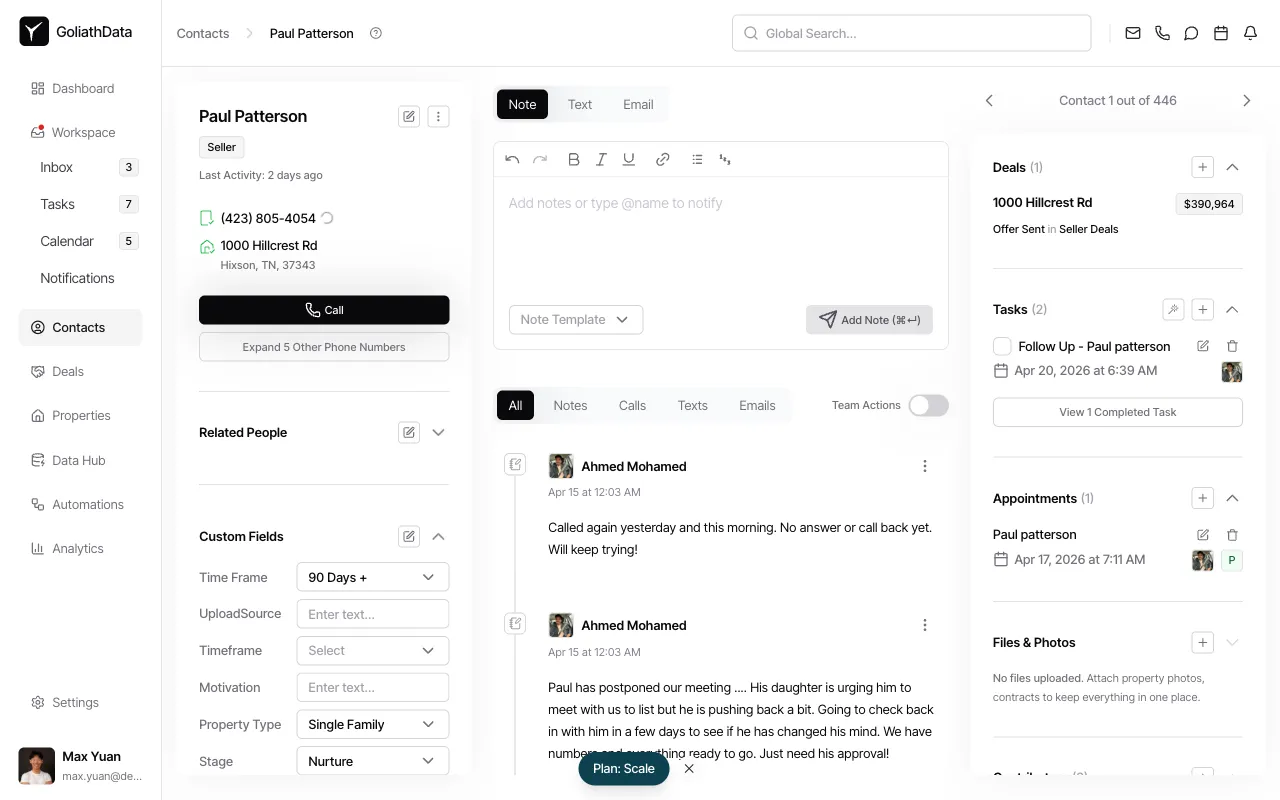
Open the contact detail page
Click a contact name from the contacts list to open the contact detail panel.
-
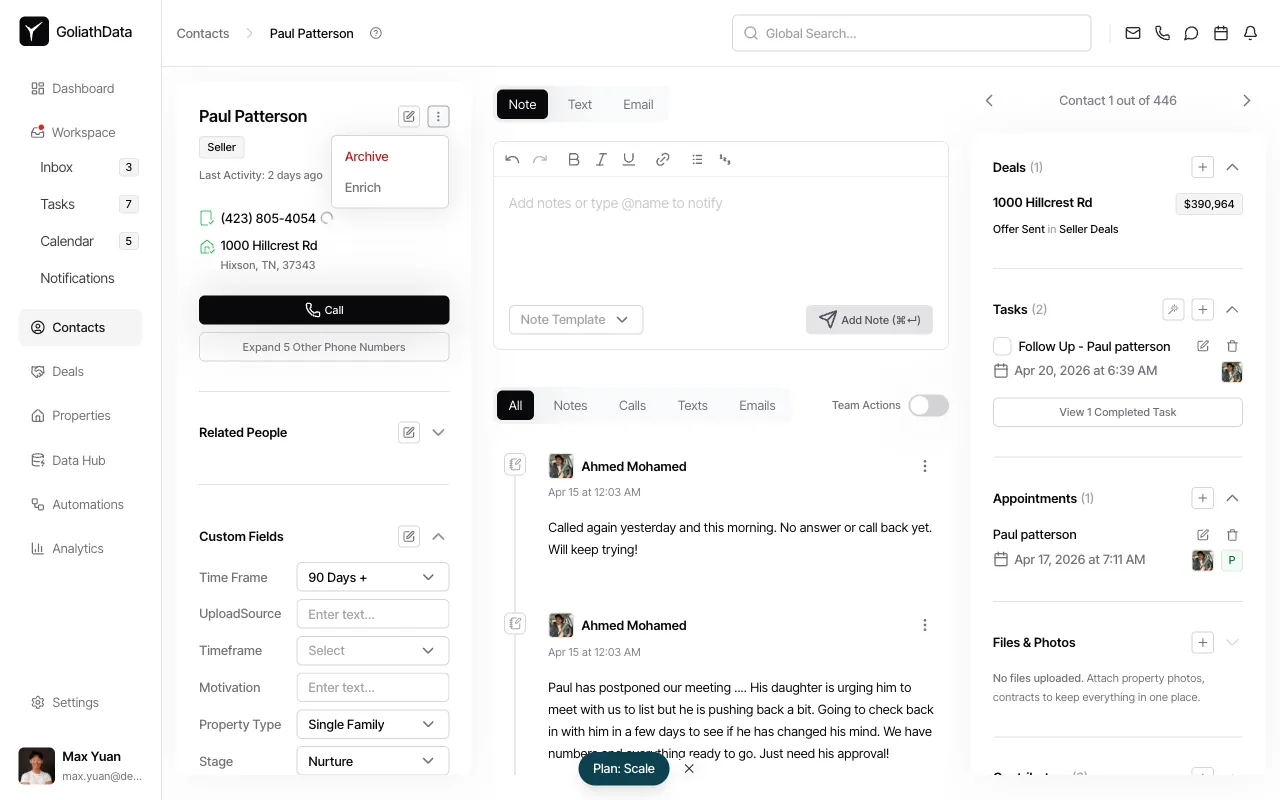
Open the contact menu
At the top of the contact detail panel, next to the contact name, click the three-dot menu icon (to the right of the edit icon).
-
Select Archive
From the dropdown menu, click Archive. The contact will be archived immediately and removed from the default contact list view.
Frequently Asked Questions
Section titled “Frequently Asked Questions”Q: Does archiving delete any contact data?
Section titled “Q: Does archiving delete any contact data?”No. Archiving is a soft-delete that hides the contact from default views. All activity history, linked properties and deals, enriched data, notes, and communication logs are preserved in full.
Q: Can I search for archived contacts?
Section titled “Q: Can I search for archived contacts?”Yes. Use the contact list filters to include archived contacts in your view. You can then search, sort, and review archived contacts as needed.
Q: How do I restore an archived contact?
Section titled “Q: How do I restore an archived contact?”Open the archived contact from the contact detail panel and click Unarchive, or use the contact list filters to show archived contacts, select them, and choose Actions → Unarchive.
Q: What is the difference between archiving and deleting?
Section titled “Q: What is the difference between archiving and deleting?”Archiving is reversible and non-destructive — it only hides the contact from default views. Deleting is permanent and typically reserved for spam or test data.