
How Do I Invite a Team Member?
Inviting a team member allows you to grant colleagues access to Goliath so they can collaborate on deals, manage contacts, and execute outreach campaigns. Only organization admins can send invitations. Once an invitee accepts, they’ll create their account and appear in your team list as an active user.
Step-by-Step Guide
Section titled “Step-by-Step Guide”-
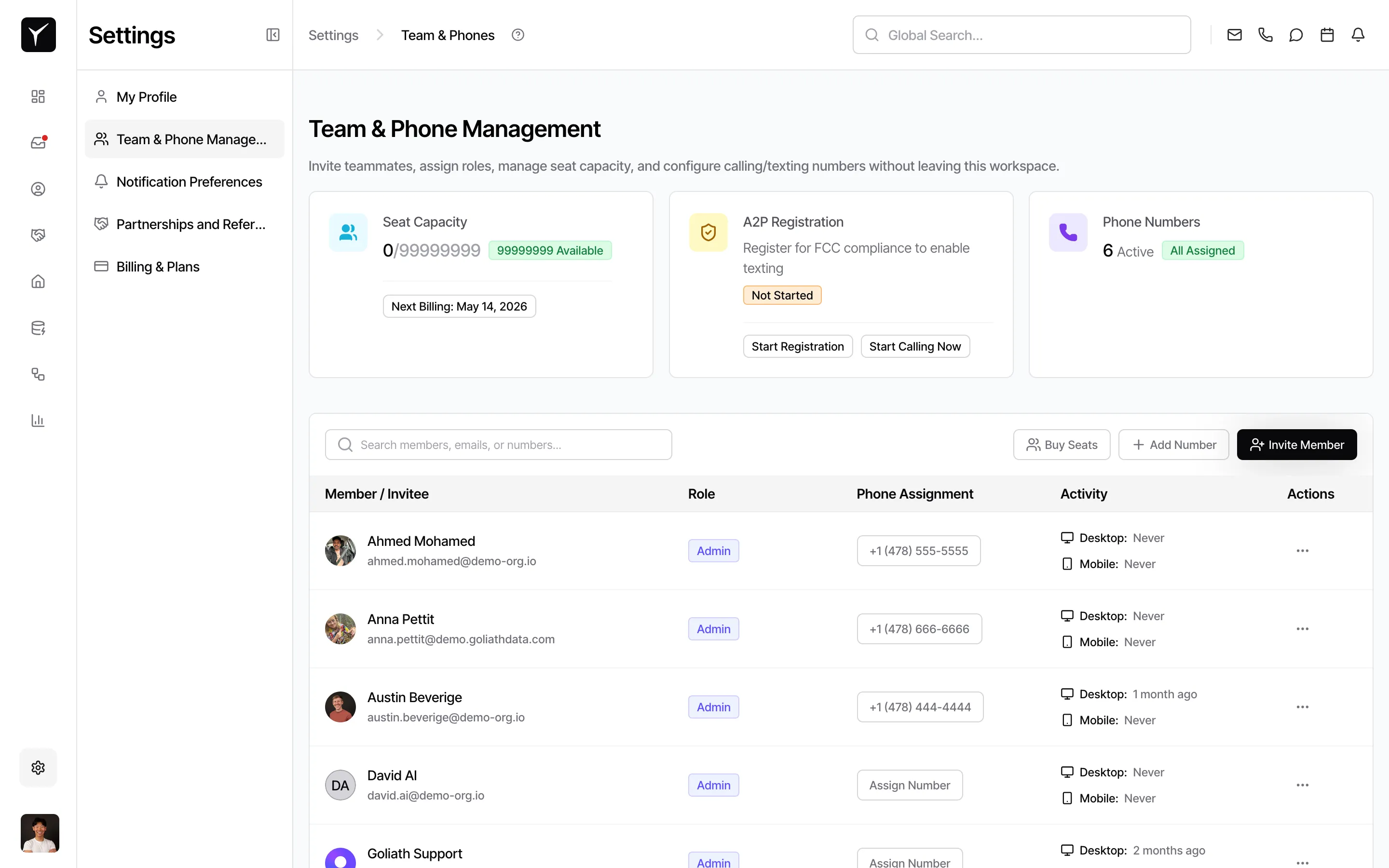
Navigate to Team & Phone Management
Open the Settings menu from the left sidebar and select Team & Phone Numbers.
-
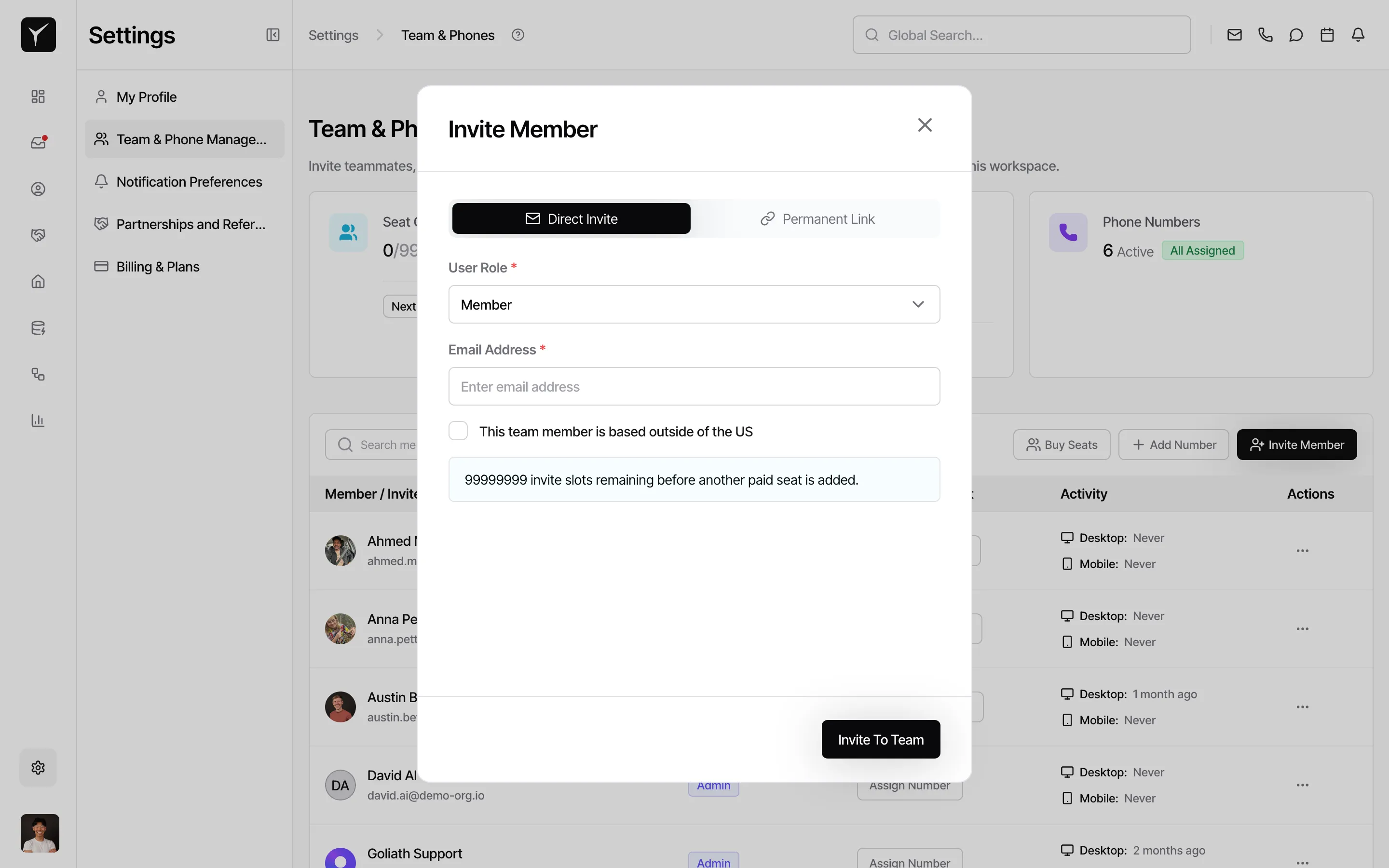
Fill out and send the invitation
Click Invite Member in the top-right corner. Enter the invitee’s email address and select a role — Admin (can manage billing, users, and settings) or Member (full access to contacts, deals, and outreach). Click Send Invite. The invite will appear as “Pending” in your Team list until accepted.
Frequently Asked Questions
Section titled “Frequently Asked Questions”Q: Is there a cost to add a team member?
Section titled “Q: Is there a cost to add a team member?”Most Goliath plans charge per user seat. Check your Billing & Plans page to see how adding a team member will affect your subscription.
Q: Can I change a member’s role later?
Section titled “Q: Can I change a member’s role later?”Yes. Admins can promote a Member to Admin or demote an Admin to Member from the Team & Phone Numbers list.
Q: What if the invite email never arrives?
Section titled “Q: What if the invite email never arrives?”Ask the recipient to check their spam folder. You can also resend the invite from the Pending Invites section in the Team list, or verify that the email address was entered correctly.
Q: Can I have multiple admins?
Section titled “Q: Can I have multiple admins?”Yes. We recommend having at least two admins to ensure someone always has administrative access to your organization.