
How Do I Customize Table Columns?
Customize your property table to show only the data you need. Each team member’s column layout is personal and persistent across devices, so you can configure the perfect view for acquisitions, dispositions, or analysis. Toggled-off columns are also excluded from CSV and XLSX exports, giving you precise control over your data output.
Step-by-Step Guide
Section titled “Step-by-Step Guide”-
Open the Display menu
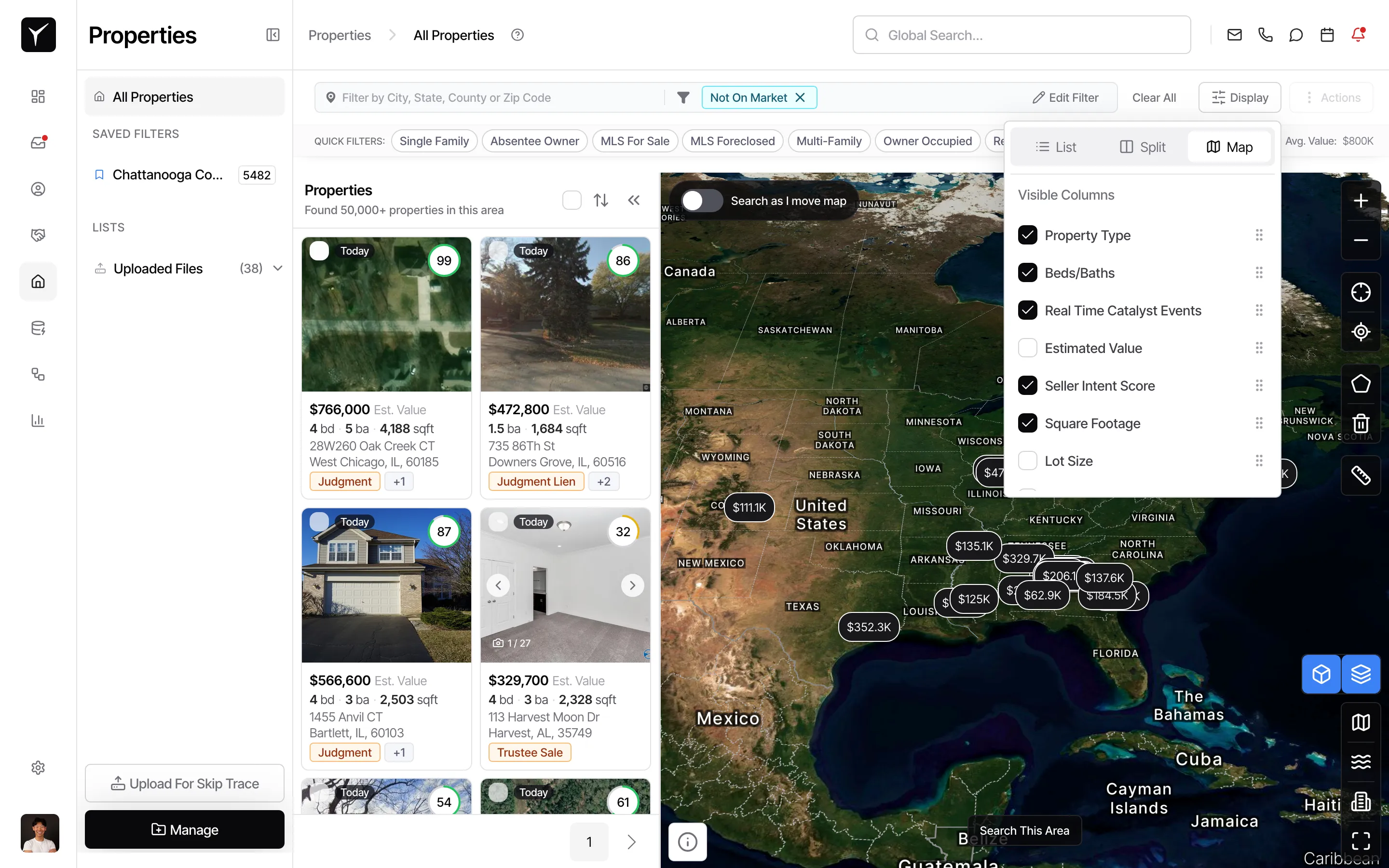
Click the Display button in the top-right toolbar above the property results. This opens a panel with view options and column controls.
-
Switch to List view (if needed)
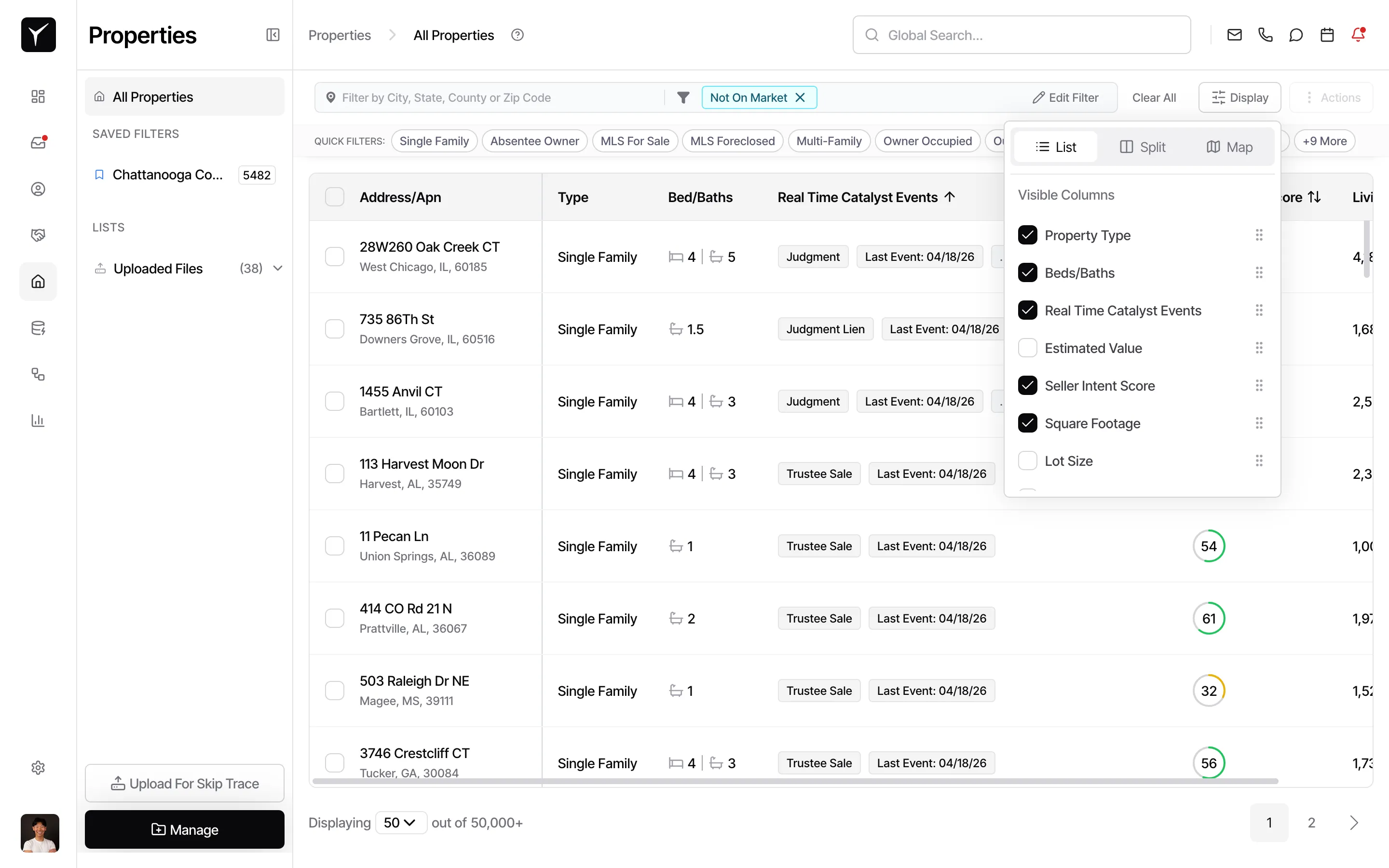
If you’re currently in Map or Split view, select List from the view switcher at the top of the Display panel. Column customization applies to the list/table view.
-
Toggle columns on or off
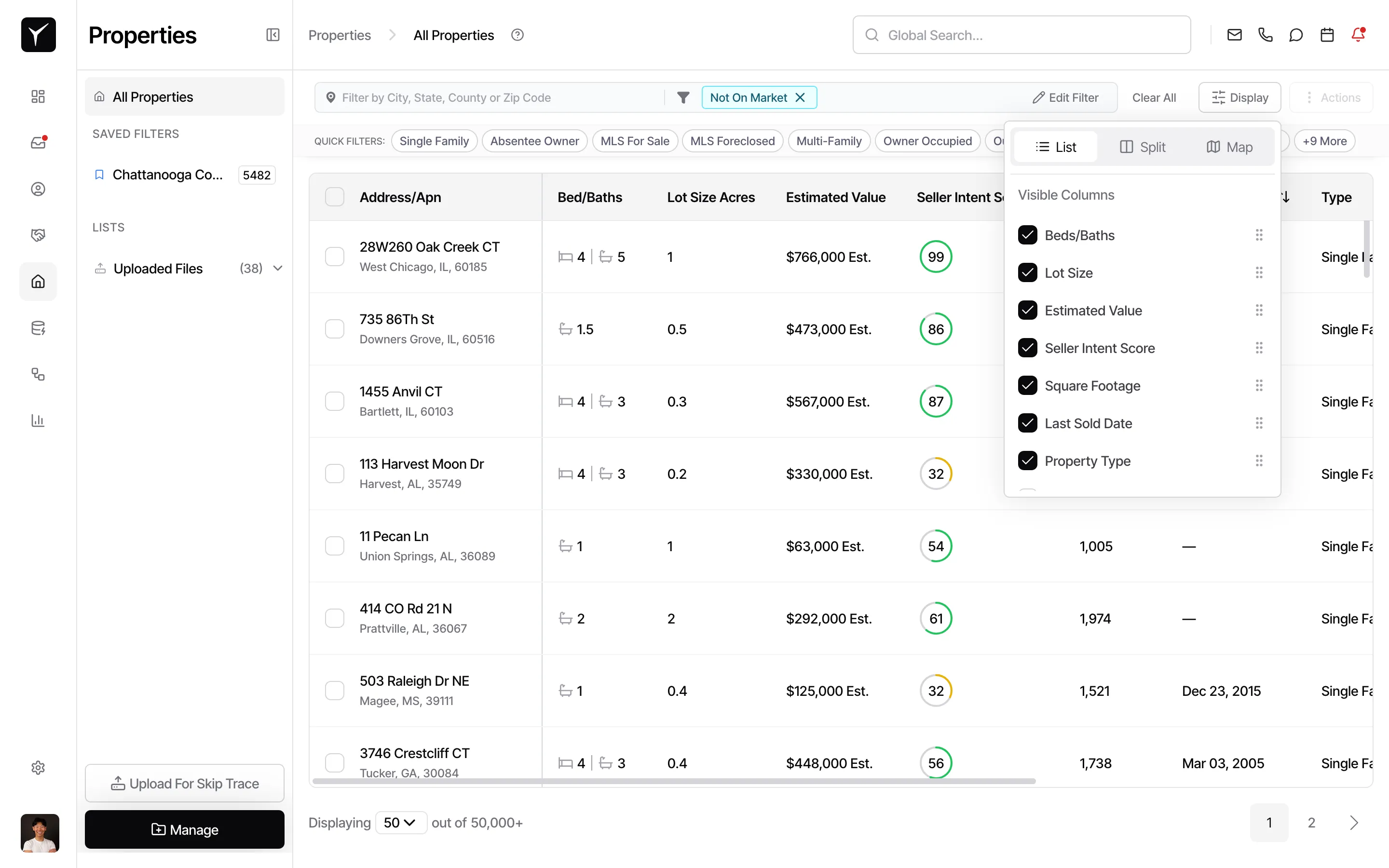
Under Visible Columns, check or uncheck the columns you want to show or hide. Checked columns appear in the table; unchecked columns are hidden and excluded from exports. Available options include Property Type, Beds/Baths, Real Time Catalyst Events, Estimated Value, Seller Intent Score, Square Footage, Lot Size, and date fields like Last Sold Date, Active FSBO Listed Date, or Listing Removed Date.
-
Reorder columns
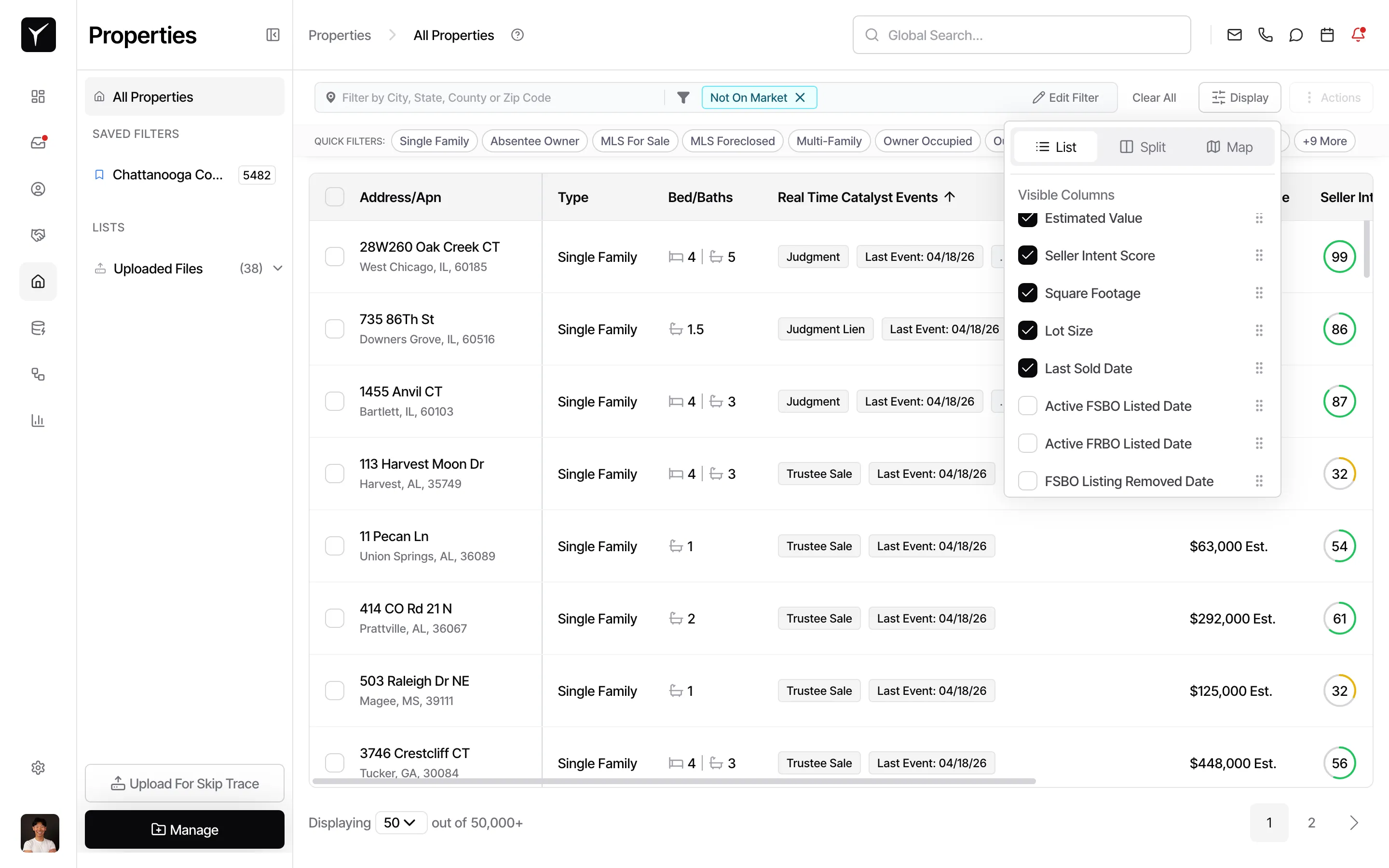
Drag the handle (six-dot icon) next to any column name in the Visible Columns list to reorder it. The order you set here determines the left-to-right sequence in the table and export files.
-
Close the panel to apply changes
Click outside the Display panel or press Esc to close it. Your column layout updates immediately and persists for future sessions.
Frequently Asked Questions
Section titled “Frequently Asked Questions”Q: Do my column preferences sync across devices?
Section titled “Q: Do my column preferences sync across devices?”Yes. Your layout is saved to your user account and applies whether you’re on desktop, laptop, or tablet.
Q: Can I create different column layouts for different saved filters?
Section titled “Q: Can I create different column layouts for different saved filters?”No. Column customization is per-user, not per-filter. All property views use the same column layout until you change it.
Q: What happens if I toggle off a column that’s used in a saved filter?
Section titled “Q: What happens if I toggle off a column that’s used in a saved filter?”The filter still applies — toggling off a column only hides it from the table and exports. It doesn’t affect filtering or search logic.
Q: Can I reorder columns directly in the table header?
Section titled “Q: Can I reorder columns directly in the table header?”Some tables support drag-and-drop reordering in the header itself. If available, click and drag a column header left or right to reposition it.