
Calendar and Appointments
The Calendar in Goliath keeps all your property-related appointments—showings, listing presentations, offer meetings, closings, and phone consultations—alongside the contacts and deals they belong to. Unlike a disconnected calendar app, every appointment is linked to the relevant contact, property, or deal, so you always have context at a glance.
Step-by-Step Guide
Section titled “Step-by-Step Guide”-
Navigate to the Calendar view
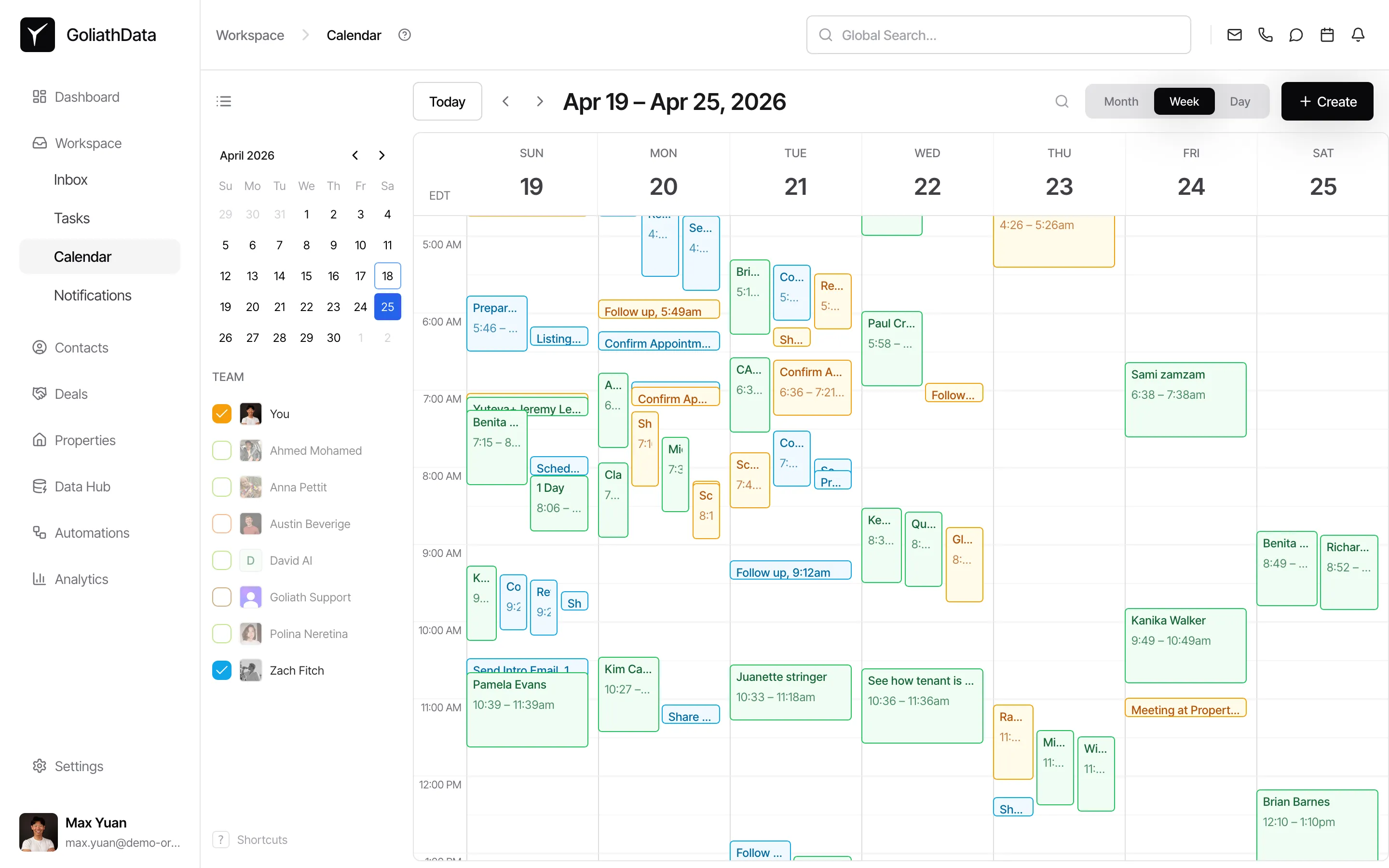
Click Calendar in the left sidebar. You’ll see the default calendar view with any scheduled appointments displayed as blocks on the timeline.
-
Switch views and browse dates
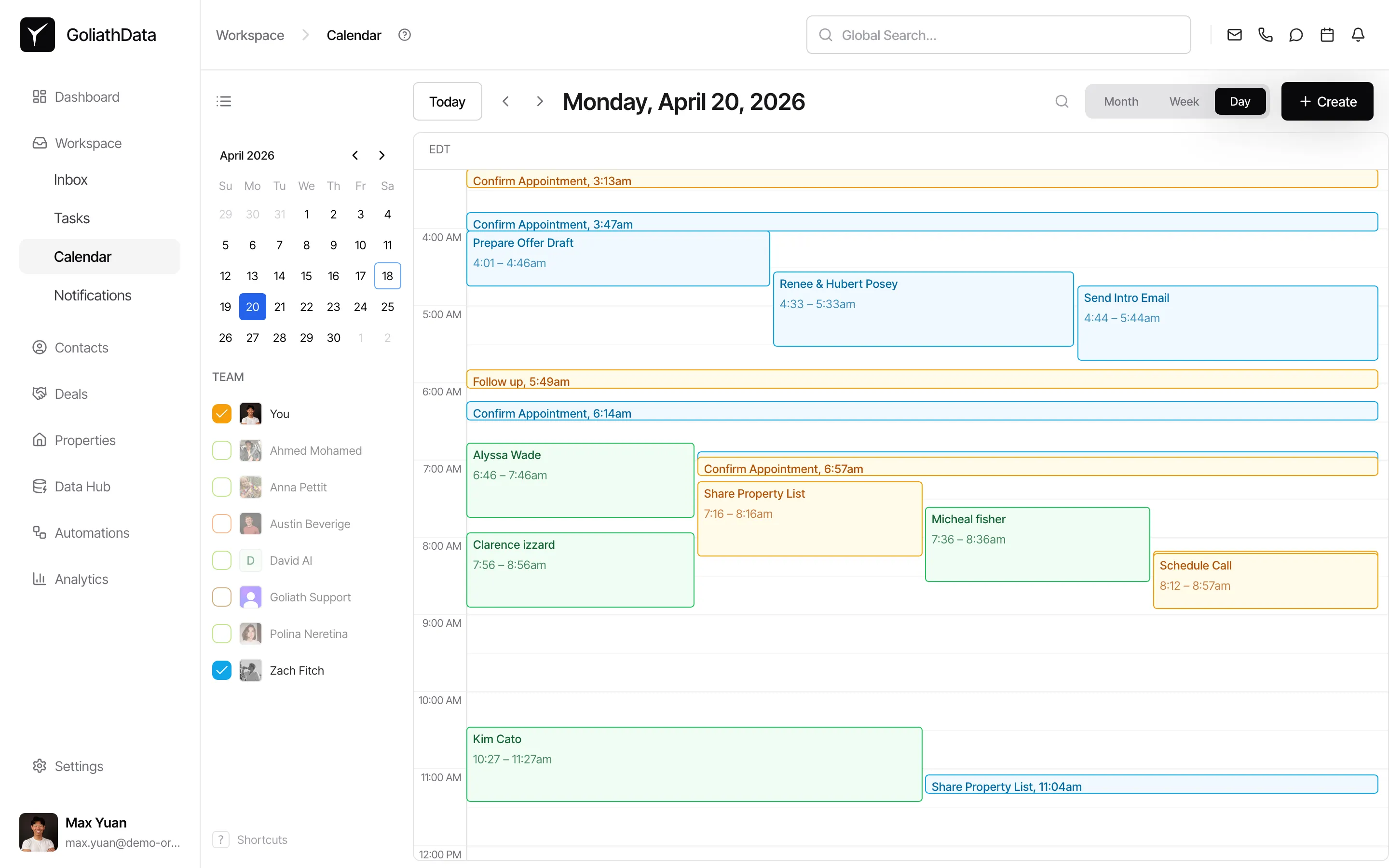
Use the view switcher in the top toolbar to toggle between Day, Week, and Month views. Use the Today button to jump to the current date, or click the arrows to move between periods. On the left, you’ll see a mini calendar and a TEAM list with checkboxes to filter appointments by assignee.
-
Create a new appointment
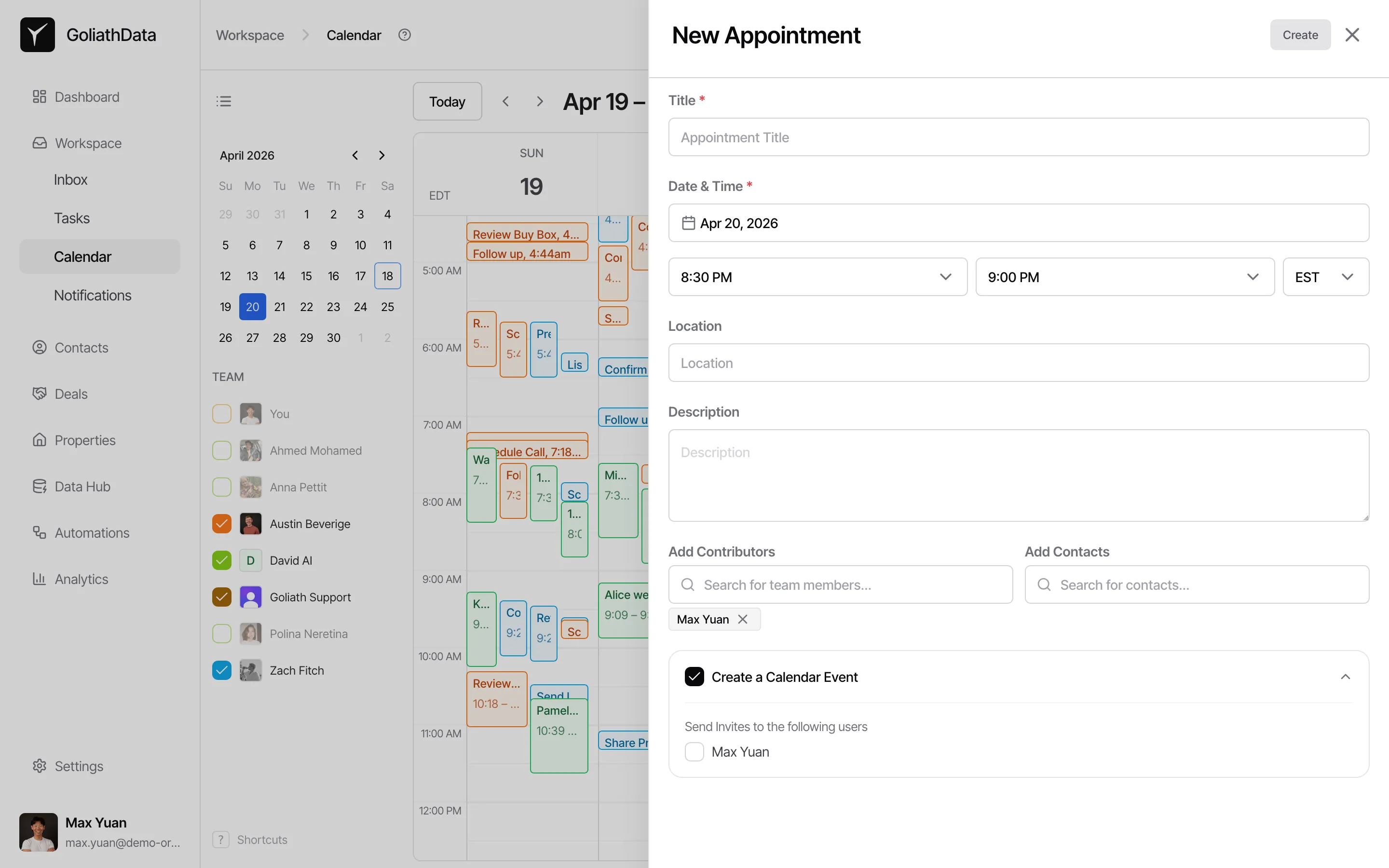
Click the + Create button in the top-right corner. A form will open where you can enter the appointment title, select a contact, link a property or deal, choose a date and time, set the duration, and add a location or notes.
-
Edit or reschedule an existing appointment
Click any appointment block to open its detail sheet where you can edit the title, time, attendees, or linked records. To quickly reschedule, drag the appointment block to a new time slot on the calendar grid. The change saves automatically.
-
Link appointments to contacts and deals
When creating or editing an appointment, use the contact and deal pickers to associate the meeting with the relevant records. This ensures you can view all appointments for a given contact or deal from their respective detail pages.
Frequently Asked Questions
Section titled “Frequently Asked Questions”Q: Can I sync my Goliath calendar with Google or Outlook?
Section titled “Q: Can I sync my Goliath calendar with Google or Outlook?”Yes. Go to Settings → Integrations to connect your Google Calendar or Microsoft (Outlook) account. Appointments created in Goliath will sync out, and external events will sync in to prevent scheduling conflicts.
Q: How do I see all appointments for a specific contact?
Section titled “Q: How do I see all appointments for a specific contact?”Open the contact’s detail panel from the Contacts page. Any linked appointments will appear in the activity timeline or a dedicated appointments section, depending on your view.
Q: Can contacts book appointments with me directly?
Section titled “Q: Can contacts book appointments with me directly?”Yes. You can create public scheduling forms (via Automations or Settings) that generate a booking link. When a contact selects a time slot, the appointment is automatically added to your Calendar and linked to their contact record.
Q: What types of appointments can I schedule?
Section titled “Q: What types of appointments can I schedule?”You can schedule any appointment type relevant to your workflow: property showings, listing presentations, offer meetings, closings, phone consultations, follow-ups, or general meetings. Use the title and notes fields to capture specifics.