
How Do I Edit Pipeline Stages?
Pipeline stages define the columns on your Kanban board and represent the valid states a deal can move through. Editing stages lets you evolve your team’s process over time—add new steps, rename outdated labels, reorder the workflow, or remove stages that no longer apply. Changes take effect immediately and do not delete any deals.
Step-by-Step Guide
Section titled “Step-by-Step Guide”-
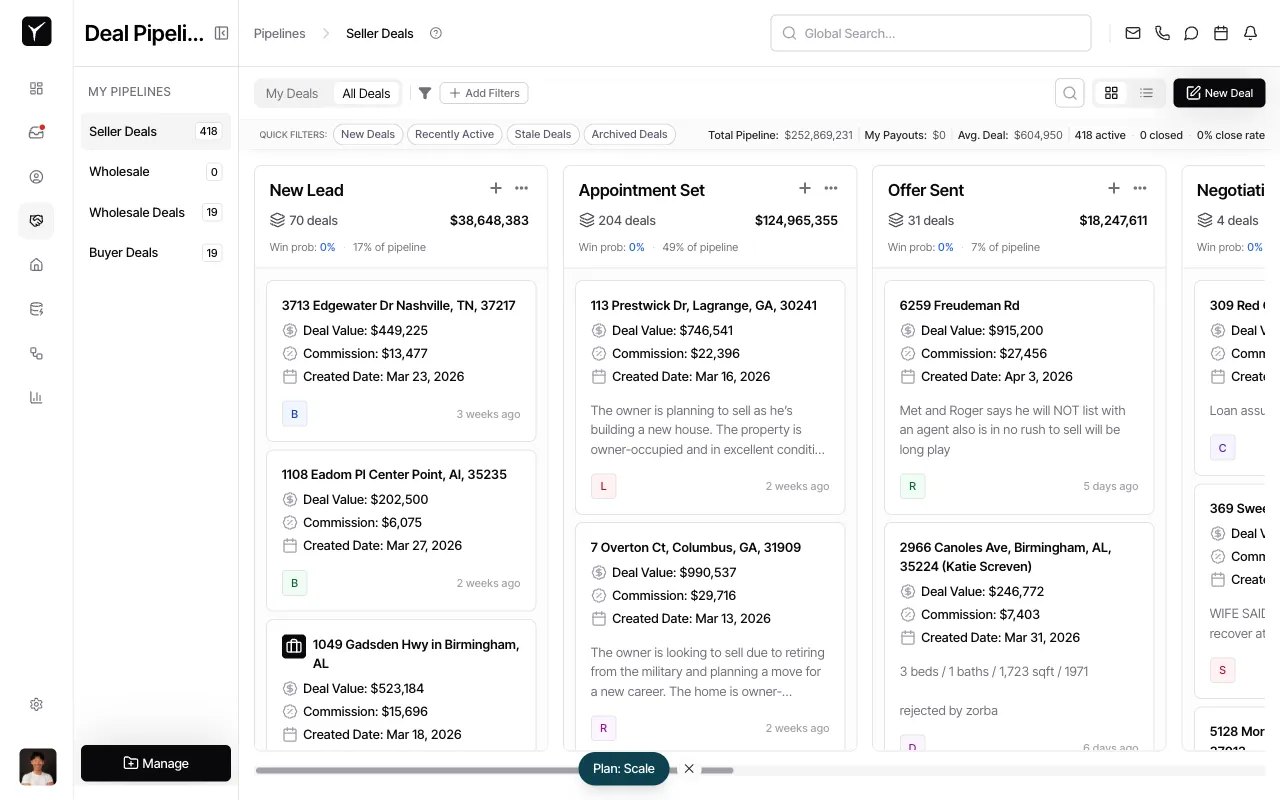
Open the Manage Pipelines dialog
From any pipeline view, click the Manage button in the bottom-left corner of the sidebar. This opens the Manage Pipelines configuration dialog.
-
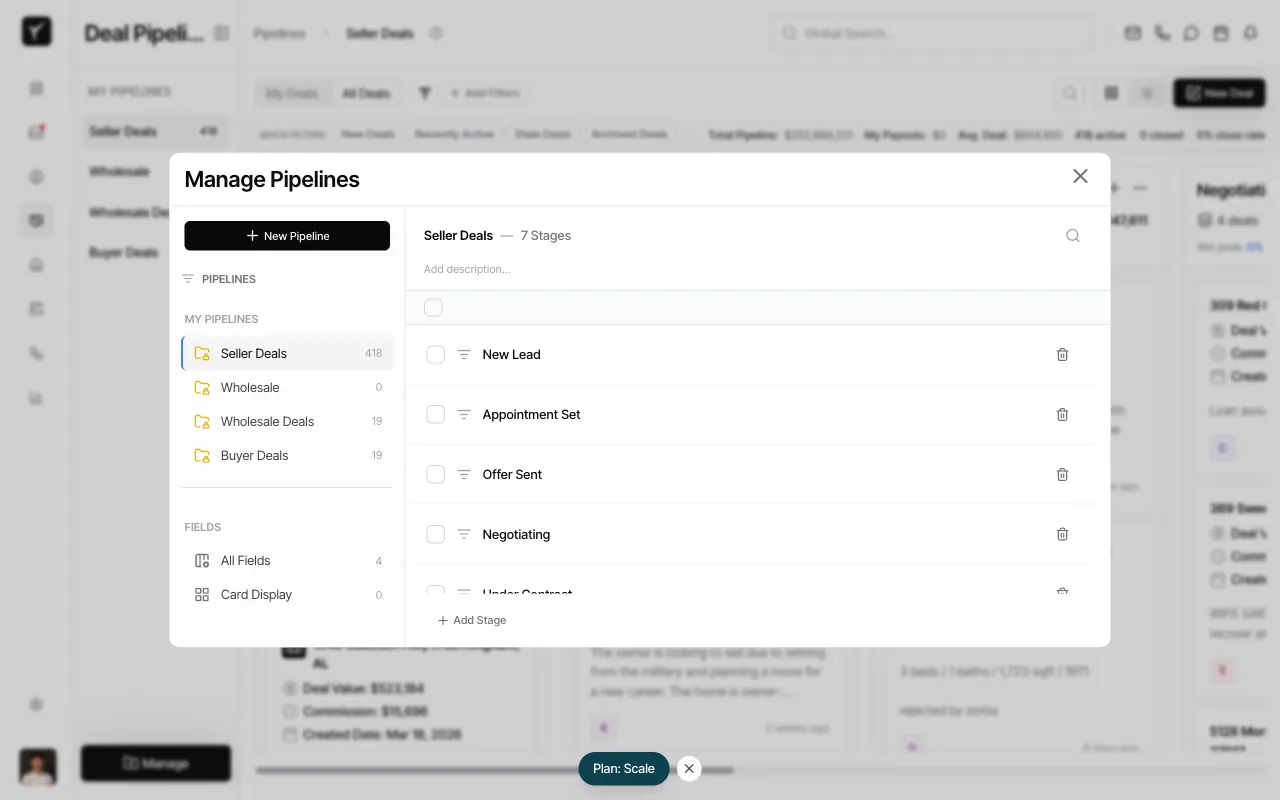
Select the pipeline to edit
In the left panel under MY PIPELINES, click the pipeline you want to modify. The right panel displays all stages for that pipeline in order.
-
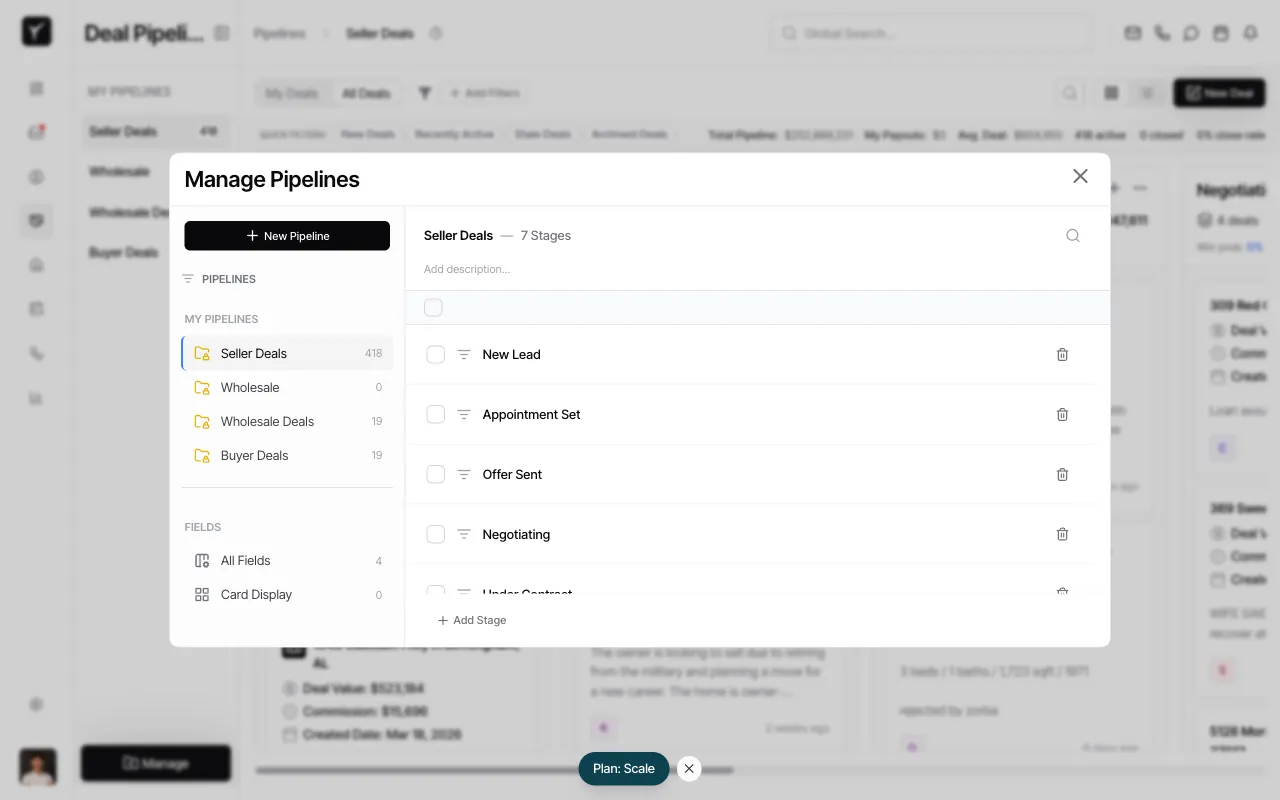
Edit stages
You can now perform the following actions:
- Add a stage: Click the + Add Stage button at the bottom of the stage list. A new stage will be inserted, and you can type its name inline.
- Rename a stage: Click directly on any stage name and type the new label. Press Enter to save.
- Reorder stages: Click and drag the drag handle (☰) to the left of any stage to move it up or down in the list.
- Delete a stage: Click the trash icon next to the stage name. A confirmation dialog will warn you that deals in this stage will move to the first stage of the pipeline. Confirm to proceed.
-
Close the dialog
Click the X in the top-right corner or click outside the dialog to close it. Your changes are saved automatically and will reflect immediately on the Kanban board.
Frequently Asked Questions
Section titled “Frequently Asked Questions”Q: Can I rename the pipeline itself?
Section titled “Q: Can I rename the pipeline itself?”Yes. Click the pipeline name at the top of the right panel in the Manage Pipelines dialog and type the new name inline.
Q: What happens to deals when I delete a stage?
Section titled “Q: What happens to deals when I delete a stage?”Deals are not deleted. They automatically migrate to the first stage of the pipeline so no work is lost. You will need to manually move them to the correct stage afterward.
Q: Can I duplicate a pipeline to create a variation?
Section titled “Q: Can I duplicate a pipeline to create a variation?”Check for a Clone Pipeline or duplicate option in the Manage Pipelines dialog. If available, it will create a copy of the selected pipeline with all stages intact.
Q: Who can edit pipeline stages?
Section titled “Q: Who can edit pipeline stages?”Only organization admins can edit pipelines. Non-admin users see the configuration as read-only.
Q: Do I need to refresh the Kanban board after editing stages?
Section titled “Q: Do I need to refresh the Kanban board after editing stages?”No. Changes take effect immediately. If you have the Kanban board open in another tab, refresh the page to see the updated stages.