
Understanding Your Deal Pipeline
The Deal Pipeline uses a Kanban board to give you an at-a-glance view of every deal in your organization, organized by stage. Each column represents a step in your sales process—such as New Lead, Appointment Set, Offer Sent, and Negotiating—and each deal card shows key details like property address, deal value, commission, and assigned team member. This visual layout makes it easy to spot bottlenecks, track progress, and move deals forward with a simple drag-and-drop.
Step-by-Step Guide
Section titled “Step-by-Step Guide”-
Navigate to the Deal Pipeline
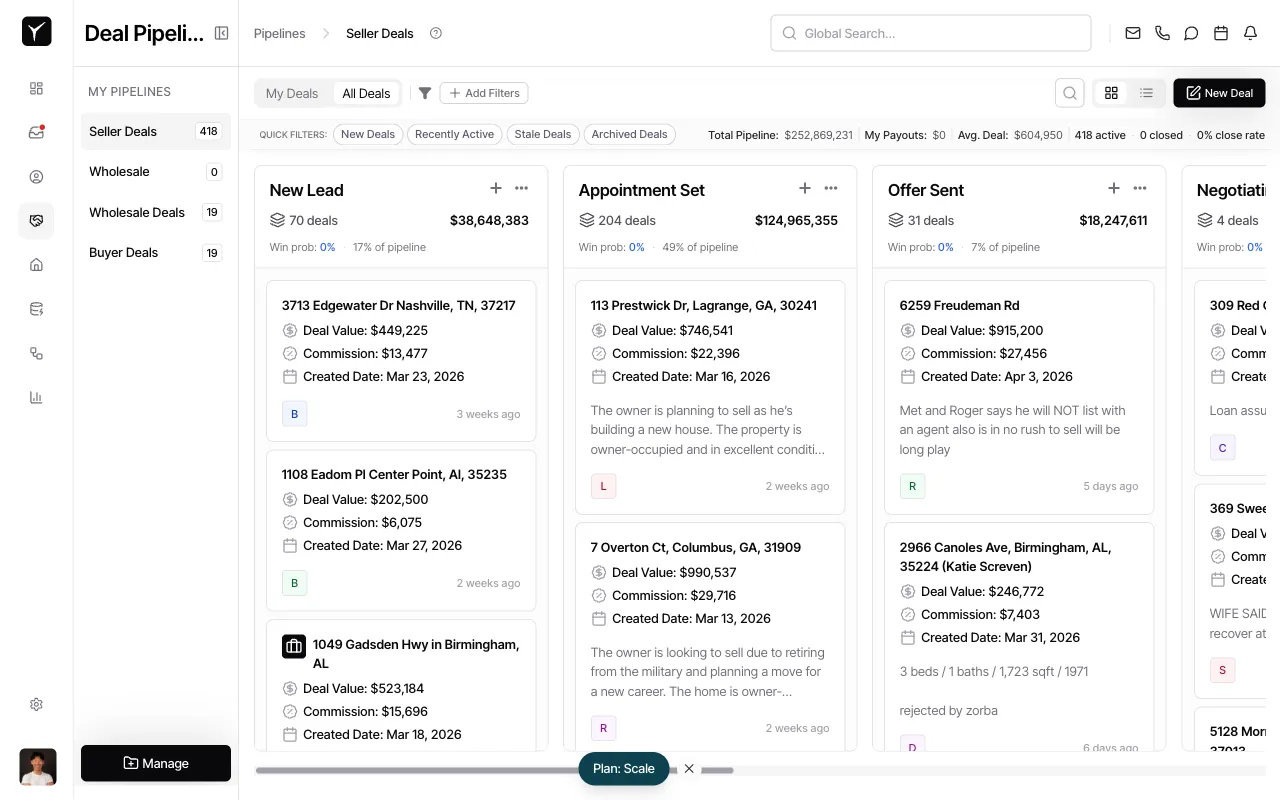
From the left sidebar, select Pipelines, then choose the pipeline you want to view (e.g., Seller Deals). The Kanban board loads with all active deals organized into columns by stage.
-
Review pipeline metrics
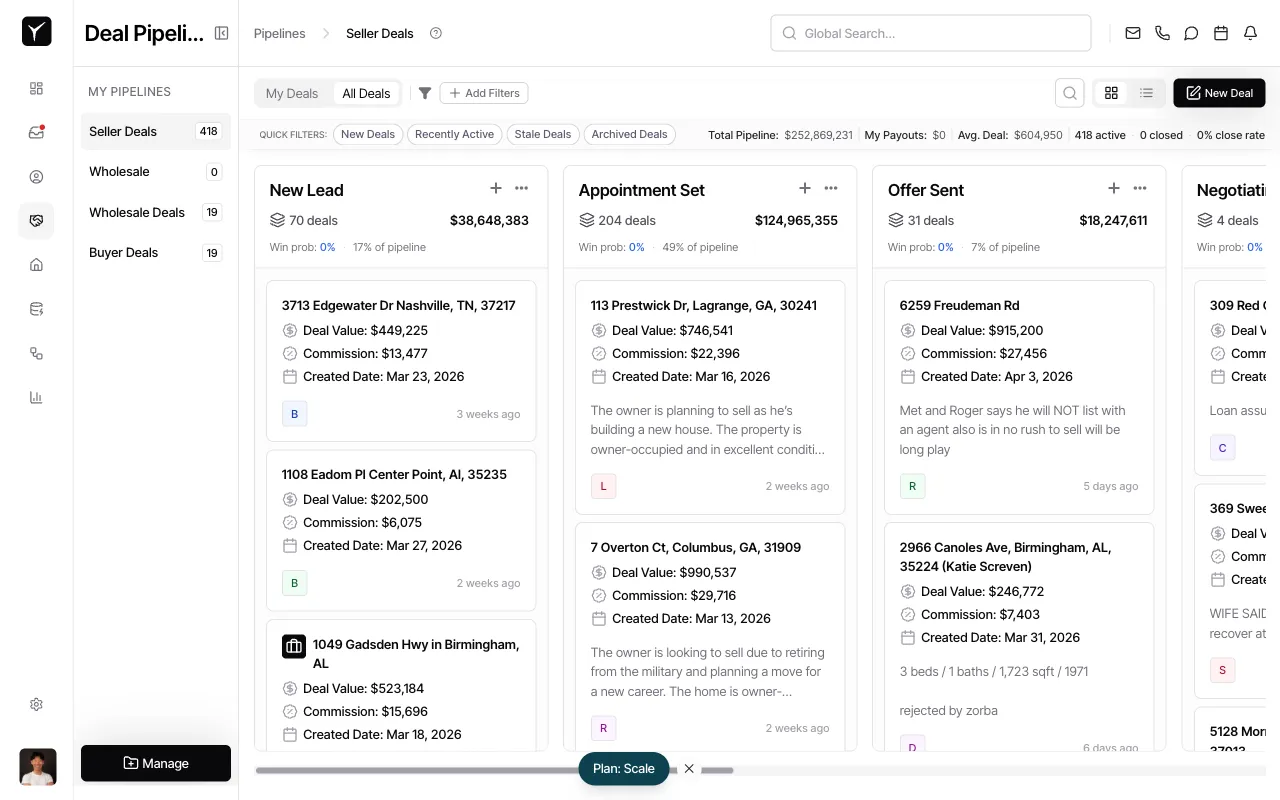
At the top of the board, you’ll see summary statistics including Total Pipeline (aggregate deal value), My Payouts (your projected commission), Avg. Deal (average deal size), and counts of active and closed deals. Use these metrics to monitor overall pipeline health and forecasted revenue.
-
Understand stage columns
Each column header displays the stage name, the number of deals in that stage, and the total dollar value of those deals. For example, New Lead might show “70 deals” and “$38,648,383”. The Win prob percentage below each column indicates the likelihood of deals in that stage closing successfully.
-
Examine deal cards
Each card shows the property address or contact name, Deal Value, Commission, Created Date, and a colored avatar representing the assigned team member. A timestamp (e.g., “3 weeks ago”) indicates how long the deal has been in the current stage, helping you identify stalled opportunities.
-
Move deals between stages
To advance a deal, click and drag the card from one column to the next. Dropping the card into a new stage automatically updates the deal’s status and triggers any stage-specific automations (like sending follow-up emails or updating custom fields).
-
Filter and search
Use the Add Filters button or QUICK FILTERS (e.g., New Deals, Recently Active, Stale Deals) to narrow the board to specific subsets. Use the search bar to find deals by address, contact name, or other properties.
Frequently Asked Questions
Section titled “Frequently Asked Questions”Q: Can I have multiple pipelines for different deal types?
Section titled “Q: Can I have multiple pipelines for different deal types?”Yes. You can create separate pipelines for seller deals, buyer deals, wholesale deals, or any other workflow. Switch between pipelines using the MY PIPELINES menu in the left sidebar.
Q: What does the “Win prob” percentage mean?
Section titled “Q: What does the “Win prob” percentage mean?”Win probability reflects the likelihood of deals in that stage closing successfully, based on historical data and stage position. Stages closer to closing (e.g., Negotiating) typically have higher win probabilities than early stages (e.g., New Lead).
Q: How do I customize the stages in my pipeline?
Section titled “Q: How do I customize the stages in my pipeline?”Navigate to Manage > Pipelines to add, rename, reorder, or delete stages. You can also configure automations and custom fields tied to specific stages. Changes apply immediately to your Kanban board.
Q: Can I see archived or lost deals on the Kanban board?
Section titled “Q: Can I see archived or lost deals on the Kanban board?”By default, the board shows only active deals. Use the Archived Deals quick filter to view closed-lost or archived opportunities separately.