
How Do I Add Participants to a Deal?
Participants are the people involved in making a deal happen. Goliath supports two participant types: contacts (external parties like sellers, buyers, agents, or attorneys) and team members (internal collaborators like acquisition reps or transaction coordinators). Adding participants links their activity to the deal timeline and ensures the right people have visibility into the transaction.
Step-by-Step Guide
Section titled “Step-by-Step Guide”-
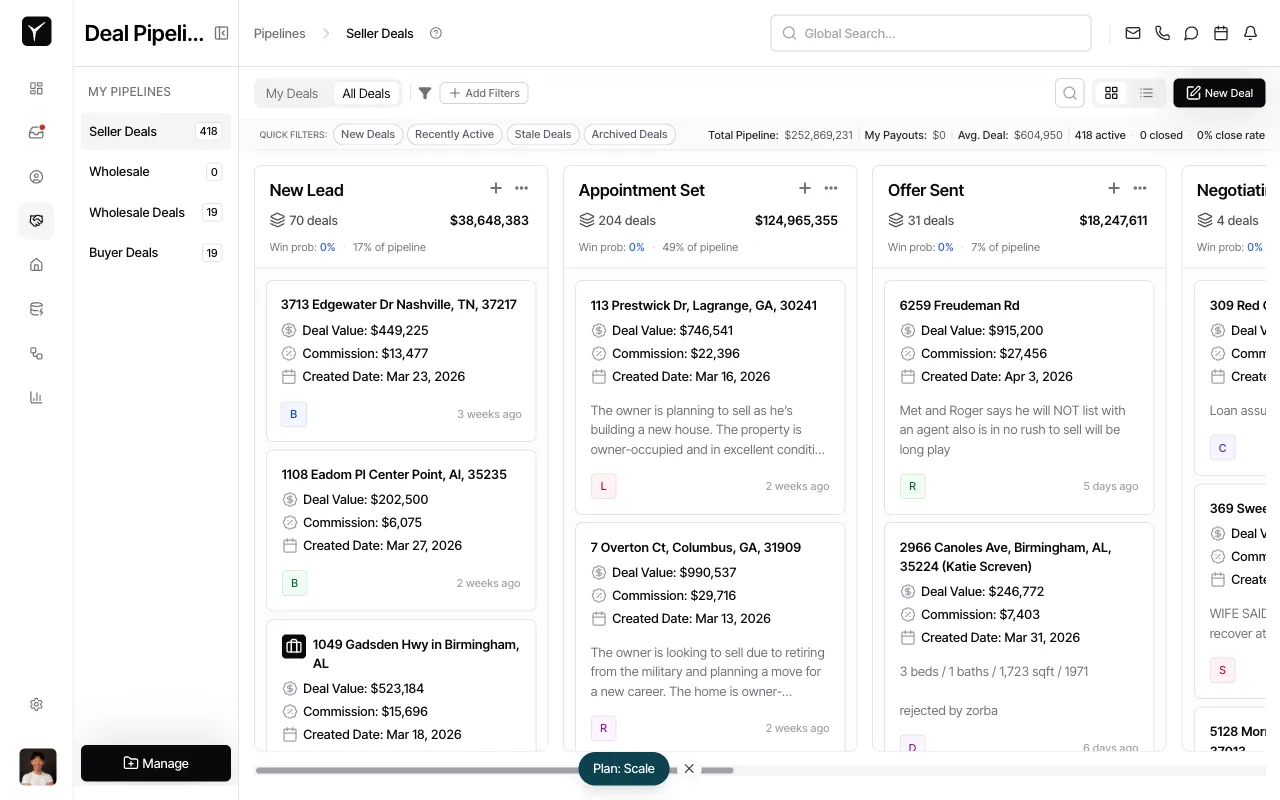
Open the deal details
Click on any deal card from your pipeline to open the deal detail panel. The panel shows the Overview, Team & Splits, and Files tabs.
-
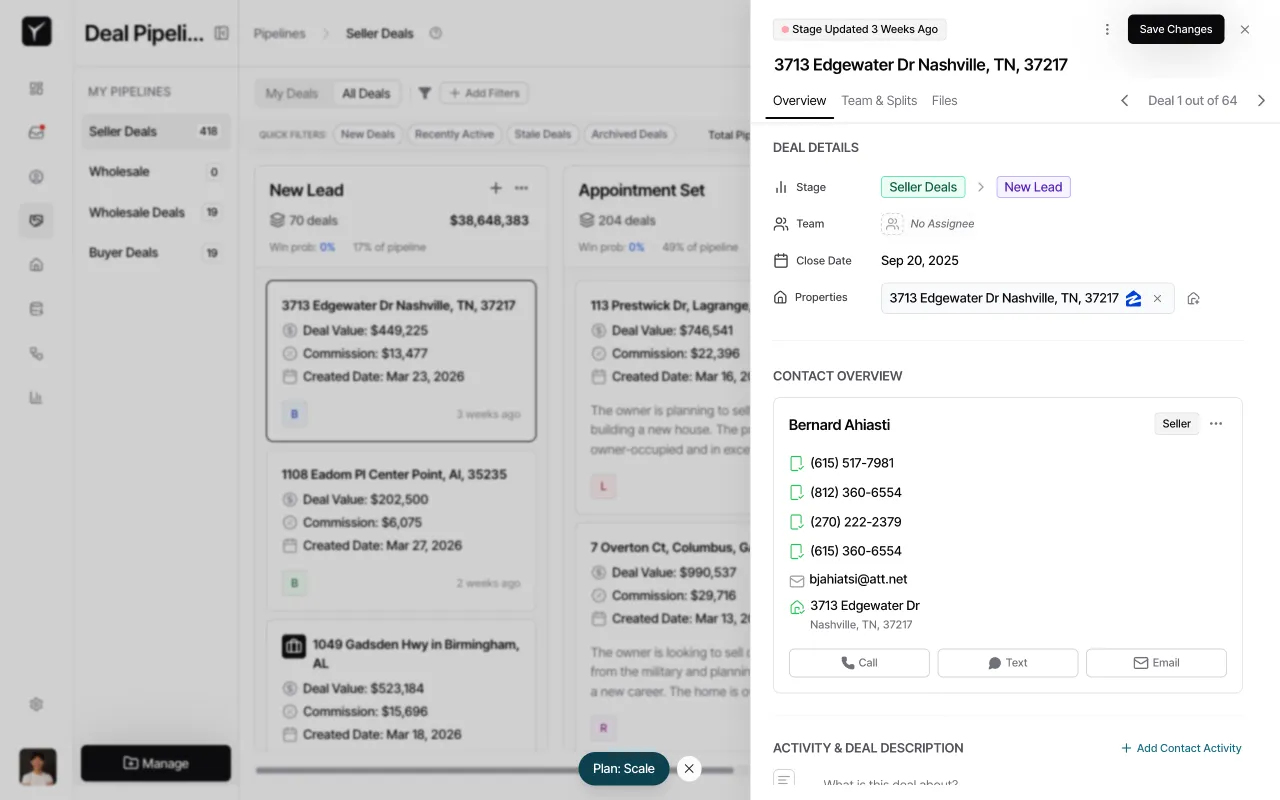
Navigate to the Team & Splits tab
Click the Team & Splits tab to access participant management and commission splits.
-
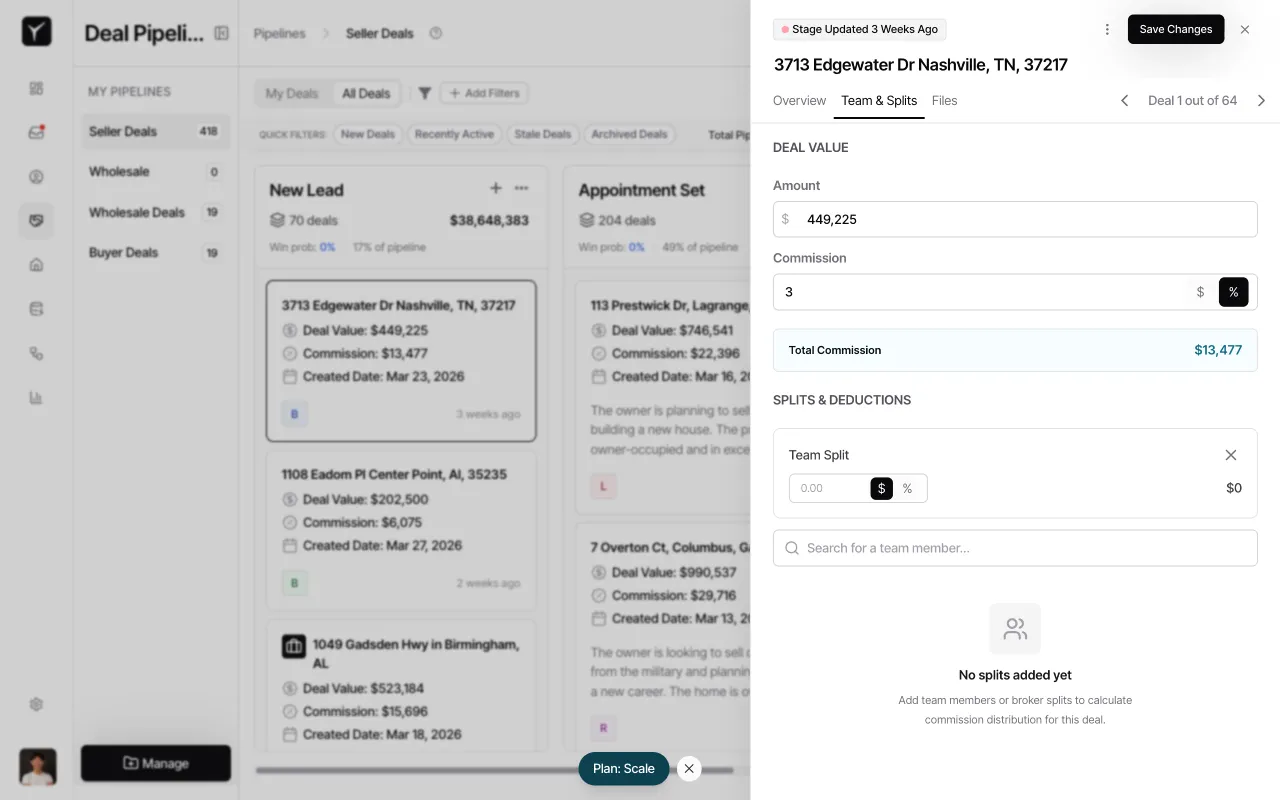
Add a team member and configure their split
In the SPLITS & DEDUCTIONS section, click Add Team Split. Type a team member’s name in the search field and select them from the dropdown. Once added, enter their commission percentage or dollar amount in the Team Split section, then click Save Changes to finalize.
Frequently Asked Questions
Section titled “Frequently Asked Questions”Q: What roles can I assign to a contact participant?
Section titled “Q: What roles can I assign to a contact participant?”Common roles include Seller, Buyer, Agent, Attorney, and Title. Available roles depend on your organization’s configuration. Contact your admin to customize participant roles.
Q: Can an external contact be added as a team collaborator?
Section titled “Q: Can an external contact be added as a team collaborator?”No. Contacts are for external parties only. Only internal users (members of your Goliath organization) can be added as team collaborators in the Team & Splits section.
Q: Do participants get notified when they’re added to a deal?
Section titled “Q: Do participants get notified when they’re added to a deal?”Team members receive notifications based on their personal notification preferences. External contacts do not receive automatic notifications when added as participants, but any communication with them will appear in both the deal timeline and their contact record.
Q: What happens to deal activity when I add a contact participant?
Section titled “Q: What happens to deal activity when I add a contact participant?”Adding a contact as a participant links the deal to their contact record. All past and future communication with that contact becomes visible in both the deal’s activity timeline and the contact’s timeline, giving you full context in both places.
Q: How do I change the primary deal owner?
Section titled “Q: How do I change the primary deal owner?”The primary deal owner is set in the Team field on the Overview tab. Click No Assignee or the current team member’s name to reassign the deal to a different owner. Other team members added via Team & Splits are collaborators, not primary owners.