
How Do I Search by Map Area?
Map-based property search lets you filter listings to a specific geographic area by visualizing properties on an interactive map. This is ideal when you’re targeting a particular neighborhood, subdivision, or region and want to see exactly where opportunities are located. You can use either a quick viewport search to filter everything visible on screen, or draw a precise polygon around your target area. Map search stacks with all other filters, enabling highly targeted searches like “single-family homes with high equity in this specific neighborhood.”
Step-by-Step Guide
Section titled “Step-by-Step Guide”-
Switch to Map view
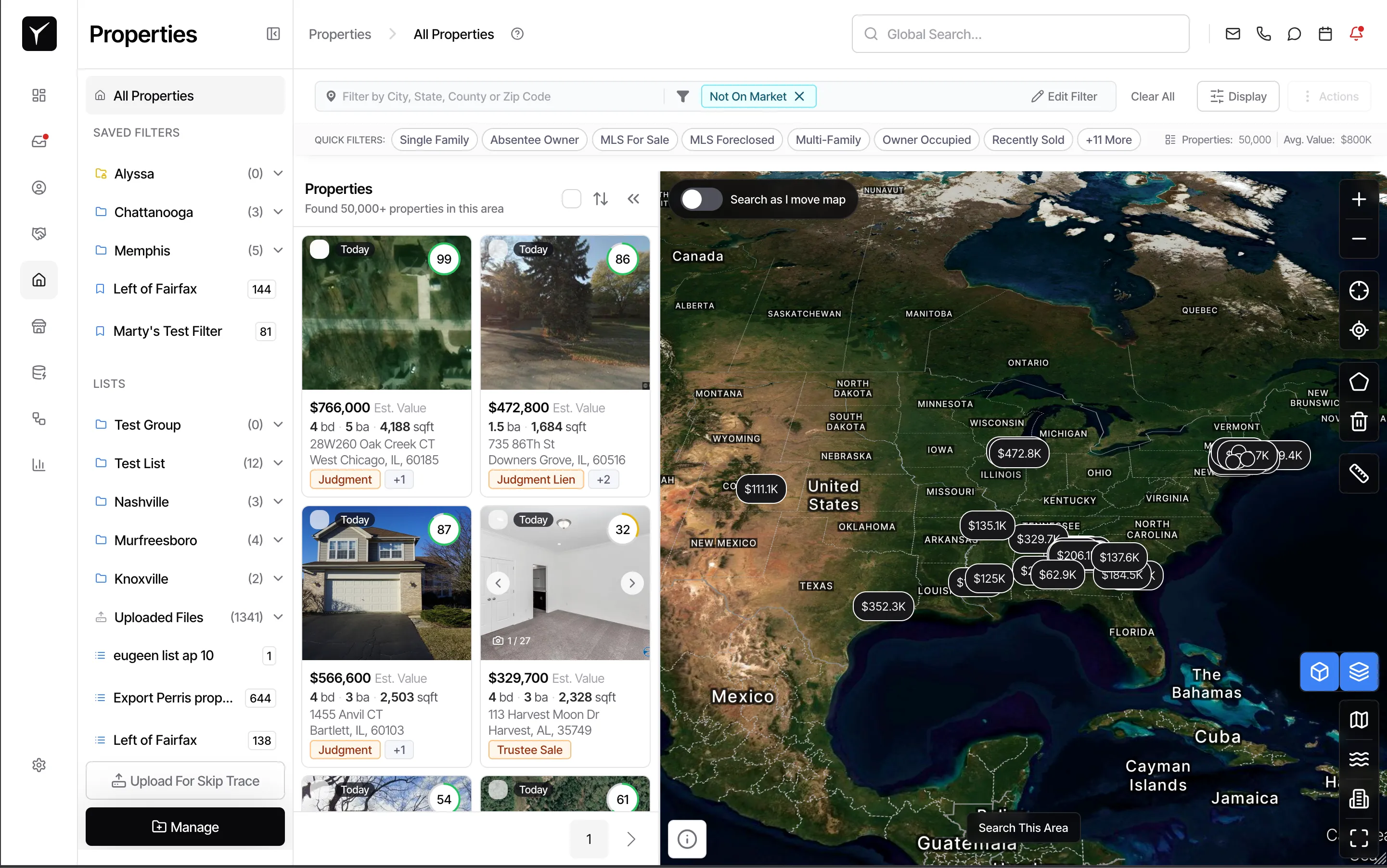
From the Properties page, click the Display button in the toolbar and select Map. The map renders with property markers showing all properties matching your current filters across the visible area.
-
Navigate to your target area
Use your scroll wheel to zoom in (scroll up) or zoom out (scroll down). Click and drag to pan the map to a different location. You can also use the + and - zoom controls on the map, or pinch-to-zoom on a trackpad. If you’re searching near your current location, click the My Location button to jump the map to your browser’s geolocation.
-
Filter by visible area (quick method)
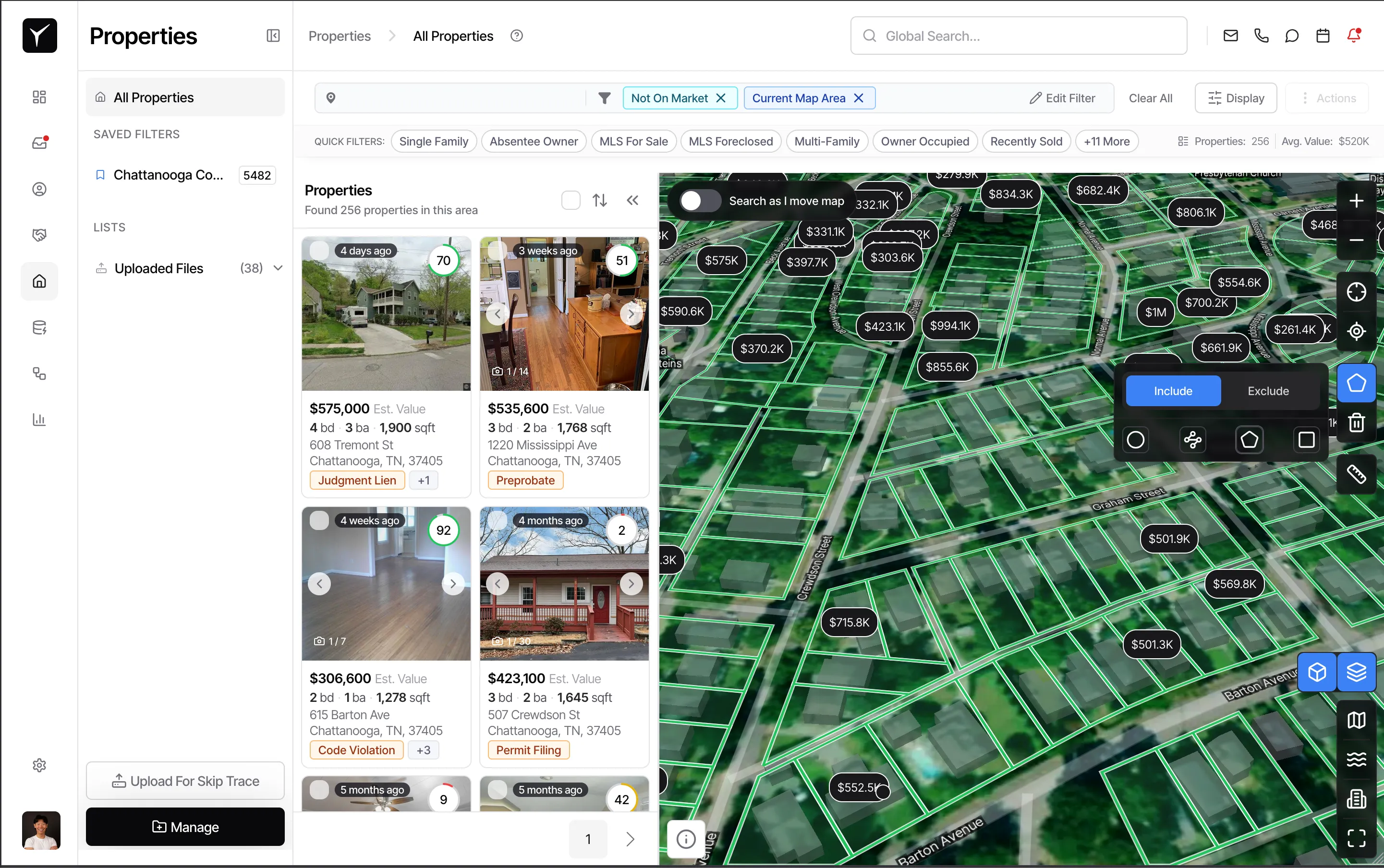
Once the map shows your target area, click the Search this area button near the top of the map. This rescopes the property list to only properties within the current viewport—everything you can see on screen right now. This is the fastest way to apply a geographic filter without drawing boundaries.
-
Draw a polygon for precise targeting (advanced method)
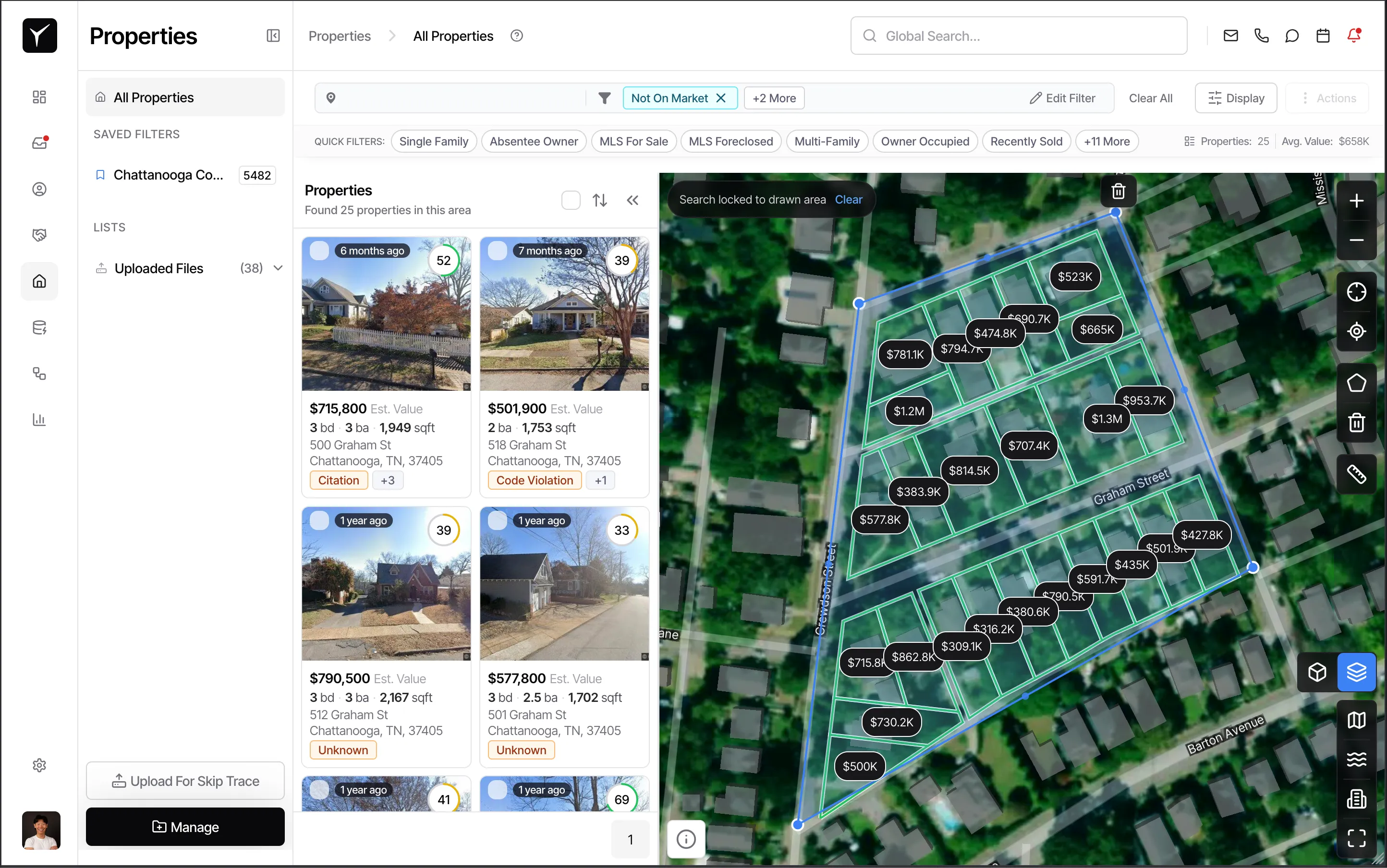
For more control, use the Draw polygon tool in the map toolbar. Click points on the map to form a boundary around your target area—such as a specific subdivision or block. Close the polygon by clicking the first point again or double-clicking the last point. Properties inside the polygon are filtered in; everything outside is excluded. To remove the polygon and revert to your previous filter, click Delete polygon.
-
Combine with other filters
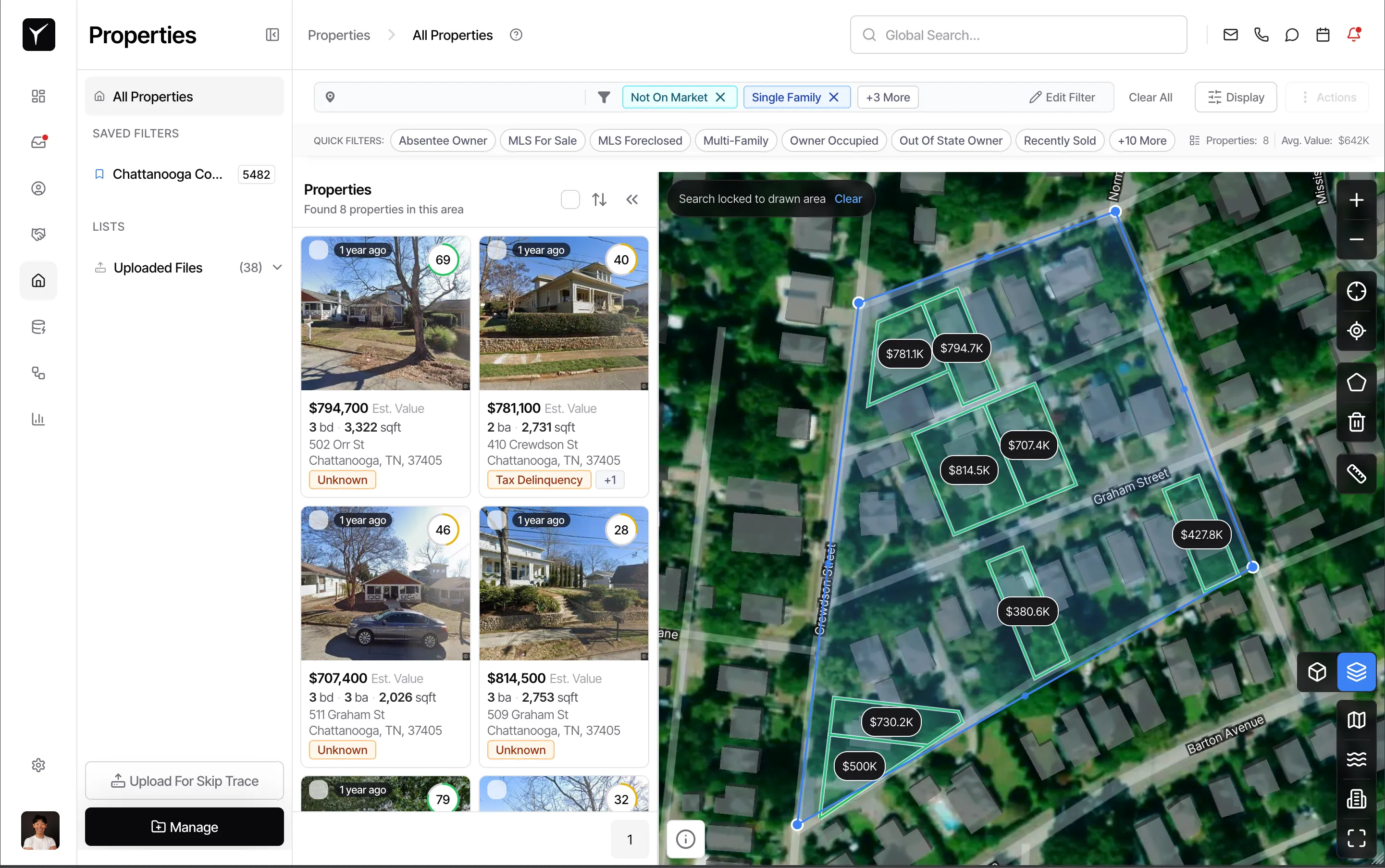
Map search works alongside all other filters in Goliath. After applying a viewport search or drawing a polygon, add property-level filters (e.g., Single Family, high equity, absentee owner) to narrow your results further. The combination produces a hyper-targeted list of off-market opportunities in your chosen area.
-
Explore properties on the map
Each marker represents a property. Click a marker to see a quick preview card with the address, beds/baths, and key stats without leaving the map. Click through the preview to open the full property detail view for deeper research.
-
Use map overlays for additional context
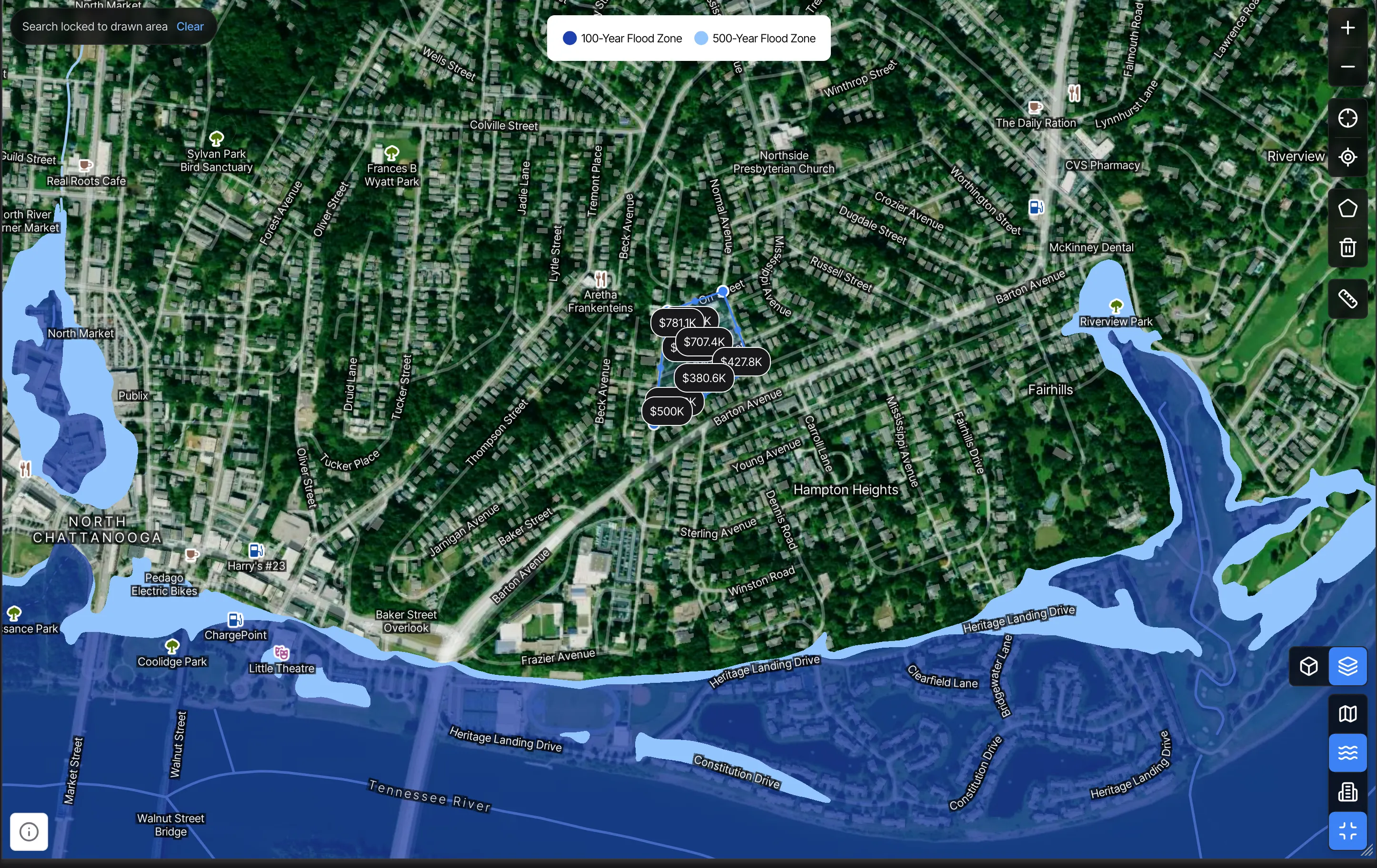
Toggle overlays from the map toolbar to display Census Tracts, Flood Zones, or Opportunity Zones. You can also switch to satellite view or Street View for ground-level context. These overlays help you assess risk (flood zones), identify tax-advantaged areas (opportunity zones), or verify property condition before making an offer.
-
Leverage additional map tools
Use Measure distance to click two points and see the straight-line distance between them—useful for estimating proximity to schools, highways, or comparable properties. Click Fit to results to auto-zoom the map to encompass all properties matching your current filters, giving you a big-picture view. Click Fullscreen to expand the map to your entire browser window for focused research sessions.
Frequently Asked Questions
Section titled “Frequently Asked Questions”Q: Does Search this area work with my saved filters?
Section titled “Q: Does Search this area work with my saved filters?”Yes. Search this area applies on top of all active filters, including saved searches. Load your saved filter, navigate the map to your target area, then click Search this area to combine geographic and property-level criteria.
Q: Can I save a polygon to reuse later?
Section titled “Q: Can I save a polygon to reuse later?”Polygons are not currently saved between sessions. You’ll need to redraw the polygon each time you return to the map. To preserve your results, apply the polygon filter and save the resulting property list or export it for offline use.
Q: What happens to property markers when I zoom out?
Section titled “Q: What happens to property markers when I zoom out?”At wide zoom levels, markers cluster together to avoid clutter on the map. As you zoom in, clusters expand to show individual property markers. This makes it easy to explore a region at a high level, then drill down to street-level detail.
Q: How detailed is the map zoom?
Section titled “Q: How detailed is the map zoom?”The map supports street-level zoom with individual parcels visible. You can zoom in far enough to see property boundaries, building footprints, and nearby features like streets and landmarks.
Q: Can I use the map on mobile or a tablet?
Section titled “Q: Can I use the map on mobile or a tablet?”Yes. The map supports touch gestures including pinch-to-zoom and drag-to-pan. All map tools (viewport search, polygon drawing, overlays) are available on mobile devices with a touch-optimized interface.