
How Do I Set Up Booking Availability?
Availability schedules in Goliath define when contacts can book appointments with you through booking forms. Schedules are reusable—create one schedule and reference it across multiple forms. This separation lets you manage your availability in one place while using different forms for showings, consultations, or property tours.
Step-by-Step Guide
Section titled “Step-by-Step Guide”-
Navigate to Availability
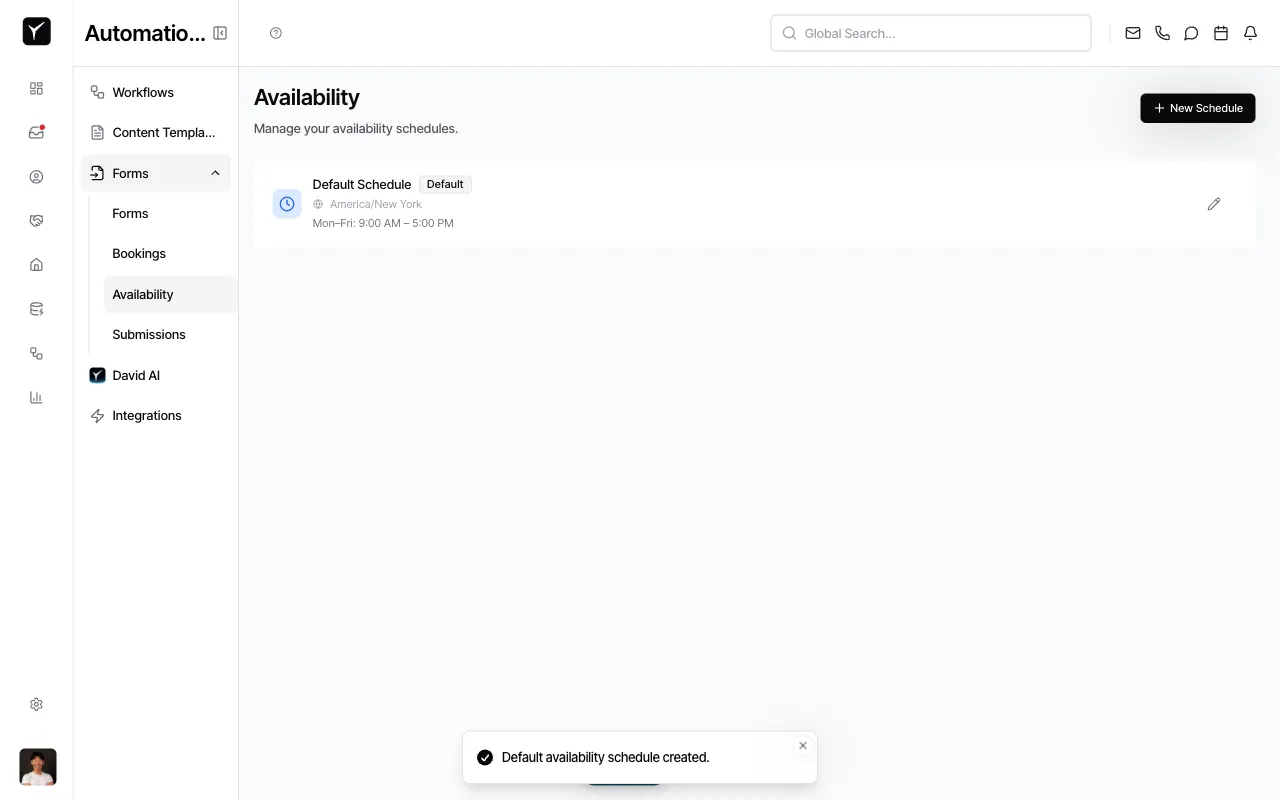
In the left sidebar, expand Forms and click Availability. You’ll see any existing schedules listed here.
-
Create a new schedule
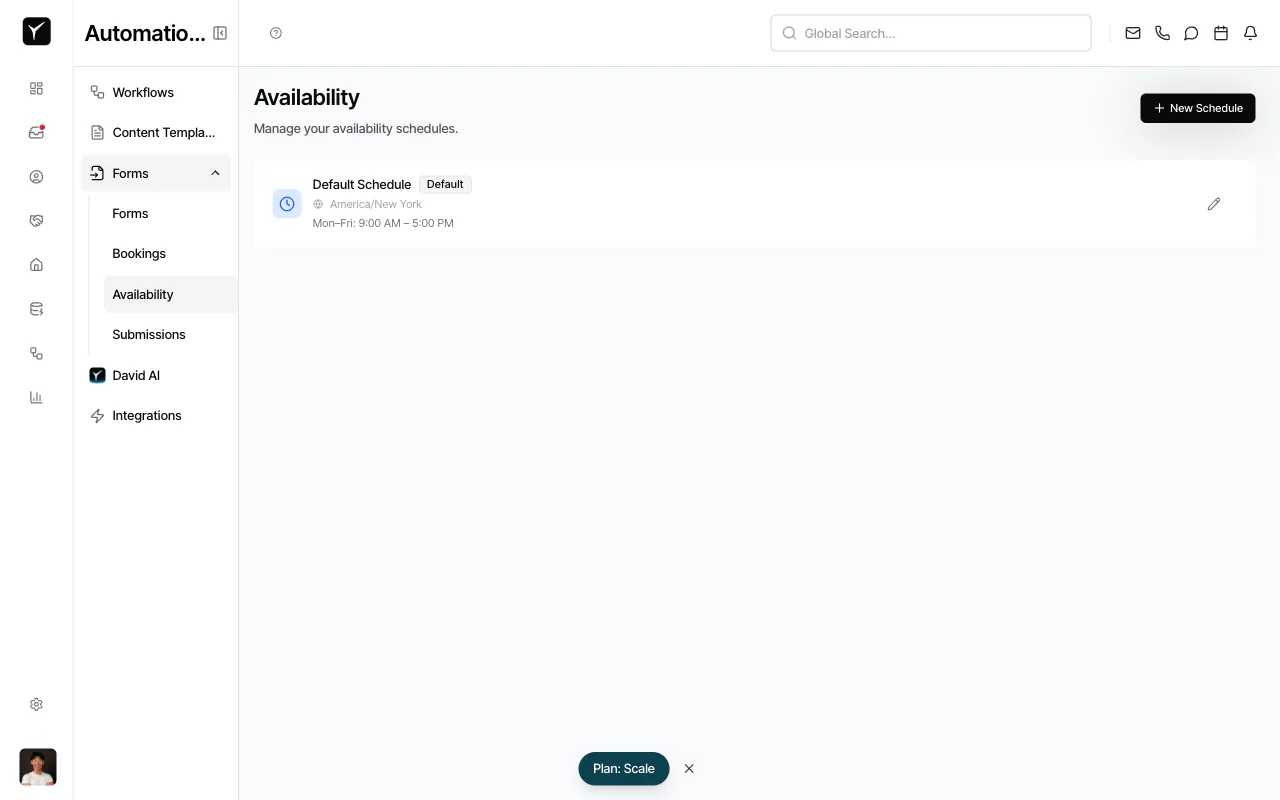
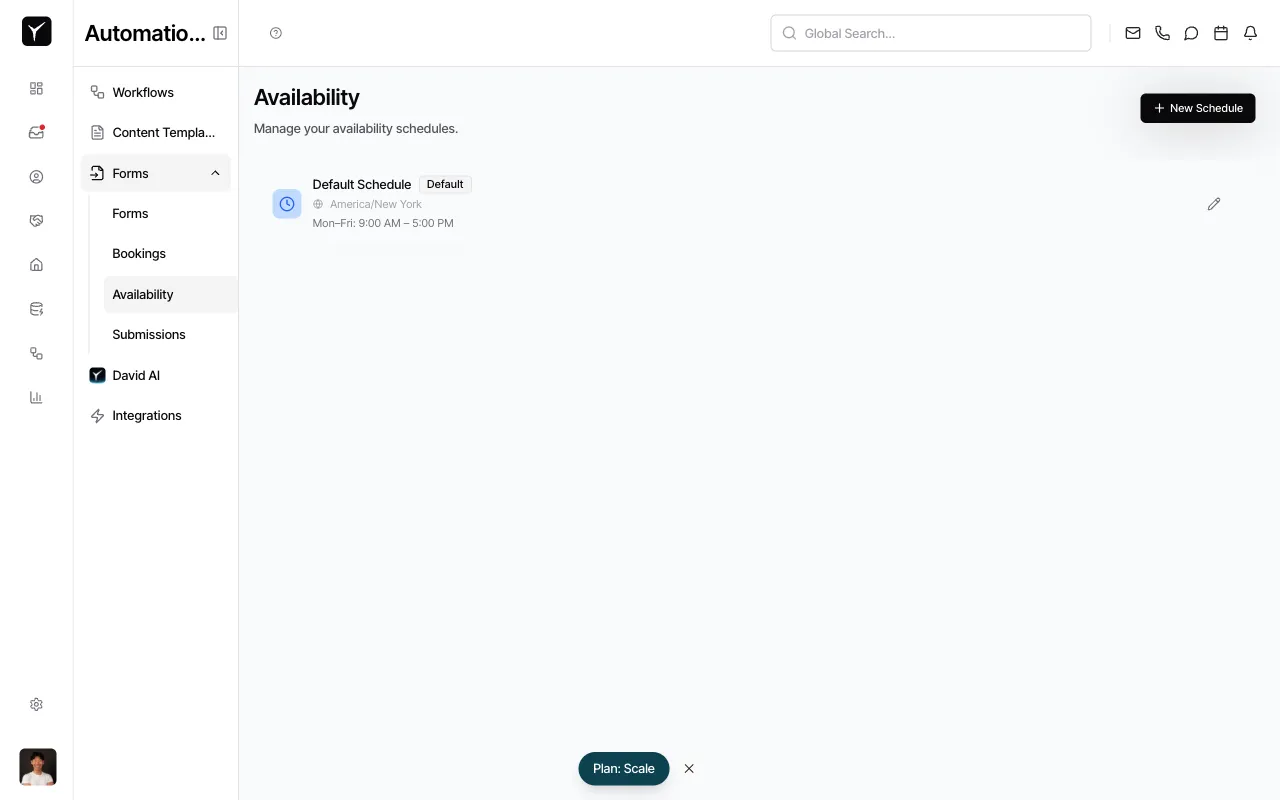
Click the New Schedule button in the top-right corner. A default schedule is created with standard business hours.
-
Configure weekly hours
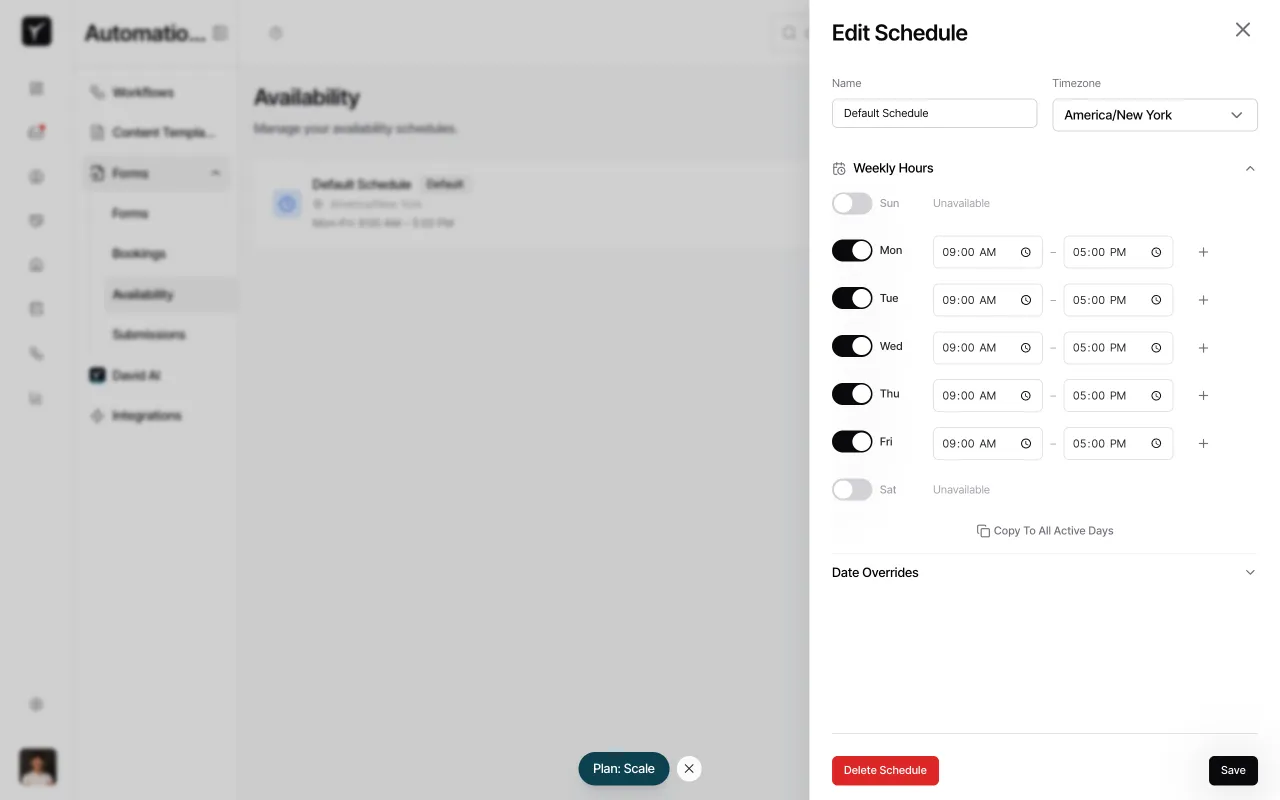
The Edit Schedule panel opens. Give your schedule a descriptive name (e.g., “Showing Hours” or “Business Hours”). Set the Timezone to match where you’ll be meeting contacts. In the Weekly Hours section, toggle each day on or off and set start and end times. Click the + button to add multiple time ranges for a single day (useful for lunch breaks). Use Copy To All Active Days to apply one day’s hours across the week.
-
Add date overrides (optional)
Expand Date Overrides to block specific dates (holidays, vacations) or set custom hours for individual days without changing your weekly pattern. For example, block December 25 or set December 24 to shorter hours.
-
Save the schedule
Click Save at the bottom of the panel. Your new schedule is now available to reference in any booking form.
Frequently Asked Questions
Section titled “Frequently Asked Questions”Q: Can I have multiple availability schedules?
Section titled “Q: Can I have multiple availability schedules?”Yes. Create as many schedules as you need—each booking form references one schedule at a time, but you can mix and match across forms.
Q: What happens if I update a schedule after publishing a form?
Section titled “Q: What happens if I update a schedule after publishing a form?”Changes to the schedule apply immediately to new bookings. Existing booked appointments remain unchanged.
Q: How do I prevent contacts from booking during my existing meetings?
Section titled “Q: How do I prevent contacts from booking during my existing meetings?”Connect your Google or Outlook calendar in Goliath. External calendar sync blocks slots where you have conflicting events in real time.
Q: How far in advance can contacts book?
Section titled “Q: How far in advance can contacts book?”You configure max advance days when editing the booking form itself (not the schedule). Options typically range from 30 to 60 days.
Q: Can multiple team members share a booking form?
Section titled “Q: Can multiple team members share a booking form?”Yes. When editing the form, you can enable round-robin host routing to distribute bookings across multiple team members, each using their own availability schedule and calendar.