
How Do I Create an SMS Template?
SMS templates let you save reusable text messages with dynamic variables that personalize for each recipient. Use them for one-to-one outreach in the Inbox or contact details, or trigger them in bulk via workflow automations. Unlike email, SMS is concise and direct—character count matters, and every segment over 160 characters (or 70 with emojis) costs extra.
Step-by-Step Guide
Section titled “Step-by-Step Guide”-
Open the Create Template menu and select Text Template
From the left sidebar, click Content Templates under Automations. Click the Create Template dropdown in the upper right corner and choose Text Template. The SMS template editor will open in a side panel.
-
Name your template and compose your message
Enter a descriptive name in the Template name field. In the Text Template field, write your message. Use the variable buttons (Contact, Address, User, Your Full Name, Custom Field) to insert dynamic fields like
{{firstName}}or{{propertyAddress}}. Watch the character count to keep your message within one segment (160 characters for standard text, 70 if you use emojis or special characters).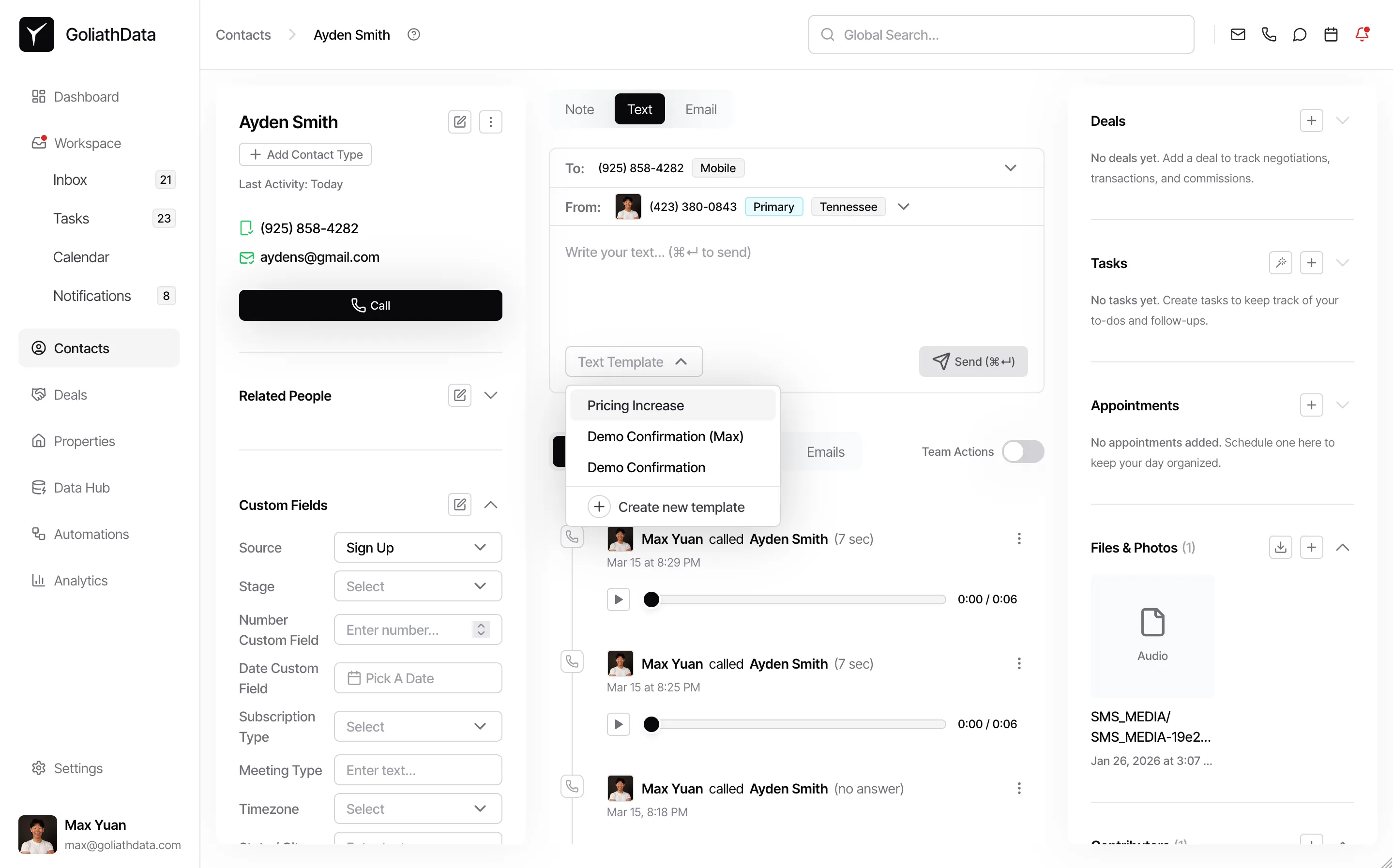
-
Save the template
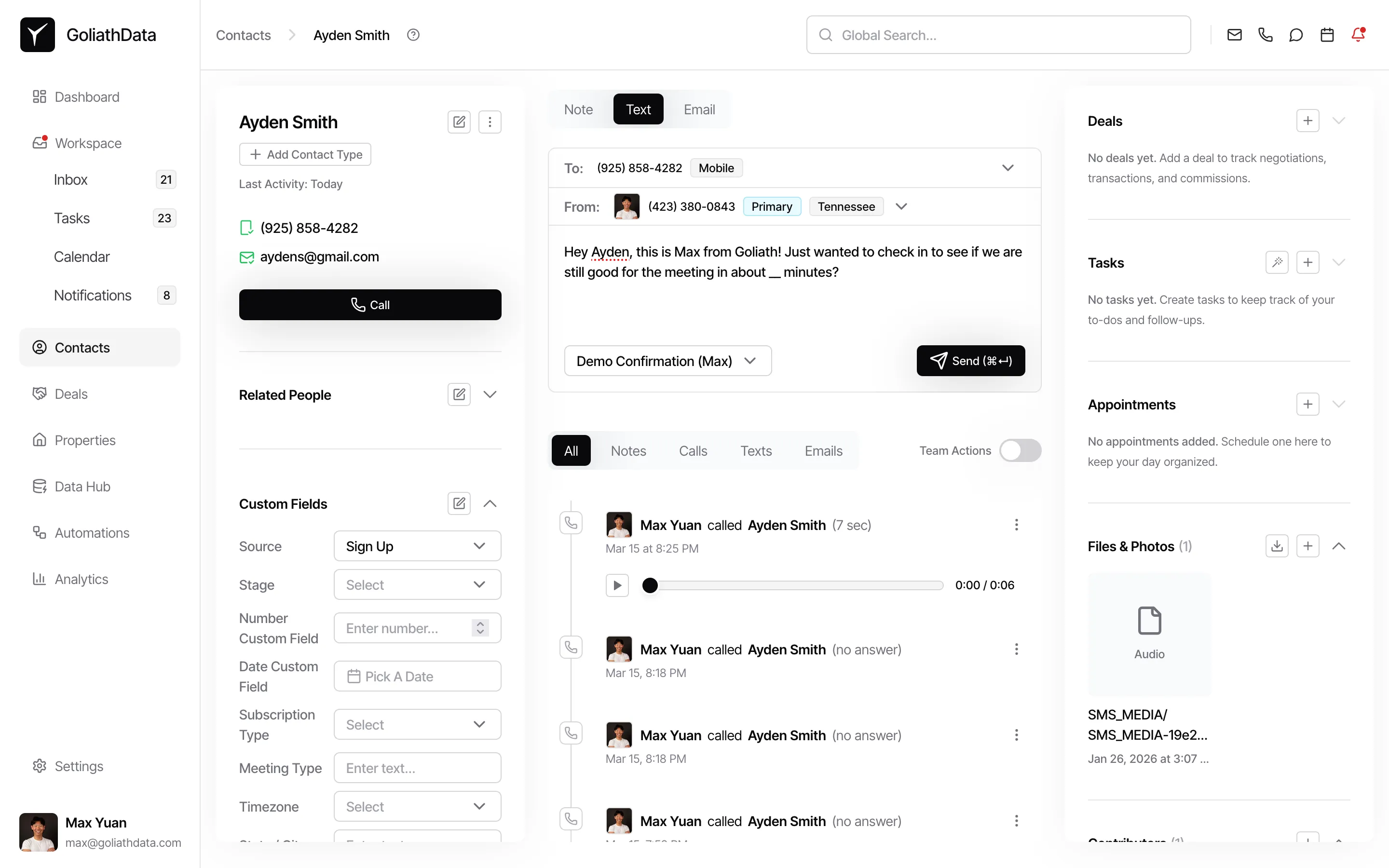
Click Save when done. Your template is now available in the template picker across contacts, the Inbox, and workflow automations.
Frequently Asked Questions
Section titled “Frequently Asked Questions”Q: Can I include emojis in my SMS template?
Section titled “Q: Can I include emojis in my SMS template?”Yes, but be aware that any message containing emojis, smart quotes, or other non-standard characters is limited to 70 characters per segment instead of 160. Your total character budget drops significantly.
Q: Can I attach an image via SMS?
Section titled “Q: Can I attach an image via SMS?”This is MMS (Multimedia Messaging Service), and support varies by carrier and recipient device. Check the editor for MMS options—Goliath may display compatibility warnings if you attempt to include media.
Q: Is there a template-wide signature I can add?
Section titled “Q: Is there a template-wide signature I can add?”SMS is designed to be concise, so Goliath does not append signatures automatically. If you need a sign-off, include it manually in the template body. Keep it short—every character counts.
Q: Where can I use these templates after I create them?
Section titled “Q: Where can I use these templates after I create them?”SMS templates appear in the template picker when composing one-to-one texts from the Inbox, contact details, or app shell. You can also trigger them in bulk workflows using the Send Text action. For detailed steps on bulk sending, see How Do I Send a Bulk Text.