
Exporting Data
Goliath’s export system lets you download properties, contacts, and skip-trace results in multiple formats tailored to your workflow. Every export you create—whether from the Properties page, Contacts page, or after a skip-trace run—lands on the Exports page where you can track progress, download results, and choose the right format for your use case. Exports can be formatted as standard CSV or Excel files for analysis and CRM imports, or as specialized formats for Meta Ads Manager and auto-dialer software when working with skip-traced contact data.
Step-by-Step Guide
Section titled “Step-by-Step Guide”-
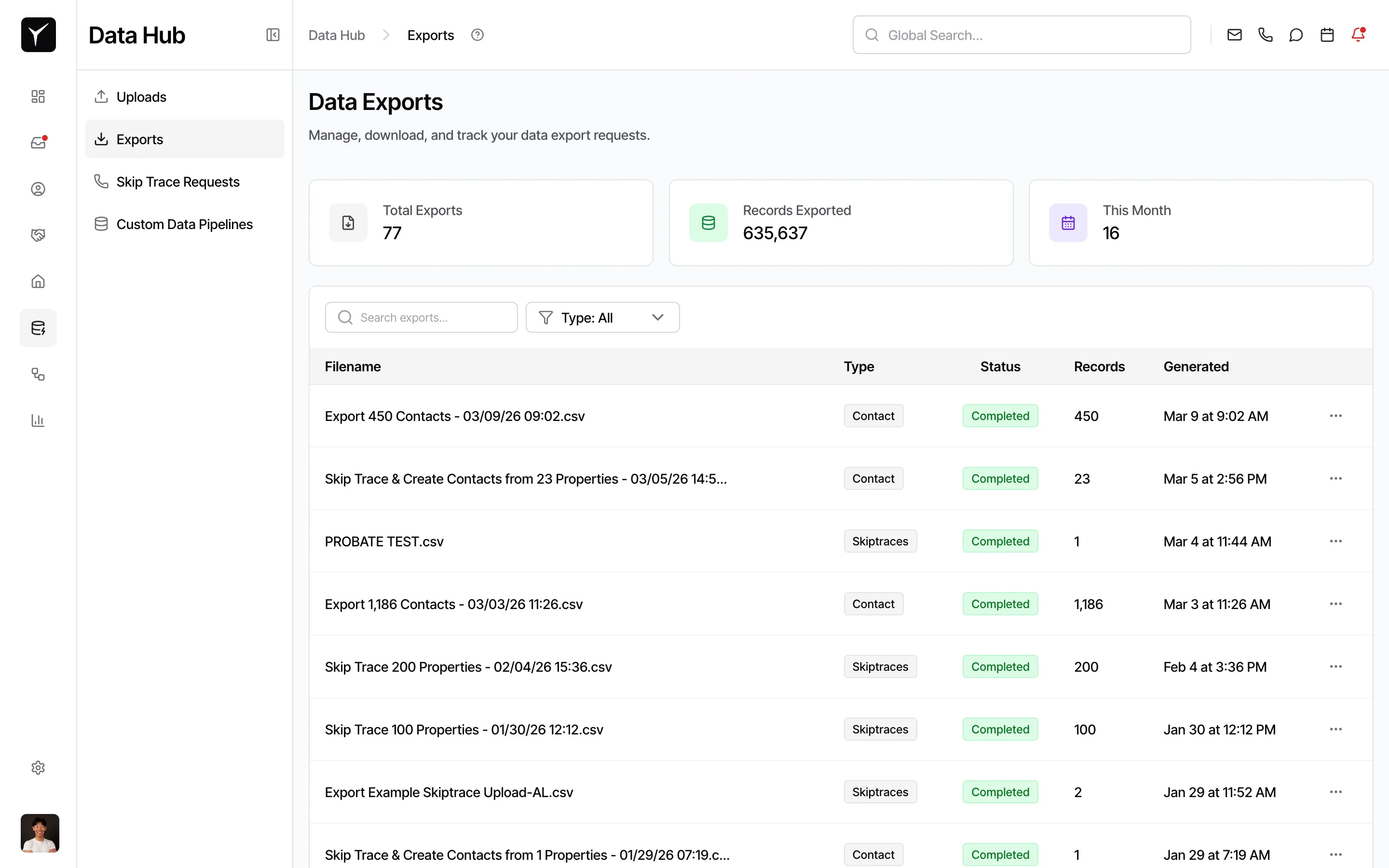
Navigate to the Exports page and monitor status
Access the Exports page from Goliath’s main navigation. All your exports—from Properties, Contacts, or Skip Trace workflows—are listed here. Each export shows a status: Pending, Running, Completed, or Failed. Only Completed exports are ready to download. You can also click directly on an export name to rename it inline.
-
Open the actions menu and download
Click the three-dot menu on any completed export row to reveal available actions:
Action Availability Description View in Properties / View in Contacts All exports Navigates to the filtered view of the exported records. Download Results as CSV All exports Universal format, opens in Excel, Google Sheets, or any CRM import tool. Download Results as XLSX All exports Native Excel format; preserves leading zeros on phone numbers and zip codes. Download Meta Customer List Skip-trace exports only Formatted for Meta Ads Manager Custom Audiences. Download for Multiline Dialer Skip-trace exports only Formatted for auto-dialers; choose “One row per phone number” or “Separate files for phone ordering”. 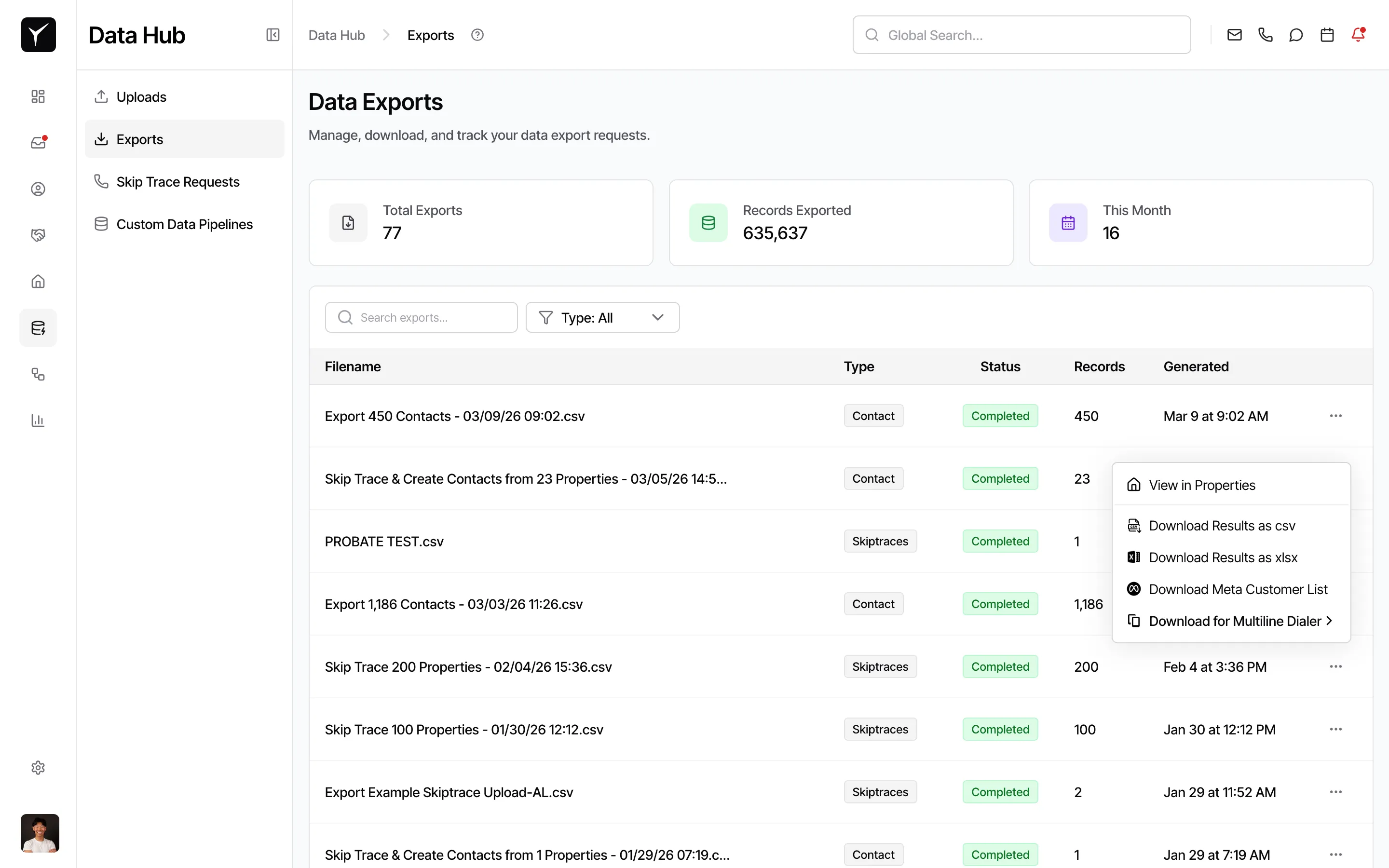
Frequently Asked Questions
Section titled “Frequently Asked Questions”Q: What’s the difference between CSV and XLSX?
Section titled “Q: What’s the difference between CSV and XLSX?”CSV is a universal text-based format that opens in any spreadsheet or CRM tool, but it doesn’t preserve data types—leading zeros on phone numbers and zip codes may disappear. XLSX is a native Excel format that preserves typed columns (numbers, dates, text), making it the better choice for Excel users and data imports that require precise formatting.
Q: Why don’t I see the Meta Customer List or Multiline Dialer options?
Section titled “Q: Why don’t I see the Meta Customer List or Multiline Dialer options?”Those options are only visible for exports created from skip-trace runs. If you exported properties or contacts without running skip-trace, you’ll only see the View in Properties/Contacts, Download Results as CSV, and Download Results as XLSX actions.
Q: Can I re-download an export in a different format?
Section titled “Q: Can I re-download an export in a different format?”Yes—completed exports remain on the Exports page indefinitely. Open the three-dot menu on any completed export and choose a different download action without needing to re-run the export.
Q: What happens if my export fails?
Section titled “Q: What happens if my export fails?”If an export shows Failed status, try creating a new export with the same filters. If the issue persists, contact Goliath support—there may be a data or system issue preventing the export from completing.