
How Do I Embed a Form?
Goliath forms can be distributed in multiple ways: as a standalone link, embedded directly on your website with a script tag, or placed in an iframe. Each method serves different use cases, from sharing a quick link in a text message to embedding a fully styled form on your marketing site. The form must be published before any embed option is live.
Step-by-Step Guide
Section titled “Step-by-Step Guide”-
Navigate to the Forms list
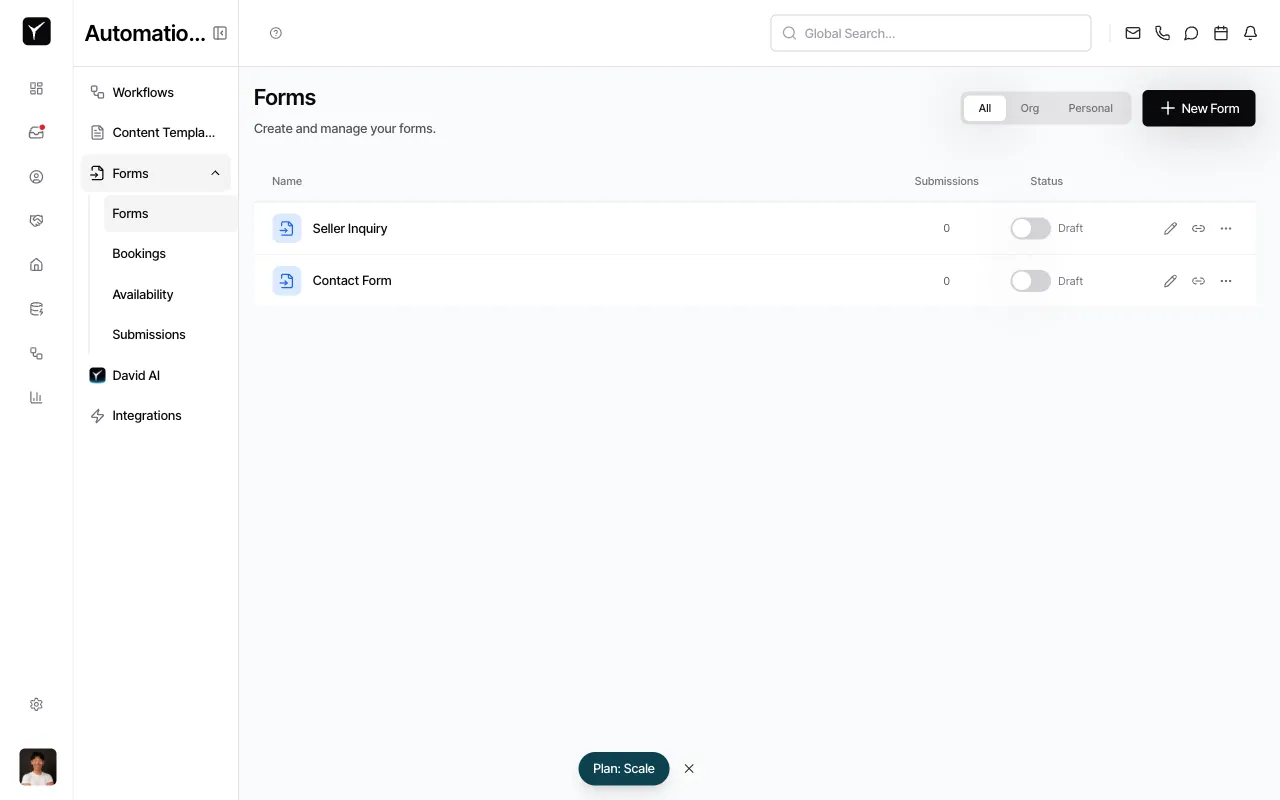
From the left sidebar, click Forms under the Automations section. You’ll see all your forms with their submission counts and status.
-
Open the form builder
Click the Edit form icon (pencil) next to the form you want to embed. This opens the form builder.
-
Publish the form
If the form is still in Draft status, publish it by clicking the Publish or status toggle in the toolbar. Unpublished forms will not accept public submissions.
-
Open the share dialog
In the form builder toolbar, click the Embed or Copy link button. This opens the Share Form dialog with all distribution options.
-
Choose your embed method
The Share Form dialog presents four options:
- Short Link — A shortened URL for easy sharing in texts, emails, or social media. Compact and trackable.
- Direct URL — The full form URL at
/form/{formId}. Works as a standalone hosted page where contacts visit directly to fill out the form. - Script Tag (recommended) — A
<script>embed for your website. Supports auto-resize (form height adjusts to content), UTM parameter passthrough (campaign tracking), and submission callbacks (JavaScript events your site can listen for). Best for developer-maintained marketing sites. - Iframe Embed — A standard
<iframe>snippet. Works universally on any site that supports HTML (WordPress, Wix, Squarespace, Webflow). Simpler than script tag but without auto-resize or callbacks. Best for drag-and-drop site builders or locked-down CMS environments.
-
Copy the code or link
Click the Copy button next to your chosen method. Paste the code into your website’s HTML or share the link via email, SMS, or social media.
Frequently Asked Questions
Section titled “Frequently Asked Questions”Q: Which embed method should I use?
Section titled “Q: Which embed method should I use?”Use the Script Tag if your site supports custom HTML (most marketing sites do). Use the Iframe Embed if you’re on a drag-and-drop builder like Wix or Squarespace. Use the Direct URL or Short Link if you just want to share a link without embedding.
Q: Can I embed the same form on multiple sites?
Section titled “Q: Can I embed the same form on multiple sites?”Yes. You can embed the form on unlimited websites and share the link in unlimited channels. All submissions flow into the same form record in Goliath.
Q: Does the embed update when I change the form?
Section titled “Q: Does the embed update when I change the form?”Yes. The embed always serves the latest published version of the form. Changes made in the builder appear immediately on all embedded instances once you publish.
Q: Is there a performance impact when embedding?
Section titled “Q: Is there a performance impact when embedding?”Minimal. Both the script tag and iframe methods lazy-load the form, so they don’t slow down your page’s initial render.
Q: What if my form is still in Draft status?
Section titled “Q: What if my form is still in Draft status?”Draft forms can be previewed in the builder but will not accept real submissions from the public. You must publish the form before the embed or link is live.