
Viewing and Finding Properties
The Properties page is your command center for finding and organizing investment opportunities in Goliath. Use filters to narrow down properties by type, location, listing status, and investment signals, then save promising properties to custom lists for follow-up. Goliath displays over 50,000 properties nationwide with detailed property cards, interactive maps, and quick filters.
Step-by-Step Guide
Section titled “Step-by-Step Guide”-
Navigate to All Properties
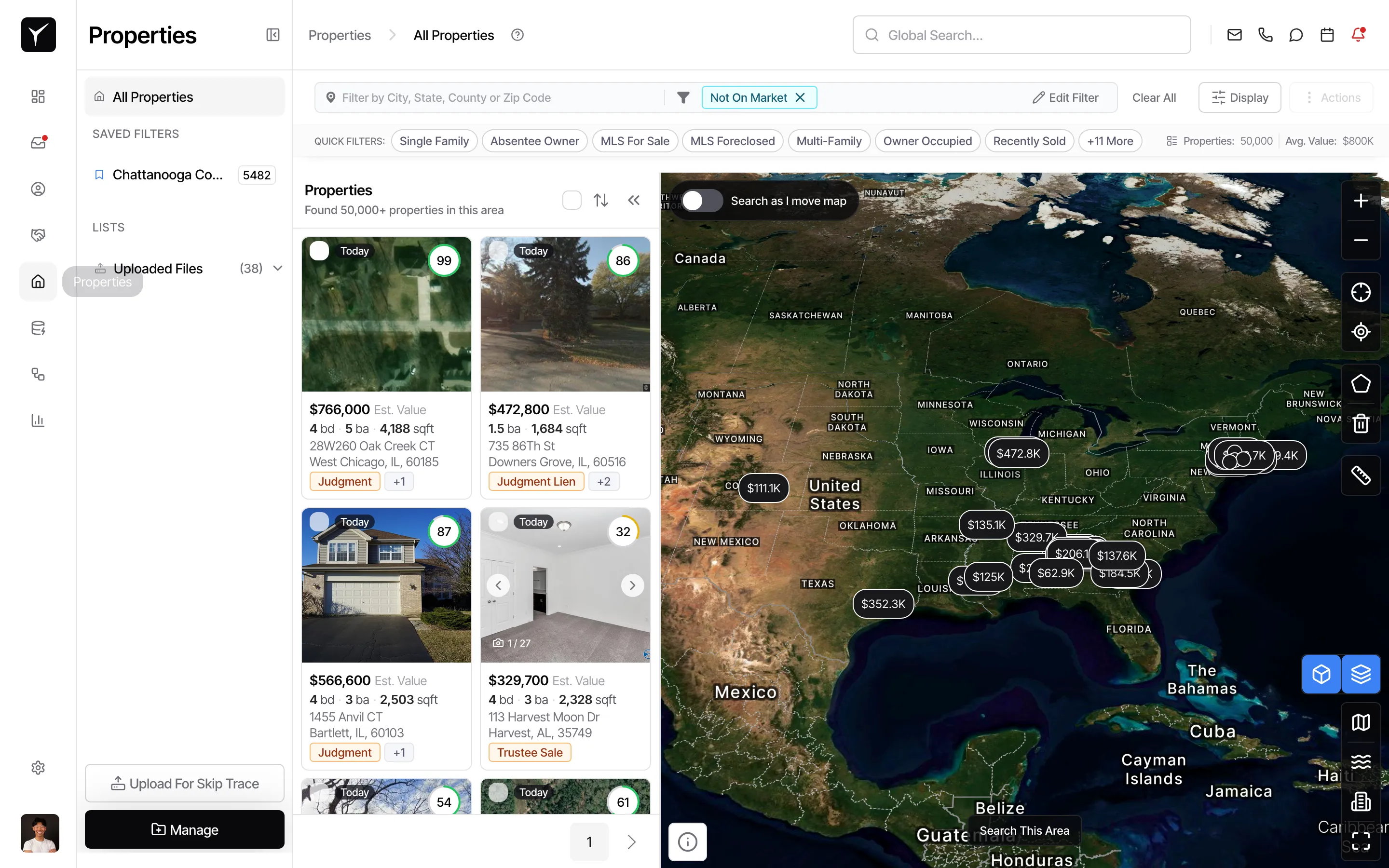
Click Properties in the left sidebar to view all available properties. The initial view shows a map and property grid with thousands of results.
-
Apply filters to narrow your search
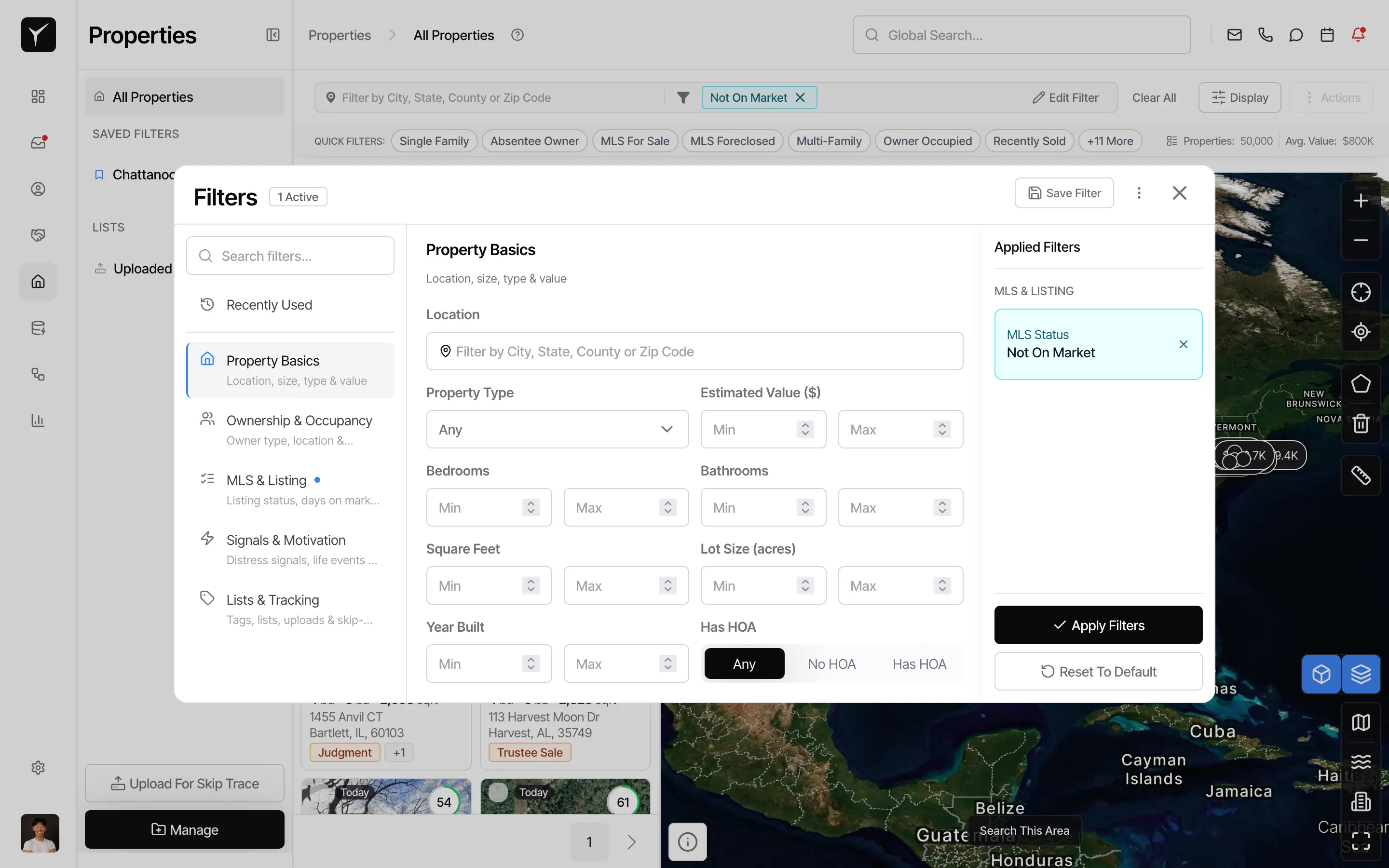
Click the Edit Filter button in the toolbar to open the filter panel. Goliath has already applied a filter showing properties that are Not On Market.
-
Open the filter editor
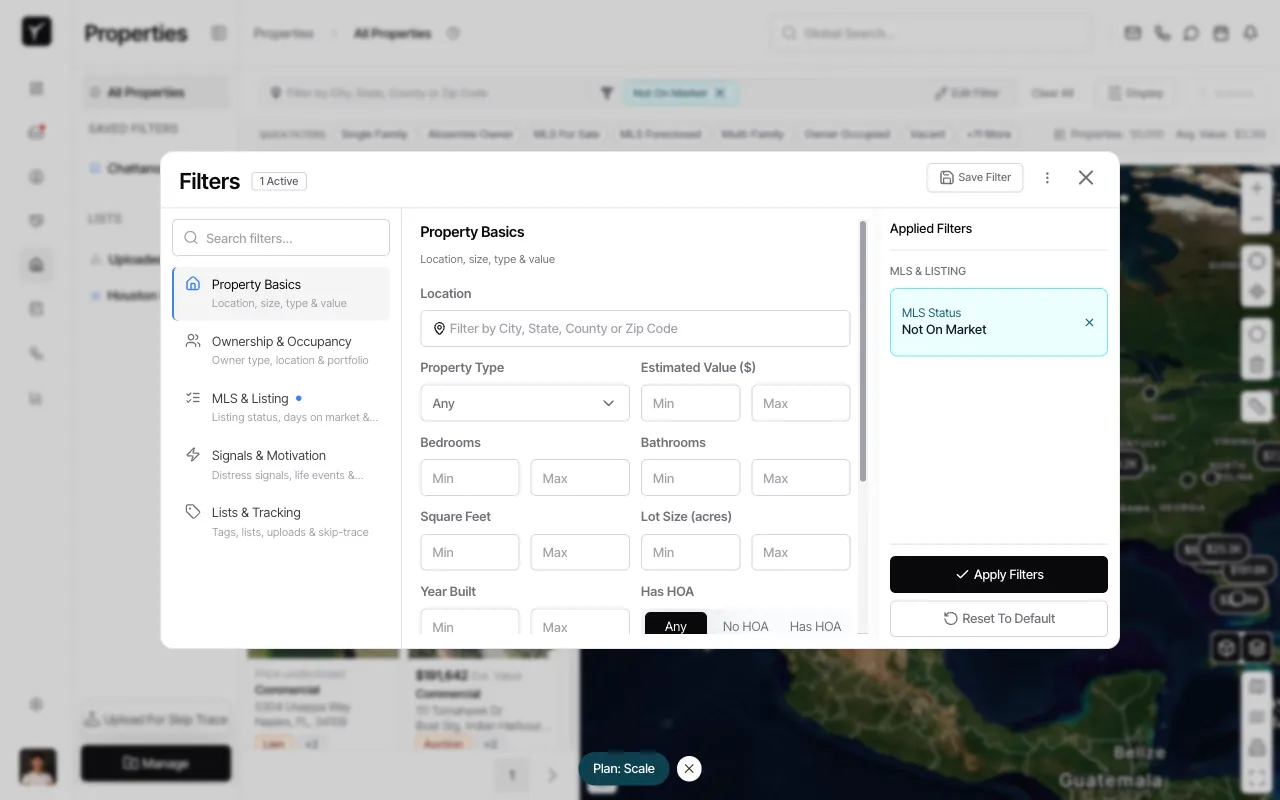
The Filters dialog opens with several filter categories on the left: Property Basics, Ownership & Occupancy, MLS & Listing, Signals & Motivation, and Lists & Tracking. You’ll see any active filters in the Applied Filters panel on the right.
-
Select property type
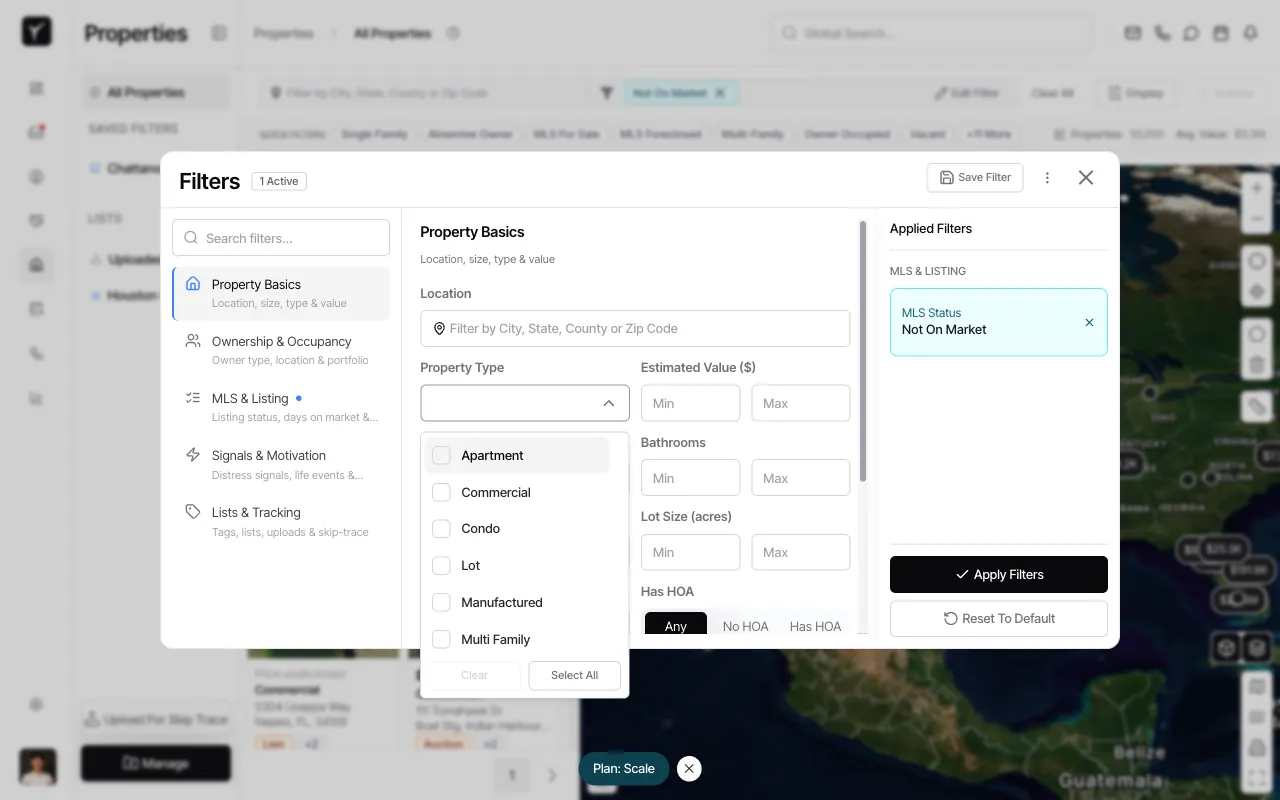
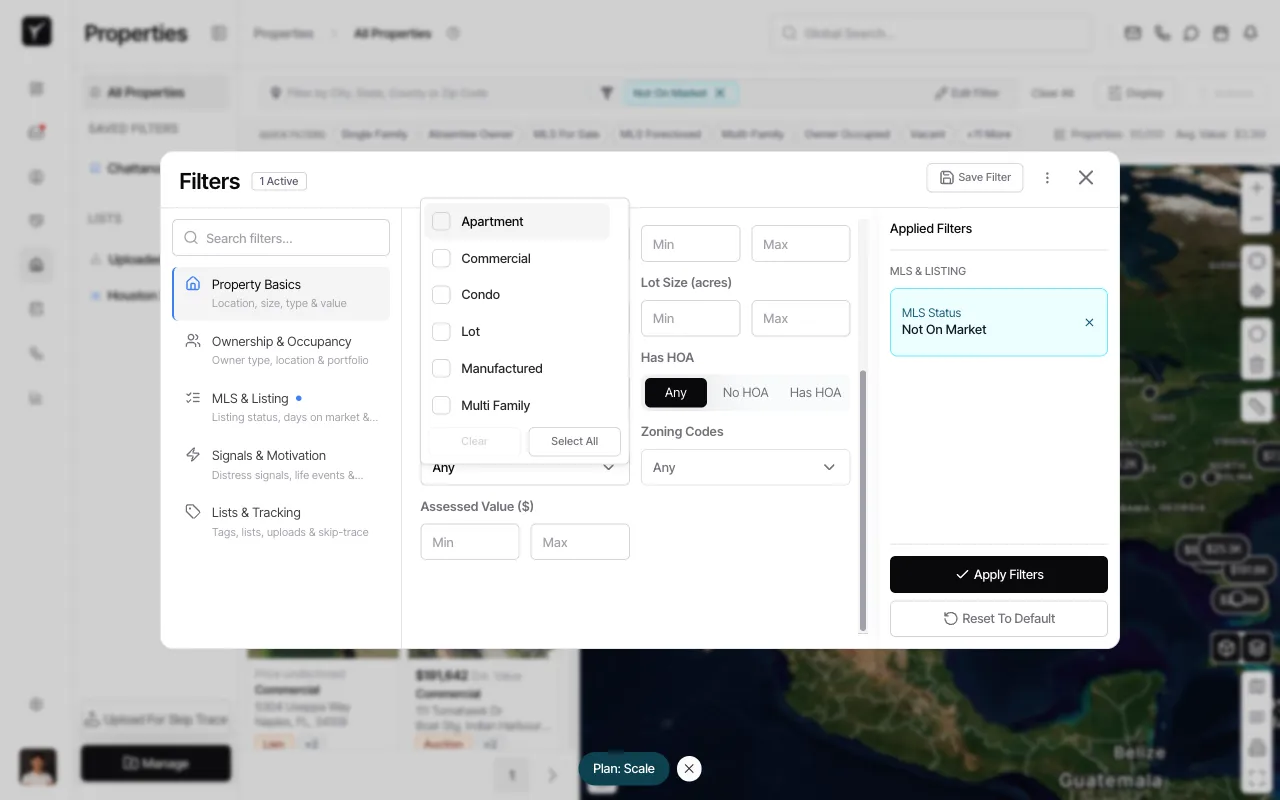
Under Property Basics, click the Property Type dropdown to reveal options like Apartment, Commercial, Condo, Lot, Manufactured, Multi Family, Single Family, and Townhouse.
-
Scroll to see all property types
If needed, scroll within the dropdown to view all available property types.
-
Choose Single Family
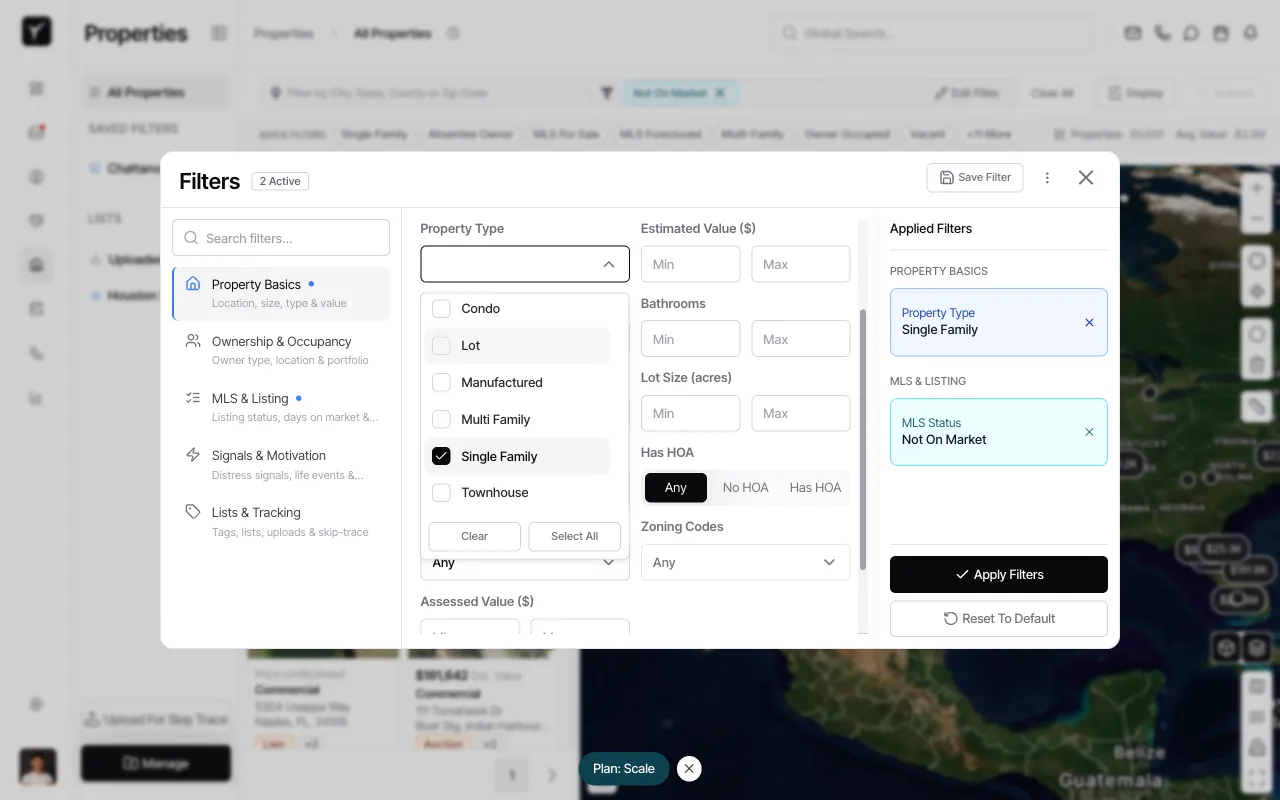
Select Single Family from the dropdown. The filter will be added to the Applied Filters panel.
-
Apply the filters
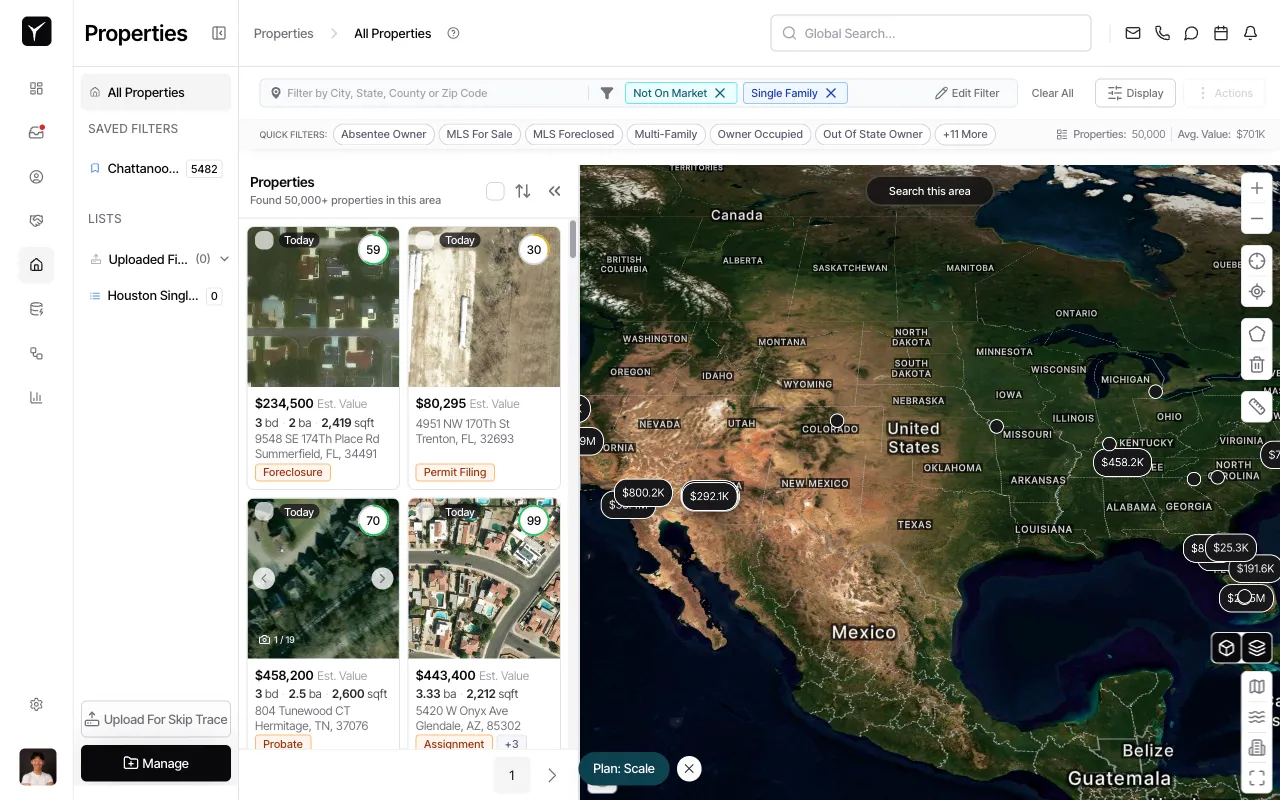
Click the Apply Filters button at the bottom of the dialog to update the property results. Goliath will now show only single-family properties that are not on market.
-
Review filtered results
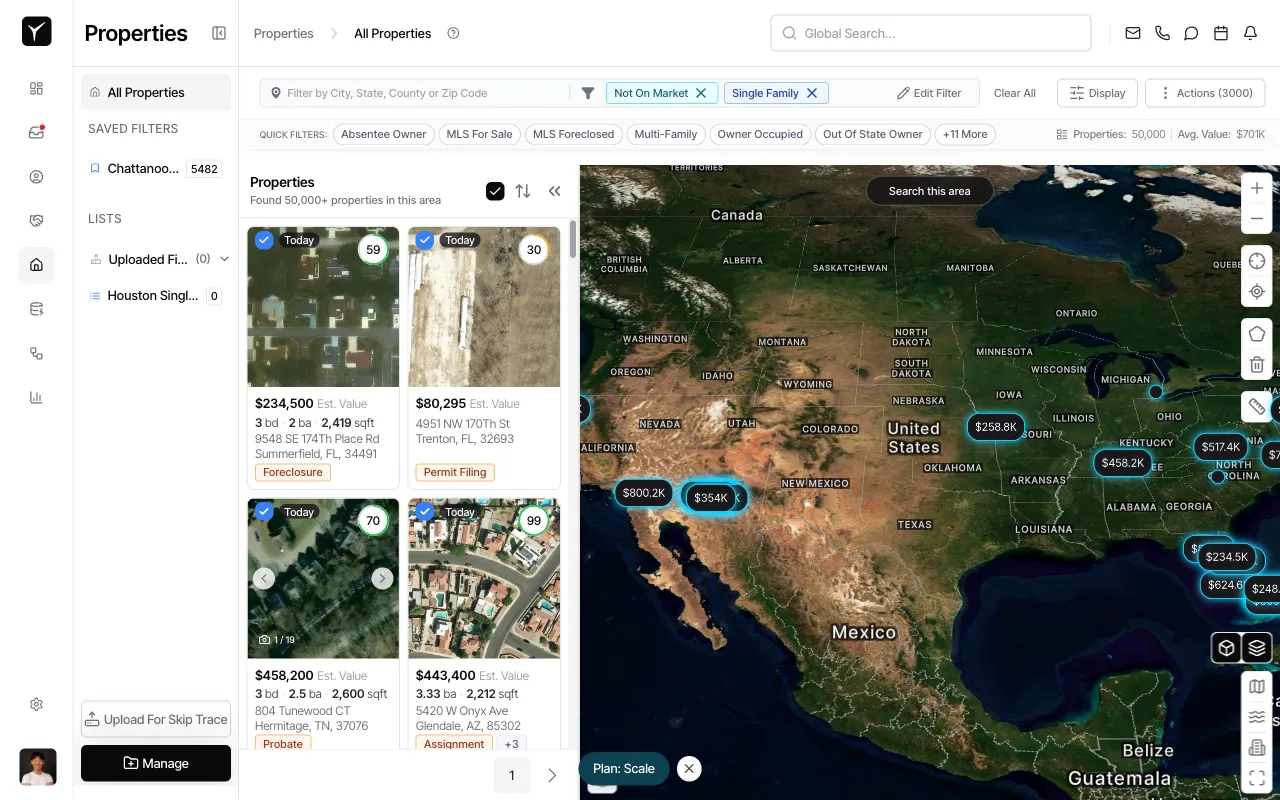
The property grid and map update to show properties matching your criteria. You’ll see filter tags like Not On Market and Single Family at the top of the page, along with quick filter options like Absentee Owner, MLS For Sale, and Vacant.
-
Select properties to add to a list
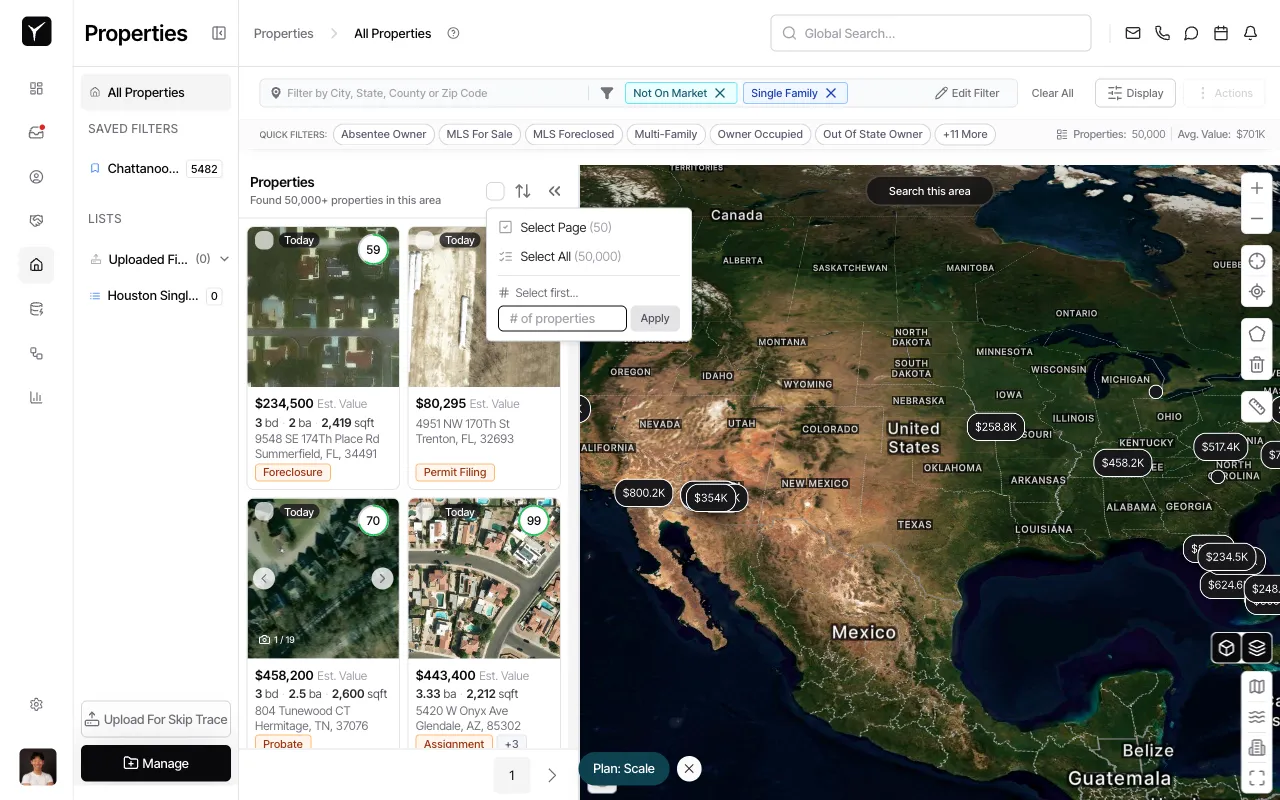
Click the checkbox at the top of the property grid to open the selection menu. You can choose Select Page, Select All, or enter a specific number of properties to select.
-
Confirm property selection
After choosing your selection option, the properties will be highlighted with checkmarks. The Actions button in the toolbar will become active, showing the number of selected properties.
-
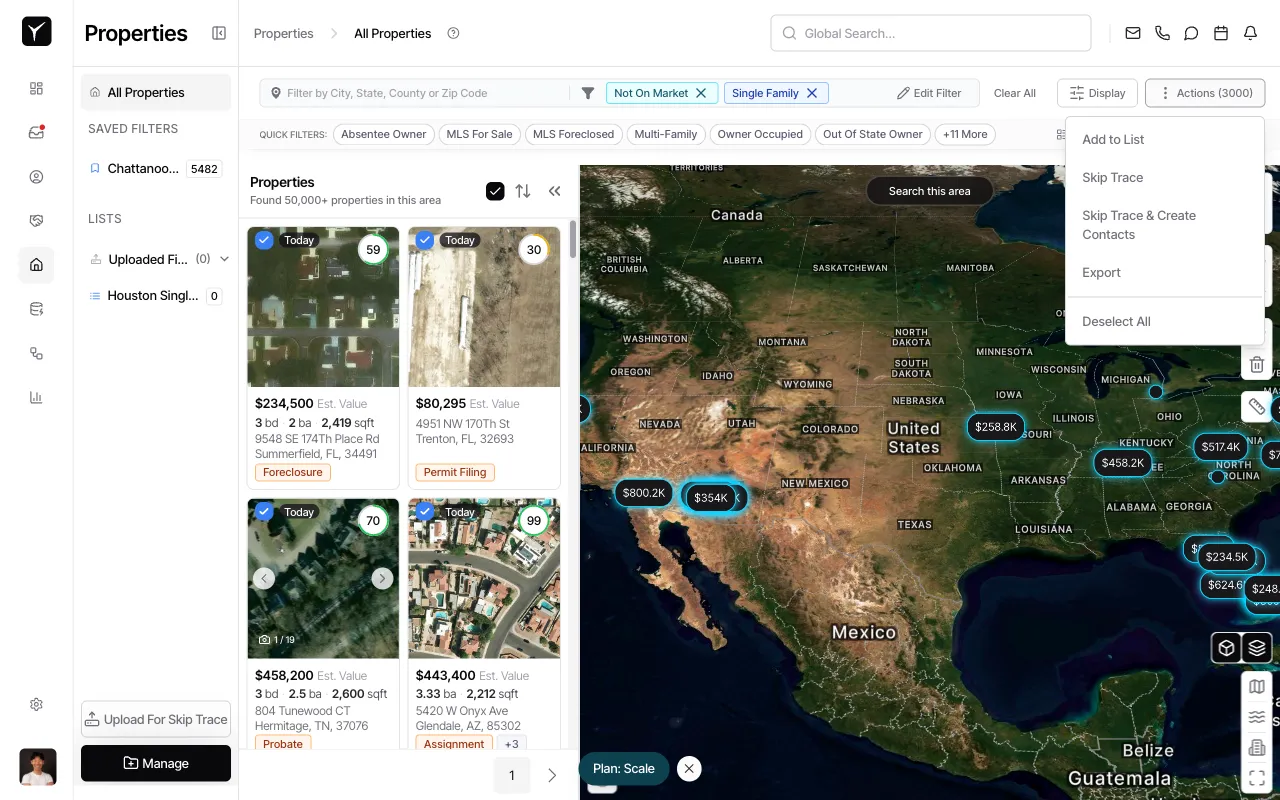
Open the Actions menu
Click the Actions button to reveal options including Add to List, Skip Trace, Skip Trace & Create Contacts, Export, and Deselect All.
-
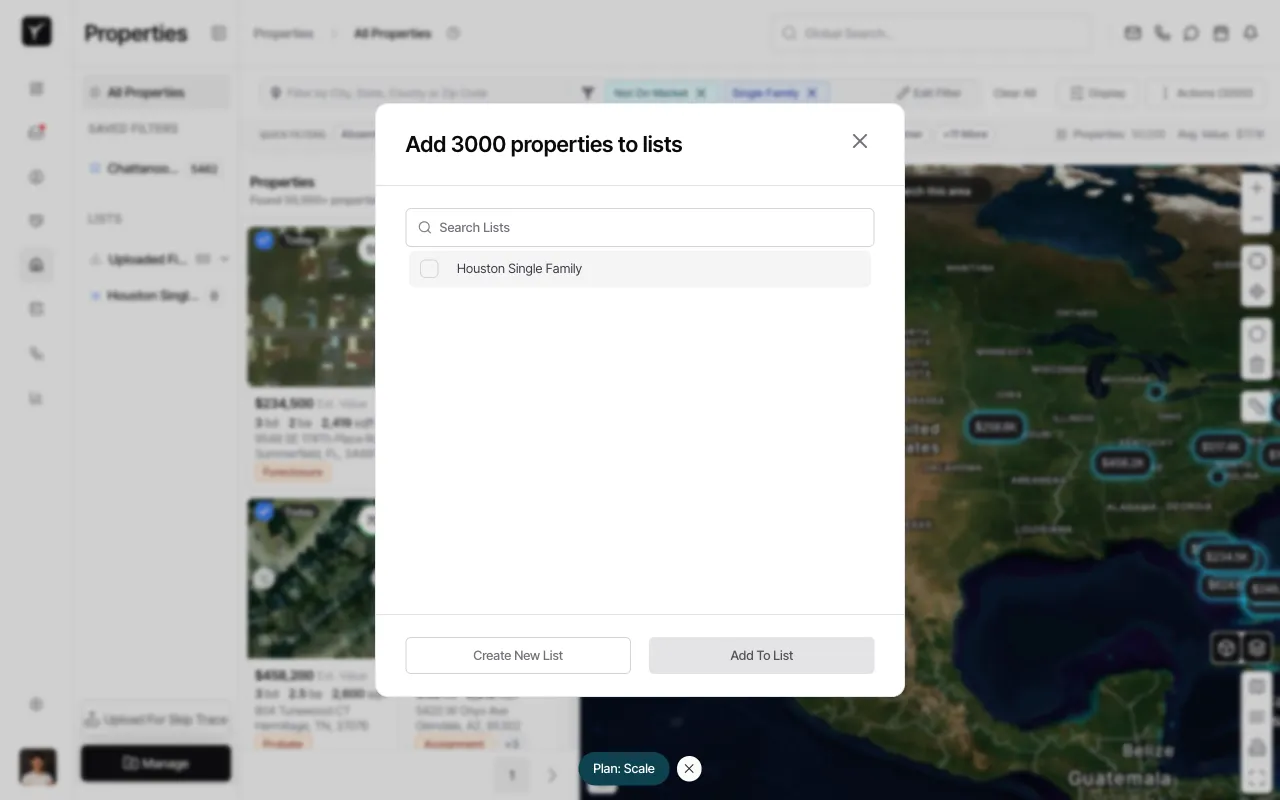
Choose Add to List
Click Add to List to open the list management dialog.
-
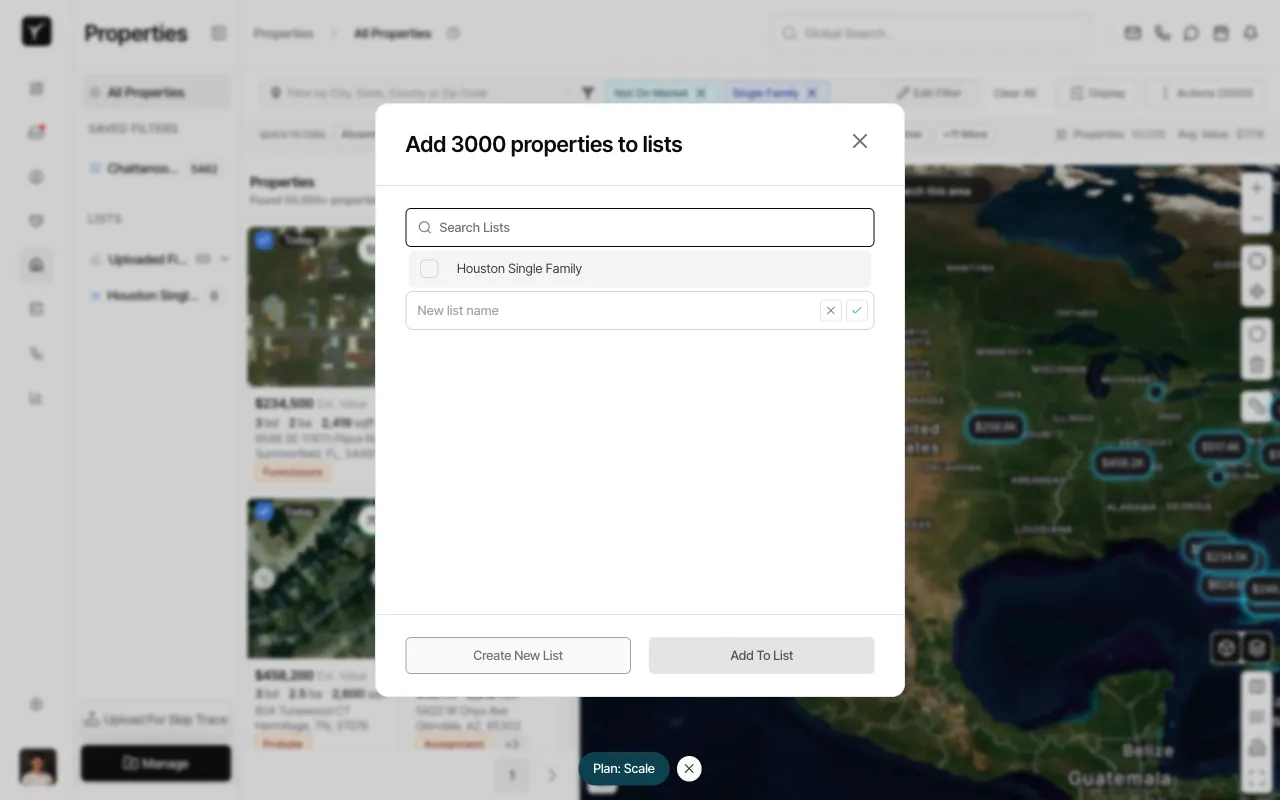
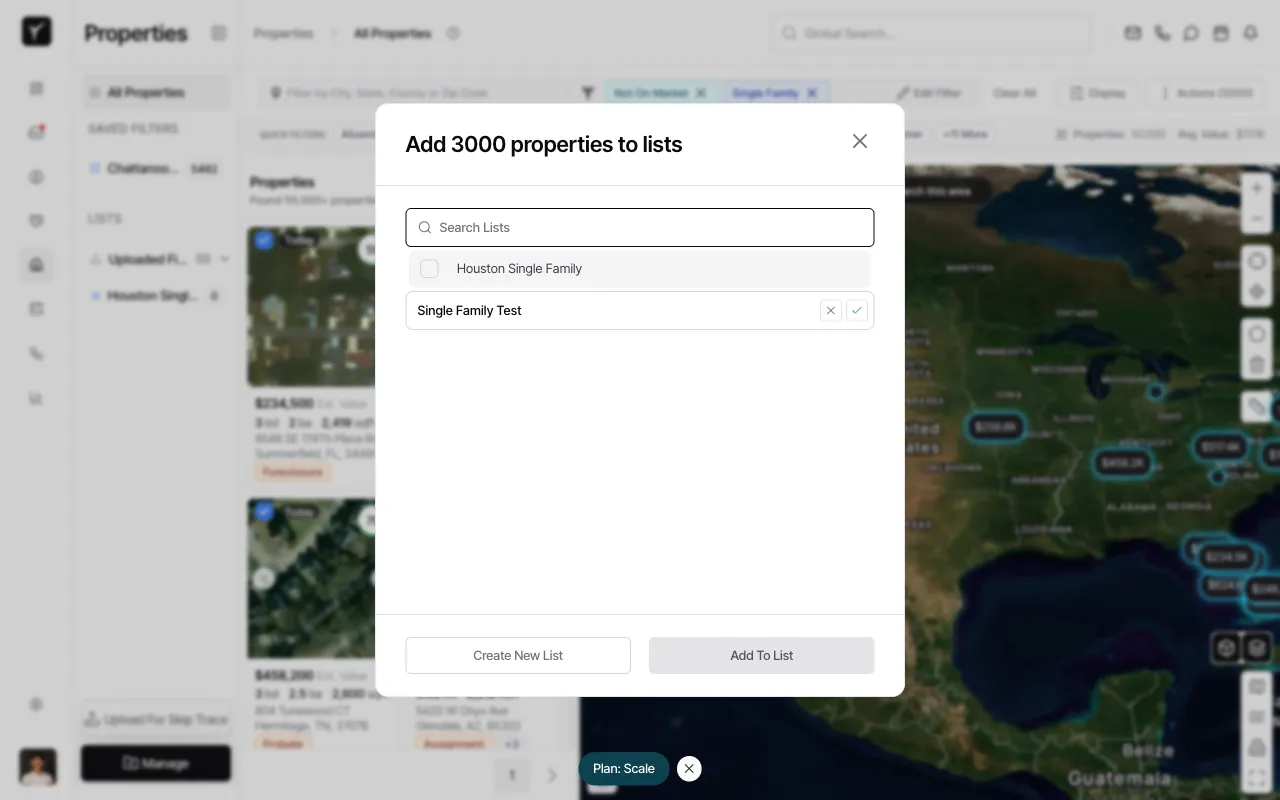
Create a new list
Click the Create New List button and enter a name for your list in the text field that appears. Click the checkmark to confirm.
-
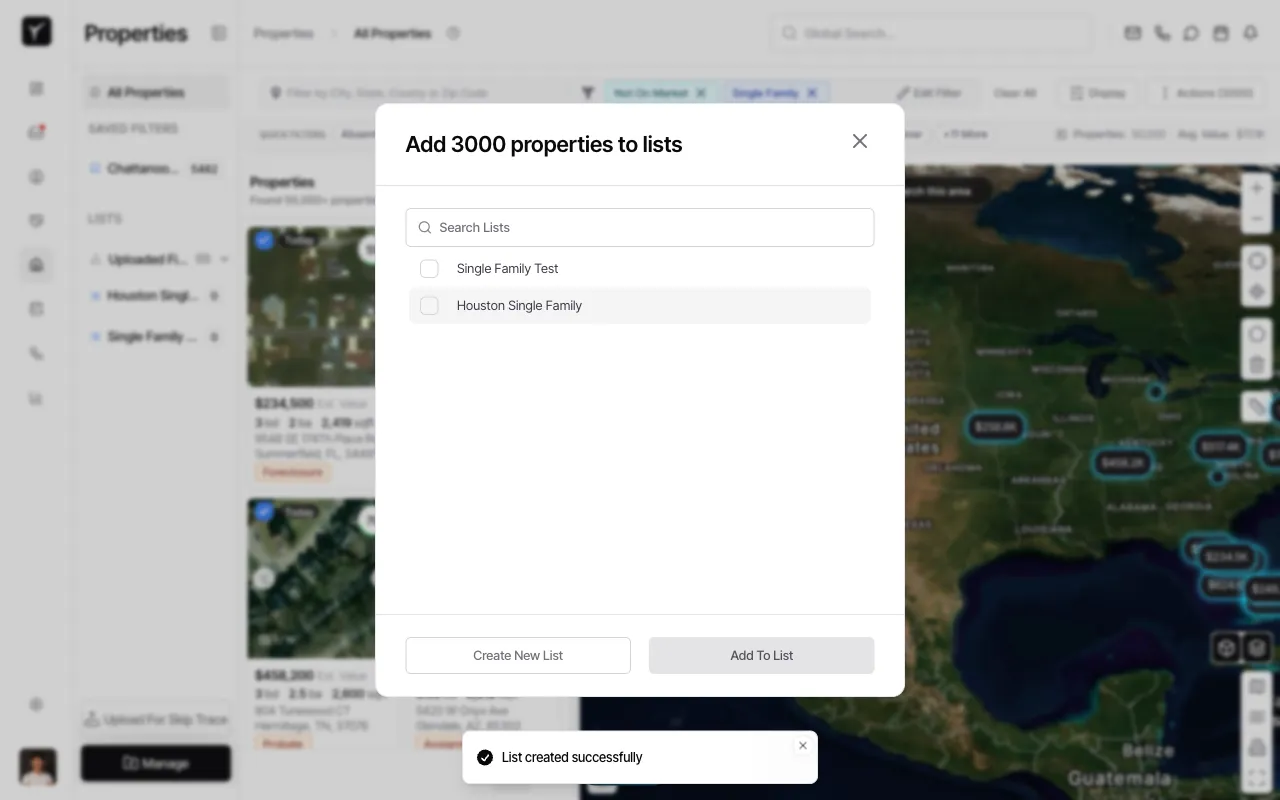
List created successfully
Goliath confirms your list was created and displays it in the available lists. The new list now appears in the LISTS section of the left sidebar for quick access.
Frequently Asked Questions
Section titled “Frequently Asked Questions”Q: What does “Found 50,000+ properties” mean?
Section titled “Q: What does “Found 50,000+ properties” mean?”Goliath shows that over 50,000 properties match your current filters, but may display a subset for performance. Use more specific filters or geographic boundaries to narrow your results.
Q: What’s the difference between “Select All” and “Select Page”?
Section titled “Q: What’s the difference between “Select All” and “Select Page”?”Select Page selects only the properties visible on the current page of results. Select All attempts to select all properties matching your filters (up to system limits).
Q: Can I edit filters without losing my current results?
Section titled “Q: Can I edit filters without losing my current results?”Yes. Click Edit Filter to modify your criteria, then click Apply Filters to update. Use Clear All to remove all active filters and start over.