
How Do I Reply to a Message?
The Inbox unifies all contact communications—calls, texts, emails, and voicemails—in one place. Replying is channel-aware: SMS replies send as text messages, email replies thread with the original email, and voicemail replies let you call back, text back, or email. Every reply you send is visible to your entire team on the contact timeline, ensuring everyone has full context without switching tools.
Step-by-Step Guide
Section titled “Step-by-Step Guide”-
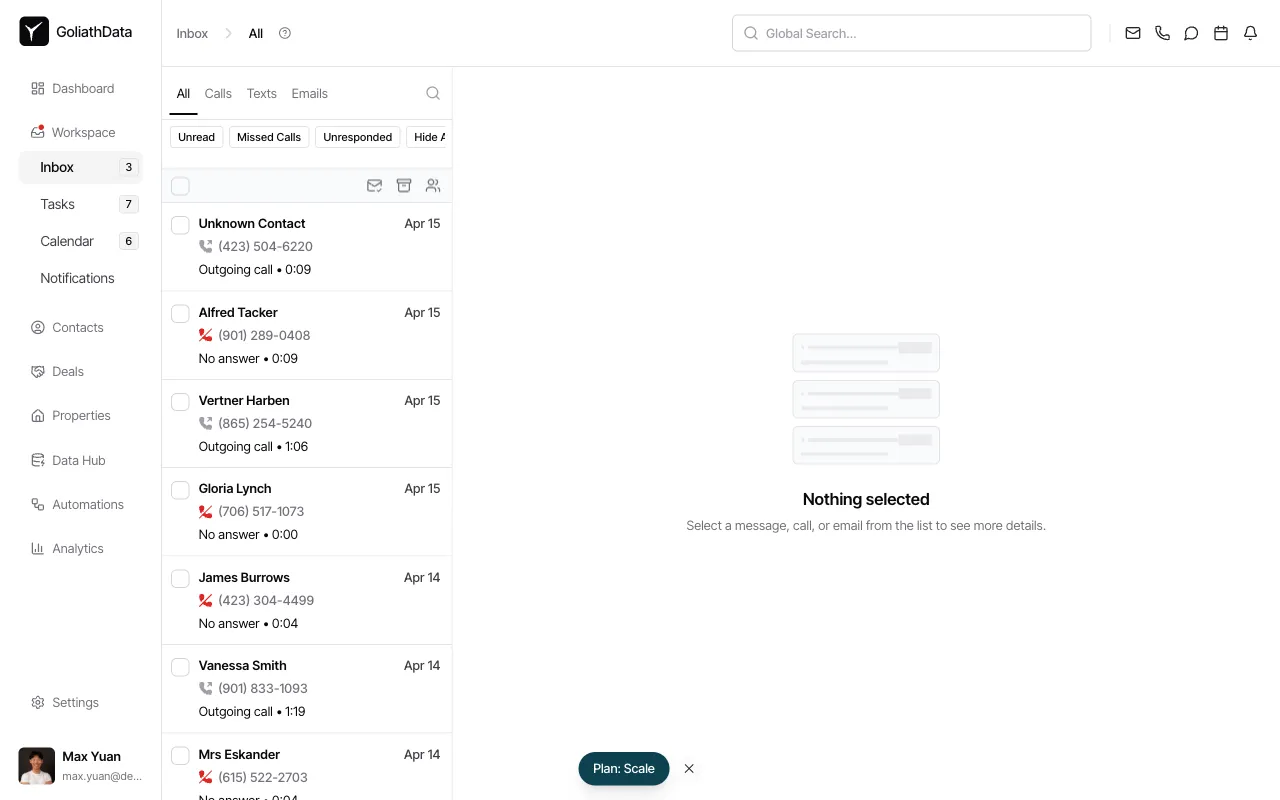
Select a conversation from the Inbox list
From the Inbox, click any message, call, or email in the list on the left. The detail pane on the right will display the full conversation history.
-
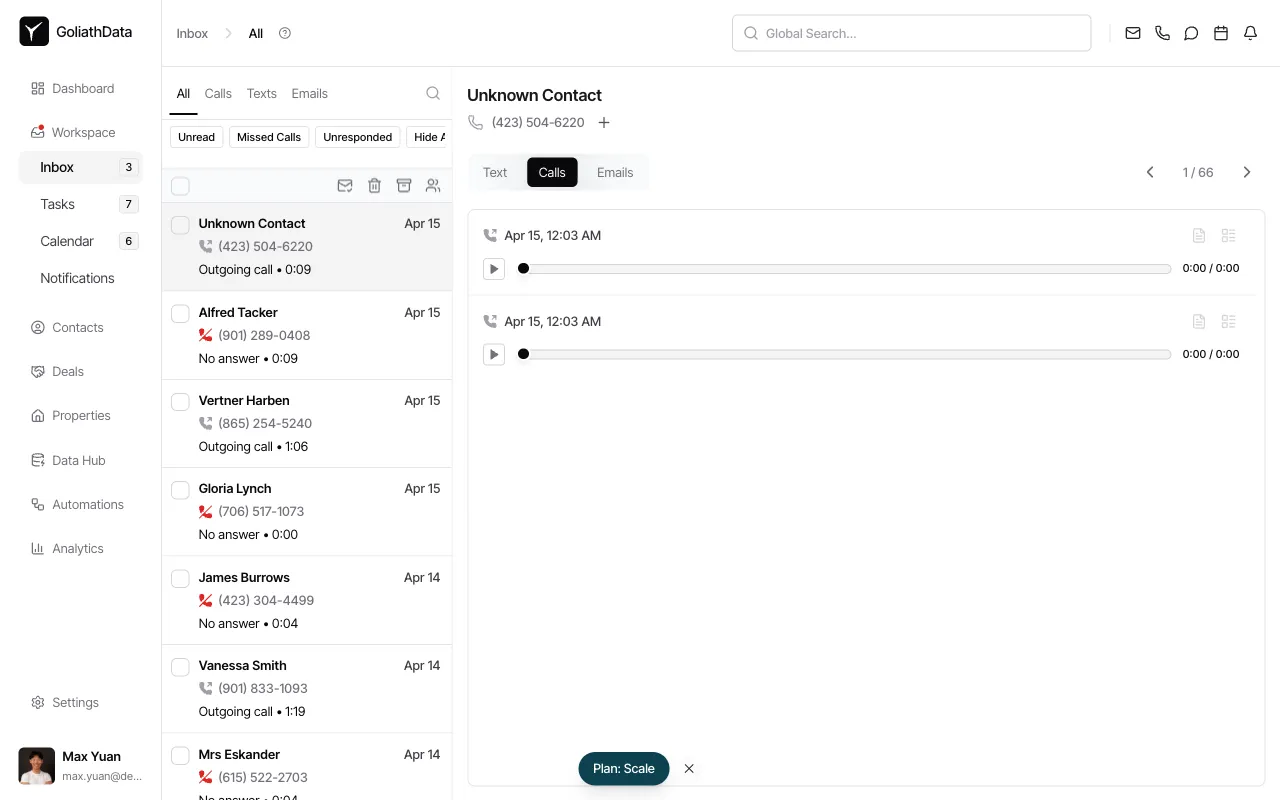
Open the conversation detail
Once you select a conversation, Goliath loads the thread view. For calls, you’ll see a playback timeline; for texts and emails, you’ll see the message history. Use the Text, Calls, and Emails tabs to switch between communication channels for that contact.
-
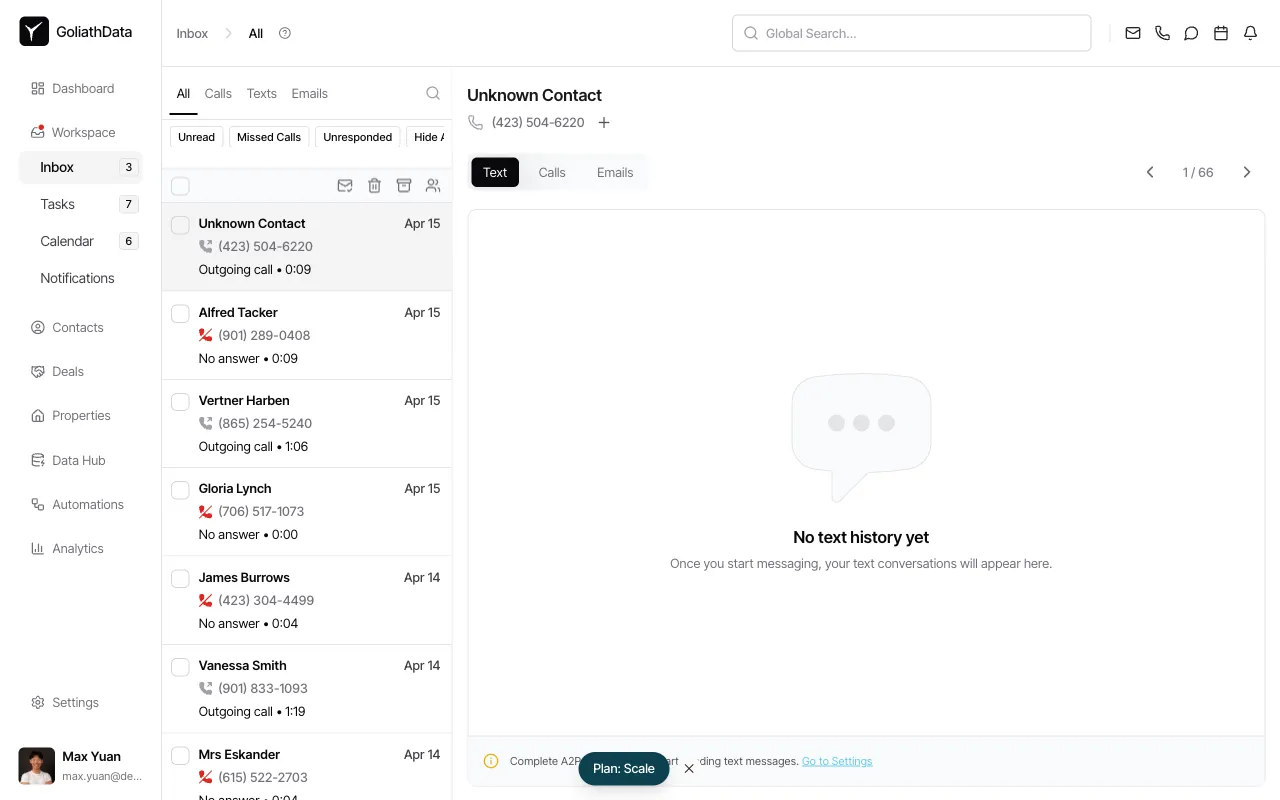
Switch to the appropriate channel tab
To reply via text, click the Text tab. The message composer will appear at the bottom of the detail pane (or may display a setup prompt if you haven’t configured SMS sending yet).
-
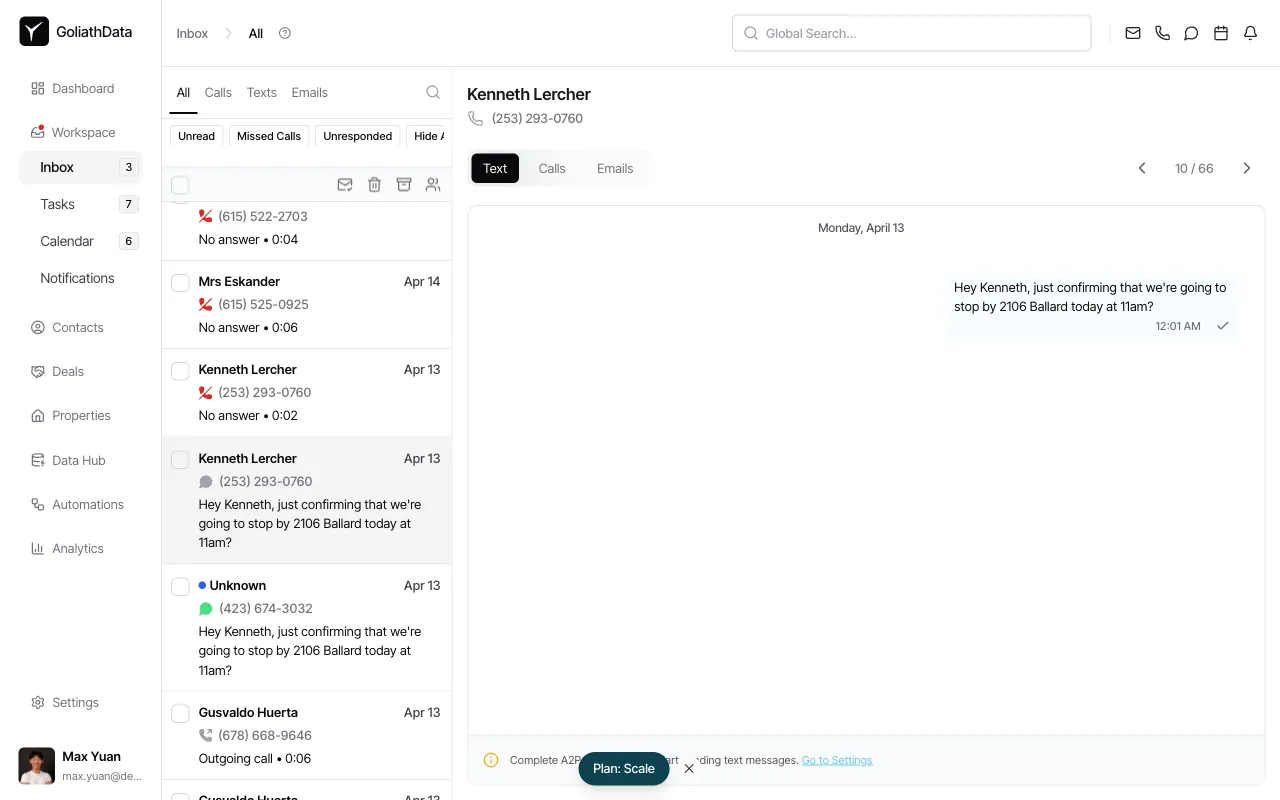
Review the conversation and compose your reply
The thread view shows all prior messages, timestamps, and delivery status. Scroll to review the conversation history before replying.
-
Type your message and send
In the composer (visible at the bottom of the detail pane after scrolling), type your reply. For SMS, keep messages under 160 characters to avoid multi-segment fees. For emails, you can use Reply, Reply All, or Forward options. Click the Send button (or hit Enter) to send your message from your assigned phone number or connected email account.
Frequently Asked Questions
Section titled “Frequently Asked Questions”Q: Can I save a draft reply for later?
Section titled “Q: Can I save a draft reply for later?”Yes—most composers in Goliath support draft saving. If you navigate away before sending, your draft should be preserved when you return to the conversation.
Q: Do my personal emails still send from my own account?
Section titled “Q: Do my personal emails still send from my own account?”Yes. Outbound emails from the Inbox send from your connected Gmail or Outlook account and thread with the original conversation, so recipients see a continuous email thread.
Q: What if the contact has multiple phone numbers?
Section titled “Q: What if the contact has multiple phone numbers?”The composer typically lets you select which number to send to from a dropdown. Goliath defaults to the primary number on the contact record.
Q: How do I reply to a voicemail?
Section titled “Q: How do I reply to a voicemail?”When viewing a voicemail, you can click Call to launch the dialer, Text to open an SMS composer, or Mail to send an email (if the contact has an email on file).