
How to Merge Duplicate Contacts
Goliath automatically identifies potential duplicate contacts and surfaces them as a Possible Duplicates banner on the contact detail panel. When duplicates are detected, you can merge them into a single consolidated record, preserving all activity history from both contacts. This keeps your database clean and ensures you’re not accidentally reaching out to the same person multiple times through different records.
How Duplicate Detection Works
Section titled “How Duplicate Detection Works”Goliath flags a contact as a possible duplicate if either of the following rules is satisfied:
Rule 1 — Same name and at least one matching detail
The contact names match and at least one of the following also overlaps:
- A phone number
- An email address
- A linked property (both contacts are connected to the same property record)
Rule 2 — Same phone number, different names
The contacts share a phone number even though their names don’t match. This catches cases like a contact added under a nickname or a slightly different name.
How matching works under the hood
Section titled “How matching works under the hood”- Phone numbers are normalized before comparing: formatting like
(404) 630-9504,404-630-9504, and4046309504all resolve to the same number. Phone numbers marked as Wrong in Goliath are excluded from matching. - Email addresses are compared after trimming whitespace and converting to lowercase. The comparison is exact —
John@gmail.comandjohn@gmail.comare treated as the same. - Names are compared after trimming, lowercasing, and collapsing extra spaces. The match is exact after that normalization — no fuzzy or phonetic matching.
John Smithandjohn smithmatch;Jon Smithdoes not. - Linked properties are matched by internal property ID, not by mailing address string.
Only non-archived contacts within your organization are checked.
Step-by-Step Guide
Section titled “Step-by-Step Guide”-
Locate duplicate contacts
Goliath flags potential duplicates directly in your contact list and on individual contact detail panels. Review these suggestions after every bulk CSV upload or periodically (such as quarterly) to catch duplicates that appear from manual additions or enriched property owner lookups.
-
Review the duplicate records
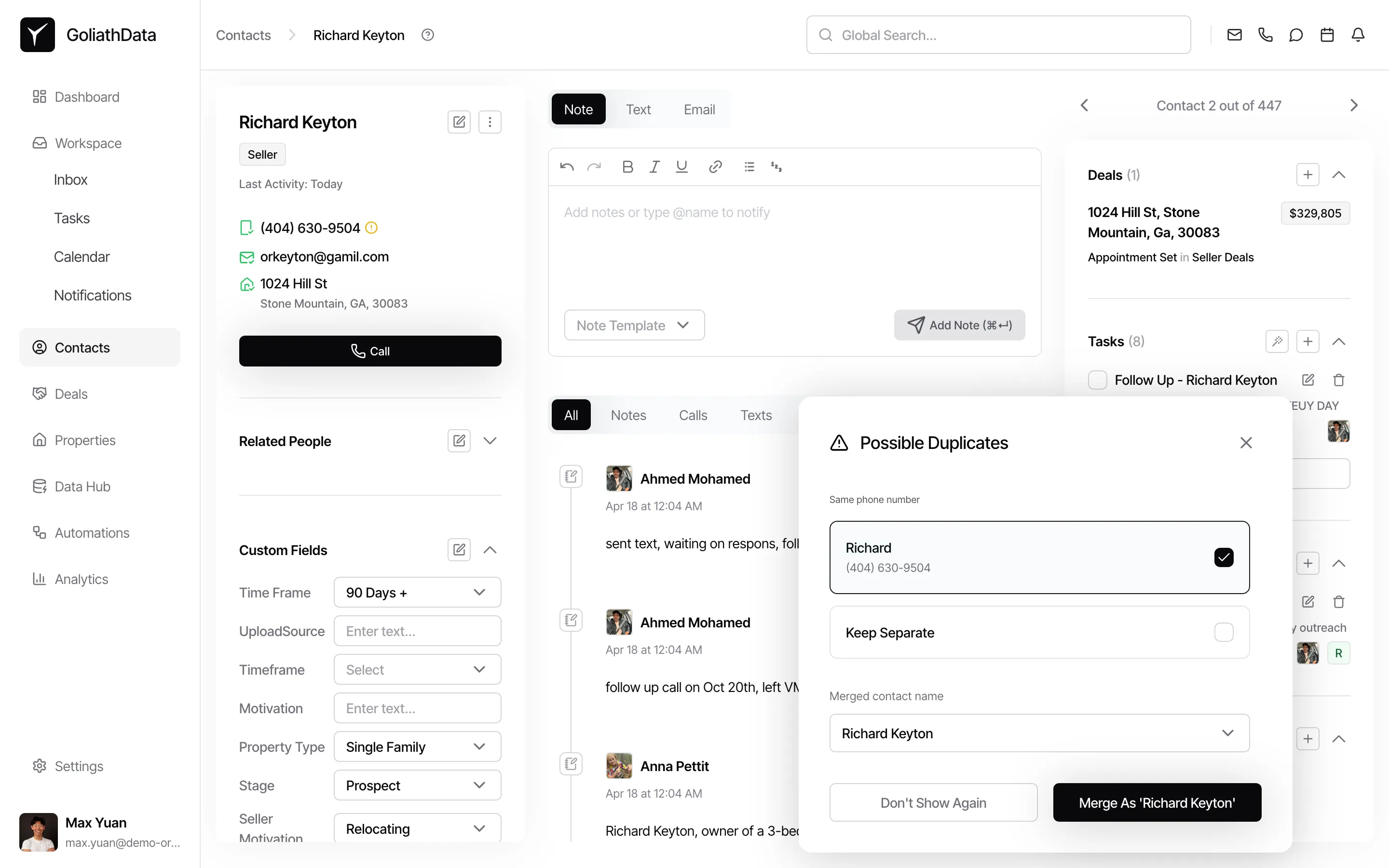
When Goliath detects a duplicate, a Possible Duplicates dialog appears on the contact detail panel showing the reason for the match (e.g., “Same phone number”). The dialog lists the matching contacts and lets you choose which to keep, select Keep Separate to dismiss the suggestion, or set the merged contact name before confirming.
-
Select the primary record
Choose which contact record will serve as the primary. The primary record’s name, email, and phone number will take precedence in the merged contact, though alternate contact information from the other record will be preserved as additional entries.
-
Initiate the merge
Confirm the merge operation. Goliath will combine all activities—calls, texts, emails, notes, and tasks—from both records into the primary contact, along with all linked properties and deals.
-
Verify the merged contact
After merging, the primary record now contains the complete history from both contacts. The non-primary record is archived (not permanently deleted) and can be recovered if you need to review or undo an accidental merge.
Frequently Asked Questions
Section titled “Frequently Asked Questions”Q: What triggers Goliath’s duplicate detection?
Section titled “Q: What triggers Goliath’s duplicate detection?”Goliath flags a contact as a possible duplicate if: (1) the names match and at least one of phone, email, or linked property also matches, or (2) the phone numbers match even if the names are different. A matching email address alone — without a name match — is not enough to trigger a flag.
Q: What happens to the data from both records when I merge?
Section titled “Q: What happens to the data from both records when I merge?”All activities, linked properties, and deals from both contacts are combined into the primary record. The primary contact’s name, email, and phone become the default, but alternate contact details from the other record are preserved as additional entries.
Q: Can I undo a merge if I make a mistake?
Section titled “Q: Can I undo a merge if I make a mistake?”Yes. The non-primary record is archived rather than permanently deleted, so you can review archived contacts and recover from an accidental merge if needed.
Q: Does merging contacts affect running automation workflows?
Section titled “Q: Does merging contacts affect running automation workflows?”Running workflows will continue using the merged primary contact. Any automations previously targeting the non-primary record will automatically reference the consolidated contact going forward.