
How Do I Filter Deals?
Deal filters let you focus on a specific subset of deals by pipeline stage, assignee, date range, value, or custom criteria. Filters apply to both the Kanban board and List view simultaneously, so switching views preserves your current filter state. Use filters to build custom lenses like “My Stale Deals” or “Hot Deals Above $500k” for weekly reviews and reporting.
Step-by-Step Guide
Section titled “Step-by-Step Guide”-
Open the filter panel
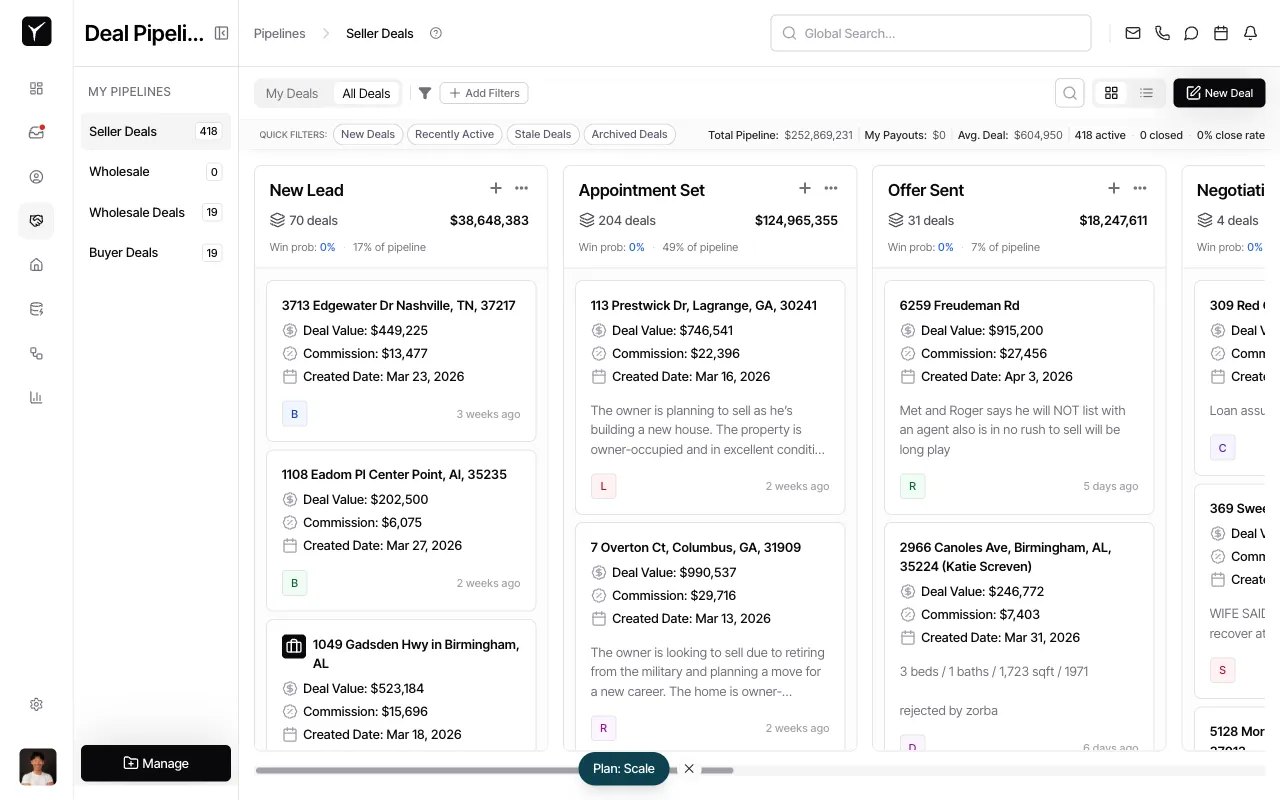
From any deal pipeline view, click the Add Filters button in the toolbar to open the full filter panel.
-
Choose a quick filter or build a custom filter
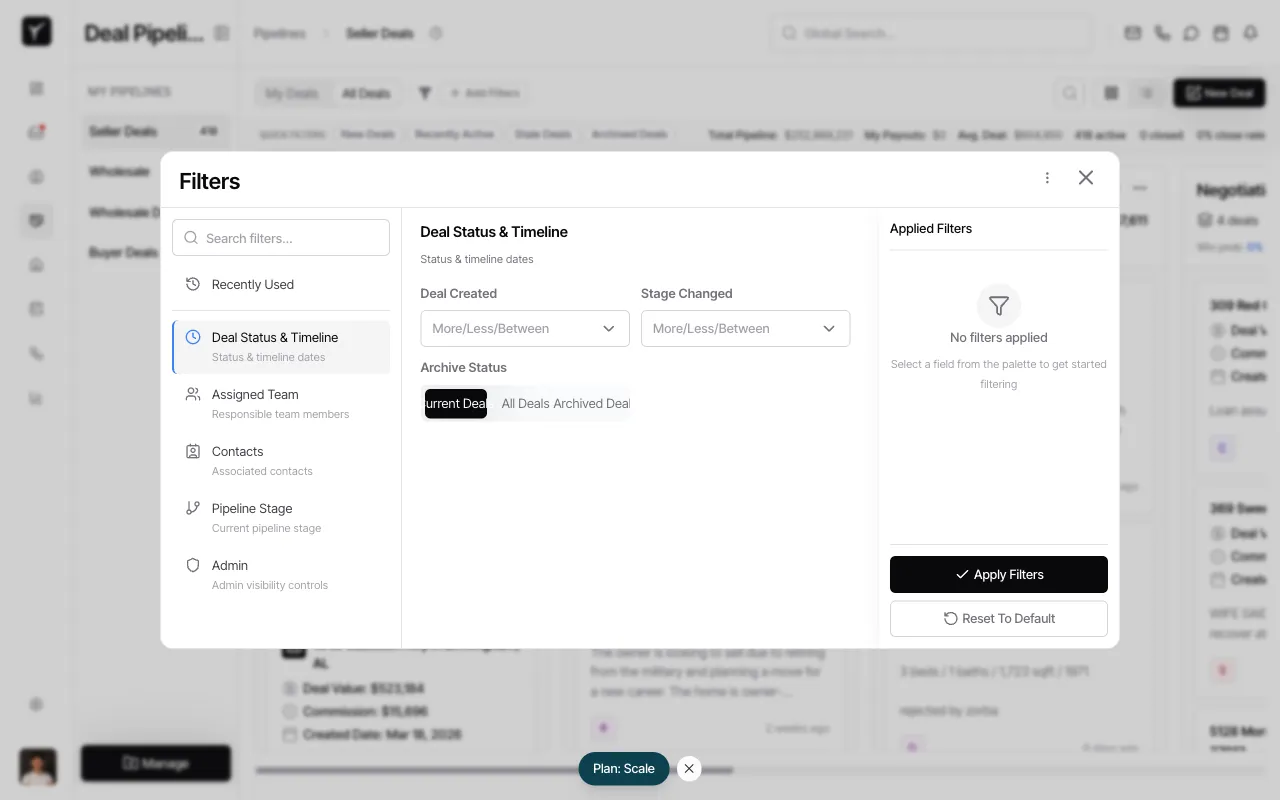
The filter panel shows Recently Used filters at the top, followed by filter categories in the left sidebar. Select a category (like Deal Status & Timeline or Assigned Team) to configure specific criteria. The right side displays any Applied Filters.
-
Configure your filter criteria
Each filter category offers controls specific to that data type. For example, Deal Status & Timeline provides date range selectors for Deal Created and Stage Changed, plus an Archive Status toggle to include or exclude archived deals. Select your desired options.
-
Apply the filters
Once you’ve configured your criteria, click Apply Filters at the bottom of the panel. The Kanban or List view will update to show only matching deals. The filter panel closes automatically.
-
Review active filters
Active filters appear as pills in the toolbar above the deal view. The count of applied filters is also shown. Click Add Filters again to modify or remove filters.
Frequently Asked Questions
Section titled “Frequently Asked Questions”Q: Do filters persist when I log out and back in?
Section titled “Q: Do filters persist when I log out and back in?”Yes. Goliath remembers your active filters per user, so your filter state is preserved across sessions.
Q: Can I save a filter combination for reuse?
Section titled “Q: Can I save a filter combination for reuse?”Yes. Saved filters work similarly to saved property filters — name a filter combination and access it from the Recently Used section or sidebar. Reference the property filter articles for details on individual vs. team scope.
Q: How do I clear all filters quickly?
Section titled “Q: How do I clear all filters quickly?”Open the filter panel and click Reset To Default at the bottom. This removes all active filters and returns you to the default view.
Q: Do filters apply to archived deals?
Section titled “Q: Do filters apply to archived deals?”Only if you explicitly include archived deals in your filter. By default, archived deals are excluded. Select Archived Deals in the Archive Status section or use the Archived Deals quick filter to include them.
Q: If I filter in Kanban view, does the List view update too?
Section titled “Q: If I filter in Kanban view, does the List view update too?”Yes. Both views share the same filter state. Applying a filter in one view automatically updates the other.