
Notification Center
The Notification Center surfaces actionable events across Goliath — new messages from contacts, task assignments, deal updates, workflow completions, and upcoming appointments. Notifications keep your team in sync by ensuring critical updates don’t get lost, and provide a single place to triage activity and jump directly to the source record.
Step-by-Step Guide
Section titled “Step-by-Step Guide”-
Access the Notification Center
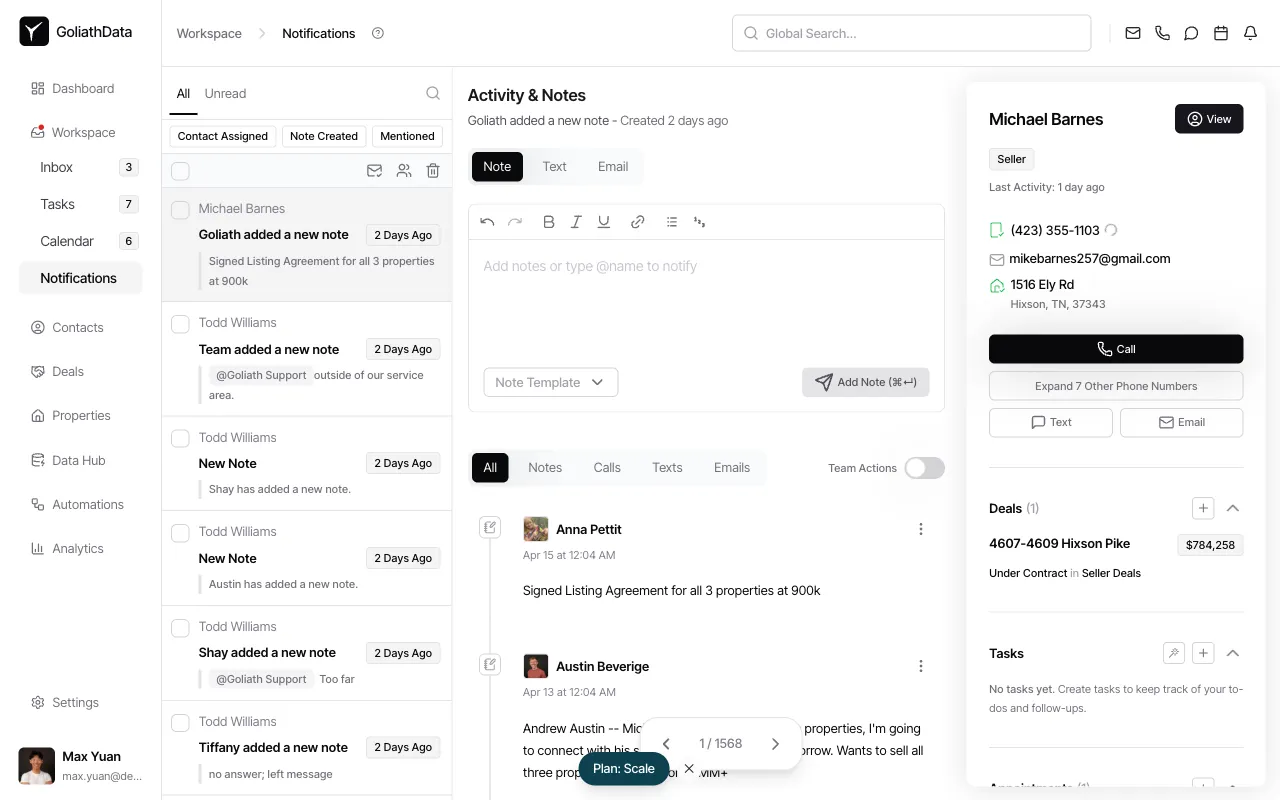
Click Notifications in the left sidebar. The bell icon at the top of Goliath shows your unread notification count and also serves as a quick link to this page.
-
Filter notifications by type
Use the tabs at the top of the notification list to narrow by event type: All, Unread, Contact Assigned, Note Created, or Mentioned. The search box in the top-right lets you quickly find a specific contact or event.
-
Review and mark notifications as read
Each notification displays the triggering event, the involved contact or record, and a timestamp. Click the notification row to mark it as read and navigate to the related record. Use the checkbox to select multiple notifications and bulk-mark them as read using the toolbar buttons.
-
Take action on the source record
Clicking a notification opens the associated contact, deal, task, or workflow run in the main panel. From there, you can reply to a message, update a task, or review the workflow result — all without leaving the notification workflow.
Frequently Asked Questions
Section titled “Frequently Asked Questions”Q: What types of events trigger notifications?
Section titled “Q: What types of events trigger notifications?”Common notification types include new inbound calls, texts, or emails; task assignments and due-soon reminders; deal stage changes; mentions in notes; workflow run completions or failures; and low credit balance warnings.
Q: How do I control which notifications I receive?
Section titled “Q: How do I control which notifications I receive?”Go to Settings → Notifications to choose which events trigger notifications and which delivery channels (in-app, email, push) are used for each type.
Q: Can I see notifications I’ve already read?
Section titled “Q: Can I see notifications I’ve already read?”Yes. The All tab shows both read and unread notifications. Use the Unread tab to focus only on new activity.
Q: Do notifications disappear after I mark them as read?
Section titled “Q: Do notifications disappear after I mark them as read?”No. Read notifications remain visible in the All tab. Goliath does not automatically delete notifications, so you can always return to review past activity.