
How Do I Add a Note to a Contact?
Notes are internal annotations on a contact’s activity timeline that help your team track research, call summaries, strategy decisions, and context. Unlike emails, texts, or calls, notes are never sent to the contact—they exist solely for your team to stay aligned and informed as deals progress.
Step-by-Step Guide
Section titled “Step-by-Step Guide”-
Click the Note tab
At the top of the timeline, click the Note tab to open the note composer. This activates the text editor where you can type your note.
-
Type your note and save
Enter your note in the text field. Use the formatting toolbar to apply Bold, Italic, or other formatting. Type
@followed by a teammate’s name to mention and notify them. When finished, click Add Note (⌘↵) to save it to the timeline.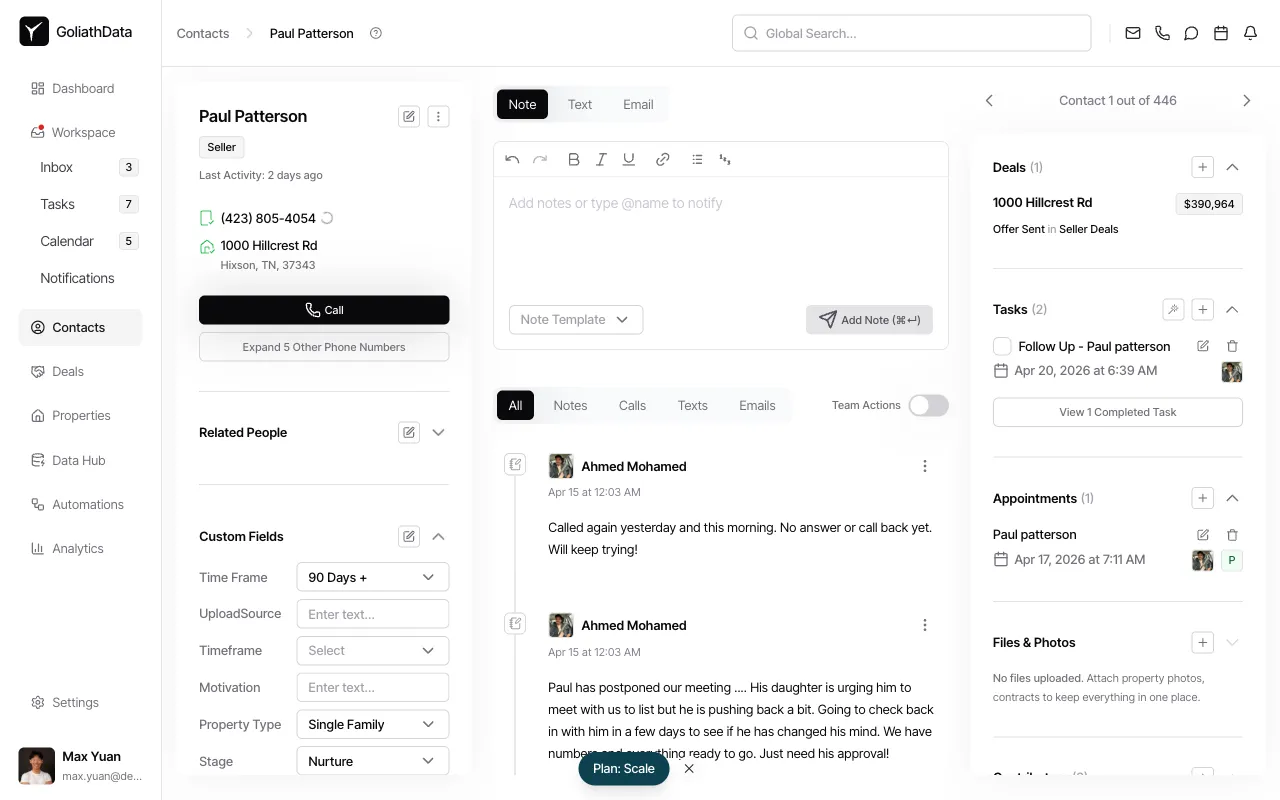
Frequently Asked Questions
Section titled “Frequently Asked Questions”Q: Can the contact see my notes?
Section titled “Q: Can the contact see my notes?”No. Notes are internal to your team and never visible to the contact.
Q: Are notes searchable?
Section titled “Q: Are notes searchable?”Yes. Notes are indexed in Goliath’s contact search, so you can find contacts based on note content.
Q: Can I edit or delete a note after saving?
Section titled “Q: Can I edit or delete a note after saving?”Yes. Click the Edit or Delete button on any note in the timeline. Edits are logged, and deletions require confirmation.
Q: How do I reply to a teammate’s note?
Section titled “Q: How do I reply to a teammate’s note?”Click on the note in the timeline to open a threaded reply interface. This keeps related discussions together rather than spread across the timeline.
Q: Do notes export with contact data?
Section titled “Q: Do notes export with contact data?”Yes. When you export contacts, recent notes are typically included in the export file.