
How Do I Export Properties?
Exporting properties lets you download your filtered search results as a CSV or Excel file for analysis, skip tracing, or mail campaigns. Goliath includes all visible columns (address, beds/baths, estimated value, owner information, tags, and custom fields) in the export. Large exports are processed in the background and become available in Data Hub → Exports when ready.
Step-by-Step Guide
Section titled “Step-by-Step Guide”-
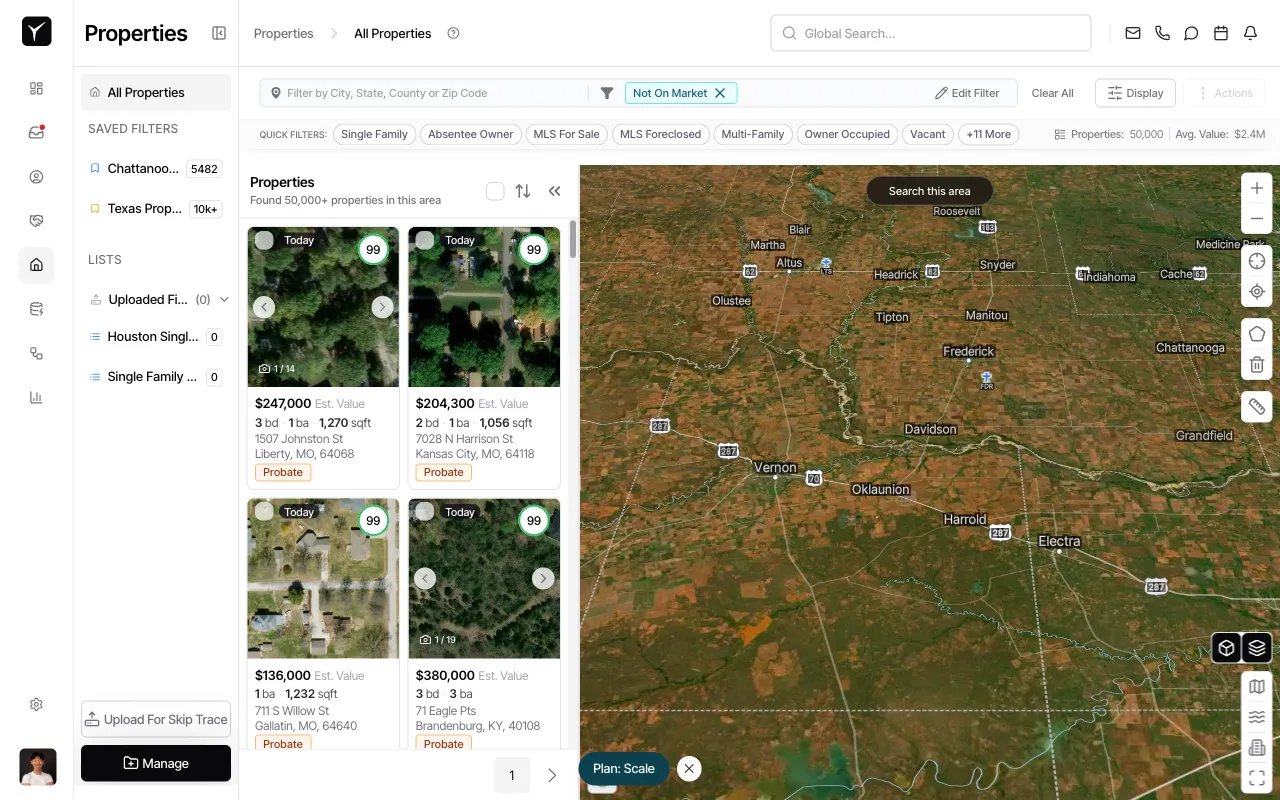
Apply filters to your property search
Before exporting, narrow your results using filters or saved searches. The export will include all properties matching your current filters, not just the visible page.
-
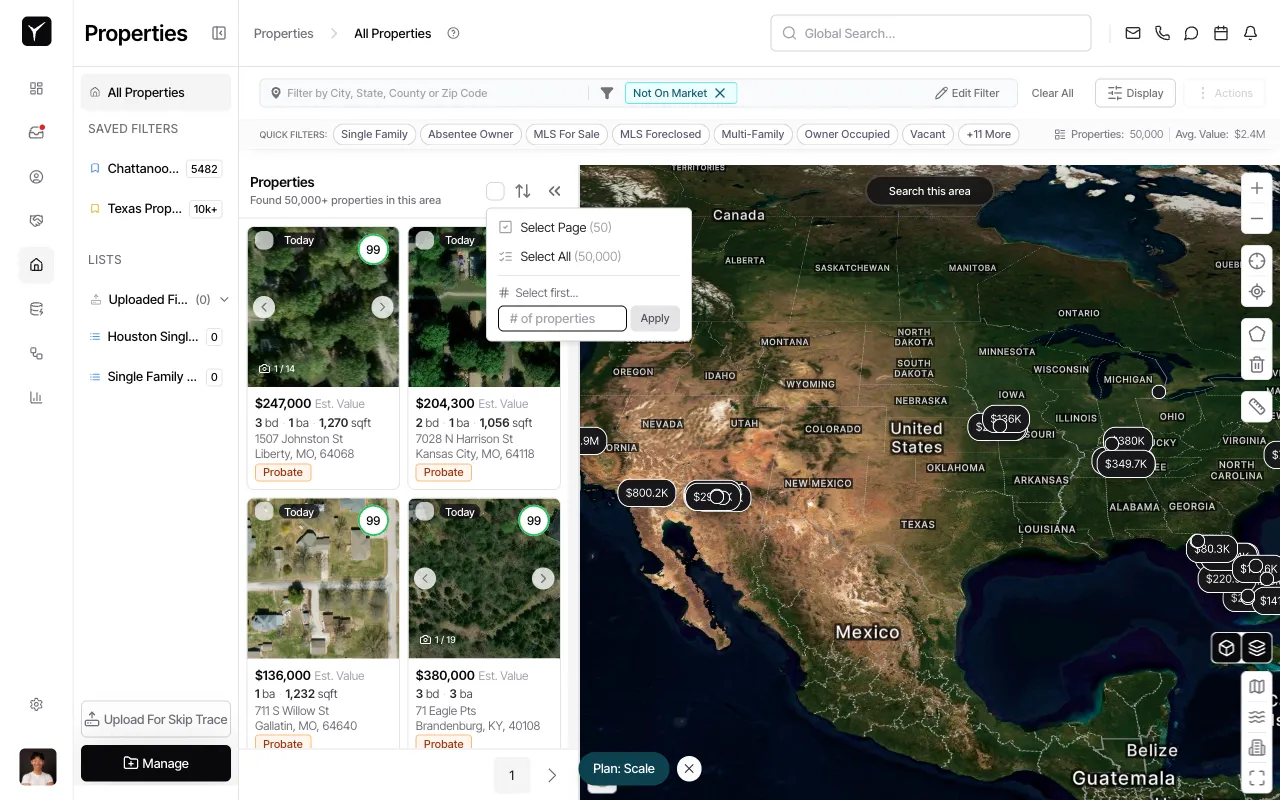
Click the checkbox menu to reveal selection options
Click the checkbox icon above the property cards to open the selection menu. You’ll see Select Page and Select All options.
-
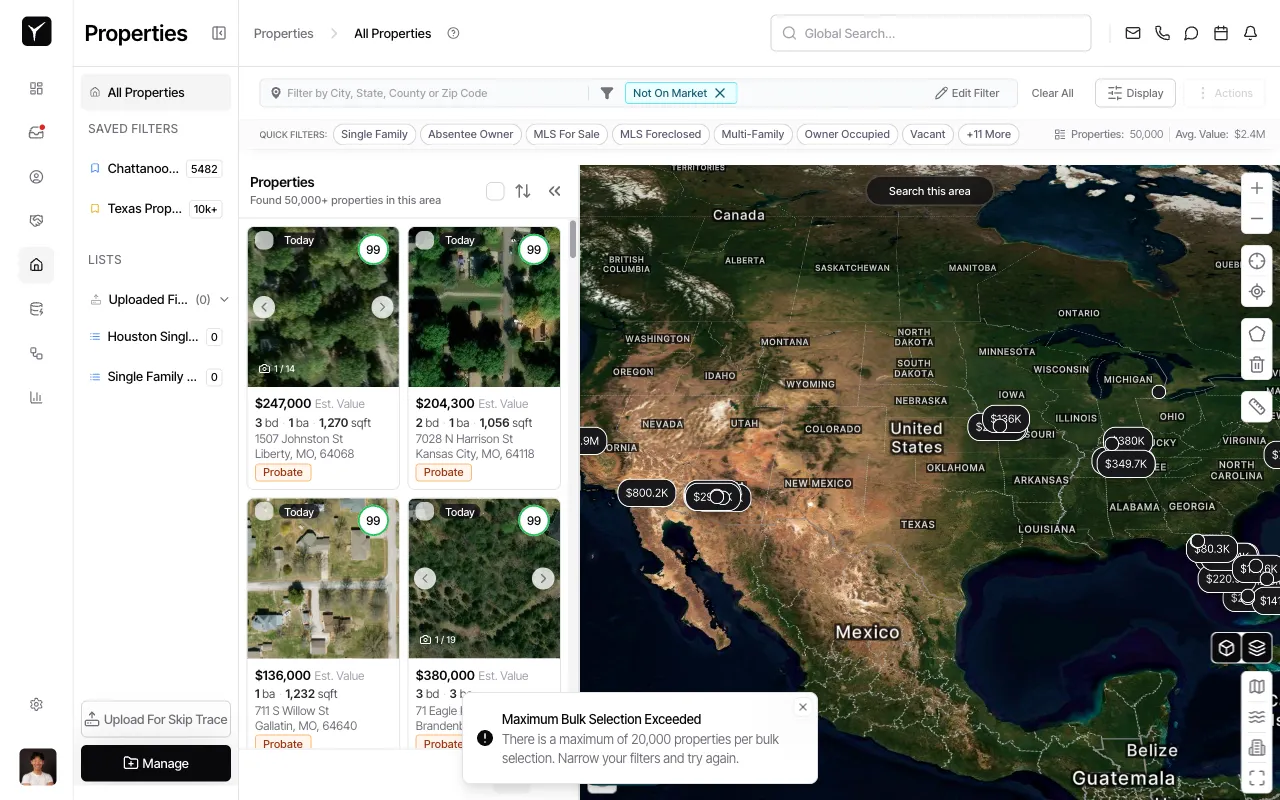
Choose Select All to export beyond the current page
Click Select All to select all properties matching your filters. Goliath can select up to 20,000 properties at once. If you exceed this limit, narrow your filters and try again.
-
Confirm your selection
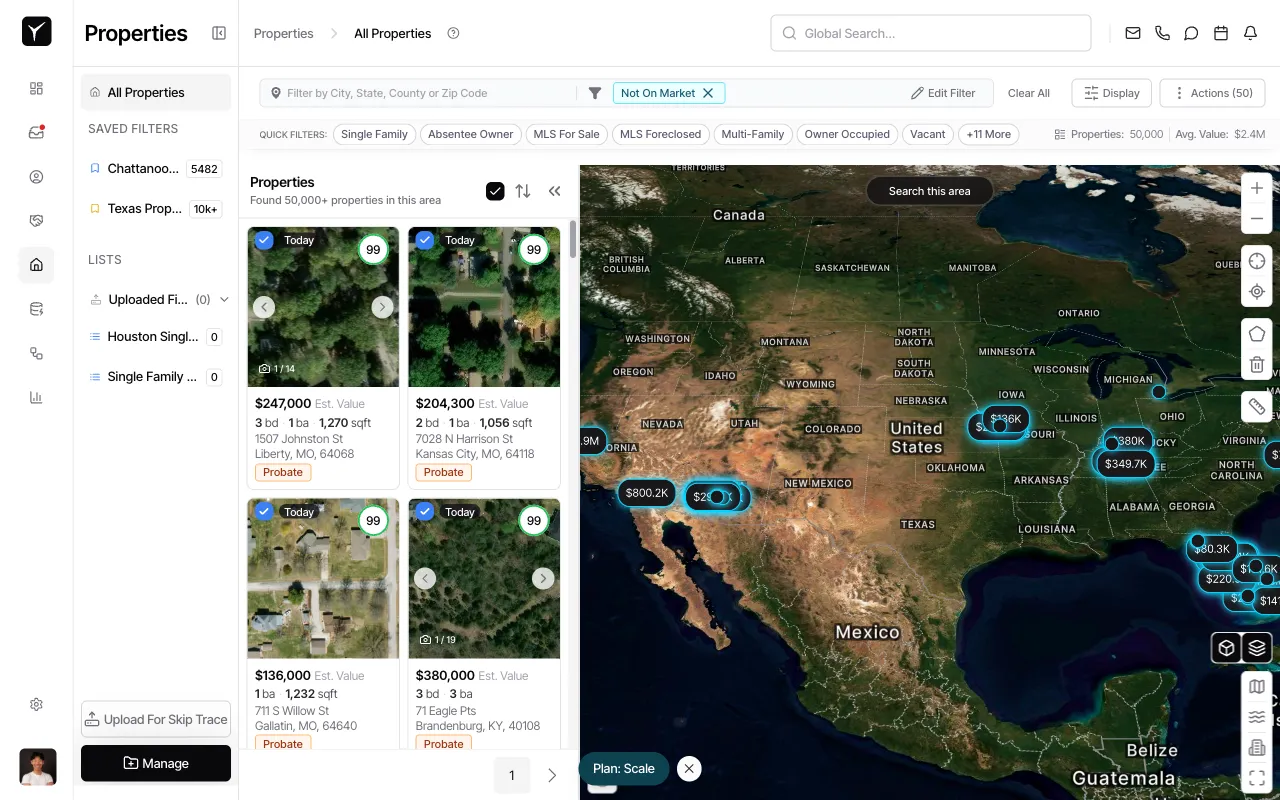
If your selection exceeds the bulk limit, you’ll see an error message prompting you to narrow your filters. Otherwise, your properties are now selected (indicated by blue checkmarks on the property cards).
-
Click the Actions button
Once properties are selected, the Actions button becomes active in the top toolbar. Click it to open the bulk actions menu.
-
Select your export format
From the Actions menu, choose Export as CSV or Export as Excel. The export will process in the background.
-
Download your export from Data Hub
Navigate to Data Hub → Exports to find your completed export. Large exports may take a few minutes to process. From the Exports page, you can download the file in multiple formats, including CSV, Excel, Meta Customer List, or Multiline Dialer format.
Frequently Asked Questions
Section titled “Frequently Asked Questions”Q: What’s included in my export?
Section titled “Q: What’s included in my export?”Your export includes all columns currently visible in the Properties table: address, beds/baths, square footage, estimated value, equity, owner name and contact information, tags, and any custom fields you’ve added.
Q: Can I export more than 20,000 properties at once?
Section titled “Q: Can I export more than 20,000 properties at once?”No. Goliath limits bulk selections to 20,000 properties. If your filters return more than 20,000 results, narrow your search (e.g., by state or county) and export in batches, or create multiple saved filters.
Q: How do I find my completed export?
Section titled “Q: How do I find my completed export?”Go to Data Hub → Exports in the main navigation. Your export will appear with a timestamp and download options for CSV, Excel, Meta Customer List, or Multiline Dialer formats. See Exporting Data for more details.