
How Do I Mark Messages as Read?
Every message, call, text, and email in your Inbox has a read/unread state that helps you track what needs attention. Marking items as read clears visual indicators (like bold text or colored dots) and updates the unread count in the Notifications bell. Use this feature to triage your Inbox and keep track of which communications you’ve reviewed.
Step-by-Step Guide
Section titled “Step-by-Step Guide”-
Navigate to your Inbox
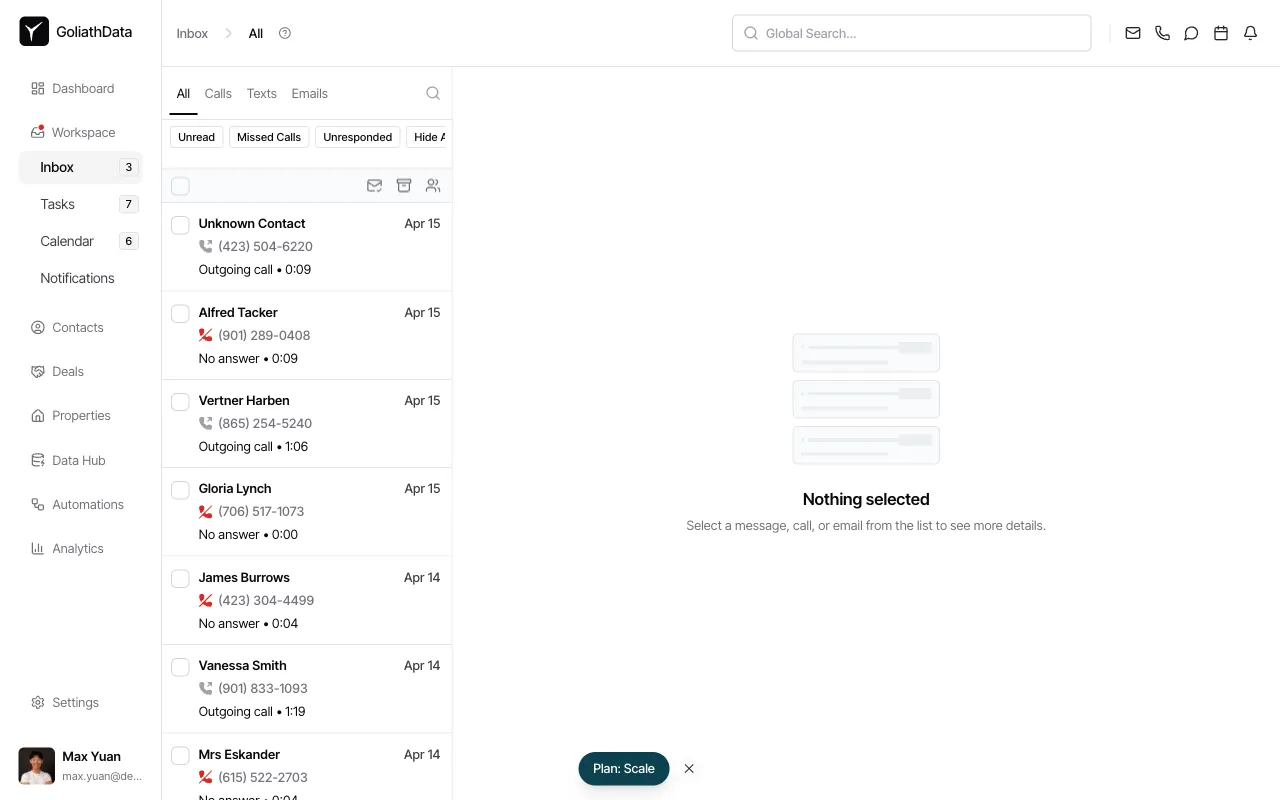
From the left sidebar, click Inbox to view all messages, calls, texts, and emails. Unread items appear with visual indicators (such as bold formatting or highlighting) to distinguish them from items you’ve already seen.
-
Mark individual items as read
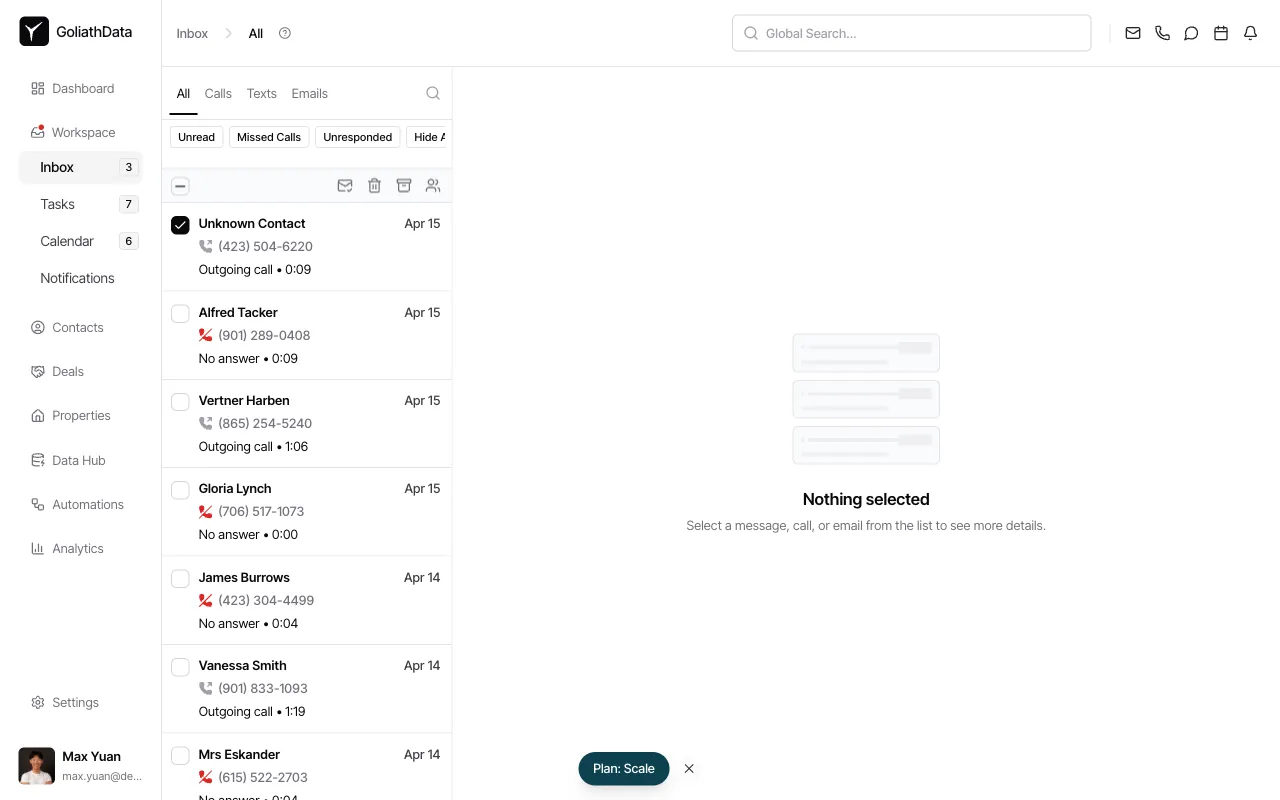
To toggle the read state of a single item, click the checkbox next to the message row you want to update. Once selected, a bulk action toolbar appears above the list. Click the appropriate icon in the toolbar to mark the item as read or unread. This is useful when you want to flag a message to revisit later by marking it unread.
-
Mark multiple items in bulk
Select multiple messages by checking the boxes next to each row. The bulk action toolbar will reflect the number of items selected. Click Mark as Read or Mark as Unread to apply the status change to all selected items at once. This is the fastest way to clear a cluttered Inbox after scanning for important messages.
Frequently Asked Questions
Section titled “Frequently Asked Questions”Q: Does marking a message as read affect the contact or just me?
Section titled “Q: Does marking a message as read affect the contact or just me?”The read/unread state is personal to your user account. Other team members will see their own read states independently.
Q: Can I search or filter to show only unread items?
Section titled “Q: Can I search or filter to show only unread items?”Yes. Click the Unread filter pill at the top of the Inbox list to display only items you haven’t marked as read.
Q: Does opening a message automatically mark it as read?
Section titled “Q: Does opening a message automatically mark it as read?”Not always. Depending on your team’s configuration, you may need to explicitly toggle the read state even after viewing a thread. This prevents accidentally “reading” messages you meant to revisit.
Q: How do I know the total number of unread items?
Section titled “Q: How do I know the total number of unread items?”The bell icon in the top-right Notifications area shows the total unread count across all Inbox channels. This count updates in real time as you mark items read or unread.