
Managing Tasks
Tasks in Goliath are work items assigned to team members—follow-ups, calls, showings, offer deliveries, and more. Each task has an owner, a due date, and a binary done state (complete or not complete). Tasks can be created manually or generated by automation workflows, turning Goliath into a consistent follow-up engine for your deals.
Step-by-Step Guide
Section titled “Step-by-Step Guide”-
Navigate to the Tasks section
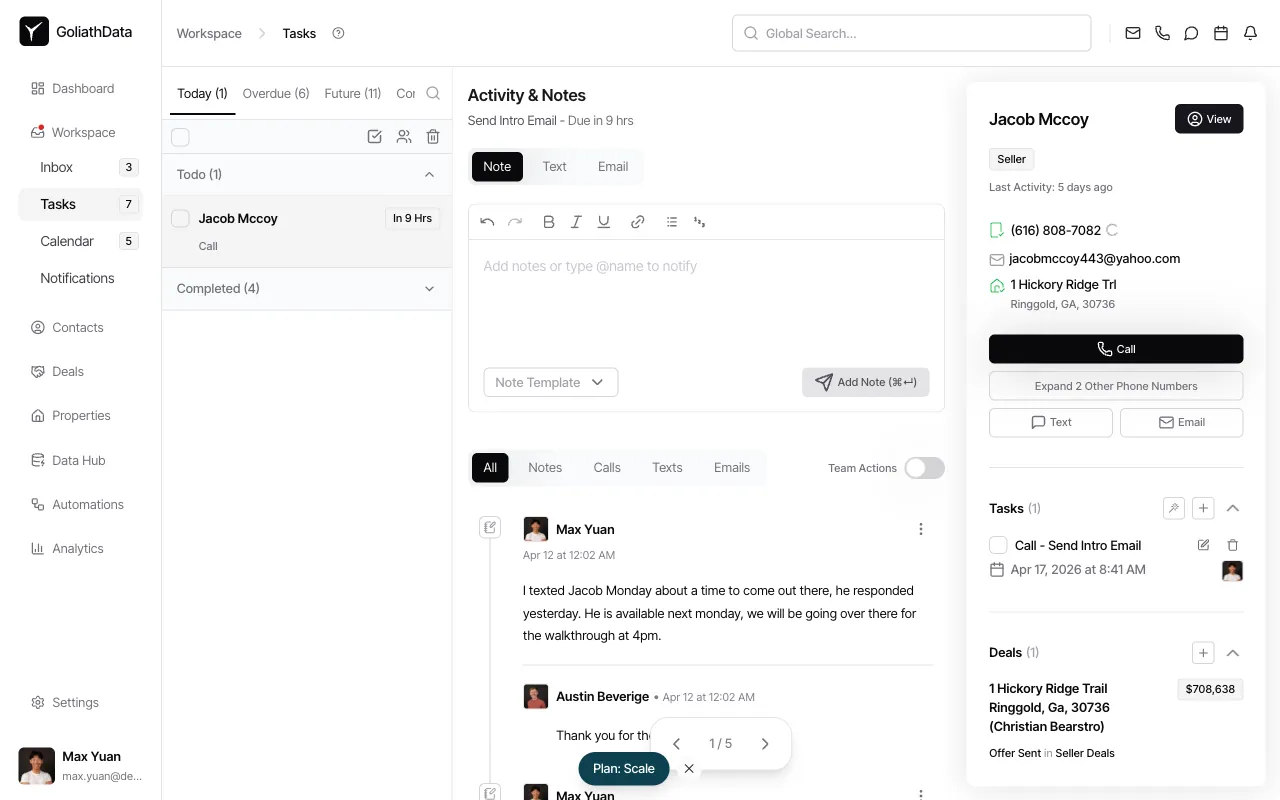
Click Tasks in the left sidebar to open your team’s task list. The badge next to Tasks shows the total number of outstanding tasks.
-
Filter tasks by time or completion status
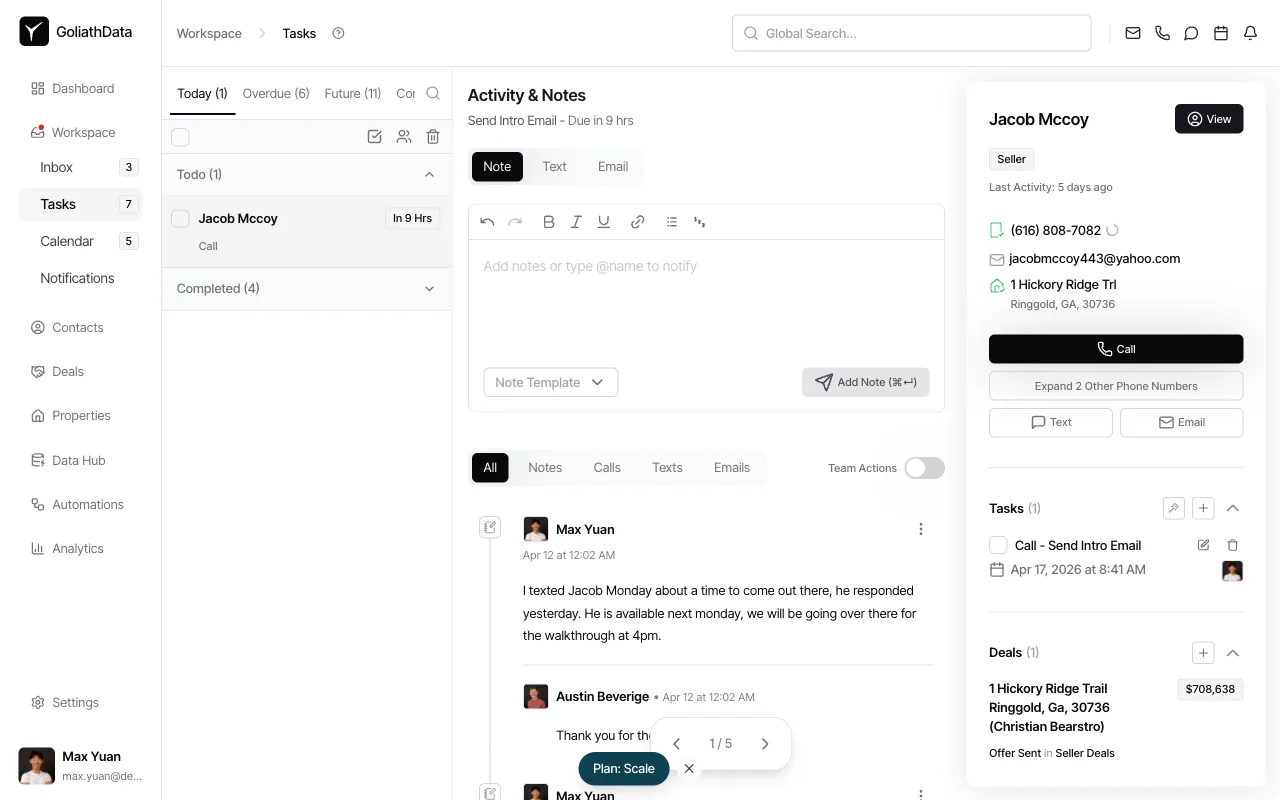
Use the tabs at the top of the task list to filter by Today, Overdue, Future, or Completed. The number in parentheses indicates how many tasks match each filter. Overdue tasks are not-done tasks whose due date has passed.
-
Mark a task as complete
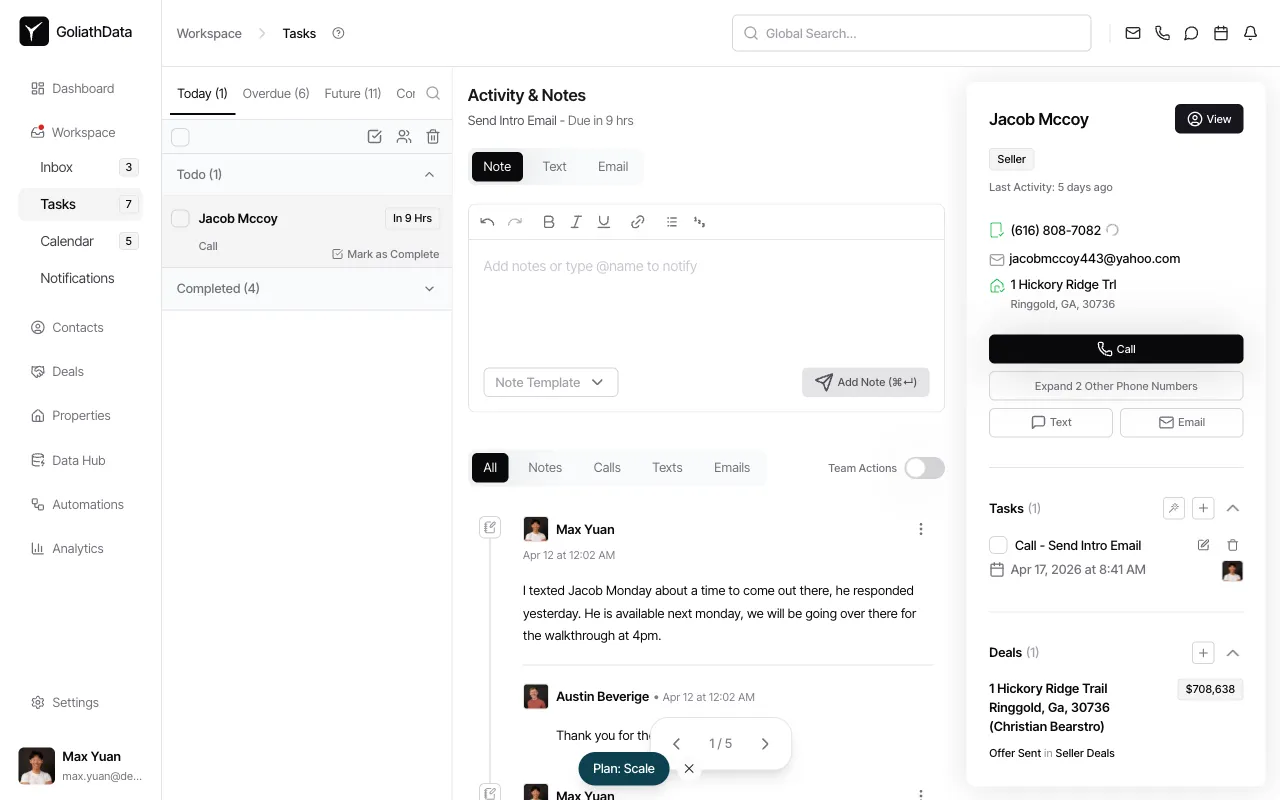
Hover over a task in the list and click Mark as Complete to mark it done. Completed tasks move to the Completed tab and are timestamped with the completion date.
-
View task details
Click on any task to open its detail view in the right panel. You’ll see the task title, description, assignee, due date, linked contact or deal, and an activity log of all updates.
-
Create a new task
Click the Create task button (or the + icon in the Tasks section of a contact or deal record). Enter a title, assign it to a team member, set a due date, and optionally link it to a contact, property, or deal for full context.
Frequently Asked Questions
Section titled “Frequently Asked Questions”Q: Can a task have multiple statuses like “In Progress” or “Blocked”?
Section titled “Q: Can a task have multiple statuses like “In Progress” or “Blocked”?”No. Tasks in Goliath are binary: either complete or not complete. There are no intermediate states.
Q: What does “Overdue” mean?
Section titled “Q: What does “Overdue” mean?”“Overdue” is not a stored status—it’s a filter that shows not-done tasks whose due date is in the past.
Q: Can I create tasks automatically?
Section titled “Q: Can I create tasks automatically?”Yes. Automation workflows can generate tasks based on triggers like “new contact added” or “deal stage changed,” ensuring consistent follow-up across your team.
Q: Can I assign a task to multiple people?
Section titled “Q: Can I assign a task to multiple people?”Tasks have a single assignee, but you can use @mentions in the task description to notify and involve additional team members.