
Making Calls
Goliath enables you to make and receive phone calls directly in your browser—no softphone required. All calls are automatically recorded and transcribed, creating a searchable history in each contact’s timeline. Before you can make calls, your team must provision at least one phone number through the Team & Phones settings.
Prerequisites: Provisioning a Phone Number
Section titled “Prerequisites: Provisioning a Phone Number”Before making calls, your organization must have an active phone number assigned in Goliath.
-
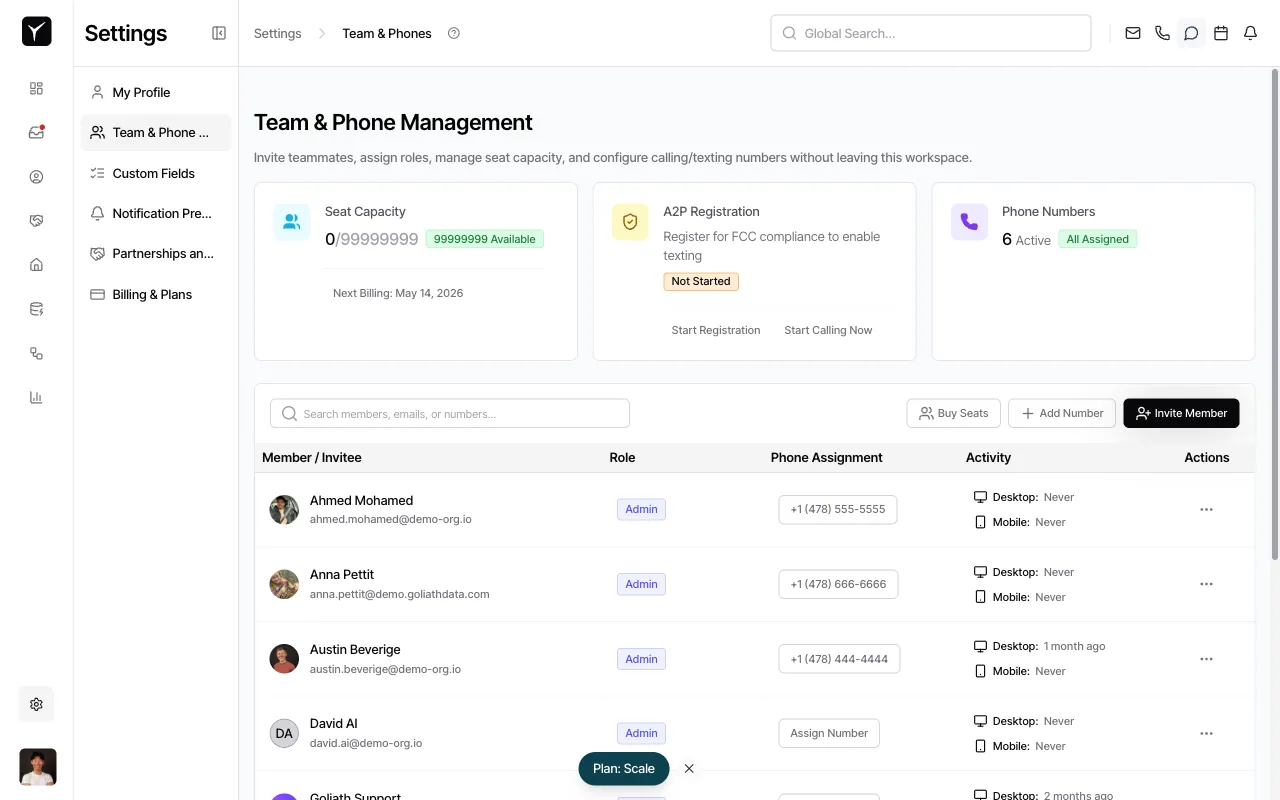
Navigate to Team & Phones settings
Go to Settings in the left sidebar, then select Team & Phone Management. You’ll see your current seat capacity, A2P registration status, and provisioned phone numbers.
-
Add or assign a phone number
If your organization does not have any phone numbers, click Add Number to provision a new number. If you already have numbers, they will appear under Phone Numbers with an All Assigned label if every team member has been assigned a number.
-
Confirm calling is enabled
Unlike texting (which requires A2P 10DLC registration), calling is available immediately once a number is provisioned. You do not need to complete any additional compliance steps to make outbound calls.
Making Calls from a Contact
Section titled “Making Calls from a Contact”The most common way to call a contact is directly from their detail panel.
-
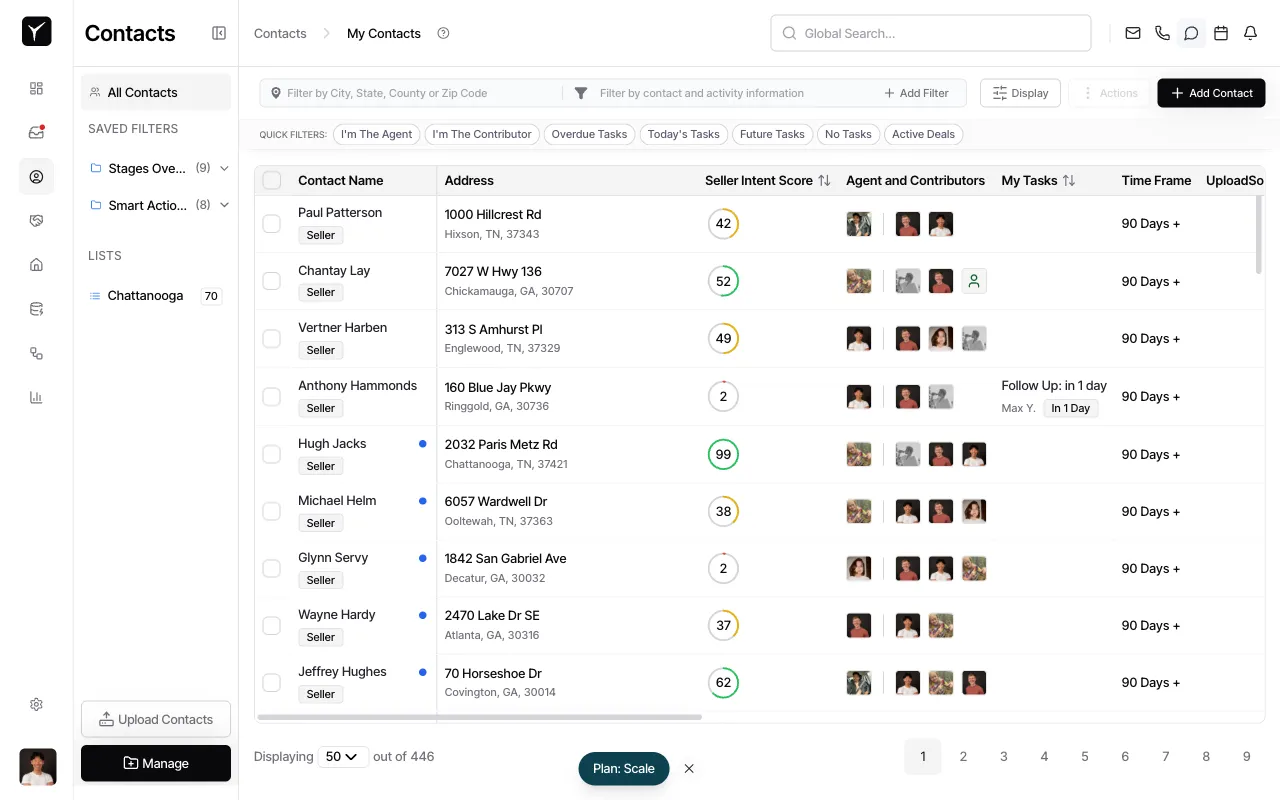
Open the contact
Navigate to Contacts in the left sidebar, then select the contact you want to call. The contact detail panel will open on the right.
-
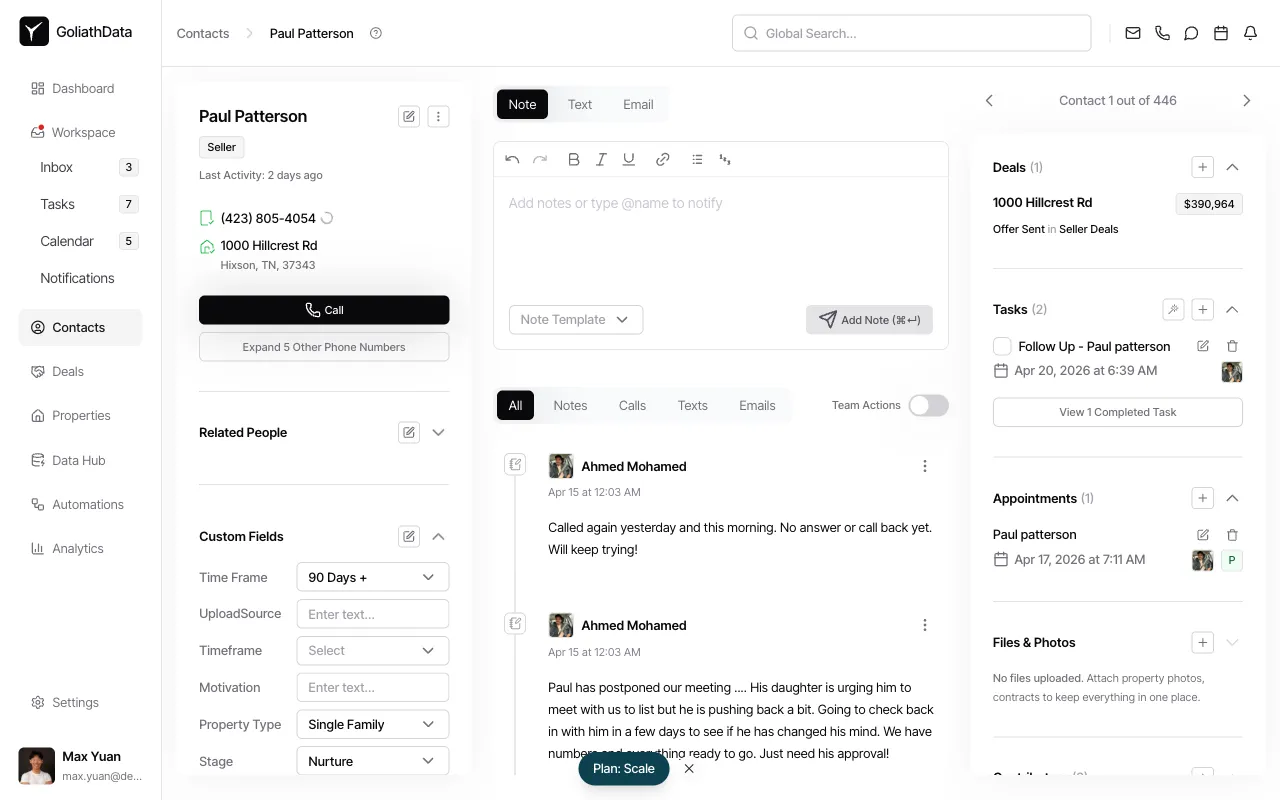
Click the Call button
In the contact detail panel, click the Call button below the contact’s phone number. If the contact has multiple phone numbers, click Expand 5 Other Phone Numbers to choose which number to dial.
-
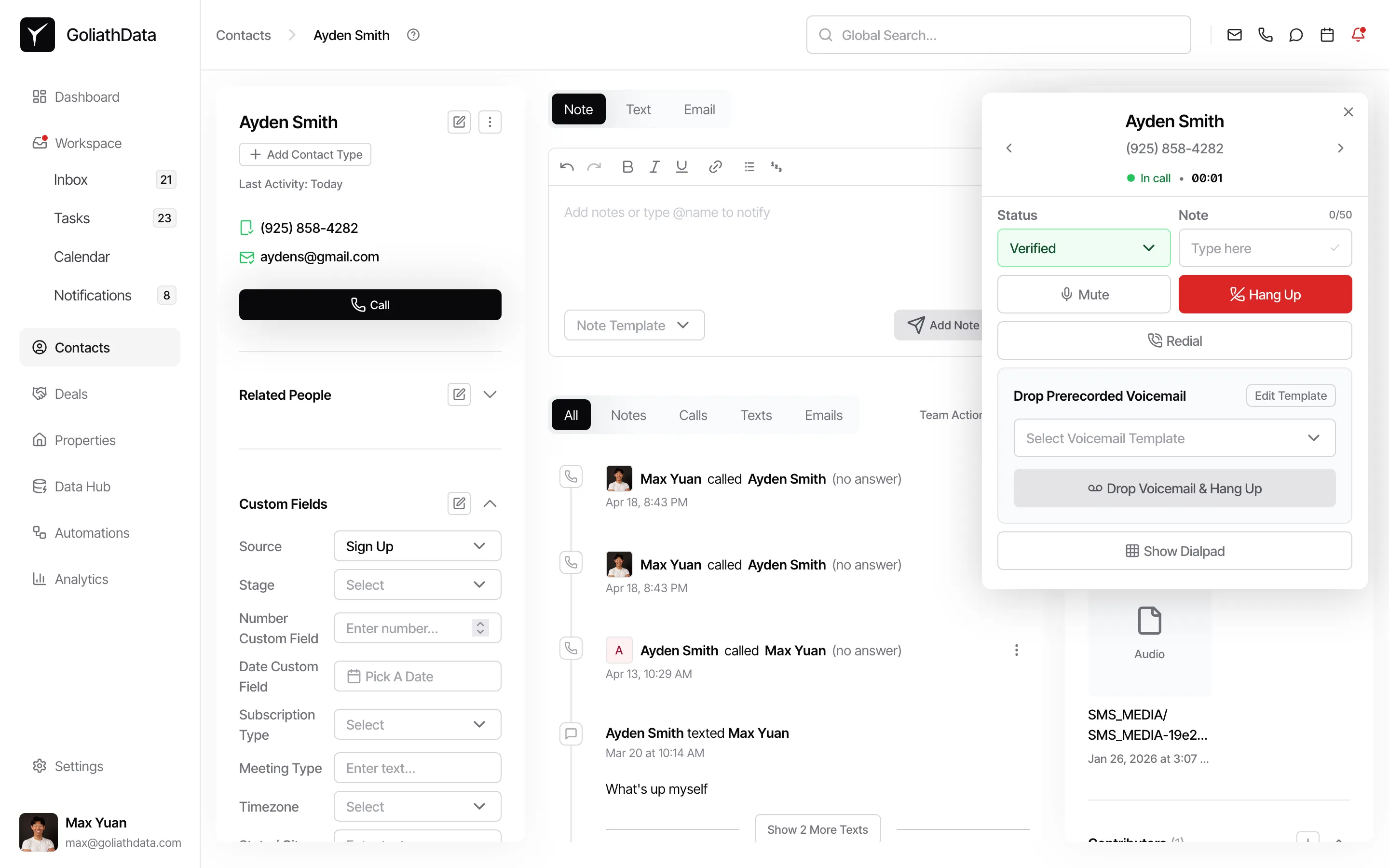
Place the call
The in-browser dialer will initiate the call. You can mute, hold, transfer, or end the call from the dialer interface.
Making Calls from the Workspace Inbox
Section titled “Making Calls from the Workspace Inbox”You can also return calls from the Calls tab in the Workspace Inbox.
-
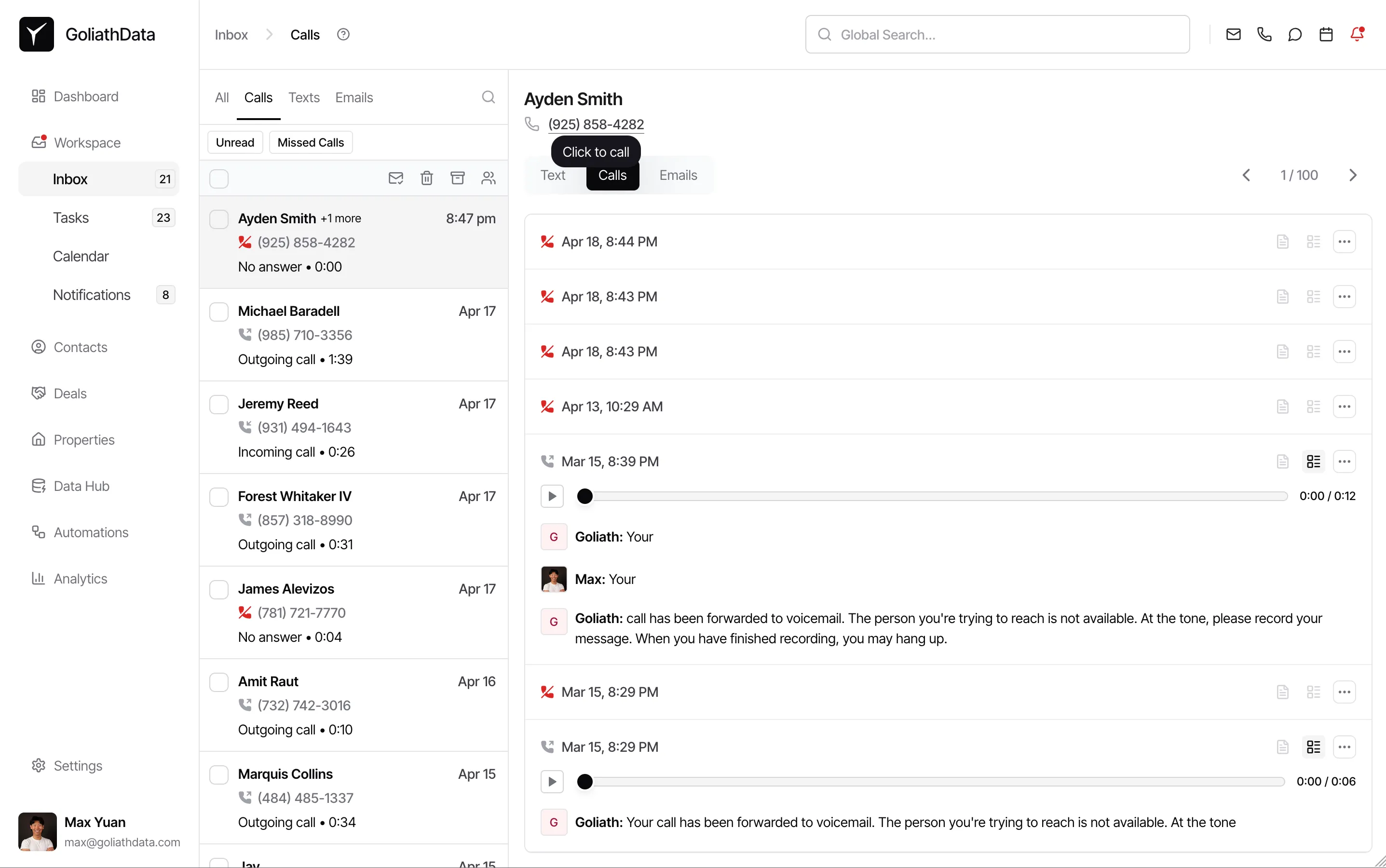
Navigate to Inbox > Calls and find the record
Click Workspace in the left sidebar, then select Inbox. Switch to the Calls tab to see your call history. Use the filter tabs (Unread, Missed Calls, Unresponded) to narrow the list, then click a call record to open it.
-
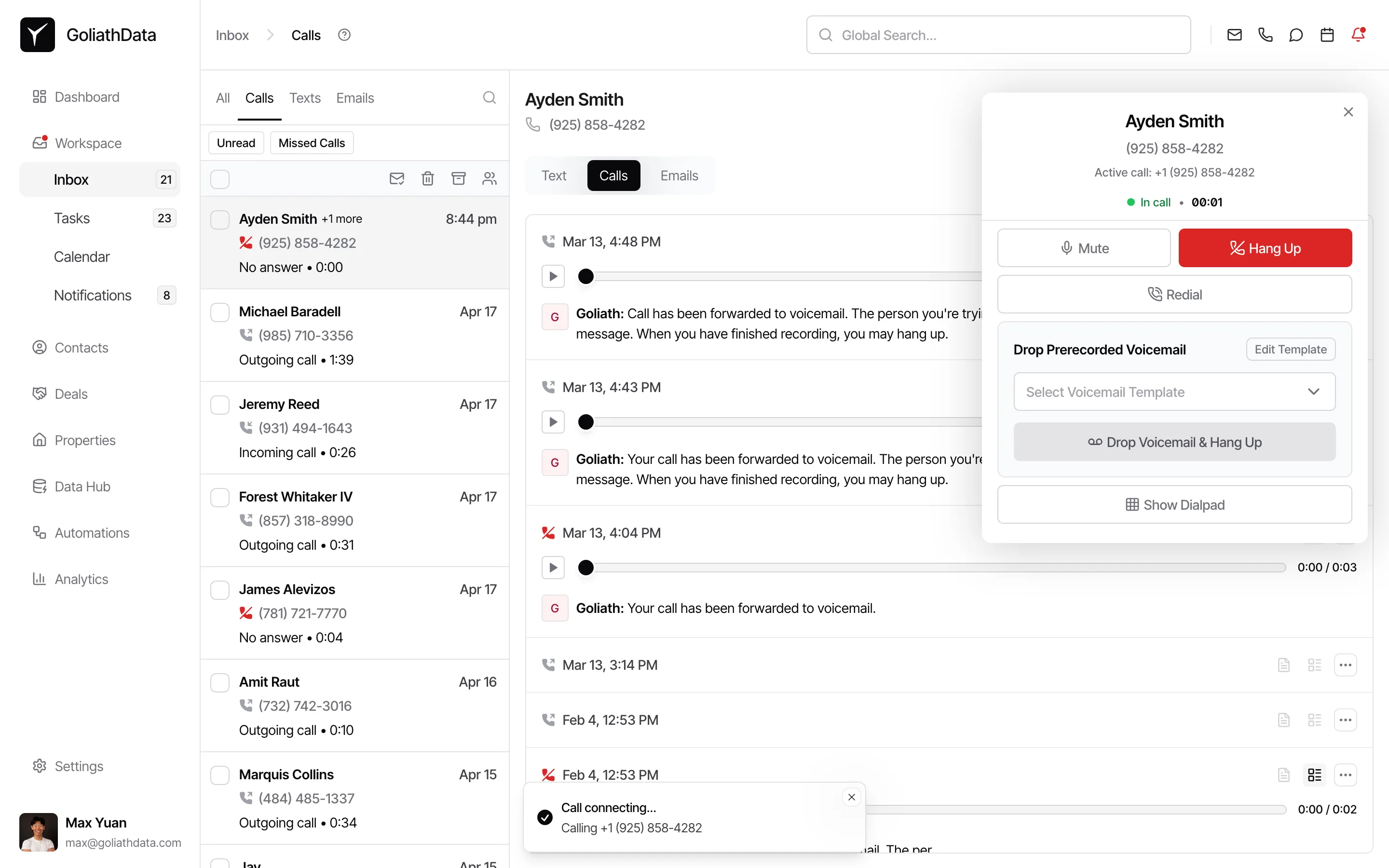
Click the phone number to call back
In the call detail panel, click the phone number displayed under the contact name to initiate a return call. Clicking the number dials immediately.
Making Calls from Quick Actions
Section titled “Making Calls from Quick Actions”You can place calls from anywhere in Goliath using the global dialer in the quick actions.
-
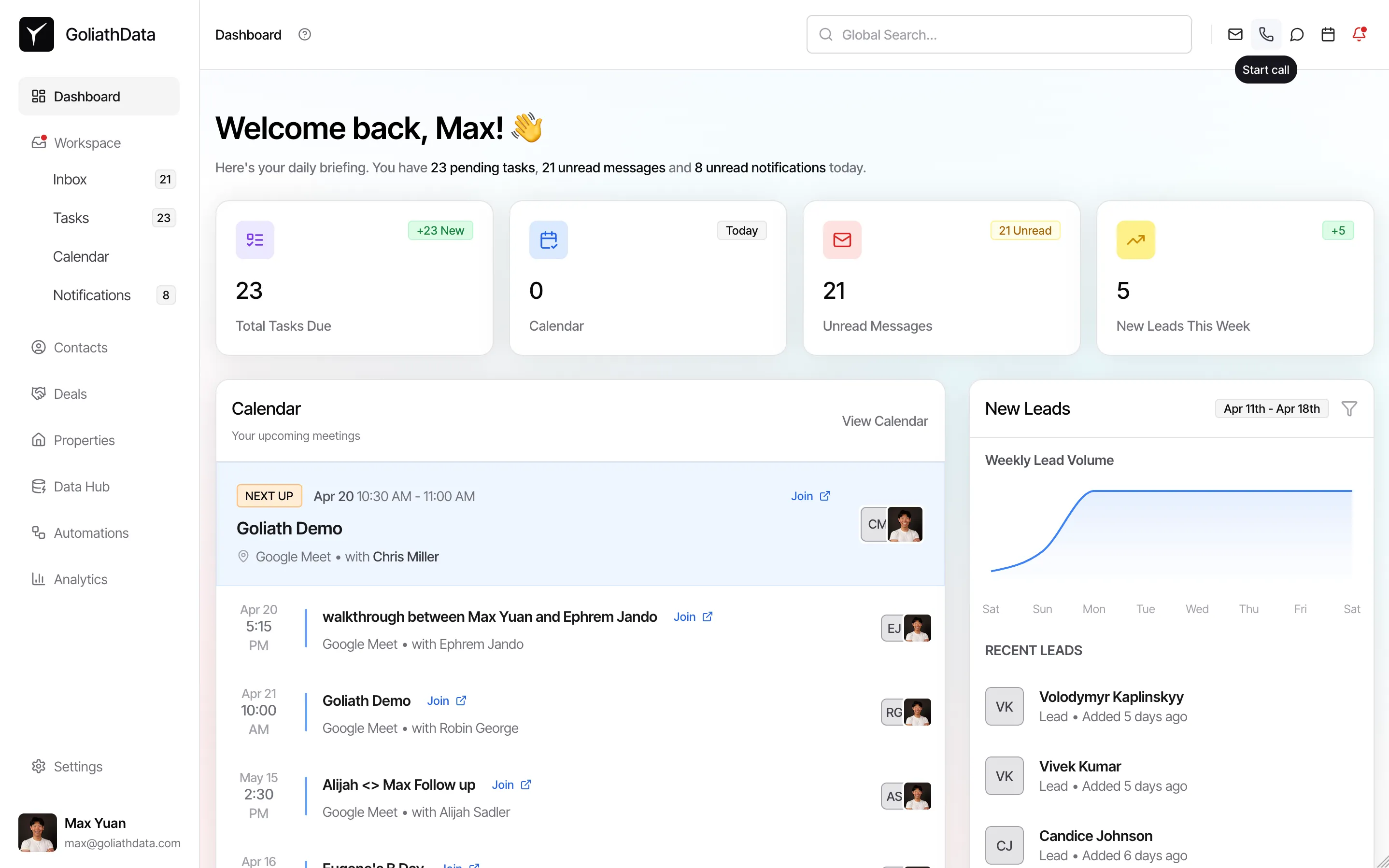
Click the phone icon in the top-right corner
Click the phone icon in the top navigation bar (next to Mail and Calendar). This opens the Make Call modal.
-
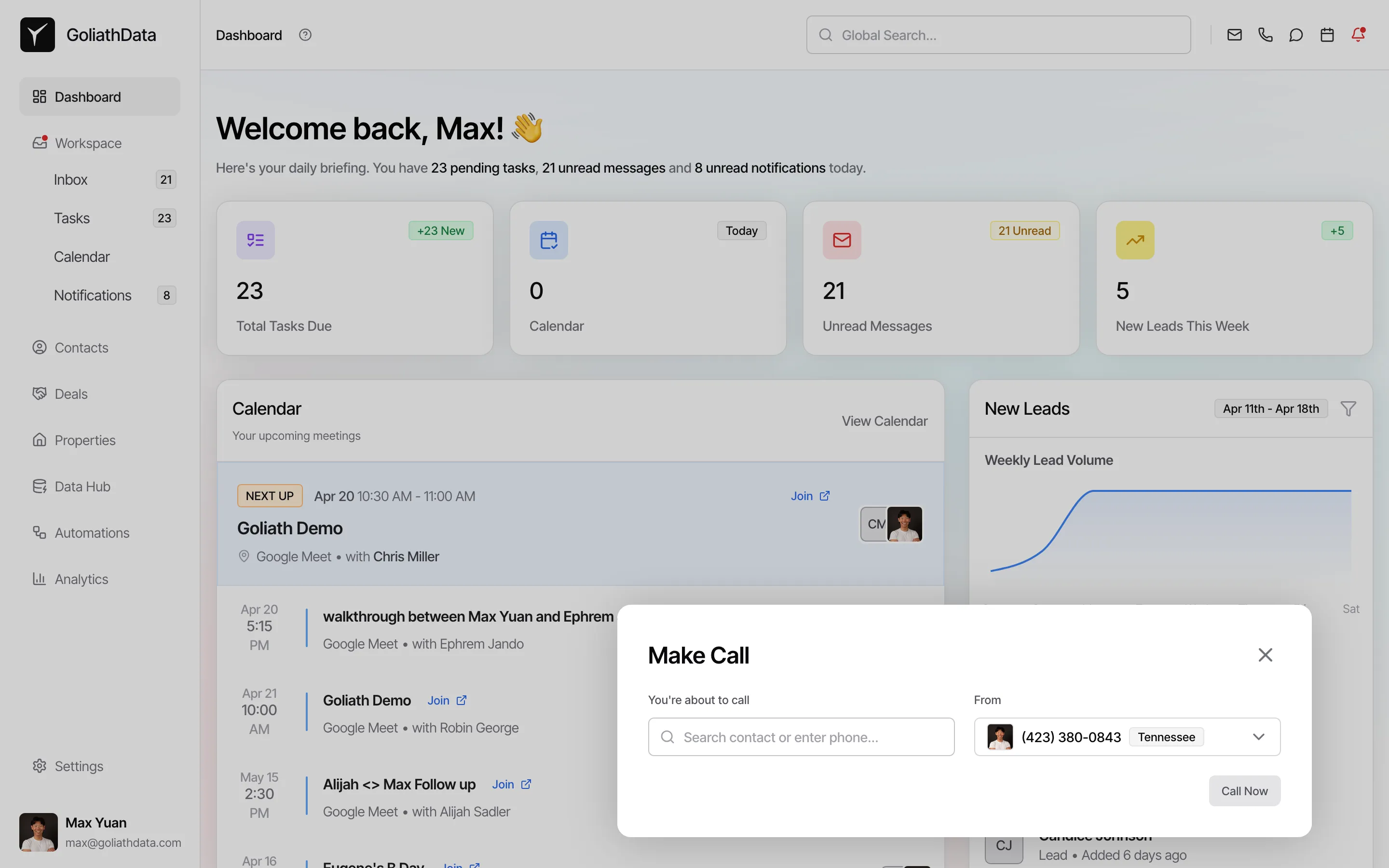
Search for a contact or enter a phone number
Use the search field to find a contact by name, or type a phone number directly. Select your outbound caller ID from the From dropdown if you have multiple numbers assigned.
-
Click Call Now
Click Call Now to initiate the call. The in-browser dialer will open and begin dialing.
Call Recording and Transcription
Section titled “Call Recording and Transcription”Goliath automatically records and transcribes all calls (where legally permitted). Recordings and transcripts are stored in the contact timeline and indexed for search.
- Access recordings: Open the call record in the Calls tab of the Workspace Inbox and click Play audio to listen to the recording.
- View transcripts: Transcripts appear below the recording player once processing is complete (usually within a few minutes).
- Search conversations: Use the global search to find calls by keyword, contact name, or call outcome.
Frequently Asked Questions
Section titled “Frequently Asked Questions”Q: Which countries are supported for calling?
Section titled “Q: Which countries are supported for calling?”Goliath supports calling to and from the United States and Canada via Twilio. International calling to other countries may require additional configuration—contact support for details.
Q: Can I disable call recording?
Section titled “Q: Can I disable call recording?”Yes. Recording can be disabled at the organization level in Settings > Team & Phones. Note that transcription is unavailable if recording is disabled.
Q: How long are call recordings and transcripts stored?
Section titled “Q: How long are call recordings and transcripts stored?”Recordings and transcripts are retained based on your organization’s data retention policy. Contact your account administrator or support for specifics.
Q: Can I use my existing business phone number?
Section titled “Q: Can I use my existing business phone number?”Yes. Goliath supports number porting. Contact support to initiate the porting process for your existing number.
Q: What happens if a call fails?
Section titled “Q: What happens if a call fails?”Failed calls are logged in the contact timeline with an error reason (e.g., “No answer,” “Busy,” “Call failed”). You can retry the call directly from the call log.
Q: Can I make calls on mobile?
Section titled “Q: Can I make calls on mobile?”Yes. Goliath’s web app works on mobile browsers, and calls are placed through the browser using WebRTC. For the best experience, use a headset or earbuds with a microphone.