
Understanding the Contact Timeline
The contact timeline aggregates every interaction with a contact in reverse chronological order—calls, texts, emails, notes, tasks, appointments, and deal stage changes. This complete interaction history ensures your team never asks the same question twice, and everyone stays aligned on where the conversation left off.
Step-by-Step Guide
Section titled “Step-by-Step Guide”-
Open a contact record
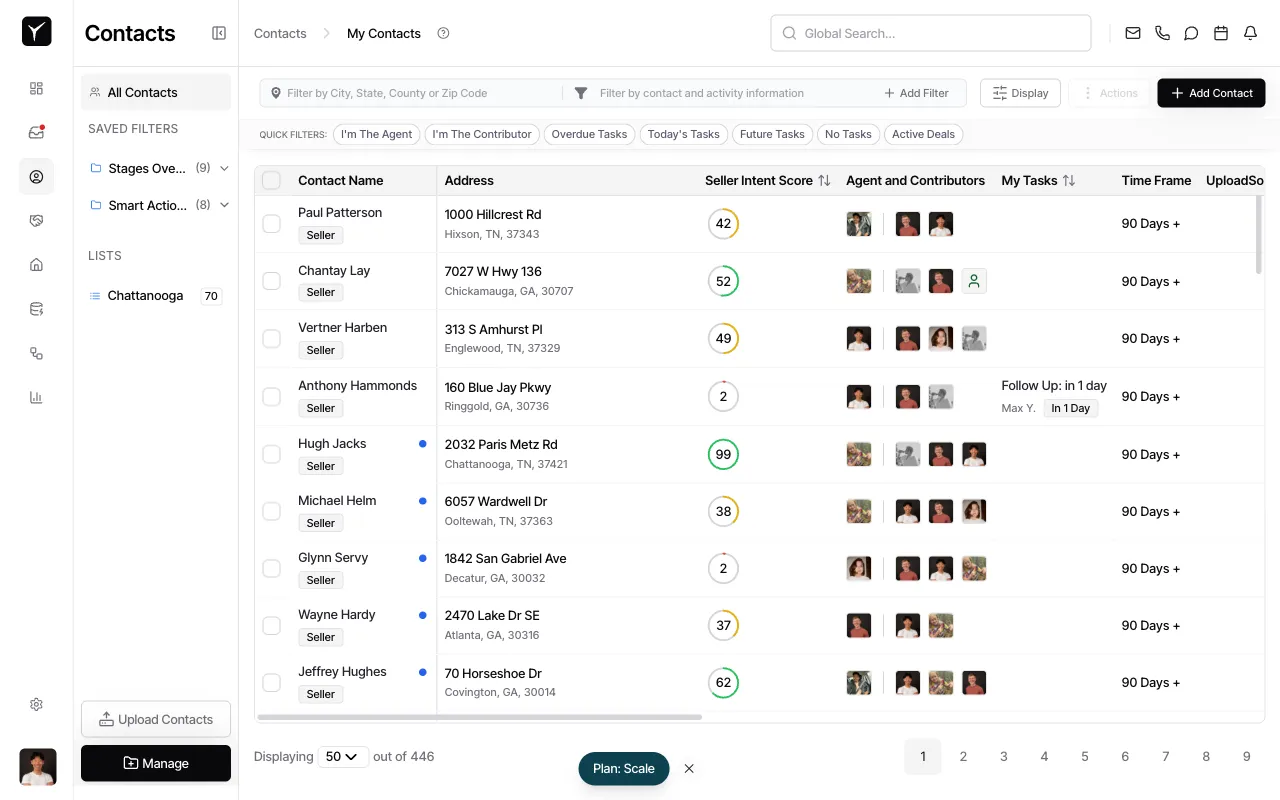
Navigate to the Contacts module and select a contact from your list. You can use the Global Search bar or browse through your saved filters and lists.
-
Access the timeline
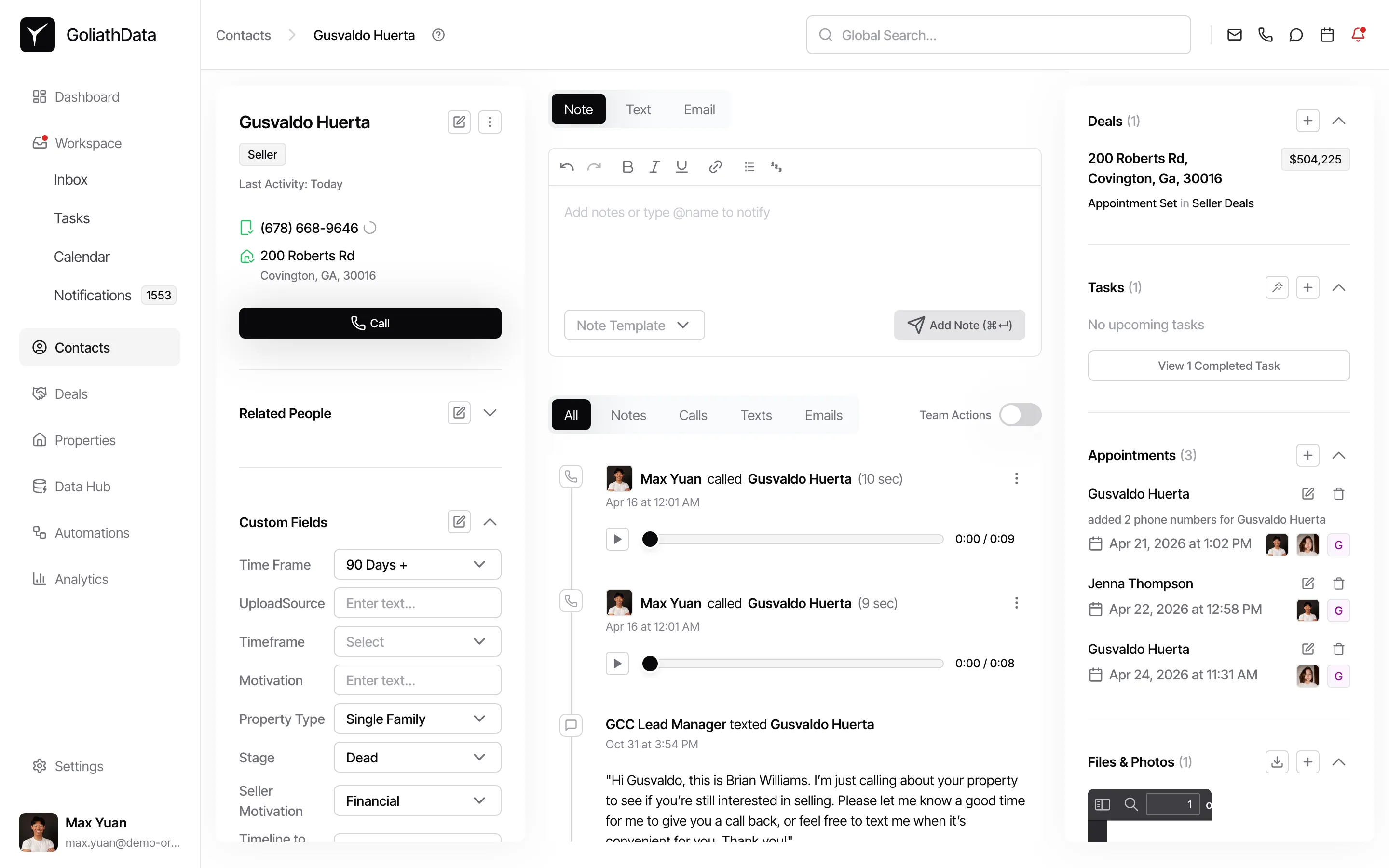
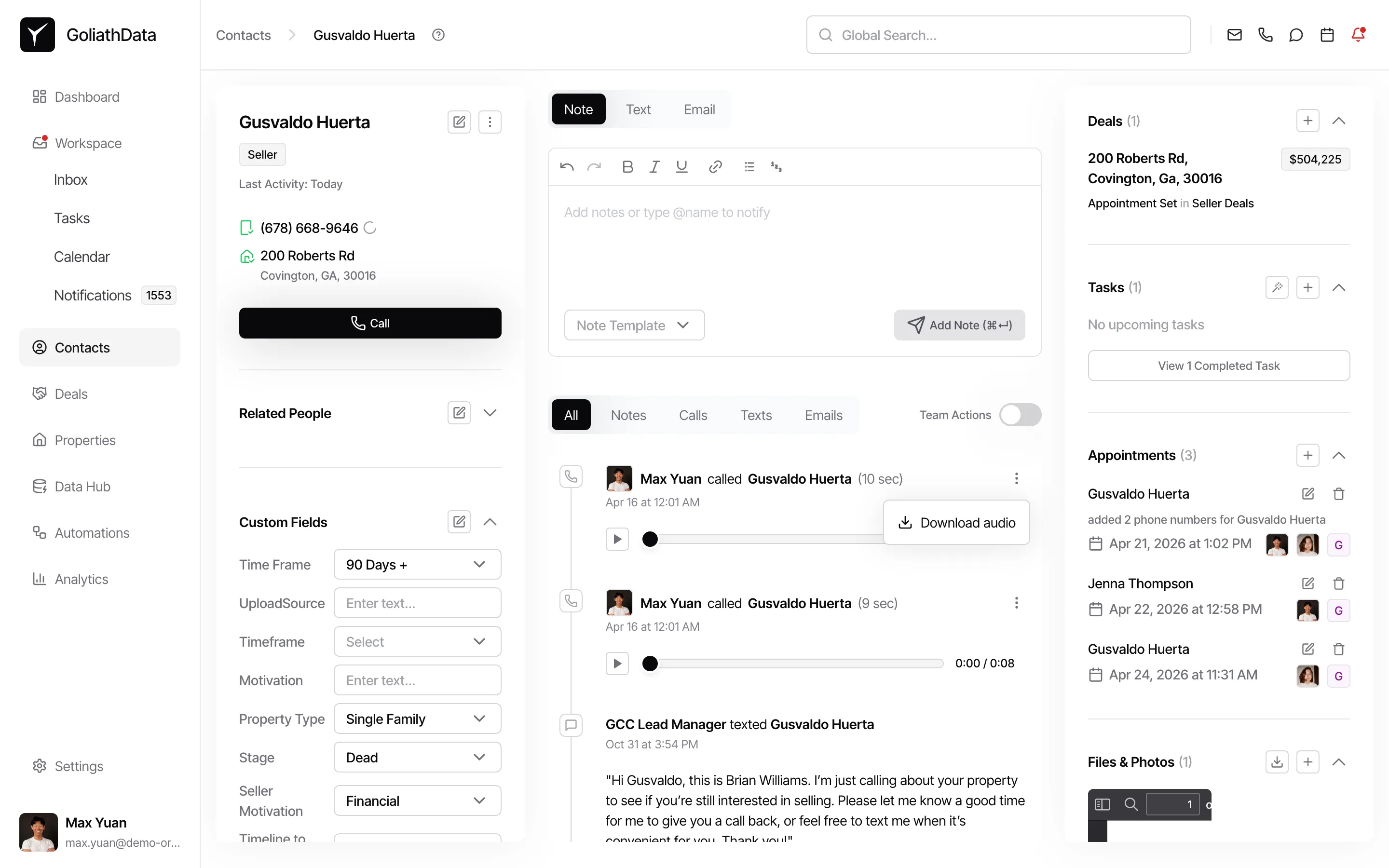
Once the contact record loads, the timeline appears in the center panel below the note-taking area. By default, you’ll see the All tab selected, which displays every type of activity.
-
Filter activities by type
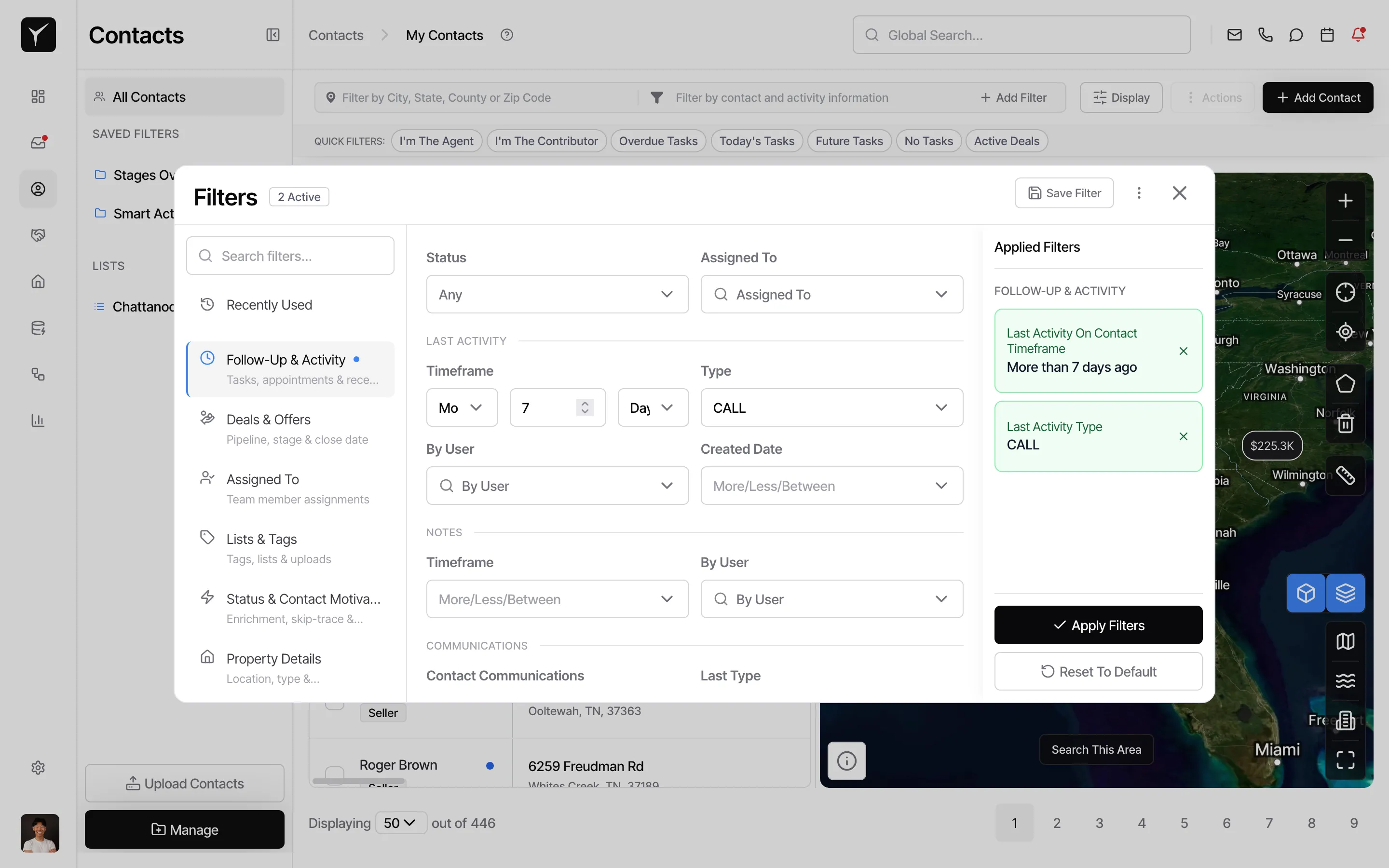
Use the activity type tabs (All, Notes, Calls, Texts, Emails) to narrow the timeline to a specific channel. This is helpful when you need to review only phone conversations or email threads.
-
Review activity details
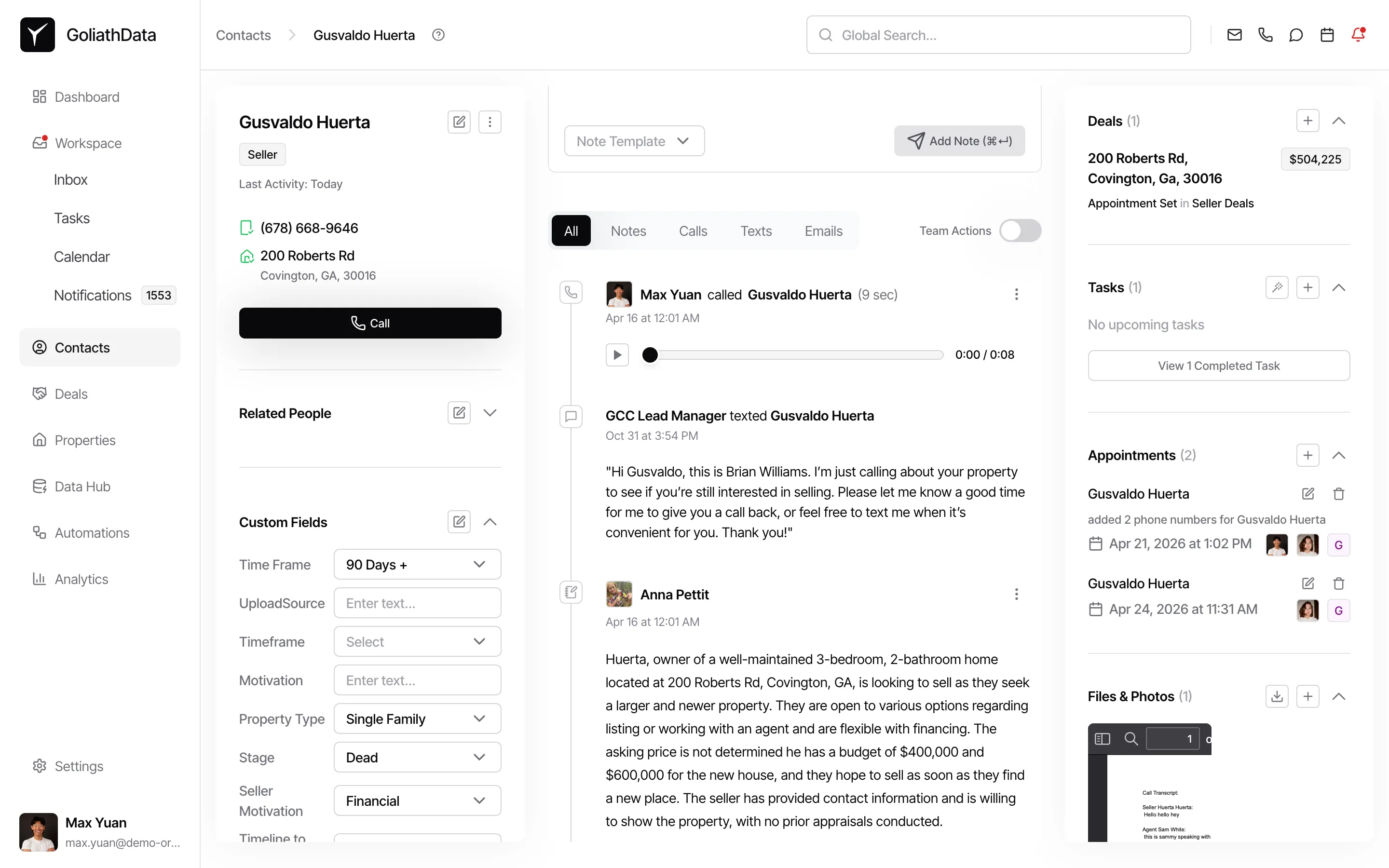
Each timeline entry shows who performed the action, when it occurred, and a preview of the content. For calls, you’ll see a play button to listen to the recording. For texts and emails, the message preview is displayed inline.
-
Expand or interact with an activity
Click on any timeline entry to view its full details, edit, or take additional actions via the More actions menu (three dots). You can also pin important notes to keep critical context at the top of the timeline.
Frequently Asked Questions
Section titled “Frequently Asked Questions”Q: Can I filter the timeline by date range?
Section titled “Q: Can I filter the timeline by date range?”Yes. Click the Filter by contact and activity information button and select Follow-Up & Activity, then choose a timeframe under Last Activity.
Q: What happens if I delete an activity from the timeline?
Section titled “Q: What happens if I delete an activity from the timeline?”Deleted activities are permanently removed and cannot be recovered. If you need to keep a record, consider editing the note instead of deleting it.
Q: How do I see only activities I created?
Section titled “Q: How do I see only activities I created?”In the filter panel under Follow-Up & Activity, set By User to your name to show only your own interactions.
Q: Are automated outreach activities visible in the timeline?
Section titled “Q: Are automated outreach activities visible in the timeline?”Yes. Automated calls, texts, and emails sent via campaigns appear in the timeline with the team member or automation source labeled.