
How Do I Upload a CSV?
Goliath lets you import contacts, properties, and catalyst event data from CSV or Excel files. The upload wizard guides you through selecting your file, mapping columns to Goliath fields, and configuring duplicate handling. Large uploads process in the background so you can continue working while Goliath ingests your data.
Step-by-Step Guide
Section titled “Step-by-Step Guide”-
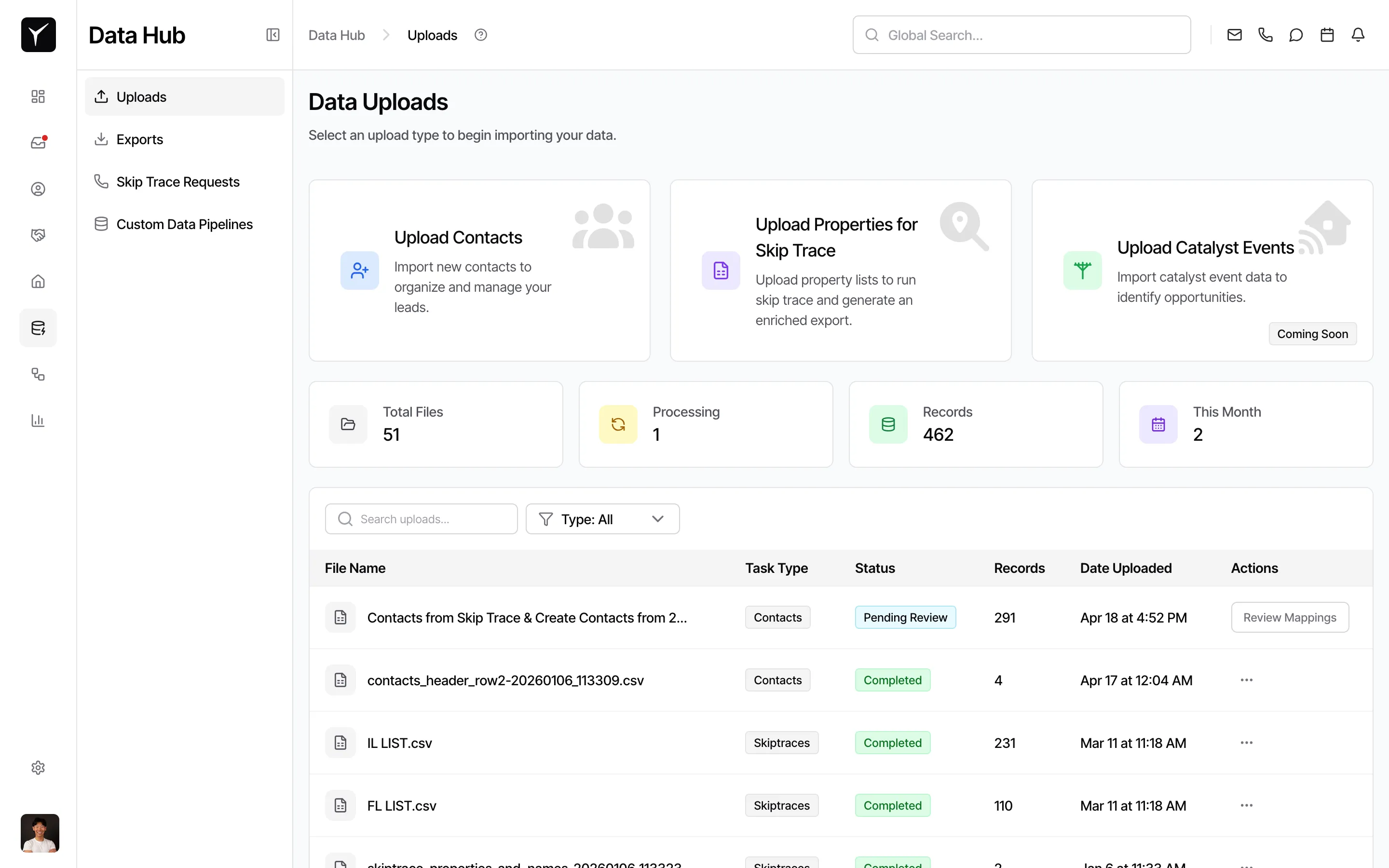
Navigate to the Uploads page
From the Data Hub section in the sidebar, click Uploads. You’ll see the Data Uploads page with three upload type options.
-
Choose your upload type
Select the type of data you’re importing:
- Upload Contacts: Import people (names, phone numbers, emails, and addresses) to organize and manage your leads
- Upload Properties for Skip Trace: Import property lists to run skip trace and generate an enriched export
- Upload Catalyst Events: Import catalyst event data (tax delinquency lists, foreclosure filings, etc.) to identify opportunities
-
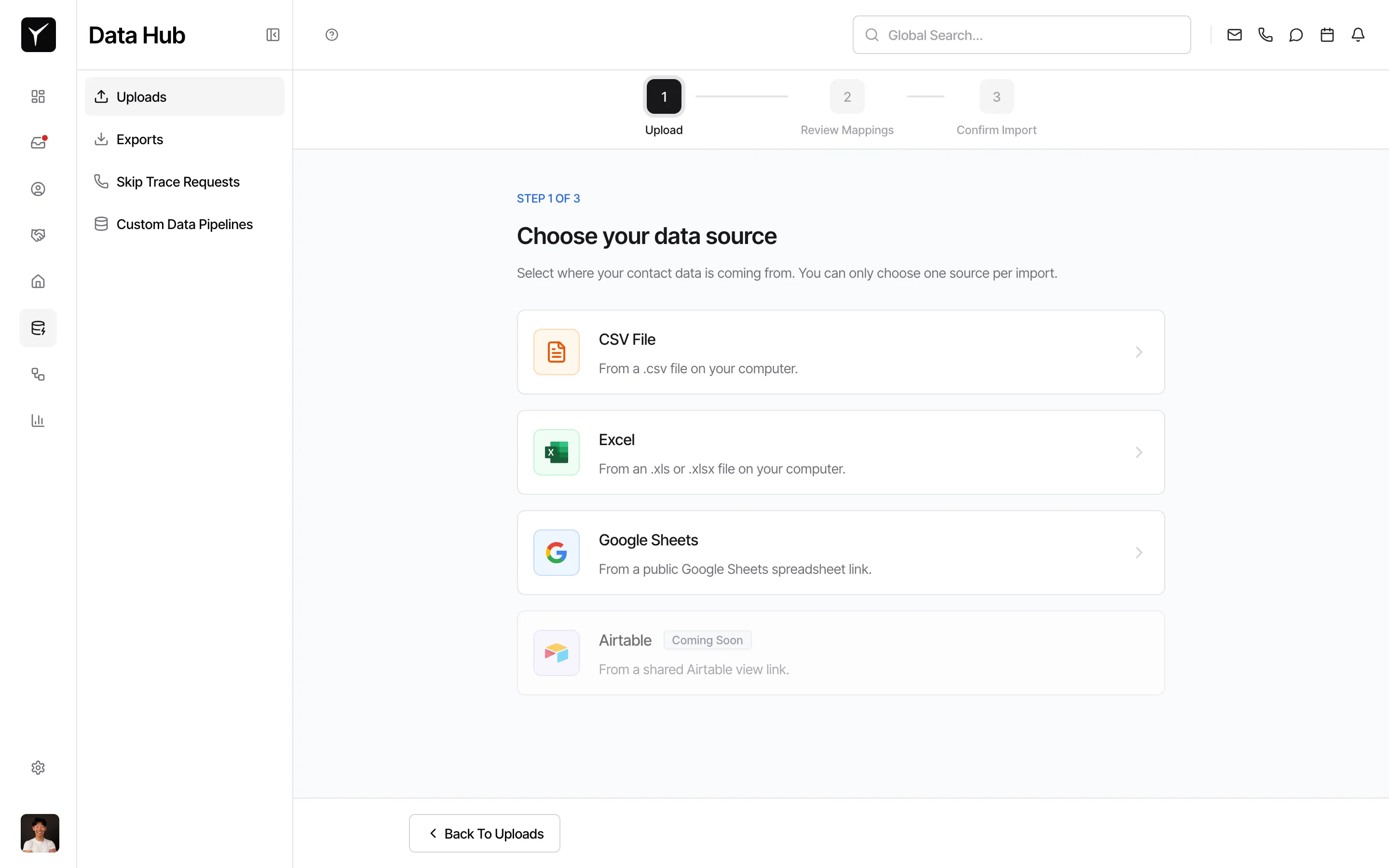
Select your import flow
Choose between Quick Import (automatic column detection, best for simple files) or Advanced Import (full wizard with field mapping — recommended for most uploads).
-
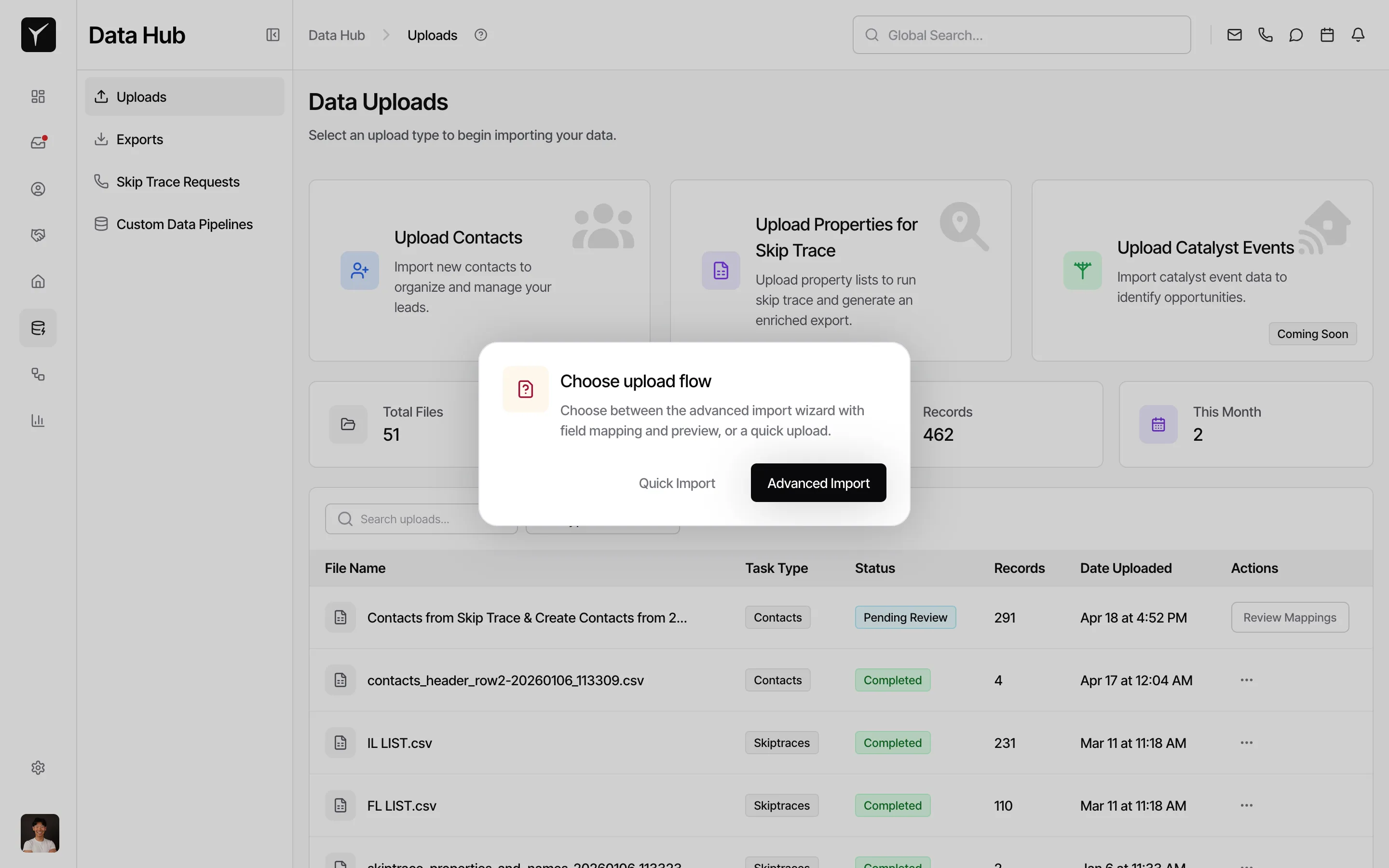
Select your file
Upload your CSV or XLSX file. Property uploads also support Google Sheets URLs. Configure duplicate handling — choose whether to merge duplicates into existing records or skip them. For property uploads, optionally enable skip trace to enrich records as they’re imported.
-
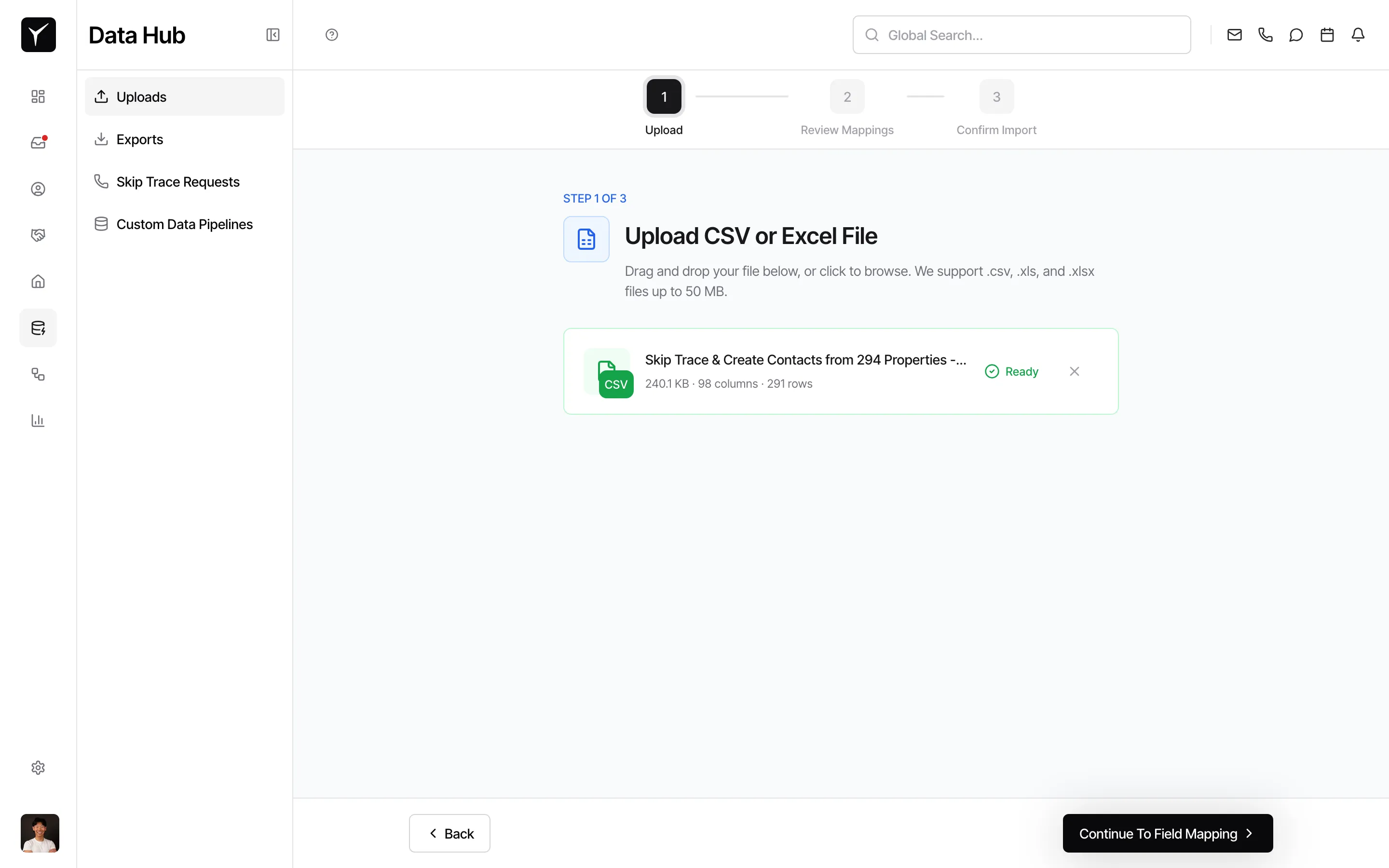
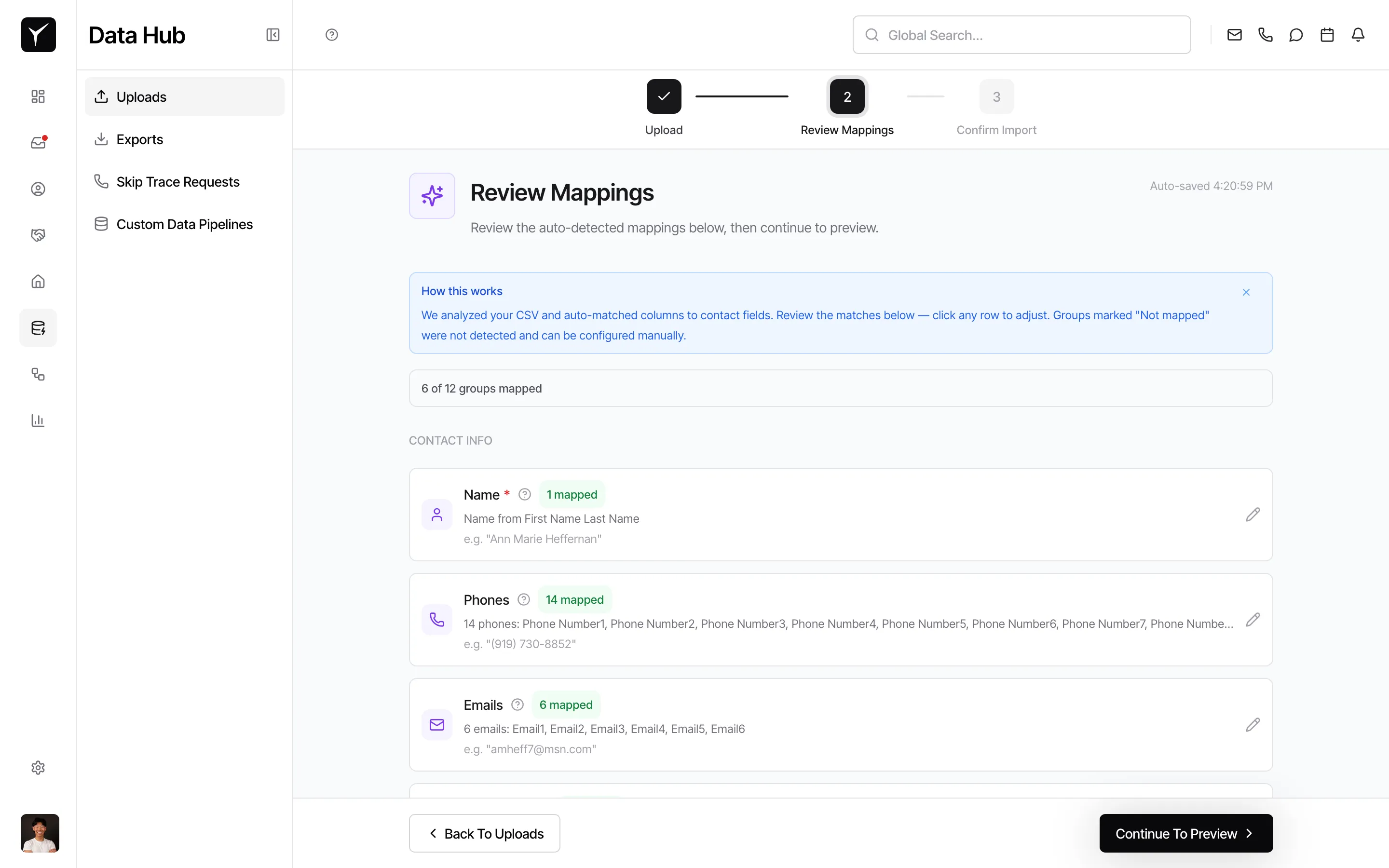
Map columns and confirm
Map columns from your file to Goliath fields (e.g., map your “Owner Name” column to Goliath’s Full Name field). Review your settings and click the upload button. Goliath processes the file in the background and you’ll receive a notification when it finishes.
Frequently Asked Questions
Section titled “Frequently Asked Questions”Q: What file formats does Goliath support?
Section titled “Q: What file formats does Goliath support?”Goliath accepts CSV and XLSX files for all upload types. Property uploads also support direct import from Google Sheets URLs.
Q: How does Goliath handle duplicate records?
Section titled “Q: How does Goliath handle duplicate records?”During the upload wizard, Goliath automatically detects duplicates using email and phone matching (for contacts) or address matching (for properties). You choose whether to merge into existing records or skip duplicates entirely.
Q: Can I cancel an upload that’s already processing?
Section titled “Q: Can I cancel an upload that’s already processing?”Yes. Open the Actions menu for the upload in the uploads table and select the cancel option. Any data that has already been written to Goliath will stay in the system.
Q: What’s the file size limit?
Section titled “Q: What’s the file size limit?”Goliath can handle uploads with tens of thousands of rows. For very large files (100,000+ rows), splitting into smaller batches improves processing speed and makes troubleshooting easier.
Q: Can I upload and run skip trace at the same time?
Section titled “Q: Can I upload and run skip trace at the same time?”Yes. When uploading properties, enable the skip trace option in the wizard. Goliath will automatically enrich addresses with owner contact information as each row is imported.