
Skip Tracing
Skip tracing retrieves contact information (phone numbers, email addresses, and mailing addresses) for property owners using third-party data providers. Use skip tracing to gather contact details for direct outreach campaigns when you have a property address or owner name but need phone or email. Each successfully traced record consumes one credit from your organization’s billing plan.
Method 1: Skip Trace by Name
Section titled “Method 1: Skip Trace by Name”Use this method when you already know a person’s name and optionally their address. This is ideal for tracing individuals not yet in your system.
-
Navigate to Skip Trace Requests
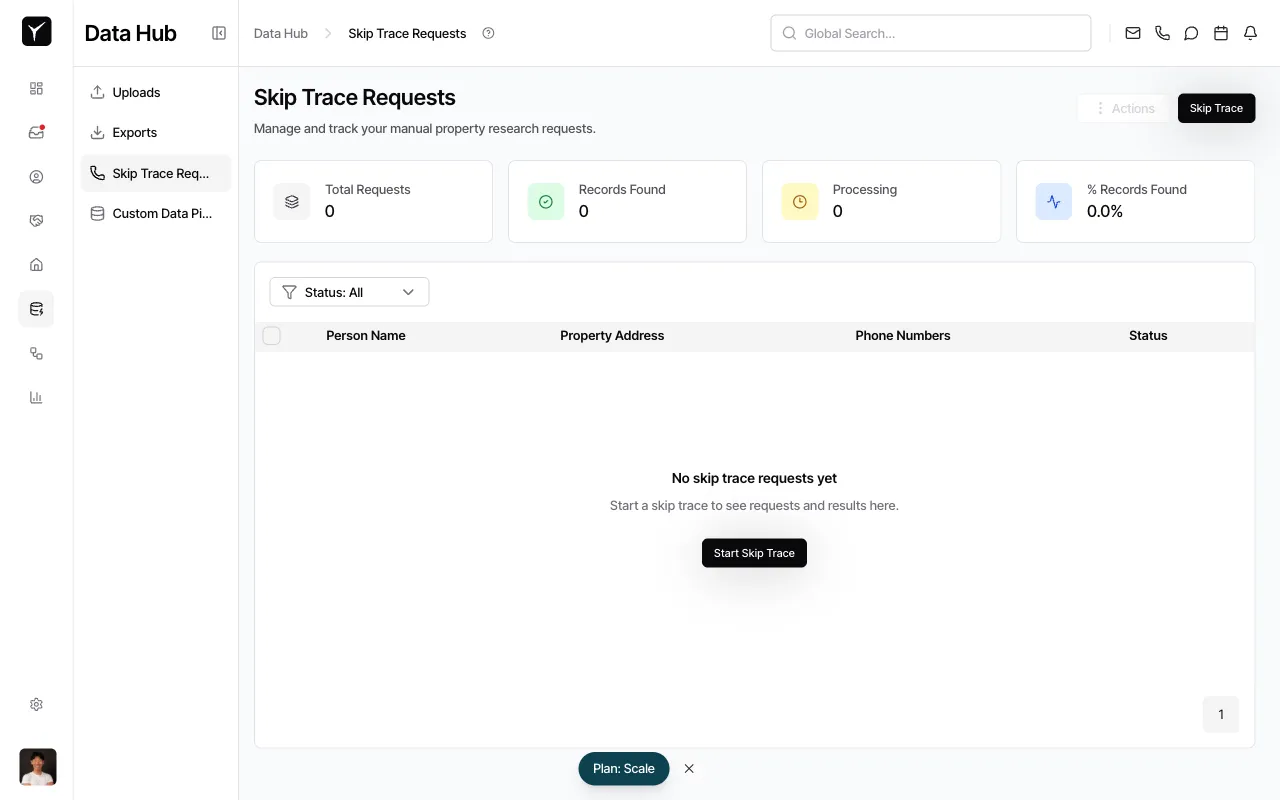
From the left sidebar, click Data Hub then select Skip Trace Requests.
-
Open the Manual Skip Trace wizard
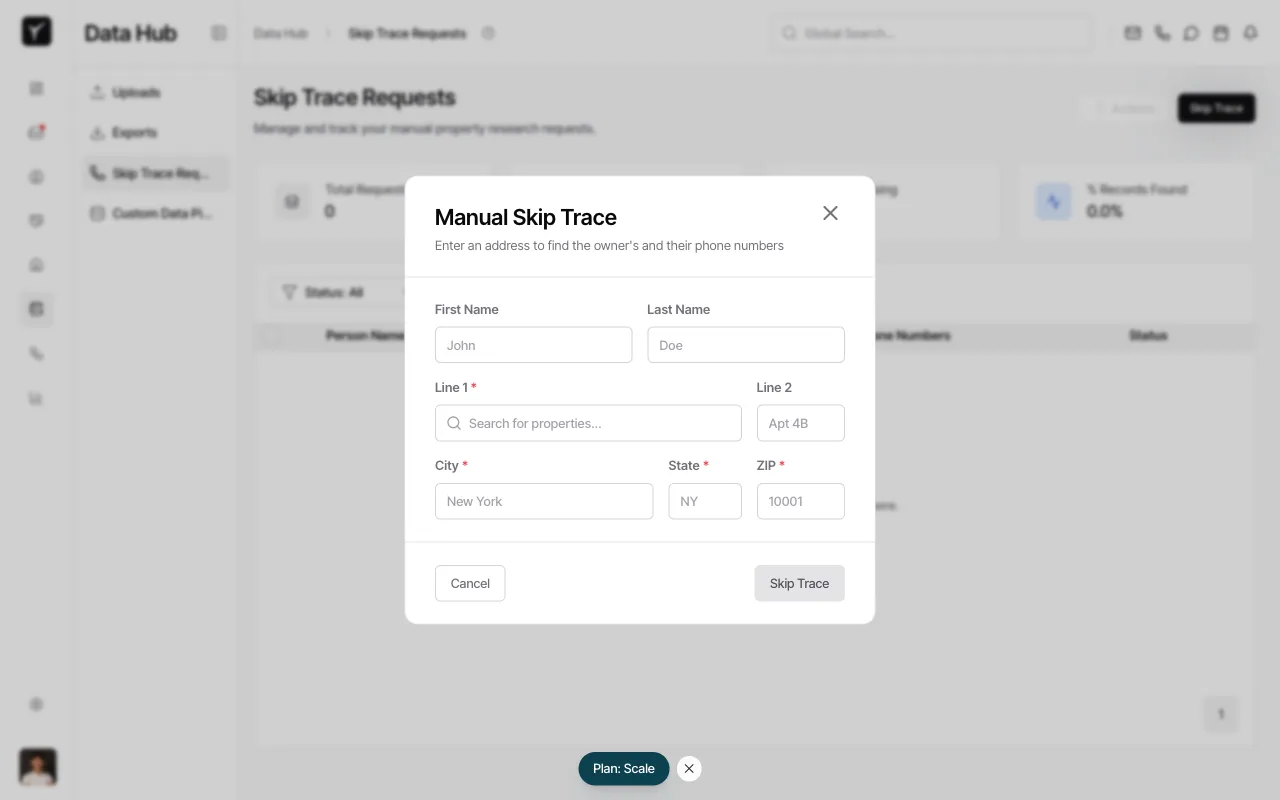
Click the Skip Trace button in the top-right corner. The New Skip Trace modal appears, prompting you to enter a name and optional address.
-
Enter name and address details
Fill in the First Name and Last Name fields (required). Optionally, enter the property address in Line 1, City, State, and ZIP fields to improve match accuracy. Providing an address helps the skip trace provider narrow results to the correct individual.
-
Submit the skip trace request
Review the cost preview (typically 1 credit per trace). Click the Skip Trace button to submit. The request processes in the background and results appear on the Skip Trace Requests page within seconds.
Method 2: Skip Trace from a Property
Section titled “Method 2: Skip Trace from a Property”Use this method when viewing a property detail page and you need the owner’s contact information. Goliath automatically uses the property’s owner of record and address for the trace.
-
Open the property detail page
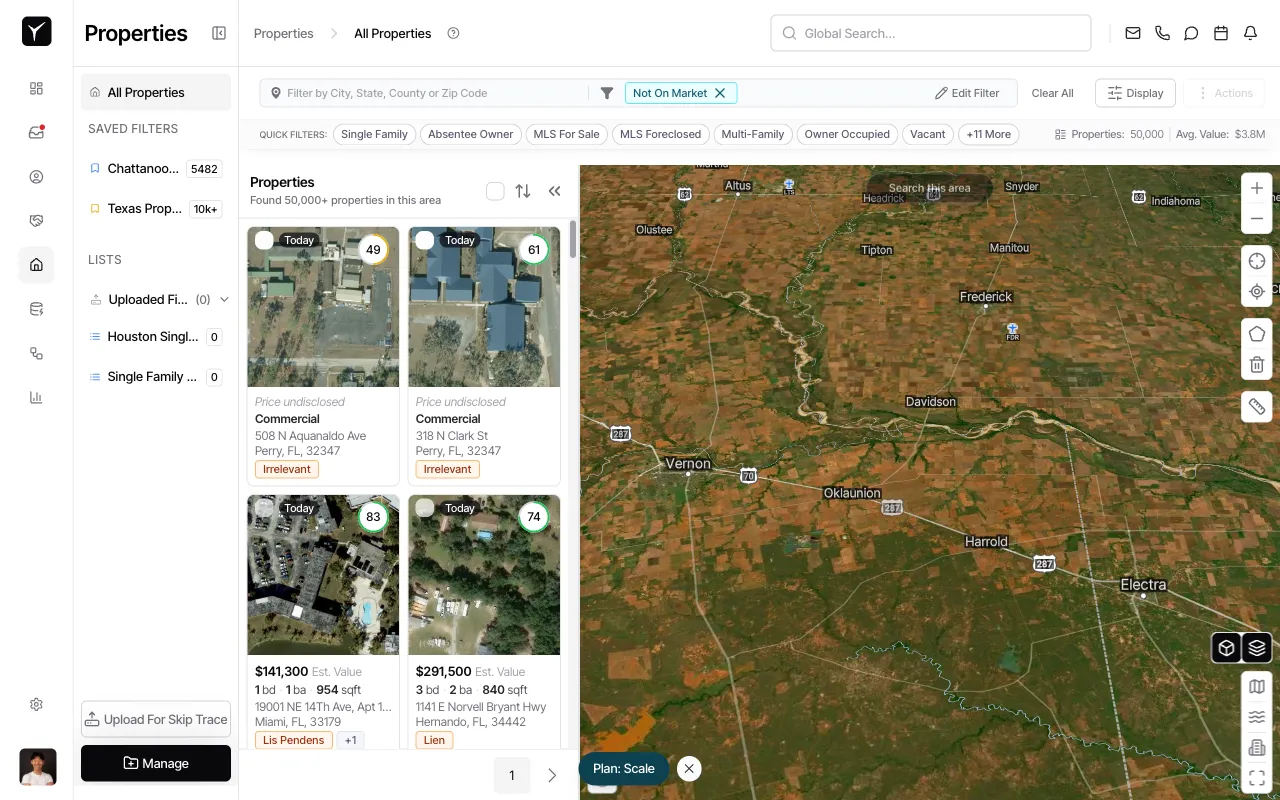
Navigate to Properties and select any property from the list or map view.
-
Initiate skip trace from the property panel
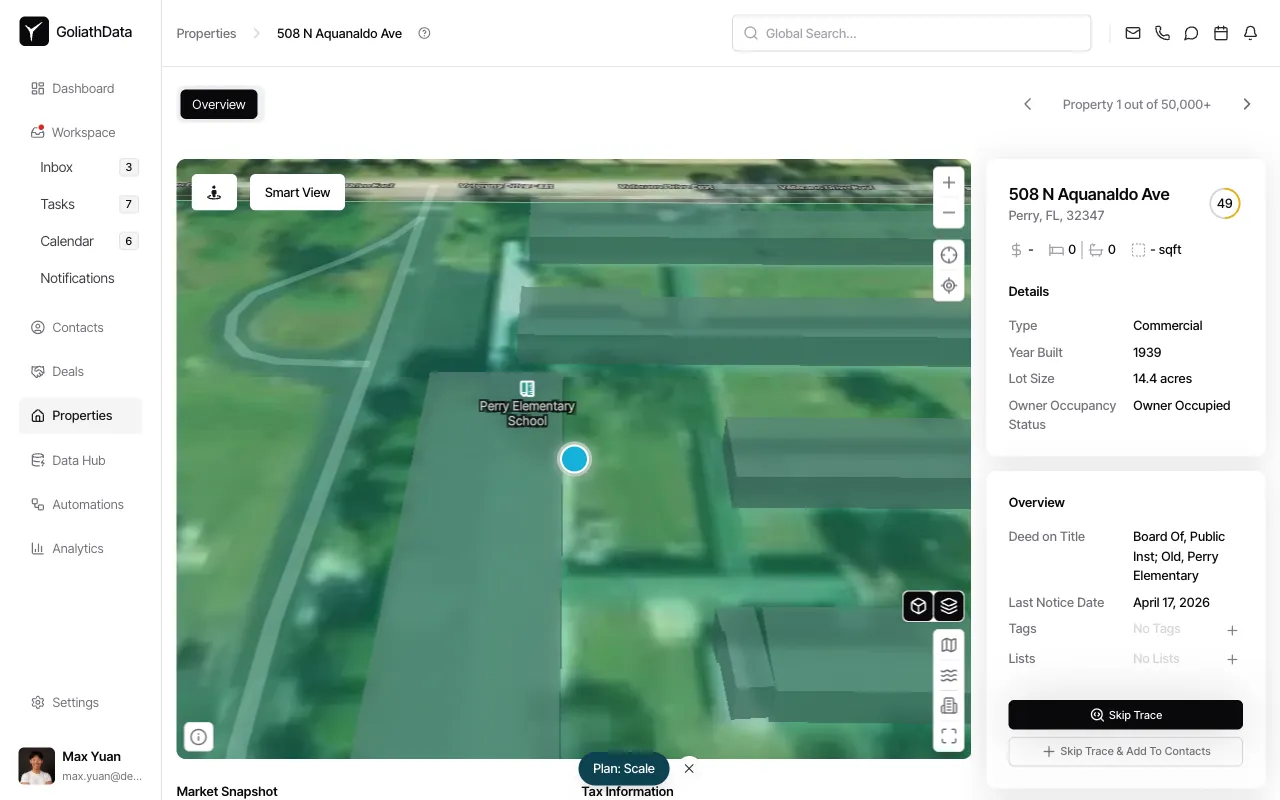
On the property detail page, scroll to the right-side Details panel. Click either the Skip Trace button or the Skip Trace & Add To Contacts button.
-
Confirm and trace
The trace runs immediately using the property’s owner name and address. If you selected Skip Trace & Add To Contacts, Goliath creates or updates a contact record for the owner and populates it with the traced phone numbers and emails. Any tags on the property carry over to the contact.
Method 3: Bulk Skip Trace via File Upload
Section titled “Method 3: Bulk Skip Trace via File Upload”Use this method for large-scale operations when you have a CSV or XLSX file with hundreds or thousands of property addresses.
How It Works
Section titled “How It Works”- Navigate to Data Hub → Uploads and upload your property list file.
- In the upload wizard, enable the skip trace during import option.
- Goliath displays the total credit cost before confirming. Each row in the file consumes one credit upon successful trace.
- The import runs asynchronously. Track progress on the Skip Trace Requests page.
- Once complete, traced contact details populate the imported property records and corresponding contact records are created or updated.
For detailed instructions on file structure and upload settings, see the Uploading Data and Bulk Skip Trace articles.
Understanding Skip Trace Results
Section titled “Understanding Skip Trace Results”Skip trace results flow into two places in Goliath:
- Property records: Owner phone and email fields populate with the traced contact information.
- Contact records: A contact is created or updated for each matched owner, with traced phones and emails attached. Contact records inherit tags from the originating property.
Each trace typically returns 1–3 phone numbers and 1–3 email addresses, each with deliverability or validity scores. Failed matches (no contact information found) typically do not consume credits, but confirm pricing details in your billing plan.
Results are available for export via Data Hub → Exports in formats such as Meta Customer List or Multiline Dialer. See the Exporting Data article for export options.
Frequently Asked Questions
Section titled “Frequently Asked Questions”Q: How many credits does a skip trace use?
Section titled “Q: How many credits does a skip trace use?”Each successfully traced record consumes 1 credit. If the trace returns no results or fails to match, credits are typically not deducted, but this may vary by provider or plan.
Q: Can I re-trace the same property or person?
Section titled “Q: Can I re-trace the same property or person?”Yes, but Goliath warns you if a property or name was traced recently. Re-tracing may be useful if owner information has changed or if you need updated contact details.
Q: What is the difference between “Skip Trace” and “Skip Trace & Add To Contacts”?
Section titled “Q: What is the difference between “Skip Trace” and “Skip Trace & Add To Contacts”?”Both buttons trace the property owner. Skip Trace & Add To Contacts also creates or updates a contact record for the owner in your Contacts list, making follow-up easier. Use the latter when you plan to reach out immediately.
Q: Which countries are supported?
Section titled “Q: Which countries are supported?”Skip tracing primarily supports United States properties and contacts. International coverage may be limited depending on your data provider.
Q: What kind of results should I expect?
Section titled “Q: What kind of results should I expect?”Typical results include 1–3 phone numbers (landline, mobile, or VoIP) and 1–3 email addresses. Each result includes deliverability or validity scores to help you prioritize outreach.