
Using the Inbox
The Inbox is your unified hub for every contact communication—calls, texts, emails, voicemails, and web-form submissions—across your entire team. Instead of juggling multiple tools, Goliath centralizes every inbound and outbound interaction into a single, searchable feed. Use the Inbox to triage missed calls, respond to messages, and ensure no lead or property owner goes unanswered.
Step-by-Step Guide
Section titled “Step-by-Step Guide”-
Navigate to the Inbox
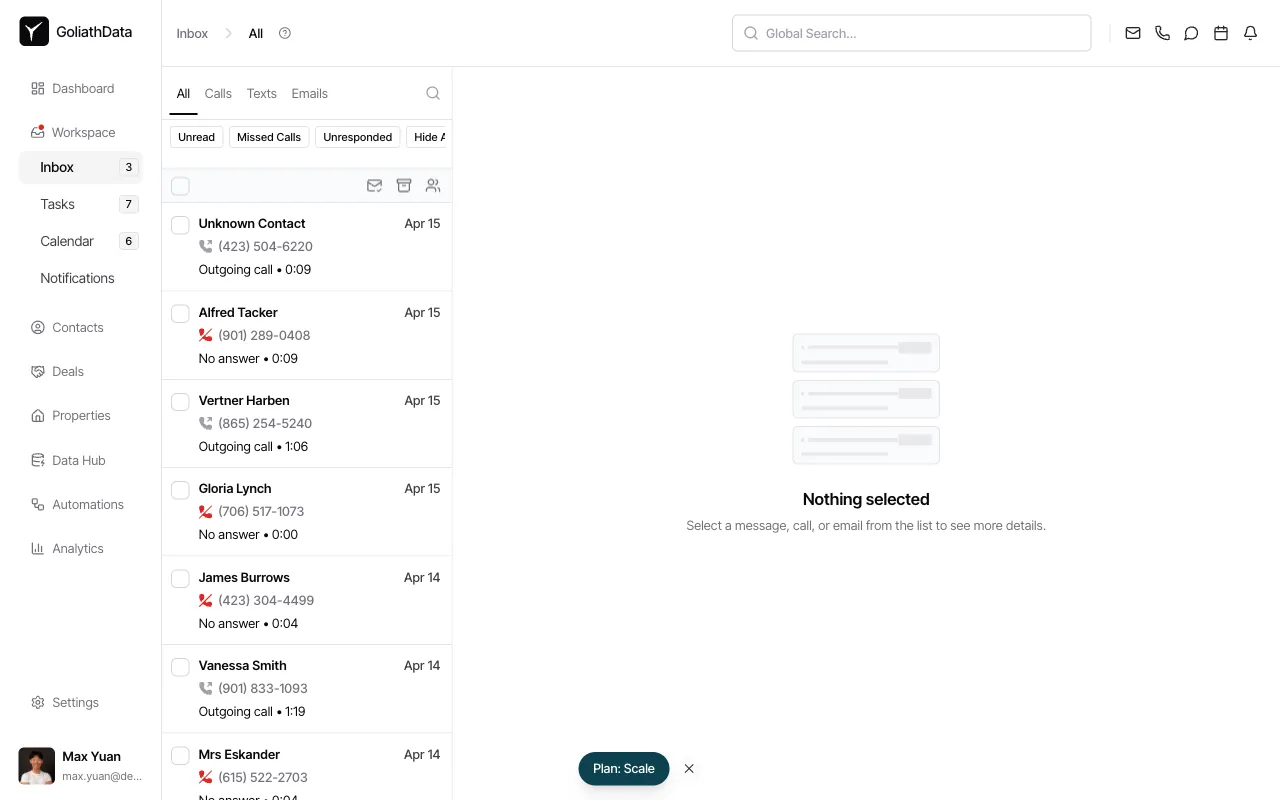
Click Inbox in the left sidebar to open your unified message feed. You’ll see all communication channels by default, sorted by most recent activity.
-
Filter by channel
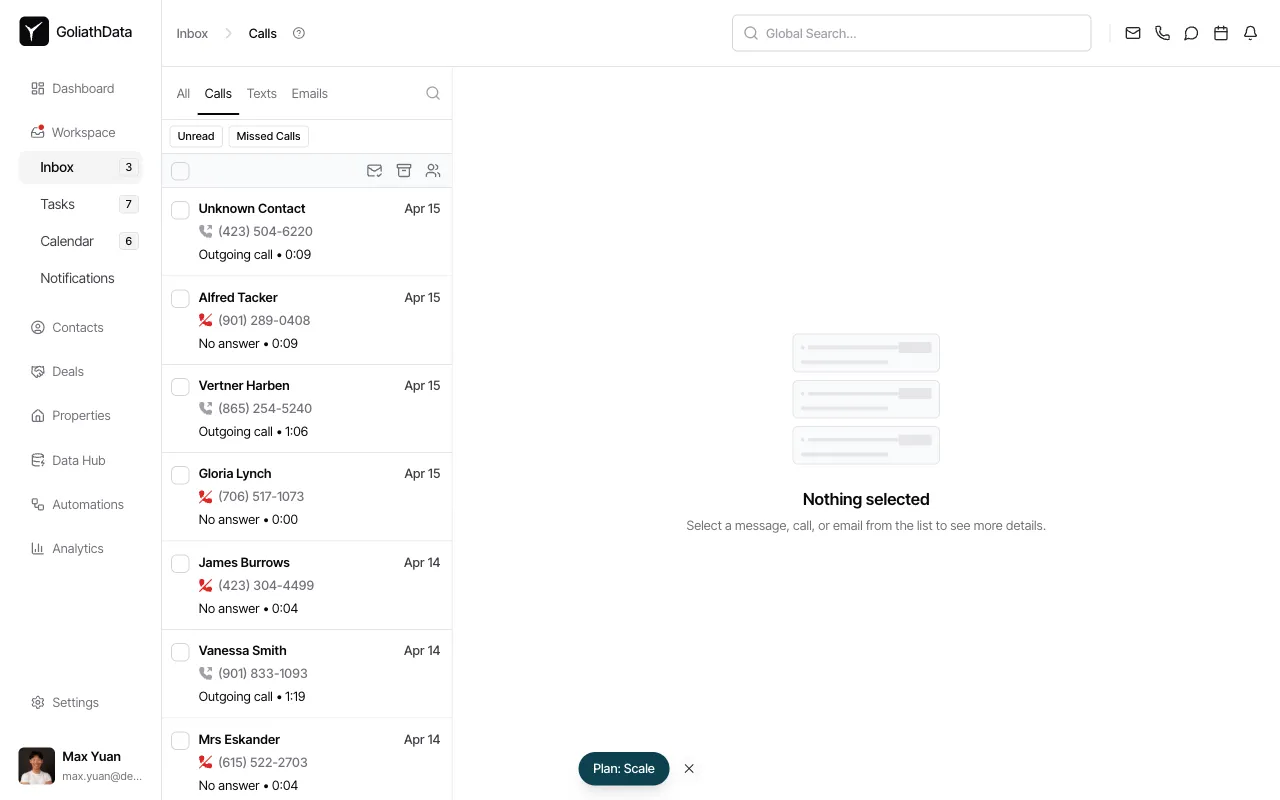
Click the Calls, Texts, or Emails tabs to view only that communication type. Use quick-filter pills like Unread, Missed Calls, or Unresponded to surface items that need immediate attention.
-
Review an item
Each row shows the contact name, a channel icon, call direction (inbound or outbound), a message preview, timestamp, and call duration. Click any row to open the detail view on the right.
-
Take action in the detail view
In the detail pane, listen to call recordings, read full message threads, or view voicemail transcripts. Reply to texts or emails directly from this view—no context-switching required.
-
Use bulk operations
Select multiple items using the checkboxes on the left. Then archive, mark as read, or reassign conversations to a teammate using the toolbar at the top of the list.
Frequently Asked Questions
Section titled “Frequently Asked Questions”Q: Can I see messages sent by my teammates?
Section titled “Q: Can I see messages sent by my teammates?”Yes. The Inbox shows all team communications, and each item displays the assignee or responder so you know who handled it.
Q: What happens when I archive a conversation?
Section titled “Q: What happens when I archive a conversation?”Archived items are hidden from the default view but remain searchable. Use the filter menu to view archived conversations if you need to reference them later.
Q: Can I reply to emails and texts from Goliath?
Section titled “Q: Can I reply to emails and texts from Goliath?”Yes. Open the detail view for any message and compose your reply inline—Goliath sends it on your behalf and logs the entire thread.