
How Do I Assign a Contact?
Assigning contacts ensures the right team member follows up on each lead. Goliath supports two distinct workflows: bulk assign from the contacts list (ideal for distributing leads to your team) and managing contributors from the contact detail page (ideal for adding collaborators or reassigning ownership). Only users in your organization can be assigned as agents or contributors.
Understanding Agent vs. Contributor
Section titled “Understanding Agent vs. Contributor”- Agent (primary assignee) is the team member who owns the contact for follow-up. The agent is responsible for outbound calls, texts, and emails. Each contact typically has one agent. The agent appears in the Agent and Contributors column on the contacts list and is used for filtering (e.g., I’m The Agent shows only your assigned contacts).
- Contributor is an additional team member with visibility into the contact. Contributors can see the timeline, add notes, and collaborate — but the agent remains the primary owner. A contact can have multiple contributors. Contributors do not show in agent filters; they are collaborators, not owners.
Common pattern: the agent is the acquisitions rep doing outreach; contributors are team leads, transaction coordinators, or specialists who need visibility as the deal progresses.
Bulk Assign from the Contacts List
Section titled “Bulk Assign from the Contacts List”Use this workflow to assign the same team member as the agent for multiple contacts in one operation. Best for: distributing a freshly uploaded list to reps, reassigning contacts when a team member leaves, or round-robin-style load balancing.
-
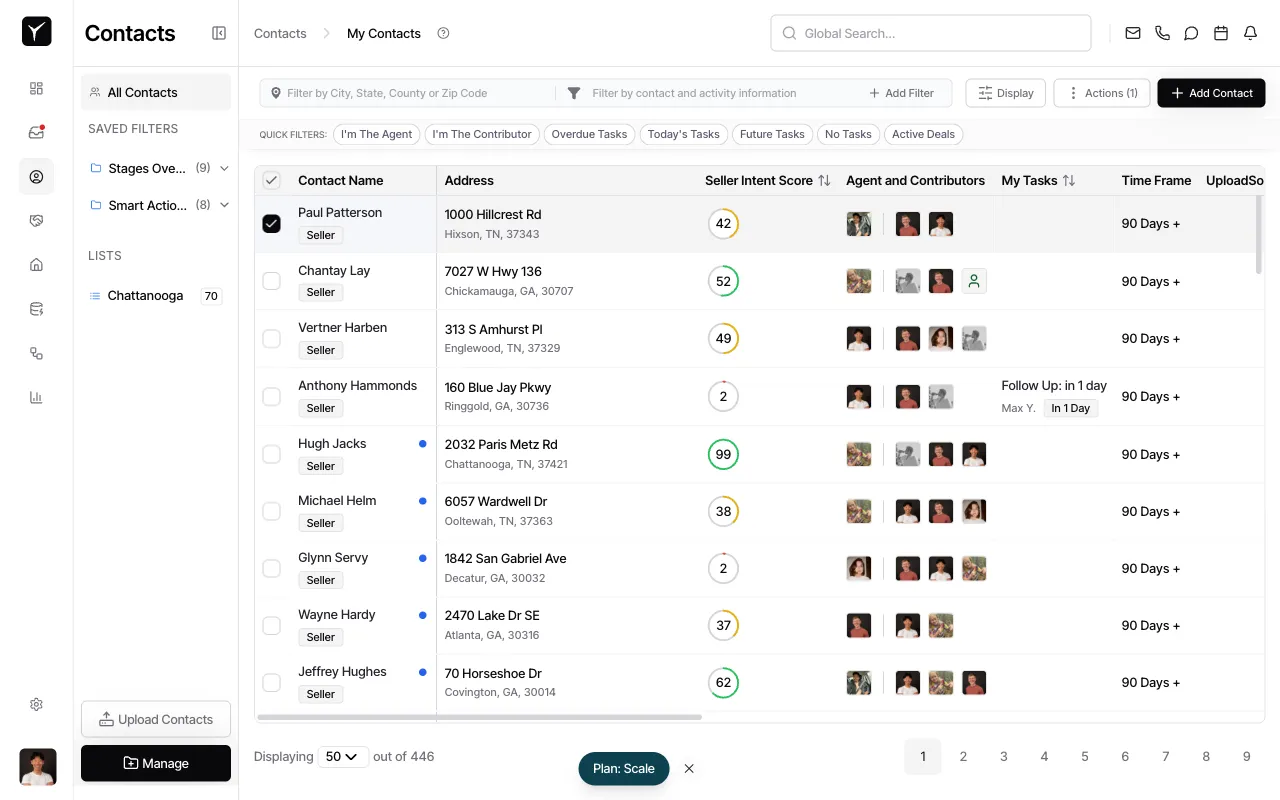
Continue selecting contacts
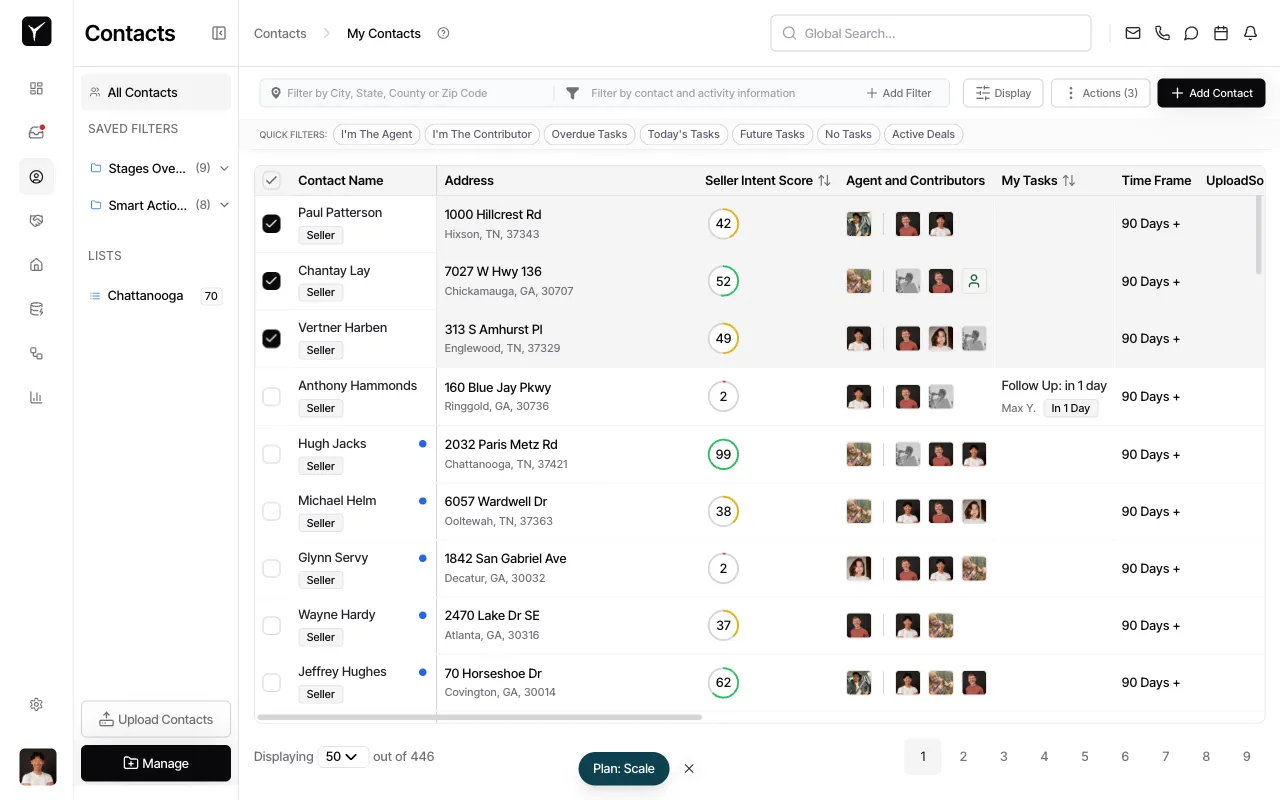
Check the boxes next to one or more contacts in the list. The Actions button will activate and display the number of selected contacts. Add more contacts to your selection as needed. The count in the Actions button updates as you select.
-
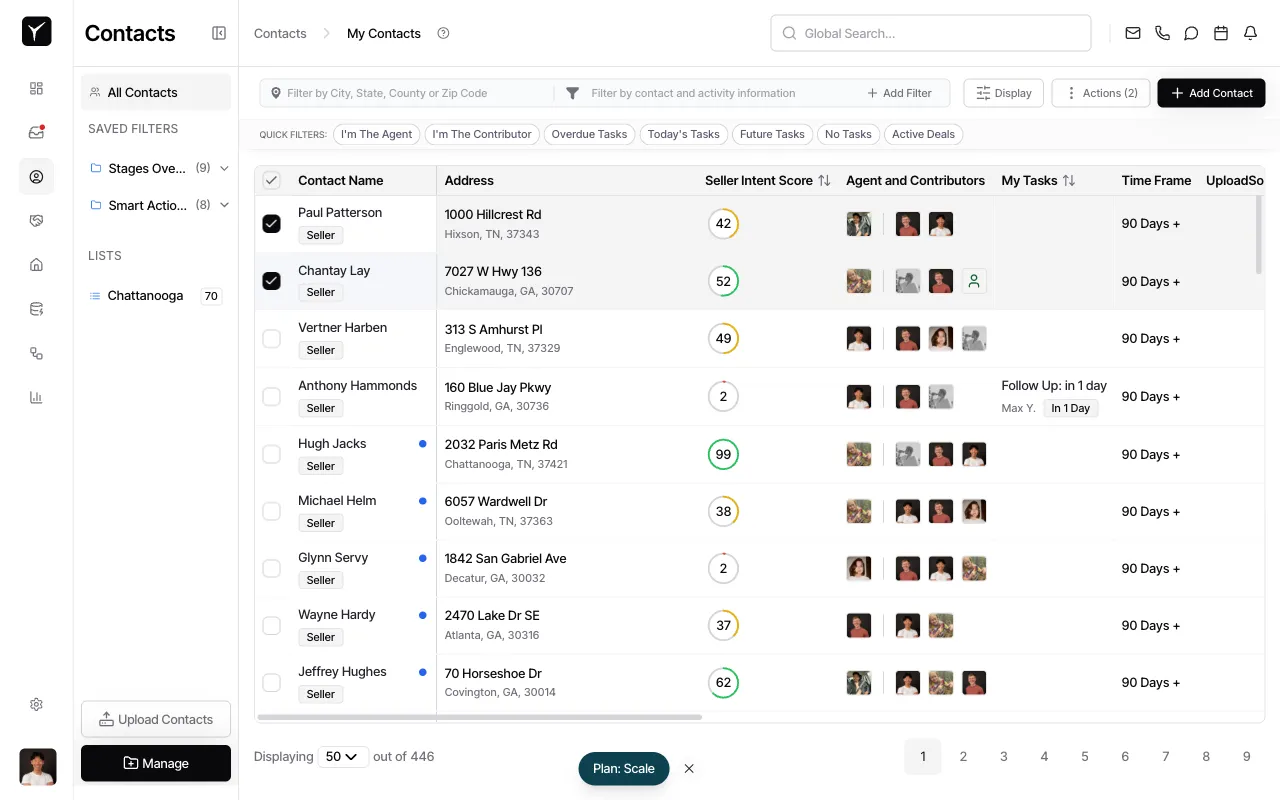
Finalize your selection
Once all desired contacts are selected, the Actions button shows the total count.
-
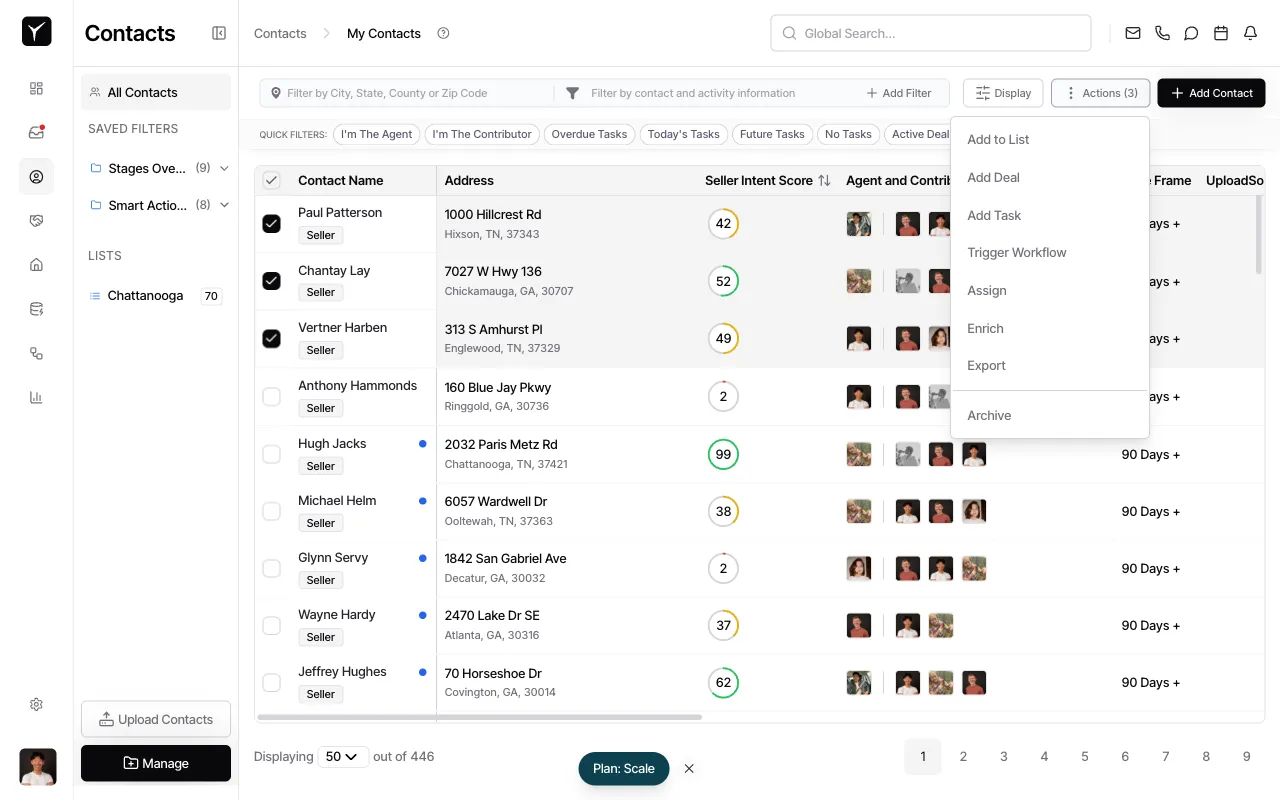
Open the Actions menu
Click the Actions button at the top right to reveal the available bulk actions and select Assign from the dropdown menu to open the bulk assignment dialog.
-
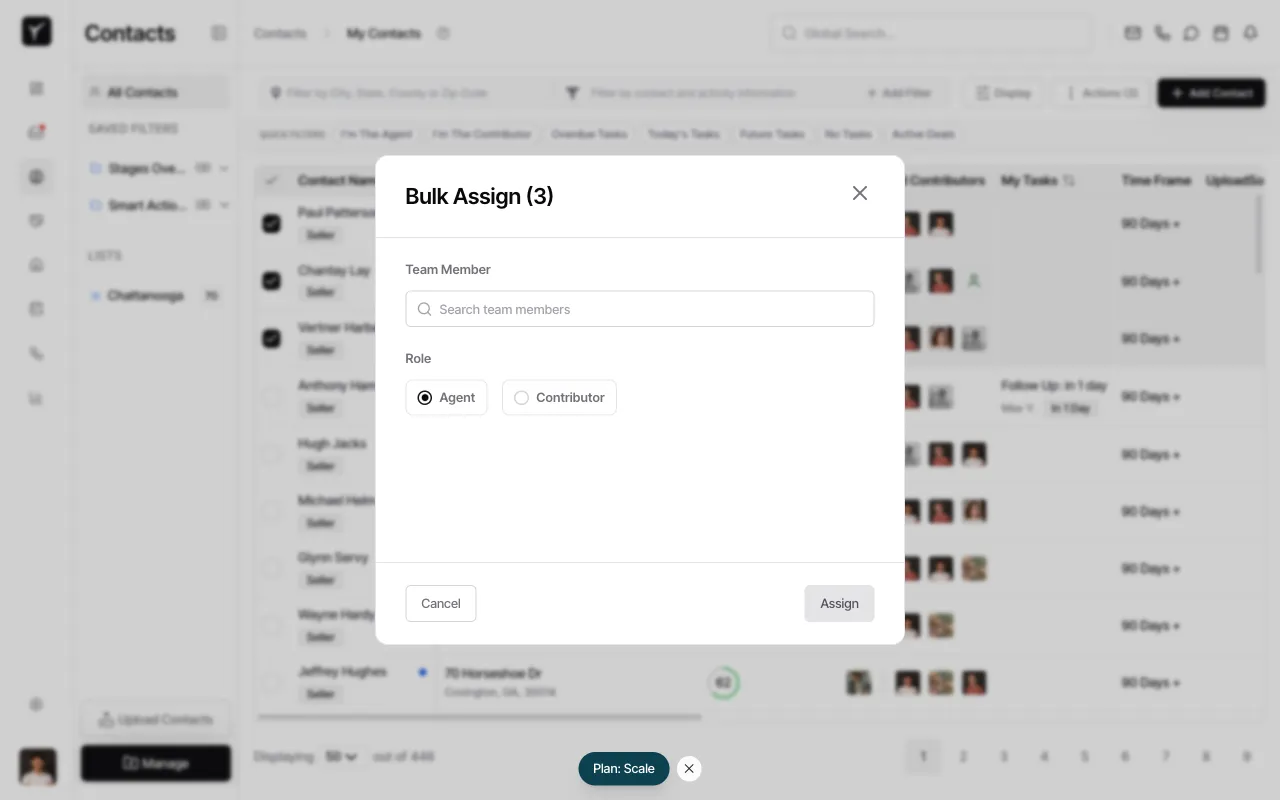
Choose a team member and role
In the Bulk Assign dialog, search for the team member in the Team Member field. Under Role, select Agent to assign them as the primary owner, or Contributor to add them as a collaborator.
-
Complete the assignment
Click the Assign button to apply the changes. All selected contacts will now have the chosen team member assigned in the selected role.
Manage Contributors from the Contact Detail Page
Section titled “Manage Contributors from the Contact Detail Page”Use this workflow to add or remove individual contributors or reassign the agent for a single contact. Best for: adding a second set of eyes, looping in a specialist, or collaborative follow-up. A contact can have multiple contributors but typically only one agent.
-
Open a contact record
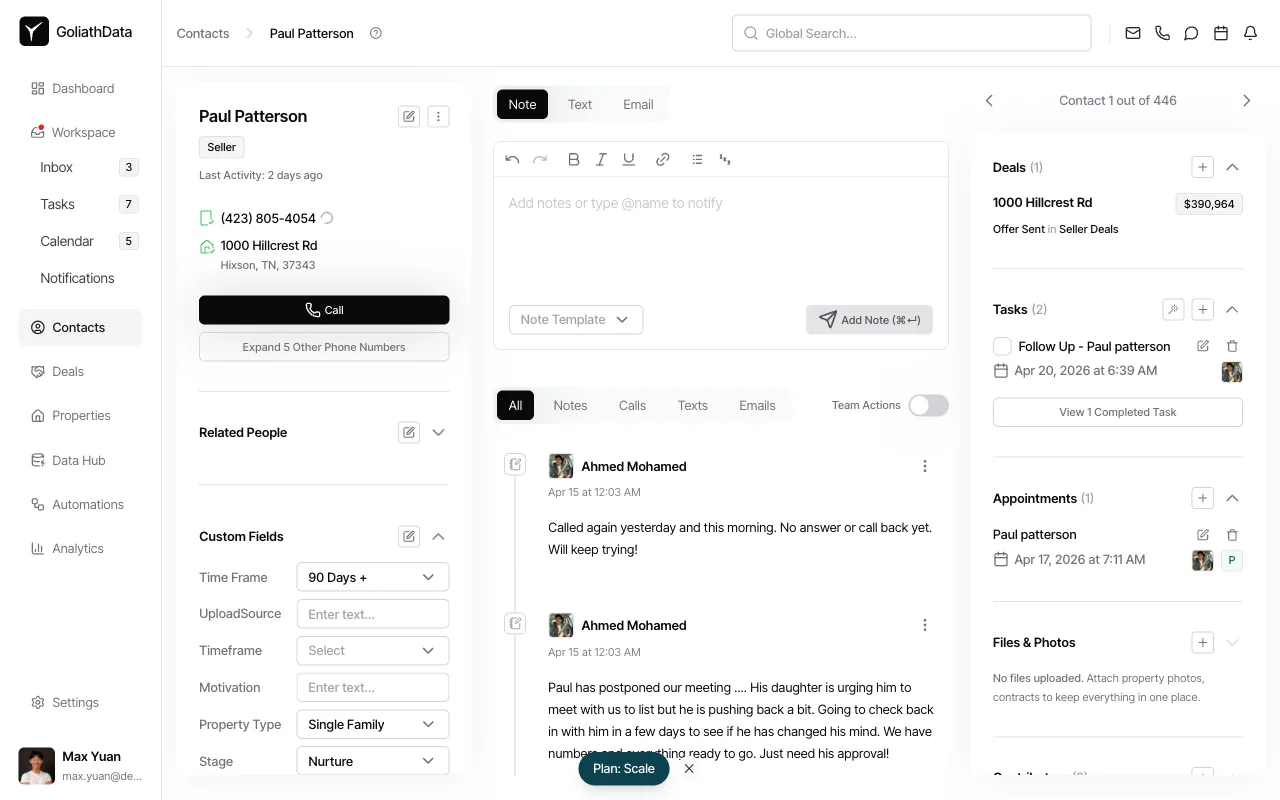
Click a contact name in the list to open the contact detail page.
-
Access the Contributors section
Scroll down to the Contributors section on the detail page. Click the edit icon (or Add contributor if none are assigned) to open the Manage Contributors dialog.
-
Add or edit contributors and agent
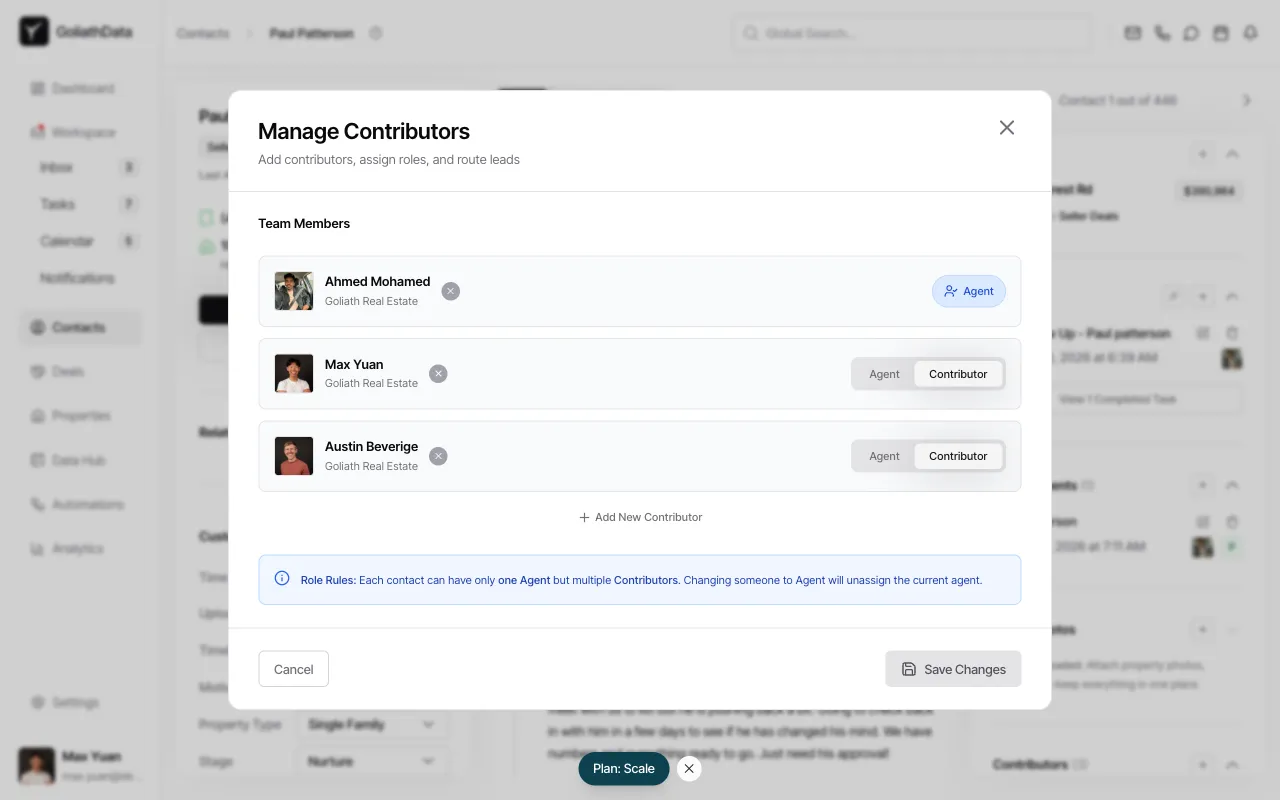
In the Manage Contributors dialog, you can add new team members by clicking + Add New Contributor. For each team member listed, toggle between Agent and Contributor roles. The blue Agent badge indicates the primary assignee. The info box at the bottom reminds you: “Each contact can have only one Agent but multiple Contributors. Changing someone to Agent will unassign the current agent.”
Click Save Changes to apply your updates.
Frequently Asked Questions
Section titled “Frequently Asked Questions”Q: Can a contact have multiple agents?
Section titled “Q: Can a contact have multiple agents?”No. Each contact can have only one agent (the primary owner). You can add multiple contributors for visibility and collaboration, but the agent is the single point of responsibility for follow-up.
Q: Can I reassign an agent without removing the old one?
Section titled “Q: Can I reassign an agent without removing the old one?”When you assign a new agent (via bulk assign or the Contributors dialog), the previous agent is automatically replaced. To keep the previous owner involved, add them back as a contributor after reassigning the agent.
Q: Do contributors get notified when added to a contact?
Section titled “Q: Do contributors get notified when added to a contact?”Notification behavior depends on each team member’s preferences in Settings. Contributors typically receive updates based on their notification settings for contact activity.
Q: What happens if I assign via bulk AND via the detail page?
Section titled “Q: What happens if I assign via bulk AND via the detail page?”The two workflows interact: bulk assign sets the agent (or adds contributors) for many contacts at once, while the Contributors section on the detail page lets you fine-tune individual assignments. Changes made in one place are reflected everywhere — Goliath keeps agent and contributor assignments in sync across all views.
Q: Can I assign contacts to someone outside my organization?
Section titled “Q: Can I assign contacts to someone outside my organization?”No. Only team members who are part of your organization (invited via Settings → Team & Phone Numbers) can be assigned as agents or contributors. External contacts cannot be assigned ownership or visibility roles.