
How Do I Create a Contact?
Creating a contact in Goliath allows you to track property owners, agents, or other leads as you build your pipeline. You can add contacts one at a time with detailed information, or import hundreds at once using the Upload Contacts feature. Once created, contacts can be assigned to stages, tagged with custom fields, and automated for outreach.
Step-by-Step Guide
Section titled “Step-by-Step Guide”-
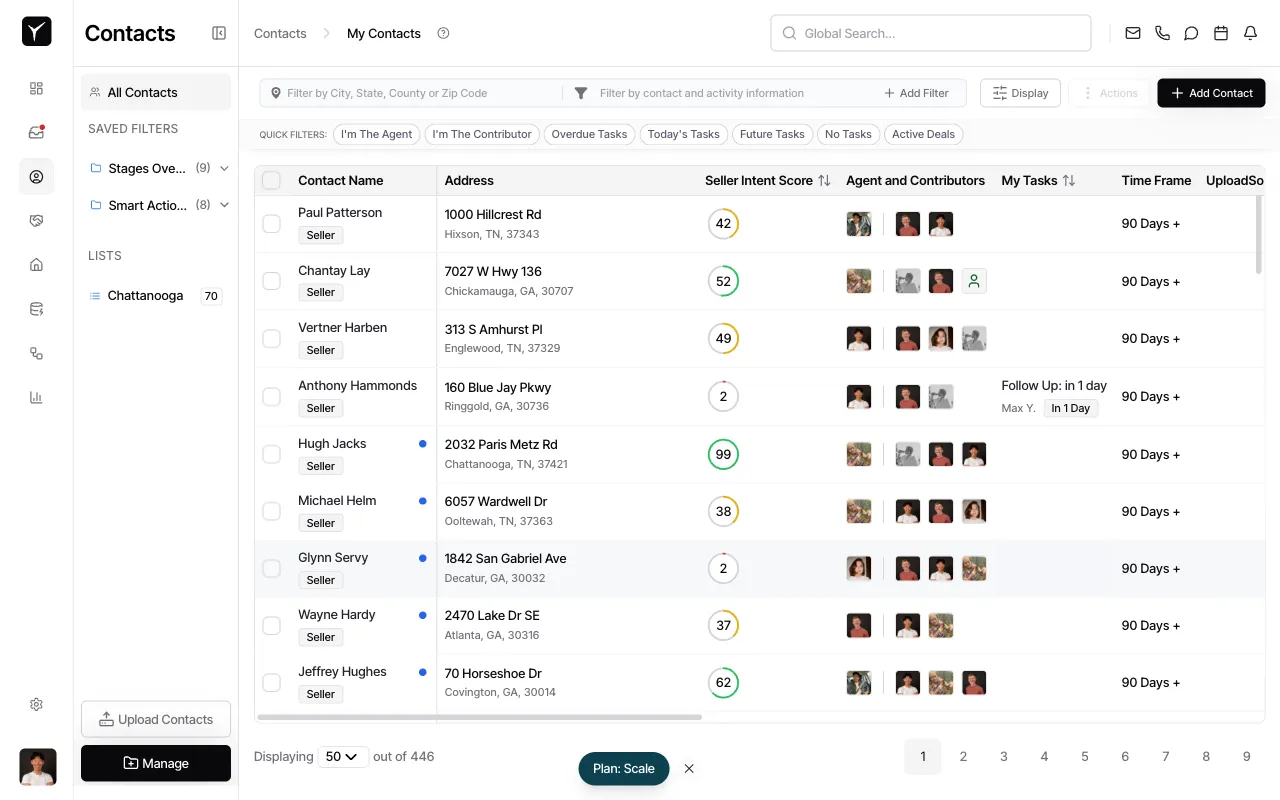
Navigate to the Contacts page
From the main navigation, click Contacts to view your contact list.
-
Open the Create Contact dialog
In the top-right corner of the Contacts page, click the Add Contact button.
-
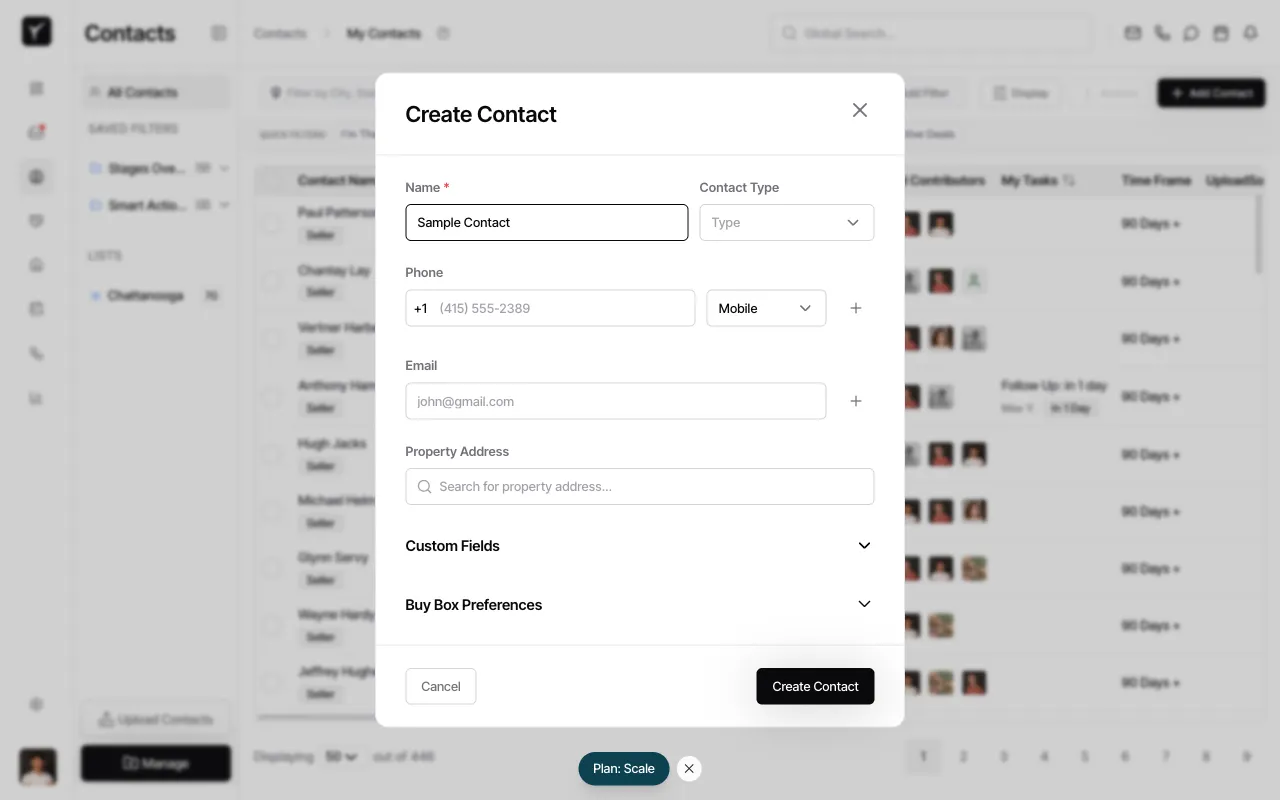
Enter the contact’s name
The Create Contact dialog appears. Enter the contact’s name in the Name field (this is the only required field).
-
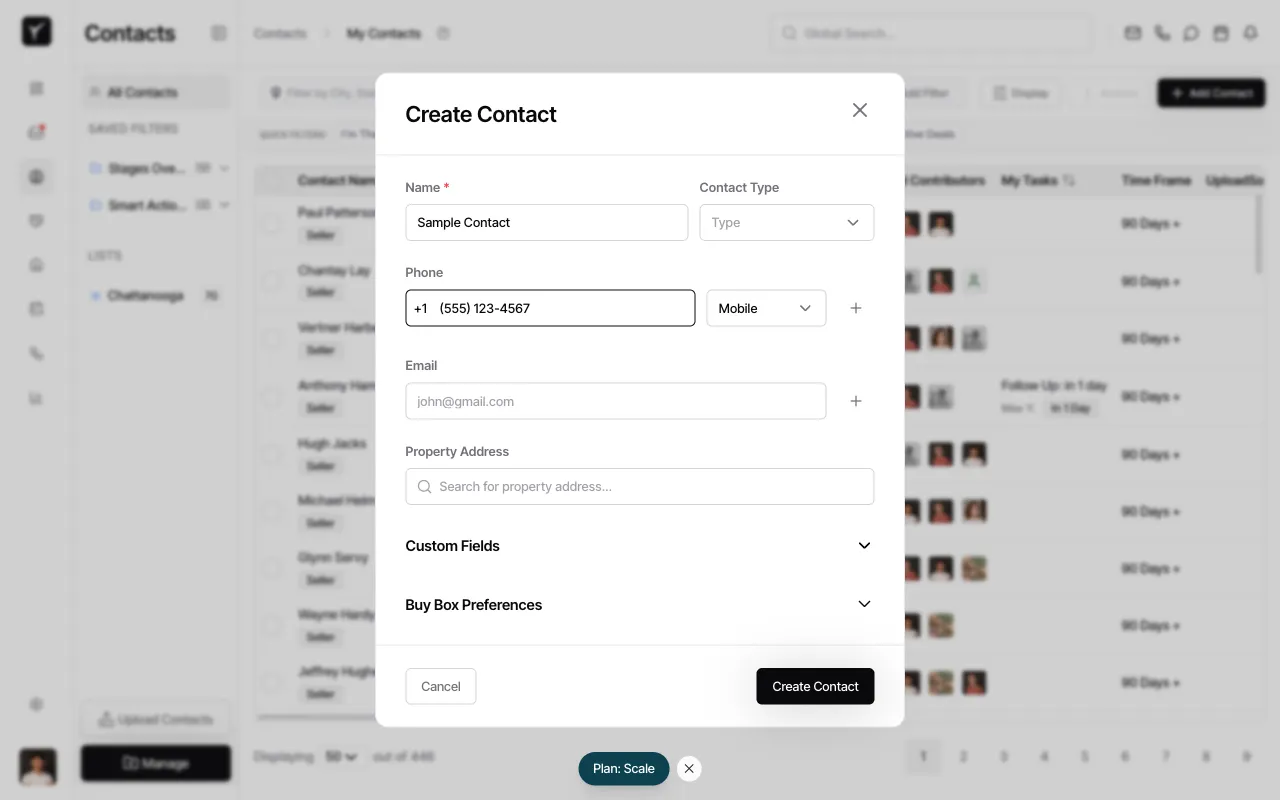
Add phone number (optional)
Enter a phone number in the Phone field. Use the dropdown next to the field to specify the phone type (e.g., Mobile). To add additional phone numbers, click the + button.
-
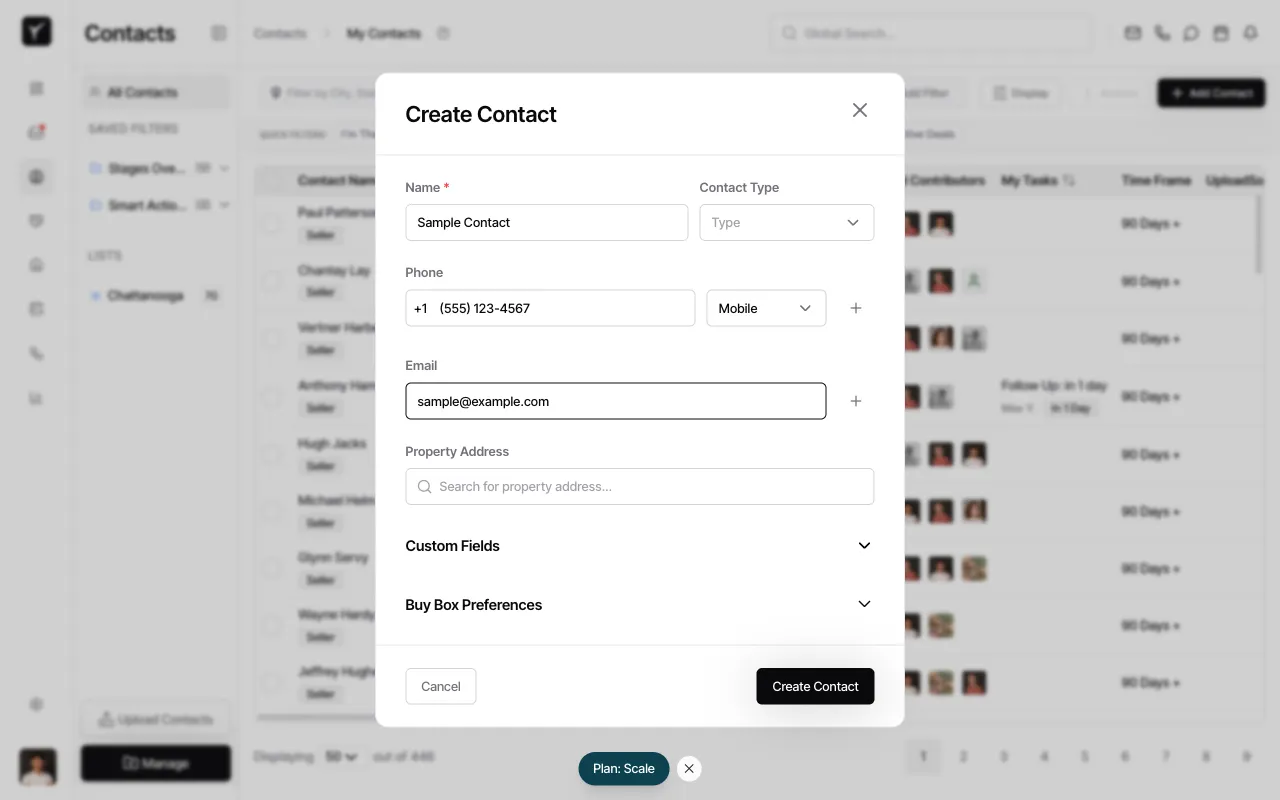
Add email address (optional)
Enter an email address in the Email field. Click the + button to add multiple email addresses if needed.
-
Set contact type and property address (optional)
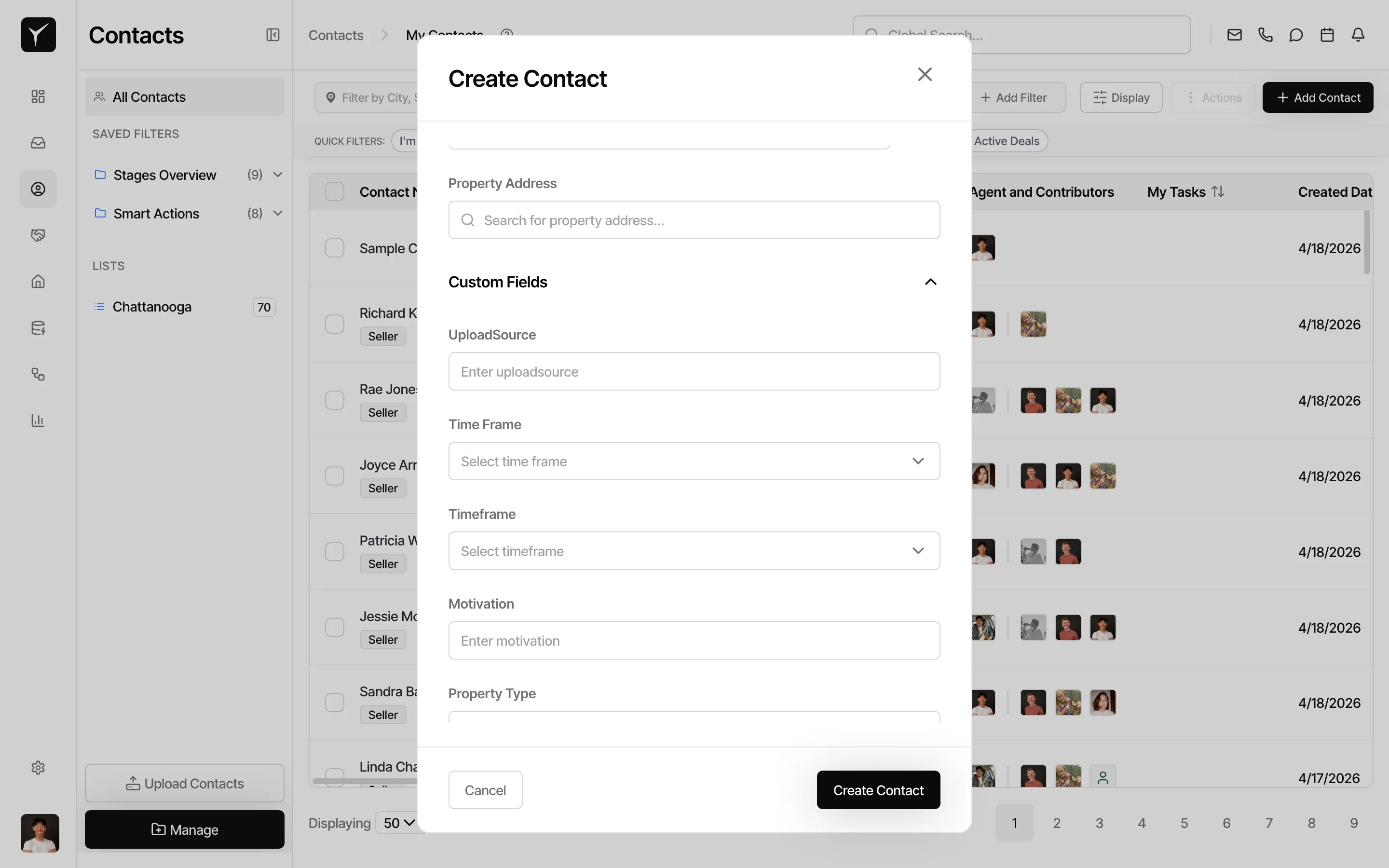
Use the Contact Type dropdown to categorize the contact (e.g., Seller, Agent, Buyer). In the Property Address field, type or search for an address — Goliath will suggest matching properties from the database. You can also expand Custom Fields or Buy Box Preferences to capture additional details.
-
Save the contact
Once you’ve entered the desired information, click the Create Contact button at the bottom of the dialog. The contact will be added to your list and appear at the top of the Contacts table.
Frequently Asked Questions
Section titled “Frequently Asked Questions”Q: What fields are required to create a contact?
Section titled “Q: What fields are required to create a contact?”Only the Name field is required. All other fields (phone, email, address, contact type) are optional.
Q: Can I add multiple phone numbers or emails to one contact?
Section titled “Q: Can I add multiple phone numbers or emails to one contact?”Yes. Click the + button next to the Phone or Email field to add as many as you need.
Q: How do I add contacts in bulk?
Section titled “Q: How do I add contacts in bulk?”Use the Upload Contacts button in the sidebar to import a CSV file with multiple contacts at once. See the Upload Contacts article for details.
Q: Can I link a contact to a property in Goliath?
Section titled “Q: Can I link a contact to a property in Goliath?”Yes. Use the Property Address search field to find and link an existing property from the Goliath database.