
How Do I Add Properties to a List?
Lists let you group properties for targeted workflows like direct mail campaigns, skip tracing batches, or ongoing outreach sequences. A property can belong to multiple lists at once, and lists appear in the left sidebar for quick filtering. Use lists to curate cohorts manually—when you want to hand-pick which properties get specific treatment.
Step-by-Step Guide
Section titled “Step-by-Step Guide”-
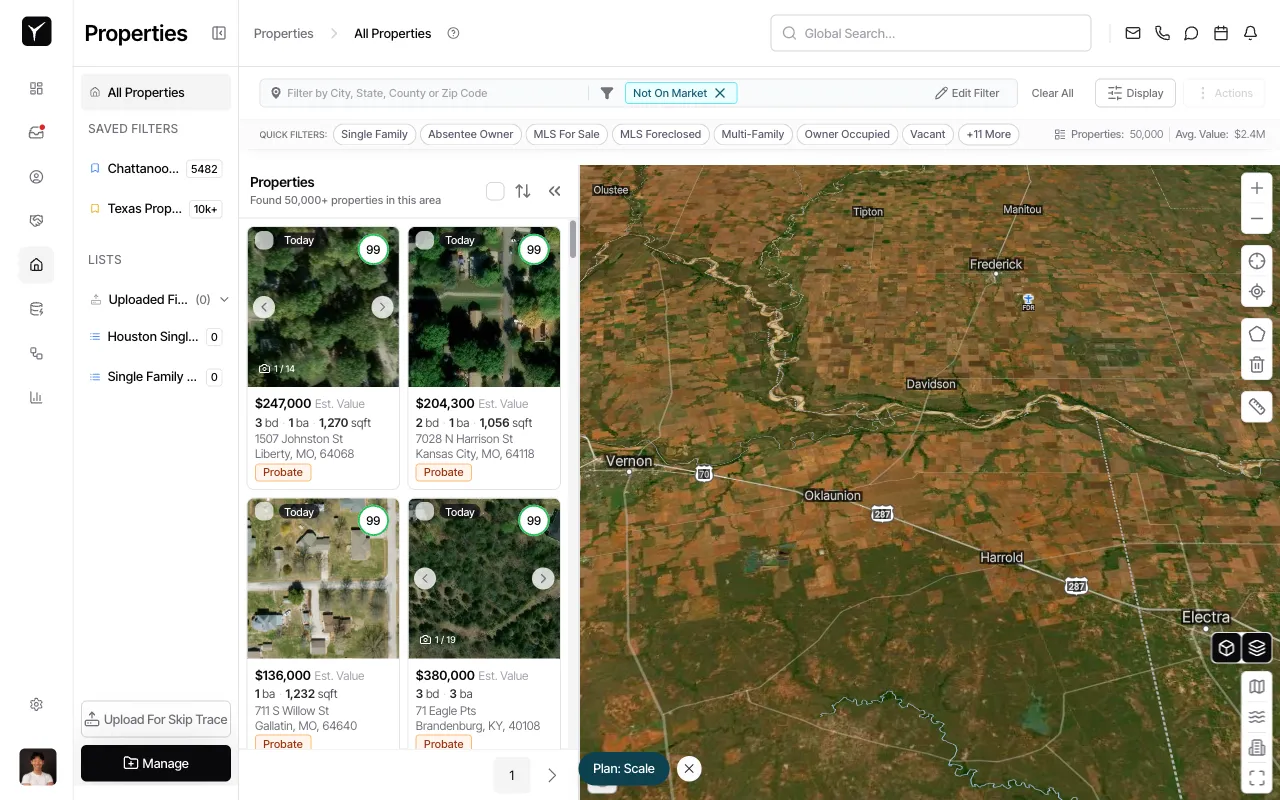
Select the properties you want to add
Click the checkbox on each property card to select it, or use the Toggle selection menu above the property results to select the entire page or all matching properties. The selection counter will update to show how many properties are selected.
-
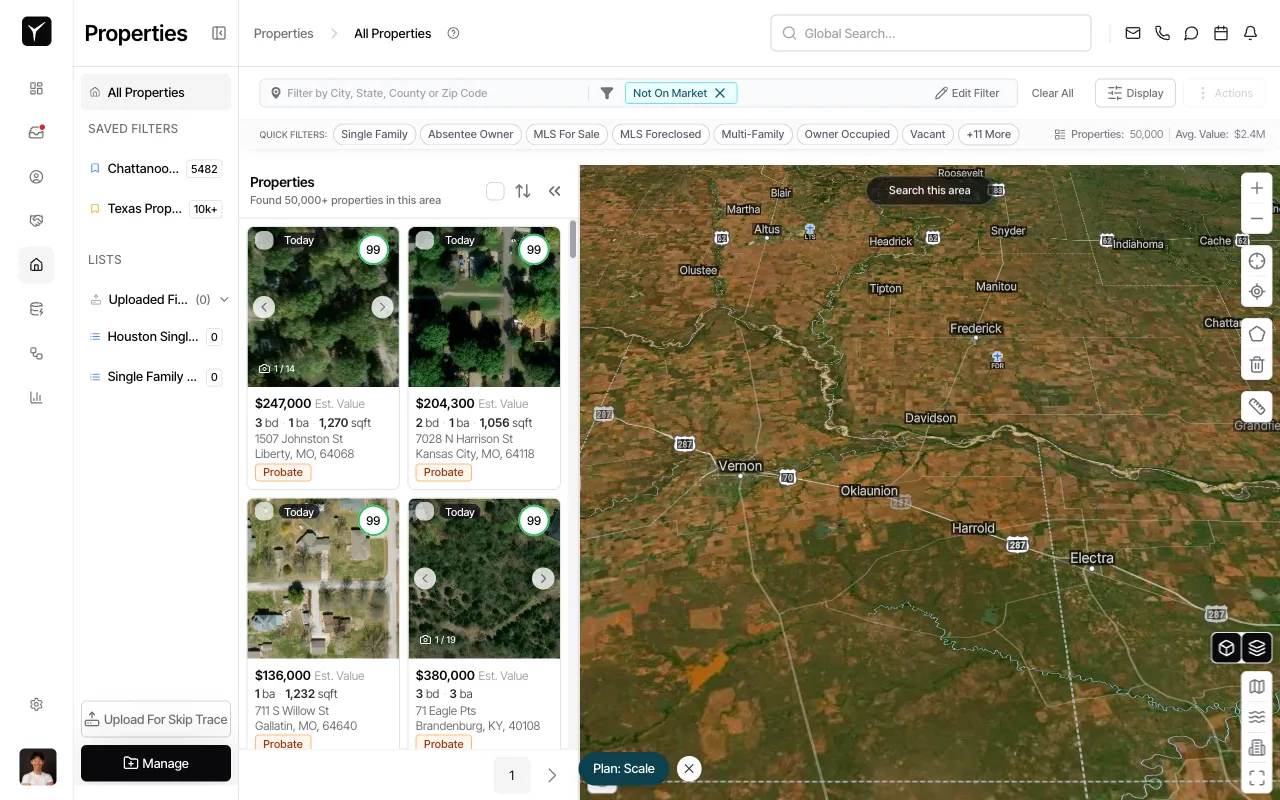
Open the selection menu
Once you’ve selected at least one property, click the Toggle selection menu icon (checkmark) at the top of the property list. A dropdown menu will appear with options for Select Page and Select All.
-
Choose a selection scope
For small batches, click Select Page to select all properties visible on the current page. For larger batches, click Select All to select all properties matching your current filters (up to the maximum shown in the property count).

-
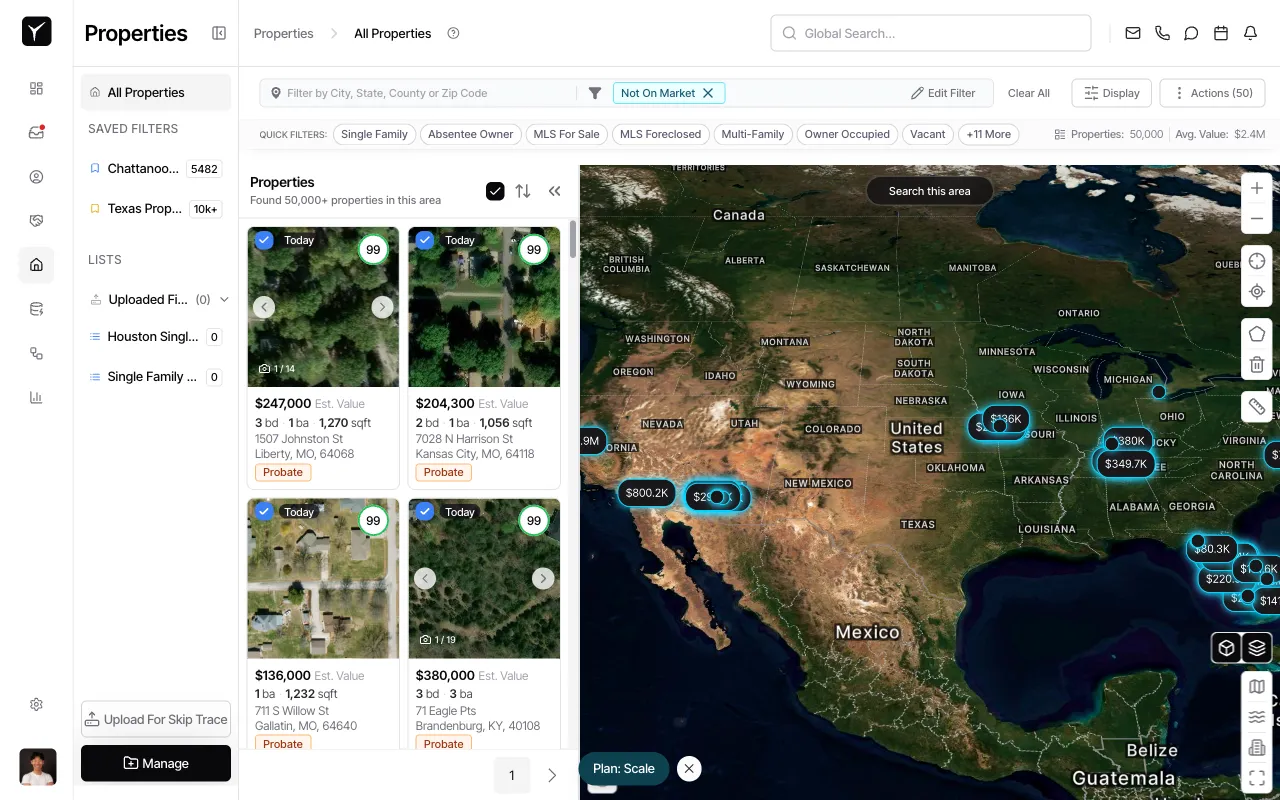
Confirm your selection
After selecting properties, blue checkmarks will appear on each selected property card, and the selection count will update in the Actions button. Verify the count matches your expectation before proceeding.
-
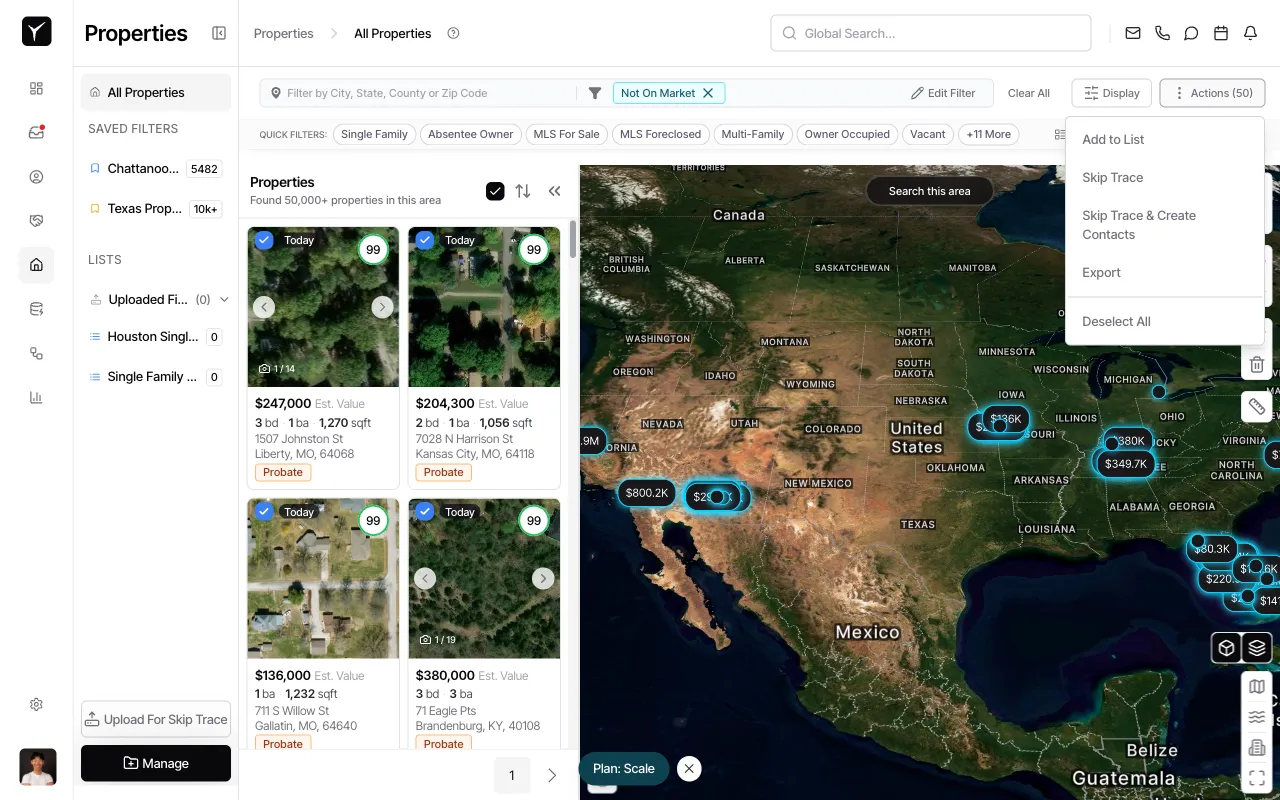
Open the Actions menu and select Add to List
Click the Actions button in the top-right corner of the property table. A dropdown menu will appear. Click Add to List to open the list picker dialog.
-
Choose or create a list
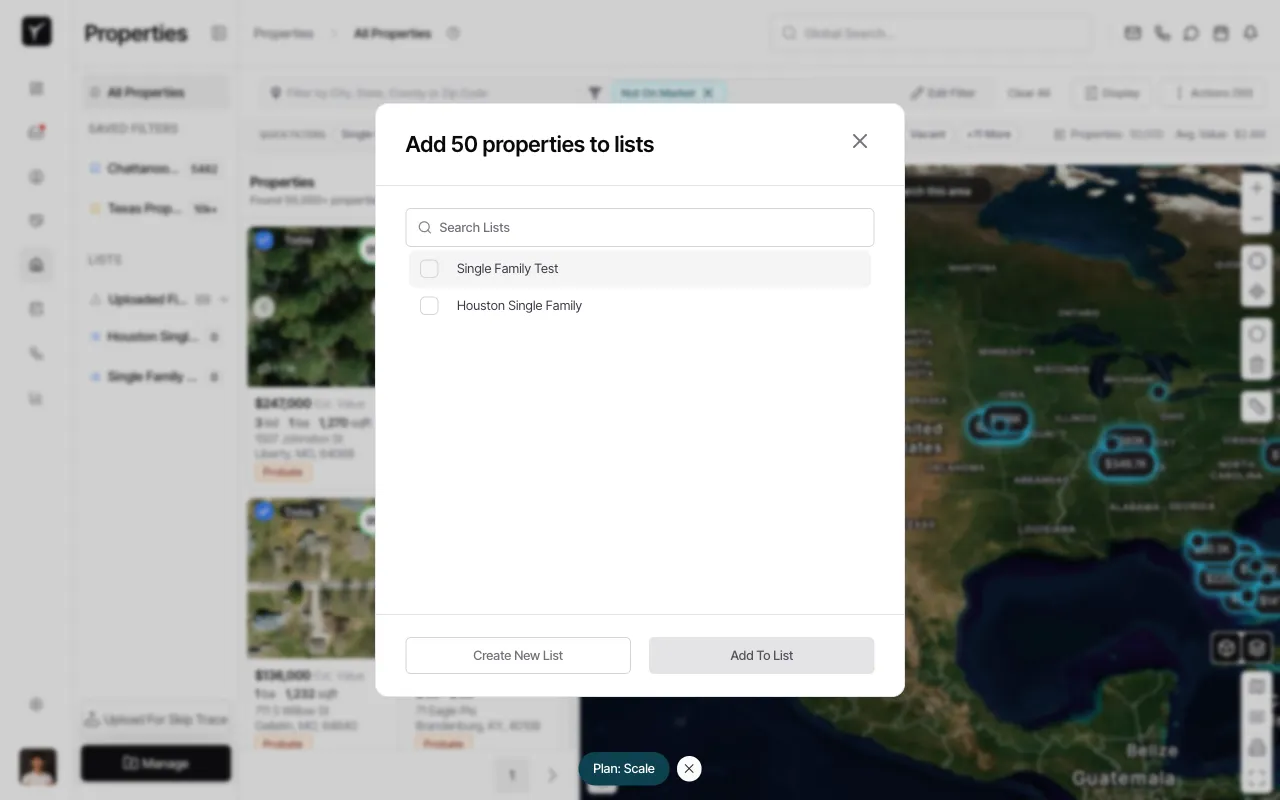
In the Add properties to lists dialog, you’ll see all your existing lists. Check the box next to any list you want to add the selected properties to, or click Create New List to set up a new one. Click Add To List to confirm.
Frequently Asked Questions
Section titled “Frequently Asked Questions”Q: What’s the difference between a list and a saved filter?
Section titled “Q: What’s the difference between a list and a saved filter?”Saved filters define criteria that Goliath re-evaluates every time you open them (e.g., “all vacant single-family homes”). Lists are static, curated groups you manually add and remove properties from—ideal for campaigns and workflow triggers.
Q: Can I add properties to multiple lists at once?
Section titled “Q: Can I add properties to multiple lists at once?”Yes. In the Add properties to lists dialog, check the box next to each list you want to use. The selected properties will be added to all checked lists when you click Add To List.
Q: How is this different from tagging properties?
Section titled “Q: How is this different from tagging properties?”Lists are manual, curated groups (you choose what goes in). Tags are attributes based on property characteristics. Use lists for campaign audiences and outreach sequences; use tags for segmentation and filtering.