
How Do I Complete a Task?
Goliath tasks are simple: they’re either done or not done. Completing a task marks it finished and moves it out of your active task list, but preserves the record for audit and reporting. You can complete tasks one at a time or in bulk, and easily re-open them if needed.
Step-by-Step Guide
Section titled “Step-by-Step Guide”-
Navigate to the Tasks view
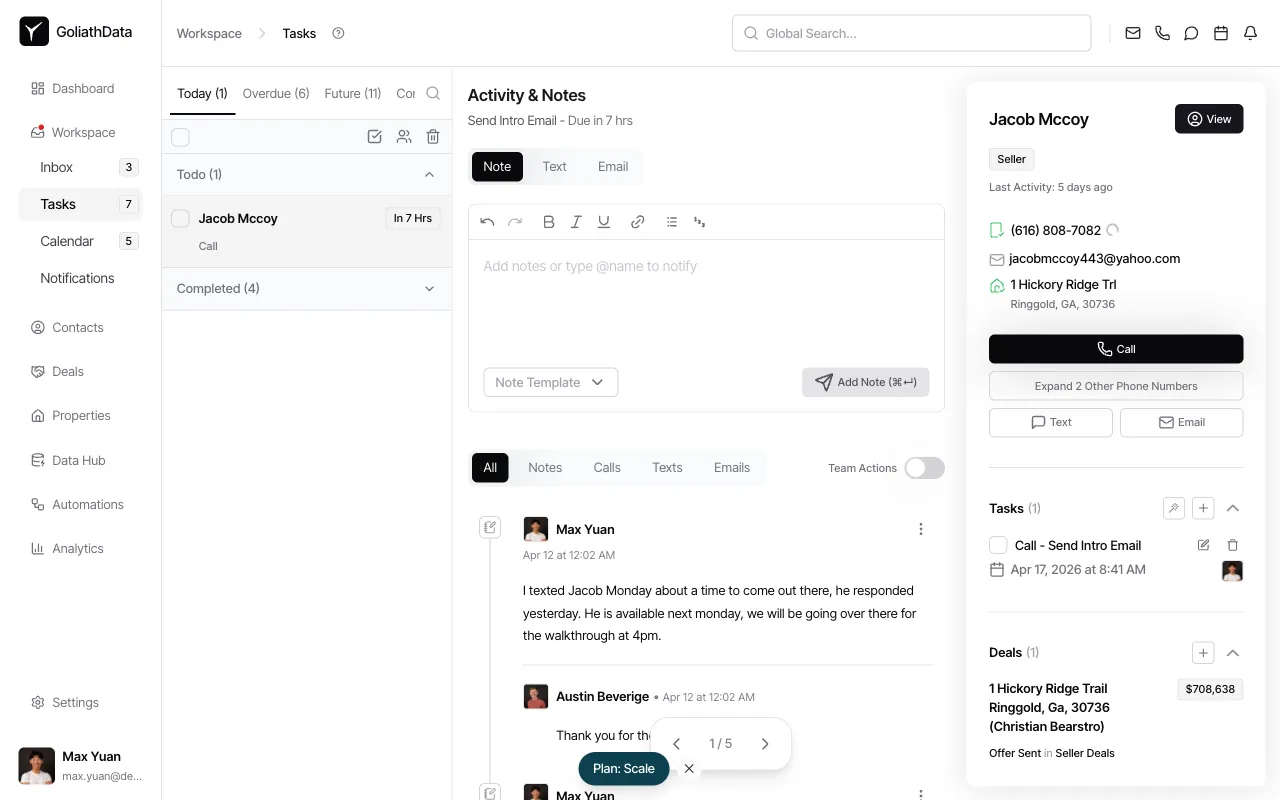
Click Tasks in the left sidebar. You’ll see your active tasks grouped by due date: Today, Overdue, and Future.
-
Complete a single task
Click the checkbox or circle to the left of the task name. The task will instantly move to the Completed section and disappear from the active view.
-
Complete multiple tasks at once (bulk action)
Select the checkboxes for multiple tasks, then use the bulk action controls at the top of the list. This is helpful when clearing out a batch of related tasks.
-
Complete a task from the detail view
Open a task by clicking its name, then click the Mark as Complete button. This method is useful when you’re reviewing task details or adding final notes before marking it done.
Frequently Asked Questions
Section titled “Frequently Asked Questions”Q: Where do completed tasks go?
Section titled “Q: Where do completed tasks go?”Completed tasks move to the Completed section, accessible via the Completed tab at the top of the Tasks view. They remain in your task history for reporting and audit purposes.
Q: Can I undo a completed task?
Section titled “Q: Can I undo a completed task?”Yes. Click the checkbox next to a completed task to re-open it. The task will return to the active list and the status change will be logged in the related entity’s timeline.
Q: Can I delete a task entirely?
Section titled “Q: Can I delete a task entirely?”Yes. Deleting a task is a separate action (via the Delete button or menu option) and requires confirmation. Deleted tasks are permanently removed and cannot be recovered.
Q: What happens to the task timeline when I complete a task?
Section titled “Q: What happens to the task timeline when I complete a task?”Goliath logs the completion event in the timeline of any linked contact, property, or deal. This creates an audit trail showing when follow-ups were completed and by whom.