
How Do I Send an Email to a Contact?
Sending an email from a contact’s detail panel lets you communicate directly through your connected Gmail or Outlook account while automatically logging the conversation in Goliath. Recipients see your real email address, and replies sync back to both your inbox and the contact timeline. This keeps your entire team in the loop without forwarding or BCC workarounds.
Step-by-Step Guide
Section titled “Step-by-Step Guide”-
Open the contact detail panel
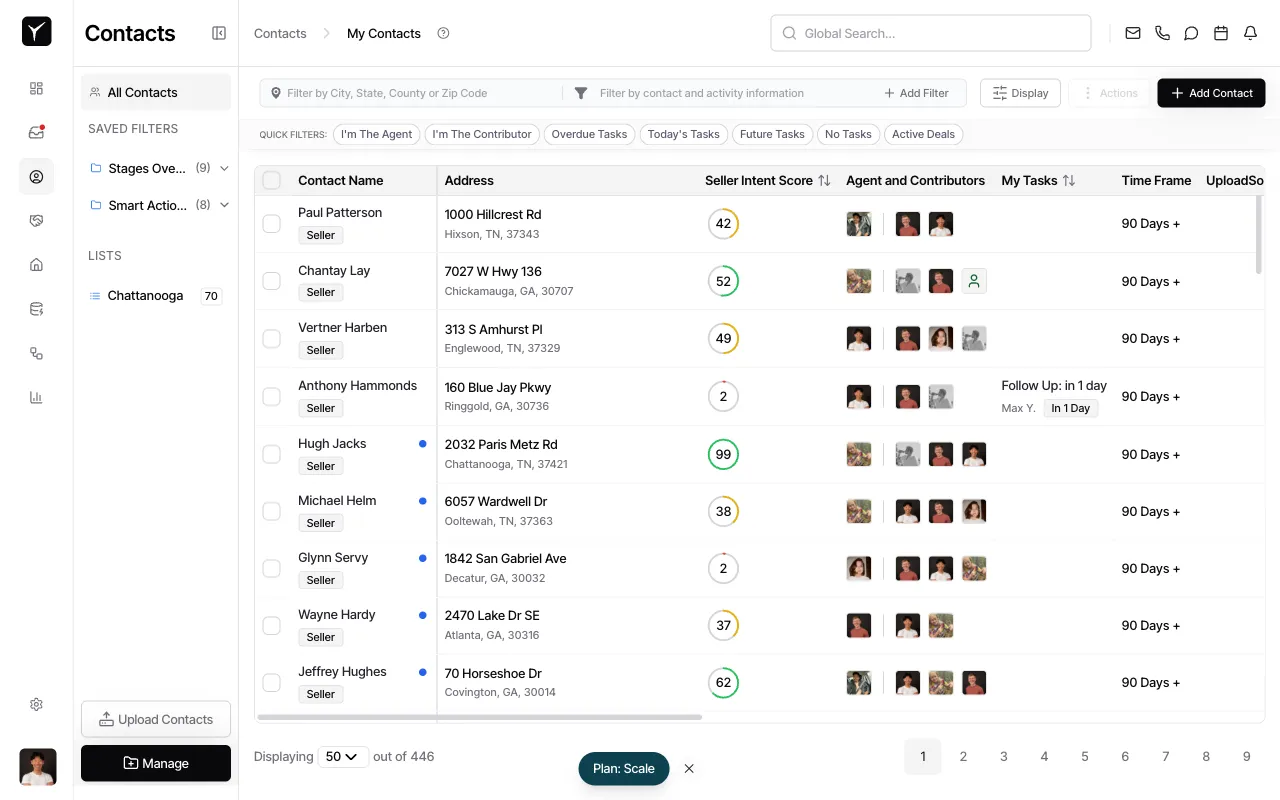
Navigate to Contacts and click on the contact you want to email. You’ll see their full profile with timeline, tasks, and related deals.
-
Switch to the Email tab
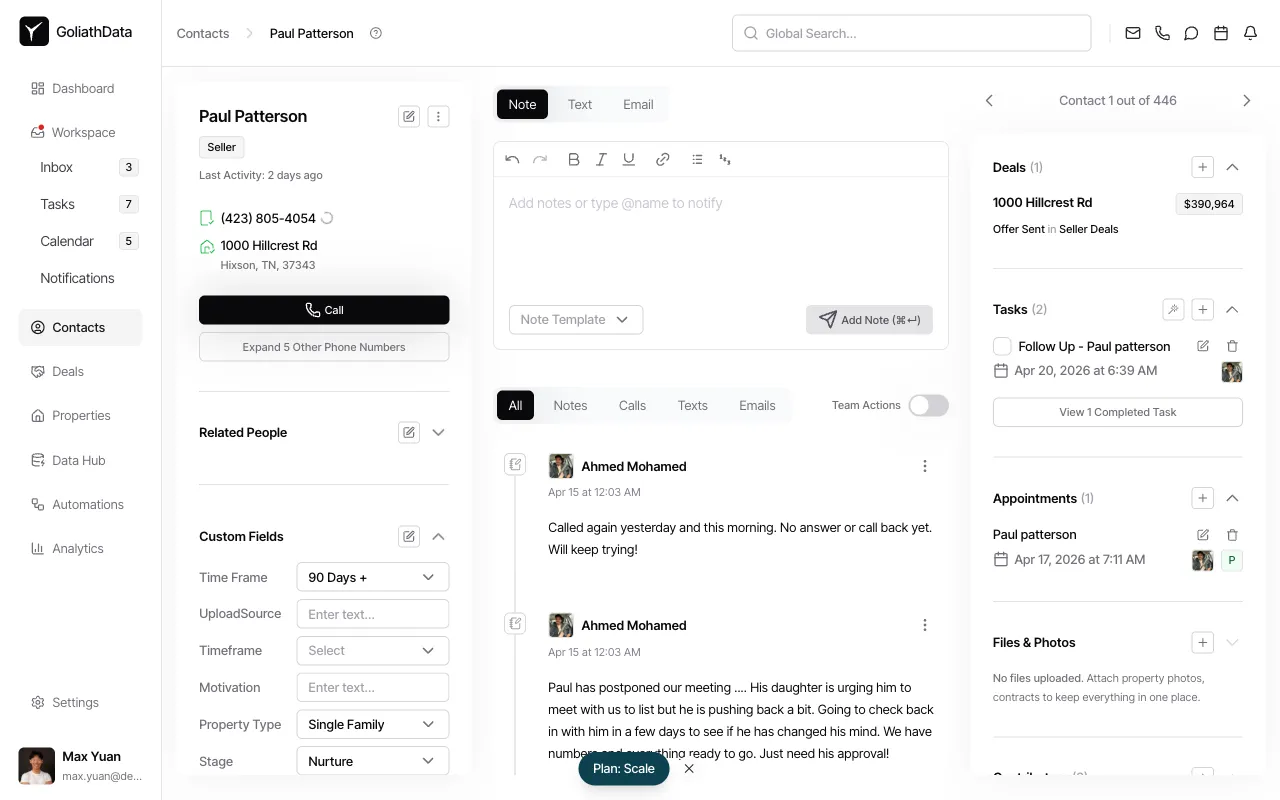
Click the Email tab at the top of the detail panel. The email composer will appear with fields for recipient, subject line, and message body.
-
Compose and send your message
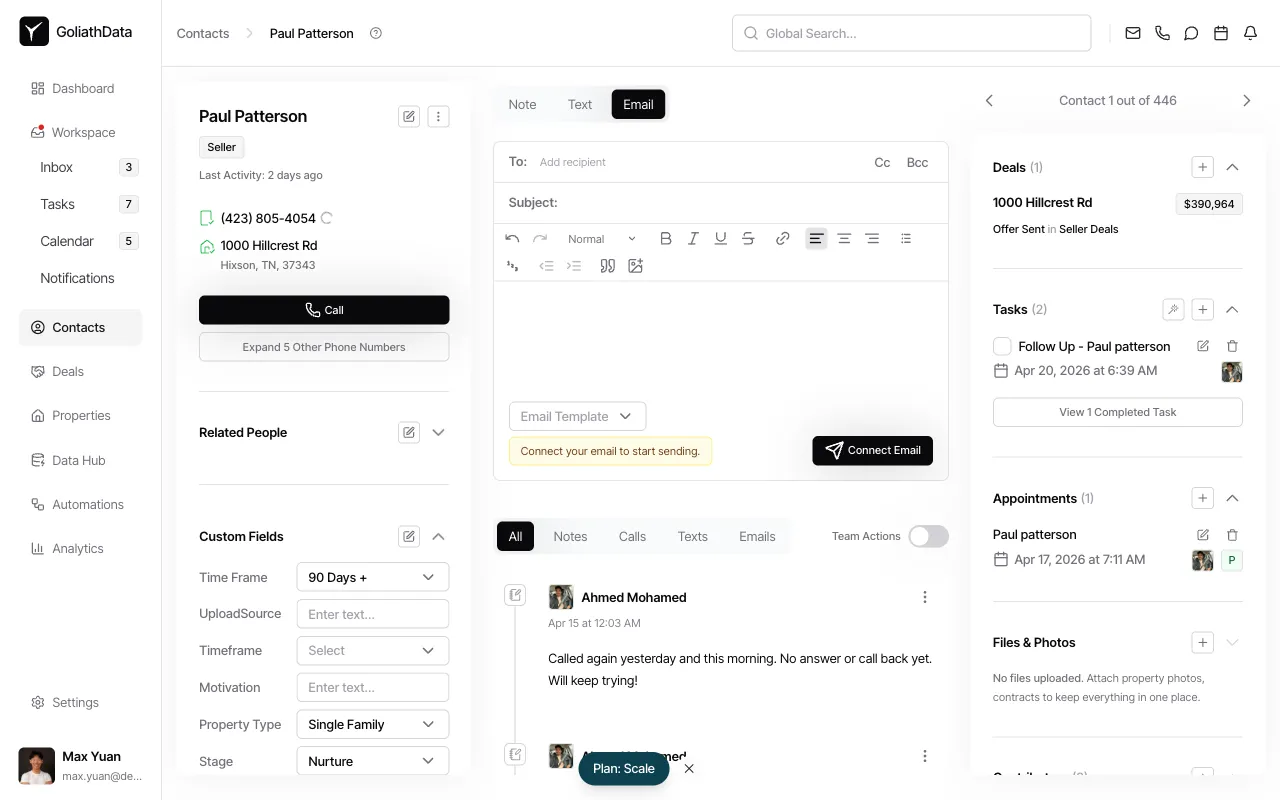
If this is your first time sending an email, click Connect Email to authorize Goliath to send from your Gmail or Outlook account. Once connected, enter your subject line and message, then click Send. The email will be logged on the contact timeline and any replies will sync back automatically.
Frequently Asked Questions
Section titled “Frequently Asked Questions”Q: What email address do recipients see when I send from Goliath?
Section titled “Q: What email address do recipients see when I send from Goliath?”Recipients see your connected Gmail or Outlook address as the sender. Goliath does not use a shared service email — every message comes from your personal or business account.
Q: Where do replies show up?
Section titled “Q: Where do replies show up?”Replies sync back to both your Gmail/Outlook inbox and the contact timeline in Goliath. Your team can see the full conversation history without accessing your personal inbox.
Q: Can I send to a contact with multiple email addresses?
Section titled “Q: Can I send to a contact with multiple email addresses?”Yes. If the contact has multiple email addresses on file, the To: field will let you select which one to use. You can also manually add Cc or Bcc recipients.
Q: Can I attach files to an email?
Section titled “Q: Can I attach files to an email?”Yes. The email composer supports attachments — use the attachment button in the toolbar to include contracts, property photos, or other documents.
Q: What if I don’t see the email composer?
Section titled “Q: What if I don’t see the email composer?”Make sure you’ve connected a Gmail or Outlook account. Without an active email connection, the composer will prompt you to Connect Email before you can send.