
How Do I Move a Deal to Another Stage?
Moving a deal to another stage updates its position in your sales pipeline and tracks progress toward close. Goliath offers two methods: drag-and-drop between Kanban columns for quick updates during standups, or the stage selector dropdown when reviewing a deal in detail. Every stage change is automatically logged in the deal’s activity timeline for audit and velocity tracking.
Step-by-Step Guide
Section titled “Step-by-Step Guide”-
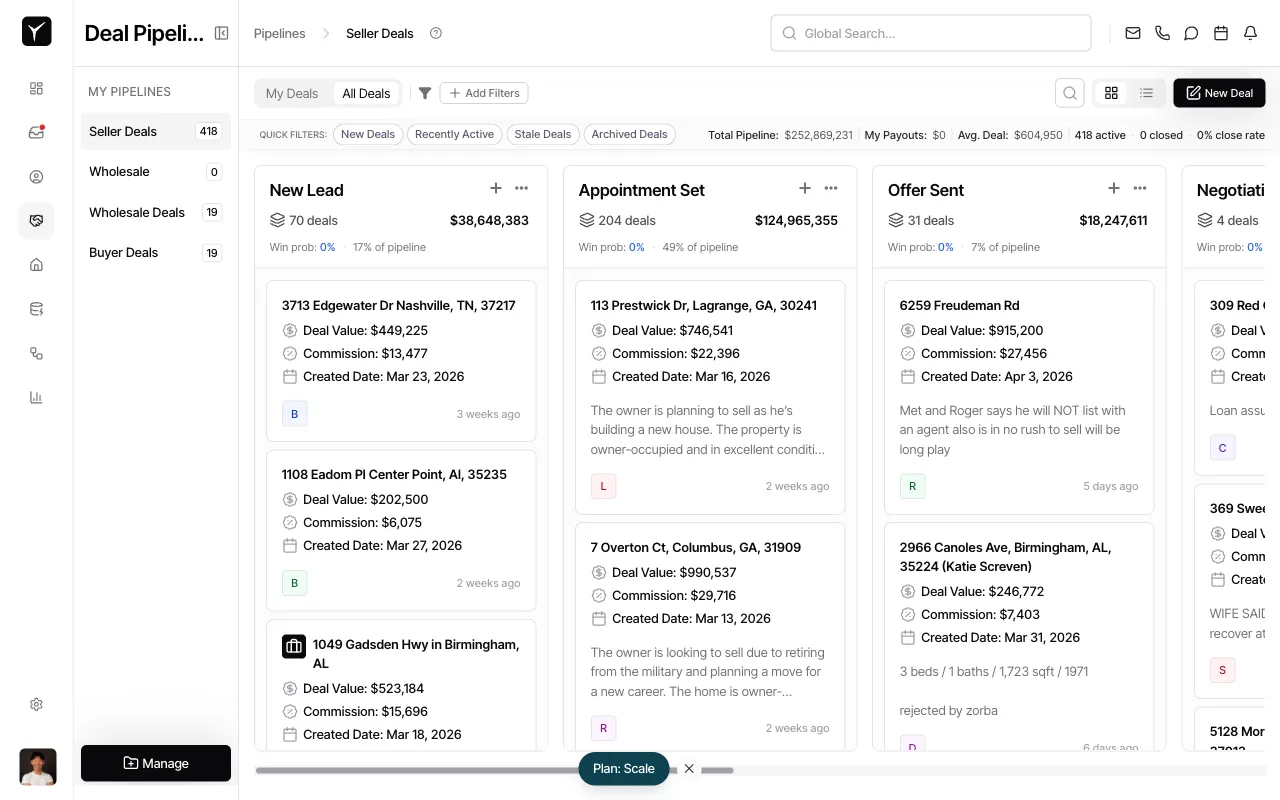
Navigate to your pipeline view
Open your pipeline to see deals organized in columns by stage. Each column represents a stage in your sales process (New Lead, Appointment Set, Offer Sent, etc.).
-
Option A: Drag and drop the deal card
Click and hold on any deal card, then drag it to the target stage column. Release to drop it in the new stage. The card will update immediately and the stage change is saved.
-
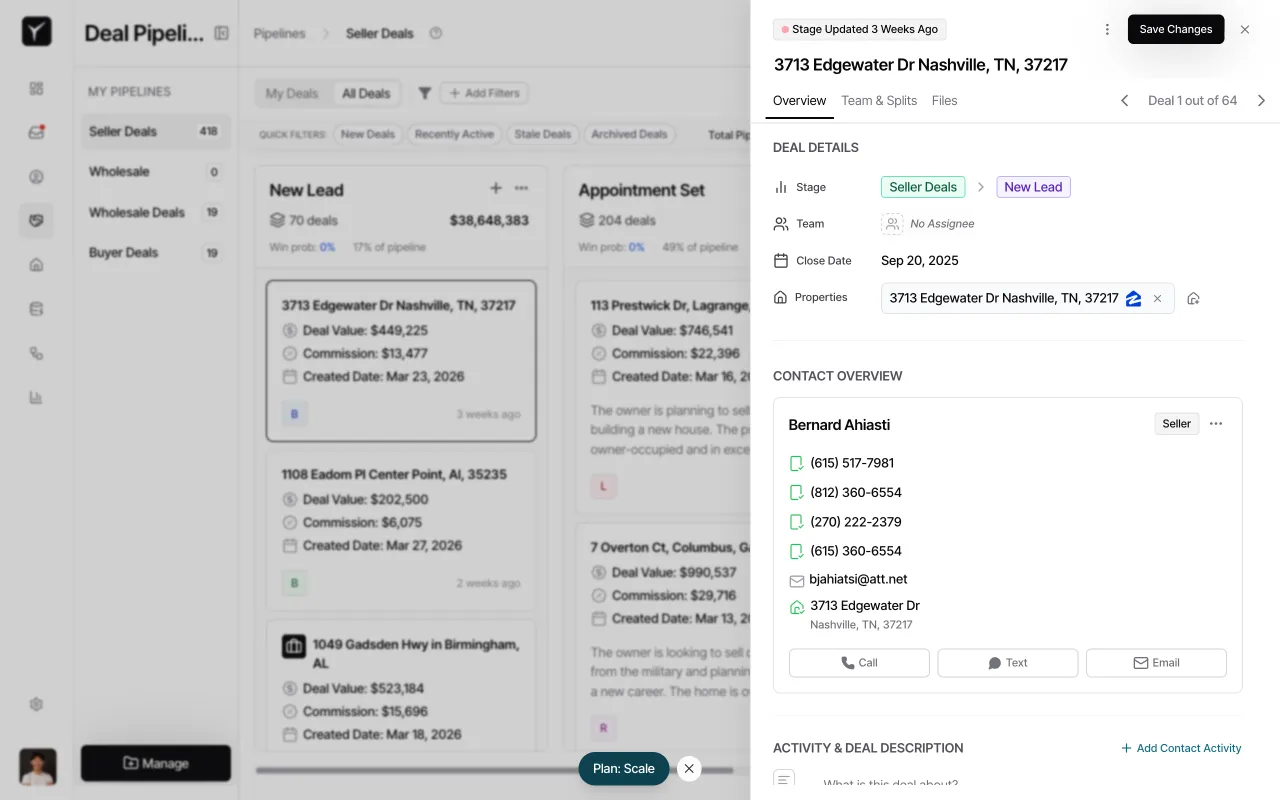
Option B: Use the stage selector dropdown
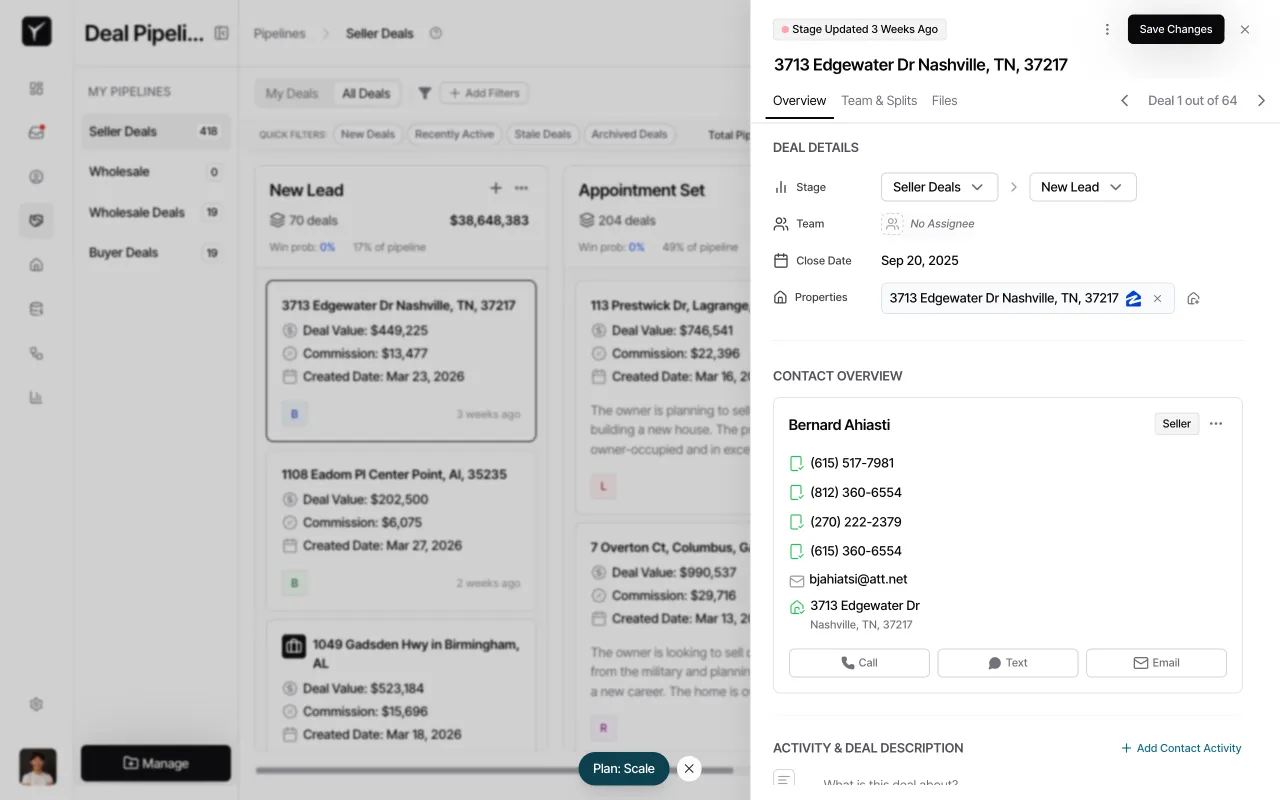
Open the deal by clicking on its card. In the DEAL DETAILS section, click the Stage dropdown (showing the current stage name).
-
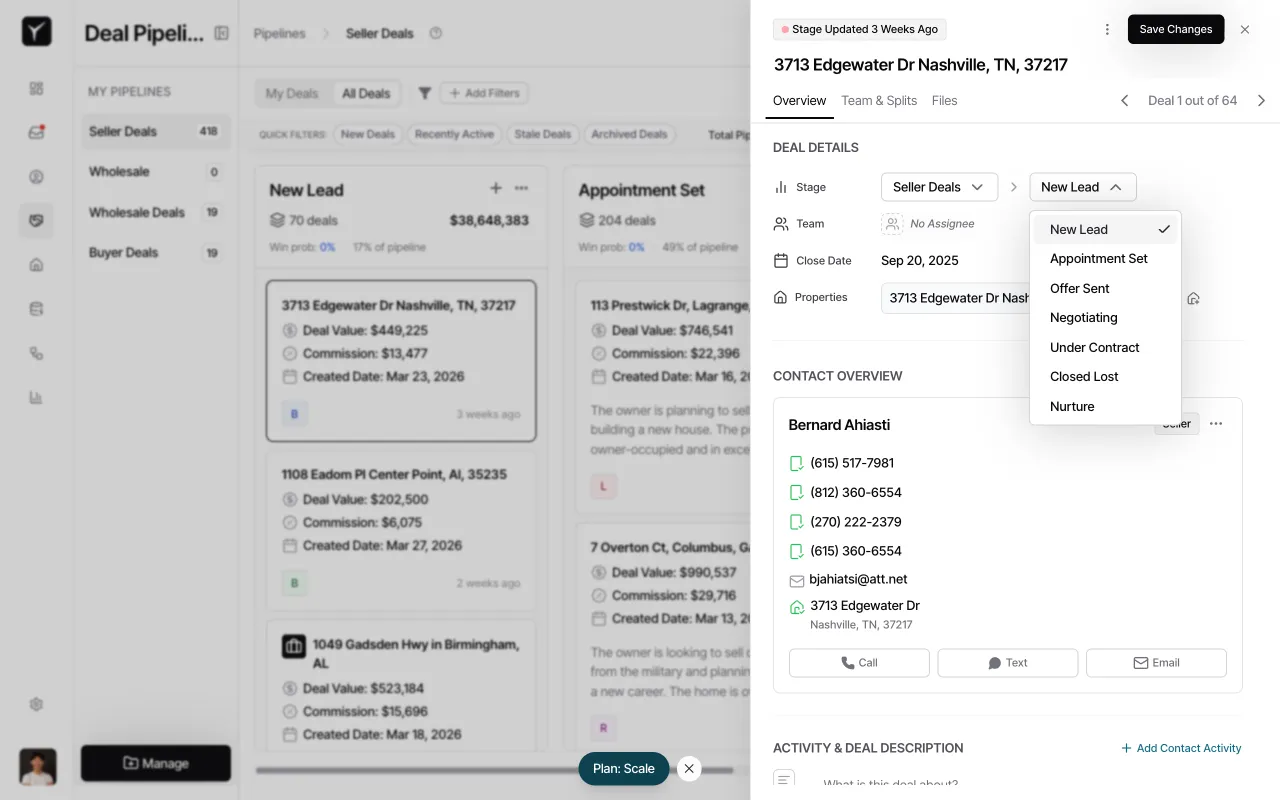
Select the new stage
Choose the target stage from the dropdown menu. Available stages include New Lead, Appointment Set, Offer Sent, Negotiating, Under Contract, Closed Lost, and Nurture. The deal updates instantly and the detail sheet reflects the new stage.
Frequently Asked Questions
Section titled “Frequently Asked Questions”Q: Can I undo a stage move if I made a mistake?
Section titled “Q: Can I undo a stage move if I made a mistake?”Yes. Simply move the deal back to the previous stage using either method. Goliath preserves both moves in the activity timeline, so you have a complete audit trail.
Q: Can I move multiple deals at once?
Section titled “Q: Can I move multiple deals at once?”You cannot bulk-move deals via drag-and-drop. To move multiple deals simultaneously, switch to the list view, select the deals you want to update, then use the Actions menu to change their stage.
Q: What happens if I move a deal to “Closed Lost” or a final stage?
Section titled “Q: What happens if I move a deal to “Closed Lost” or a final stage?”Moving a deal to a final stage like Closed Lost marks it as closed. This triggers any automation tied to deal closure (e.g., archiving tasks, removing from active pipeline metrics). See the “How Do I Close a Deal” article for full details on what happens when a deal reaches a final stage.
Q: Will I lose deals if a stage is disabled or deleted?
Section titled “Q: Will I lose deals if a stage is disabled or deleted?”No. If a stage is disabled or deleted, existing deals in that stage are automatically migrated to a default stage (typically New Lead). No deals are ever lost due to pipeline configuration changes.
Q: Who can see that I moved a deal?
Section titled “Q: Who can see that I moved a deal?”Stage changes are recorded in the deal’s Activity & Deal Description timeline. The log shows who made the change, when it happened, and which stage the deal moved from and to. This helps teams track pipeline velocity and identify bottlenecks.