
How Do I Set Up Slack Notifications?
Slack is an organization-wide integration that enables Goliath to post real-time notifications about lead and deal activity directly into your team’s Slack workspace. Once connected by an admin, all team members can route events like new form submissions, deal stage changes, missed calls, and Custom Data Pipeline signals to specific Slack channels for instant visibility.
Step-by-Step Guide
Section titled “Step-by-Step Guide”-
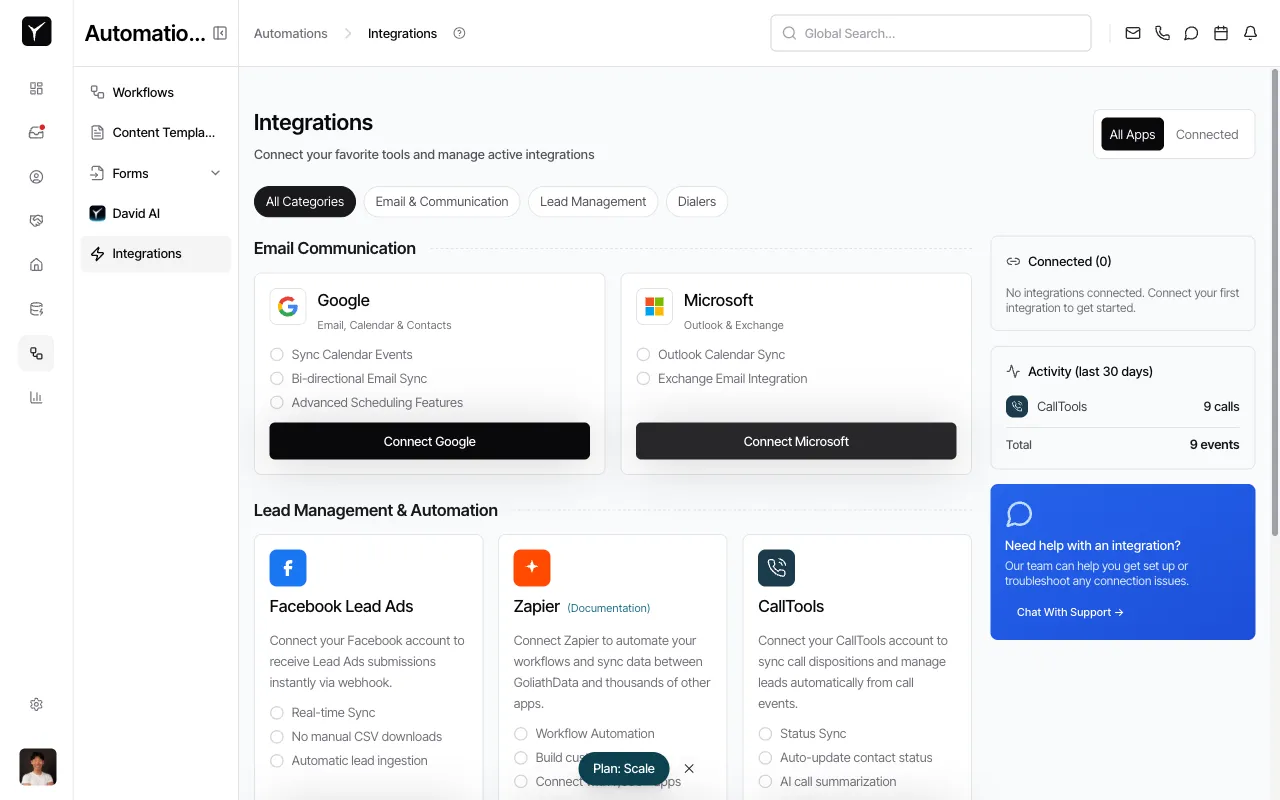
Navigate to the Integrations page
From the left sidebar, click Integrations to open the integrations marketplace.
-
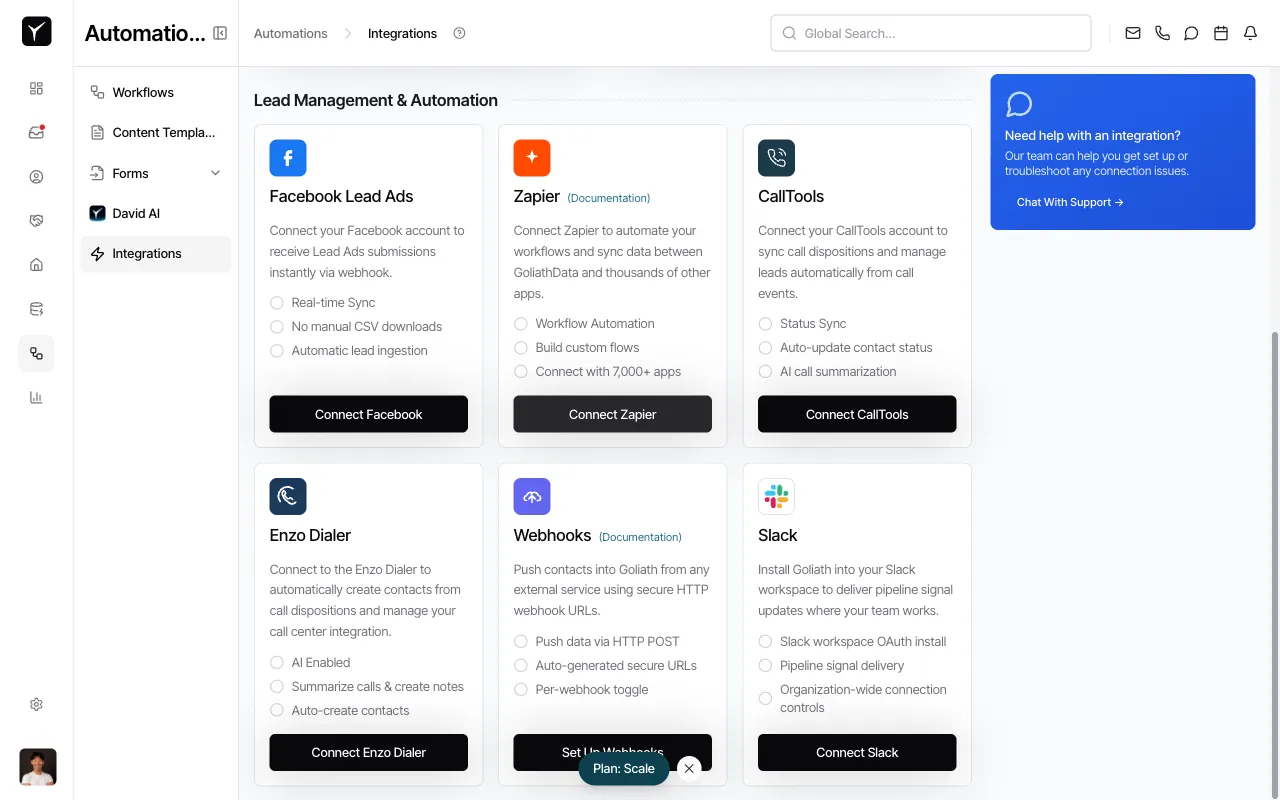
Locate the Slack integration
Scroll down to the Lead Management & Automation section. You will see the Slack card with a description of its capabilities.
-
Click Connect Slack
Click the Connect Slack button on the Slack integration card. You will be redirected to Slack’s OAuth authorization page.
-
Authorize the Goliath app in your Slack workspace
On the Slack authorization screen, select the workspace you want to connect and review the permissions Goliath is requesting (typically the ability to post messages to channels). Click Allow to complete the connection. Slack will redirect you back to Goliath, and the integration will appear as connected.
Frequently Asked Questions
Section titled “Frequently Asked Questions”Q: What permissions does Goliath request in Slack?
Section titled “Q: What permissions does Goliath request in Slack?”Goliath requests permission to post messages to channels in your Slack workspace. It does not read or access your Slack messages—only the ability to send notifications.
Q: Can I connect multiple Slack workspaces to Goliath?
Section titled “Q: Can I connect multiple Slack workspaces to Goliath?”Typically, Goliath supports one Slack workspace per organization. If your team requires multi-workspace routing, contact Goliath support to discuss options.
Q: I’m not an admin—how do I get Slack connected?
Section titled “Q: I’m not an admin—how do I get Slack connected?”Slack authorization requires organization admin permissions in Goliath. Ask an admin on your team to complete the connection on behalf of the organization.
Q: Who can configure which Slack channels get notifications?
Section titled “Q: Who can configure which Slack channels get notifications?”Once Slack is connected, any team member can typically configure channel routing when setting up automations or workflows. The integration itself must be authorized by an admin, but channel selection for individual events is not admin-gated.
Q: How do I disconnect Slack?
Section titled “Q: How do I disconnect Slack?”You can disconnect Slack by returning to the Integrations page and clicking the disconnect option on the Slack card. Alternatively, remove the Goliath app directly from your Slack workspace’s app management settings.
Q: What kinds of events can Goliath send to Slack?
Section titled “Q: What kinds of events can Goliath send to Slack?”Goliath can notify Slack of new form submissions, missed calls, new contacts, deal stage changes, workflow run results, Custom Data Pipeline signal matches, and David AI handoffs. Configure these notifications in the relevant automation or workflow settings after connecting Slack.