
Notification Preferences
Notification Preferences let you control when and how you receive alerts about deals, system updates, and team activity in Goliath. Each team member manages their own preferences independently, choosing which notification types they want to see and through which channels (In-App, Email, SMS). Most users will find the defaults work well, but power users can fine-tune settings to reduce noise or ensure critical alerts never get missed.
Step-by-Step Guide
Section titled “Step-by-Step Guide”-
Navigate to Notification Preferences
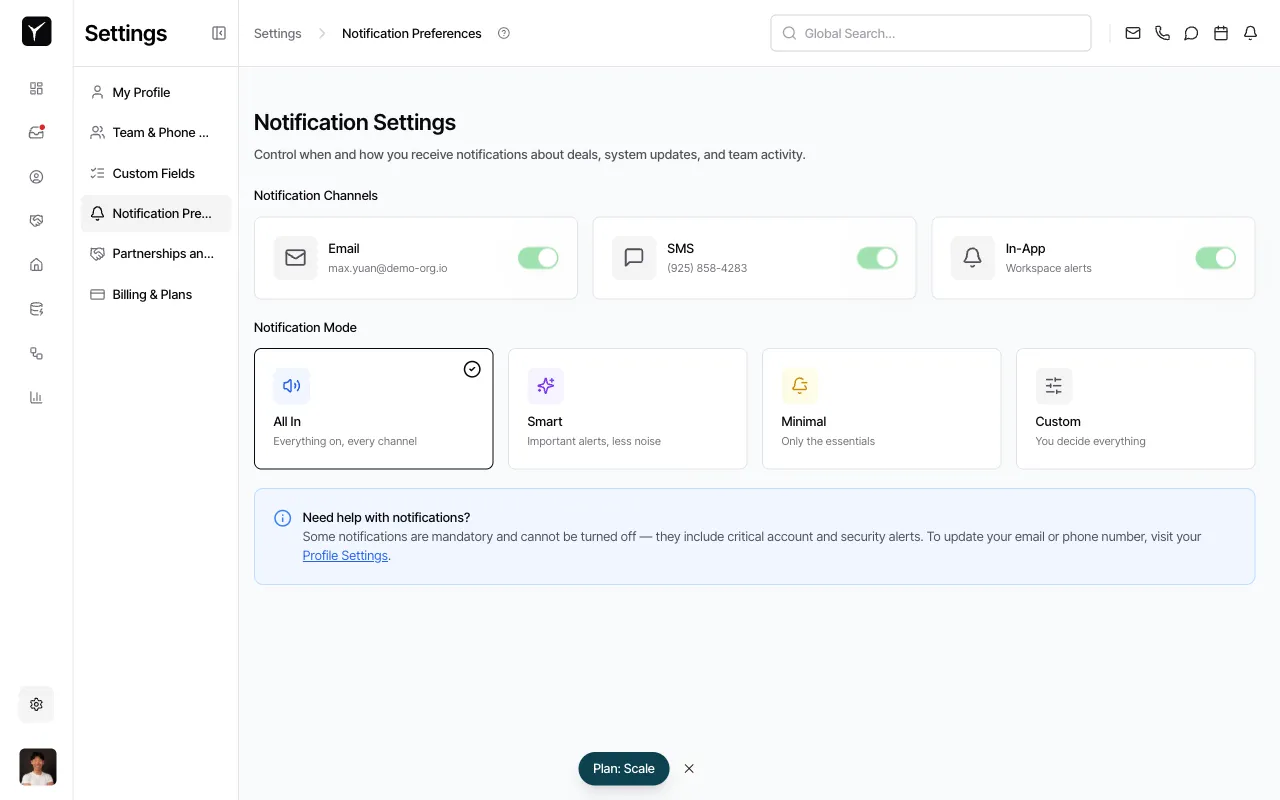
From the left sidebar, click Settings, then select Notification Preferences from the settings menu.
-
Choose your notification channels
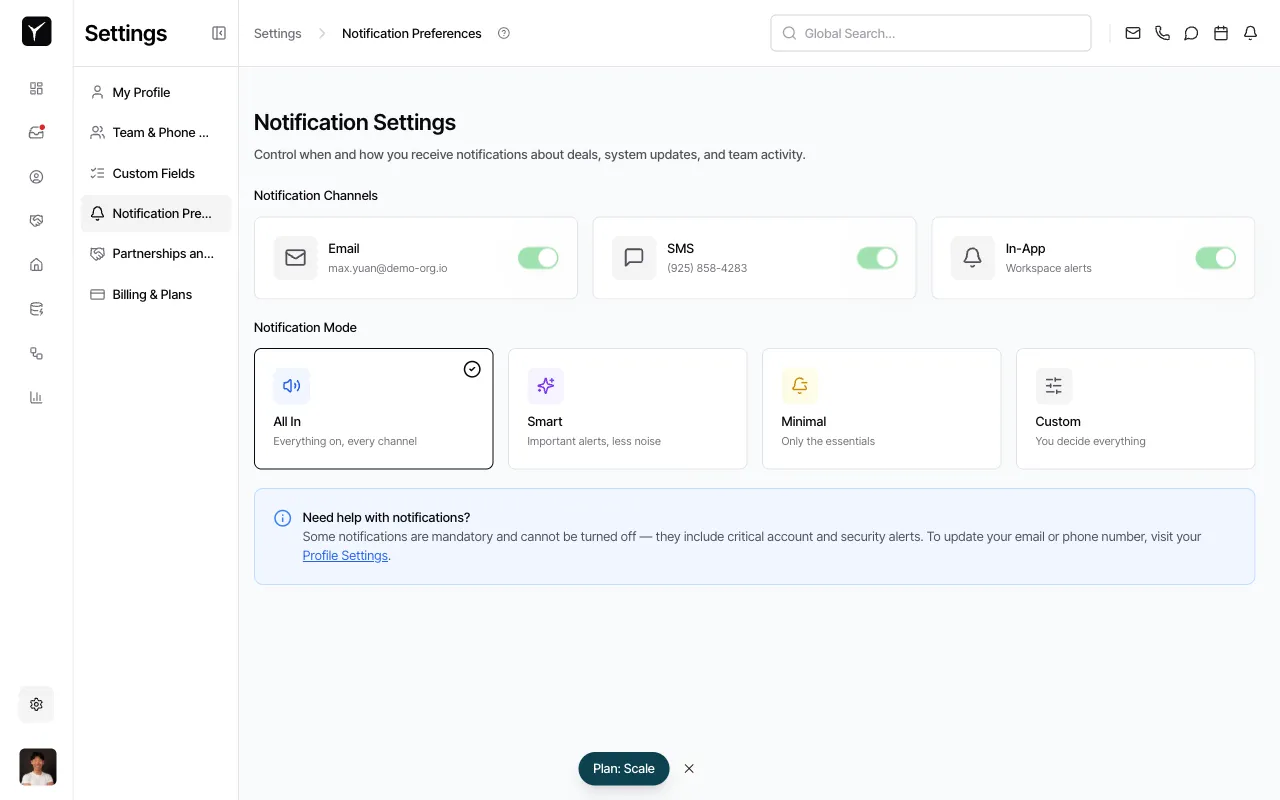
At the top of the page under Notification Channels, toggle on or off each delivery method. Email sends notifications to your registered email address, SMS sends text messages to your phone number, and In-App displays alerts in the Goliath Notification Center (accessible via the bell icon in the header).
-
Select a Notification Mode
Under Notification Mode, choose one of four presets:
- All In: Everything on, every channel
- Smart: Important alerts, less noise
- Minimal: Only the essentials
- Custom: You decide everything
Selecting a preset automatically adjusts which notification types you receive and through which channels. Custom mode unlocks granular controls for each notification type (such as inbound calls, task assignments, deal stage changes, or low credit balance alerts).
-
Update contact details if needed
If you need to change the email address or phone number where notifications are sent, click the Profile Settings link in the help panel below the modes. Critical account and security alerts are mandatory and cannot be turned off.
Frequently Asked Questions
Section titled “Frequently Asked Questions”Q: Are notification preferences shared across my team?
Section titled “Q: Are notification preferences shared across my team?”No. Each user controls their own notification preferences. Your settings do not affect what other team members see.
Q: Can I turn off all notifications?
Section titled “Q: Can I turn off all notifications?”Some notifications (critical account and security alerts) are mandatory and cannot be disabled. All other notification types can be turned off individually in Custom mode.
Q: What’s the difference between Notification Preferences and the Notification Center?
Section titled “Q: What’s the difference between Notification Preferences and the Notification Center?”Notification Preferences control which notifications you receive and how (Email, SMS, In-App). The Notification Center is the feed where In-App notifications land — you access it by clicking the bell icon in the header.
Q: What notification types can I customize?
Section titled “Q: What notification types can I customize?”Common types include inbound calls/texts/emails, task assignments, task due reminders, deal stage changes, contact mentions in notes, workflow run results, David AI handoffs, low credit balance alerts, and form submissions on forms you manage.