
How Do I Trigger a Workflow on Contacts?
Triggering a workflow runs an automation—such as sending an SMS, email, or creating a task—on one or more contacts. Goliath supports two workflows: bulk trigger from the contacts list (ideal for outreach campaigns across many leads) and direct trigger from the contact detail page (ideal for running a workflow on a single contact). The workflow executes once per contact, so selecting 100 contacts will run the workflow 100 times.
Bulk Trigger from the Contacts List
Section titled “Bulk Trigger from the Contacts List”Use this workflow to run an automation on multiple contacts at once. Best for: bulk outreach campaigns, follow-up sequences, or assigning tasks to a filtered segment of leads.
-
Select contacts from the list
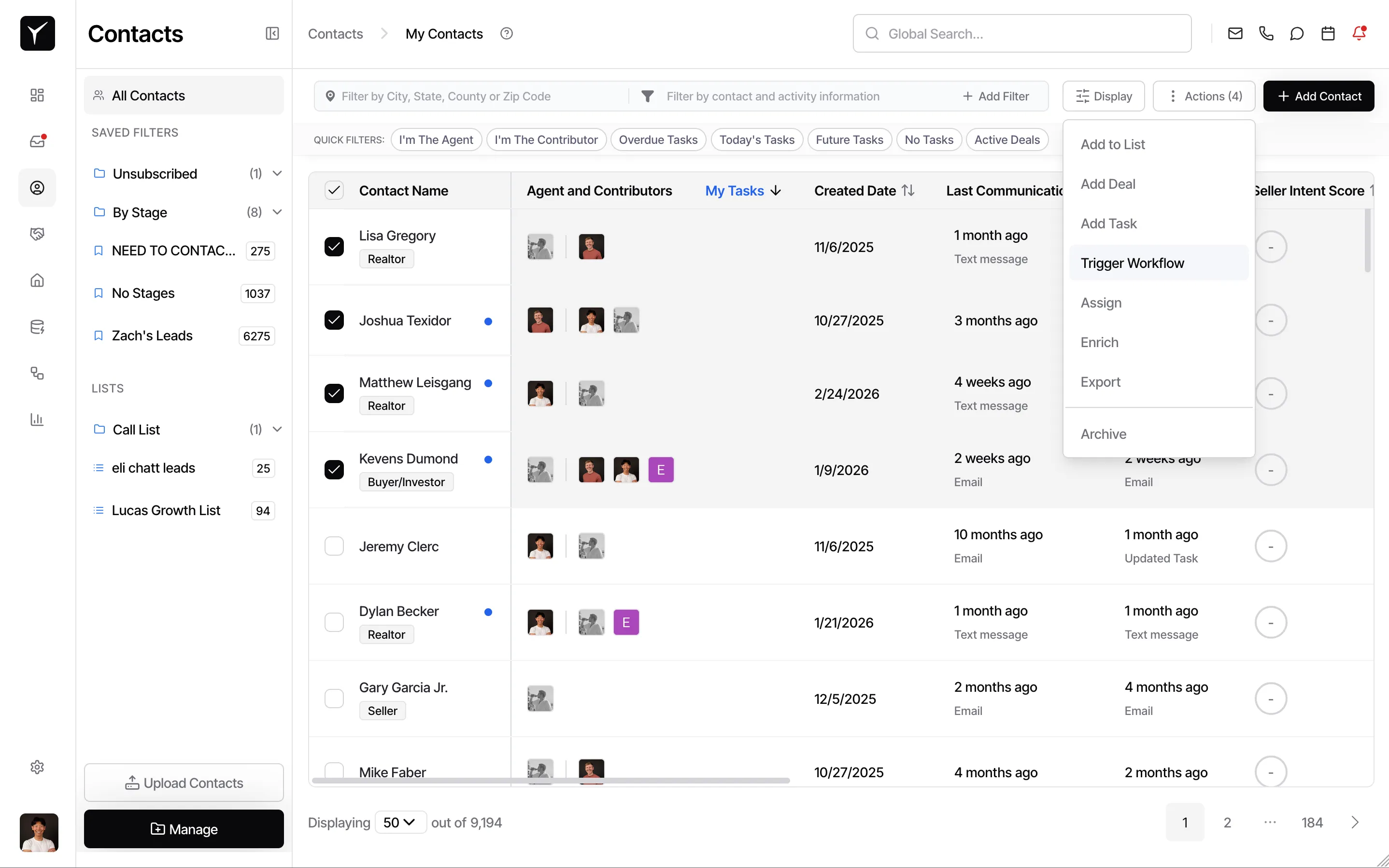
Navigate to the Contacts page. Check the boxes next to each contact you want to include, or use the Toggle selection menu checkbox in the table header to select all visible contacts (or all contacts across all pages). The Actions button will update to show the number of selected contacts.
-
Open the Actions menu and choose Trigger Workflow
Click the Actions button in the toolbar. From the dropdown, select Trigger Workflow to open the workflow picker dialog.
-
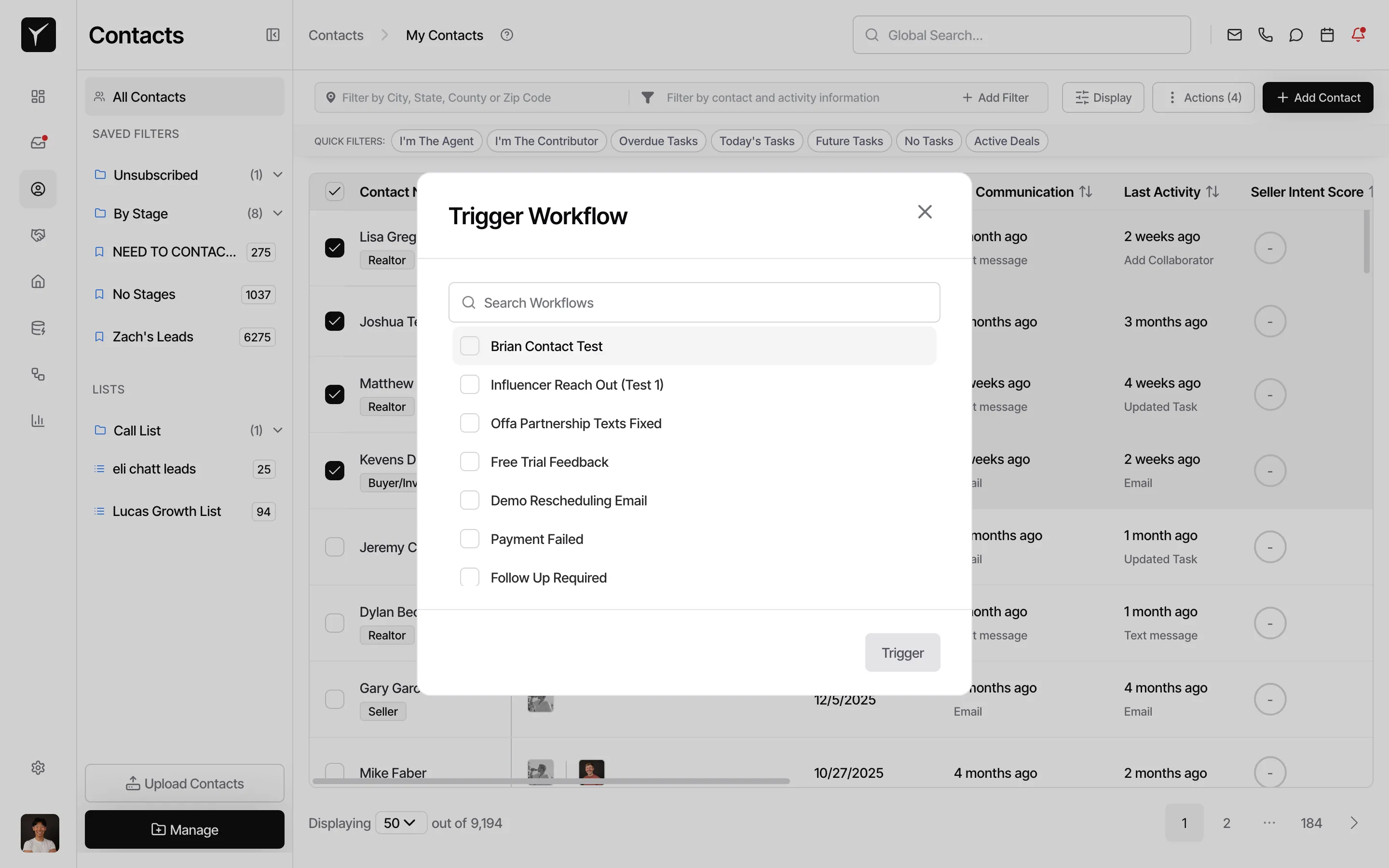
Select a workflow and confirm
In the Trigger Workflow dialog, search for and select one or more published workflows from the list. The dialog shows how many contacts the workflow will run for. Click Trigger to execute. If no workflows appear, you’ll need to publish a workflow in the Automations section first.
Direct Trigger from the Contact Detail Page
Section titled “Direct Trigger from the Contact Detail Page”Use this workflow to run an automation on a single contact. Best for: one-off follow-ups, ad-hoc outreach, or running a specific workflow on a high-priority lead without affecting others.
-
Open the contact record
Click a contact name in the list to open their detail page.
-
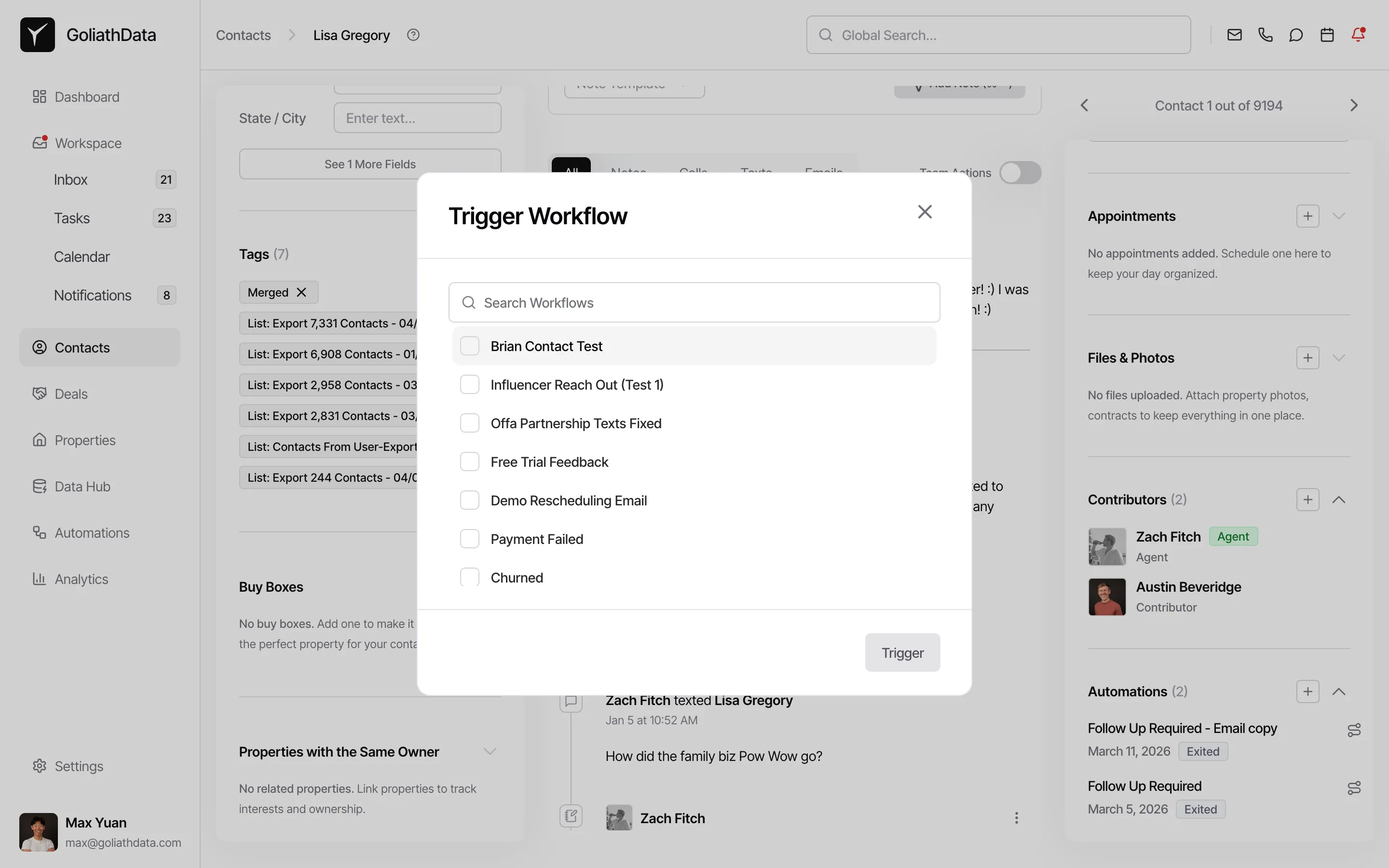
Find the Automations card and trigger a workflow
In the right panel of the contact detail page, scroll down to the Automations card. This card shows all workflows that have been triggered on this contact. Click the + icon in the card header to open the Trigger Workflow dialog, select the workflow you want to run, then click Trigger. The Automations card will update immediately to reflect the new run.
Frequently Asked Questions
Section titled “Frequently Asked Questions”Q: What happens if I select 100 contacts and trigger a workflow?
Section titled “Q: What happens if I select 100 contacts and trigger a workflow?”The workflow runs once for each selected contact — 100 contacts means 100 executions. Make sure your workflow logic is designed to handle individual contact data correctly before triggering at scale.
Q: Why don’t I see any workflows in the Trigger Workflow dialog?
Section titled “Q: Why don’t I see any workflows in the Trigger Workflow dialog?”Only published workflows are available for triggering. Navigate to the Automations section, publish a workflow, and return to try again.
Q: Can I trigger multiple workflows at once?
Section titled “Q: Can I trigger multiple workflows at once?”Yes — the bulk trigger dialog supports selecting multiple workflows at once, so all selected workflows will run for all selected contacts in one operation.
Q: Can I see which workflows have been triggered on a contact?
Section titled “Q: Can I see which workflows have been triggered on a contact?”Yes. Each workflow execution is recorded in the Automations card on the contact detail page and on the contact’s activity timeline.