
Sending Text Messages
Text messaging in Goliath allows you to send SMS to property owners and contacts directly from the platform. Before you can send texts, you must provision a phone number and complete A2P 10DLC registration to comply with US carrier requirements. Once set up, you can send new texts from contact records, reply to existing threads in the Inbox, or compose messages from anywhere using the global text icon.
Prerequisites: Phone Number and A2P 10DLC Registration
Section titled “Prerequisites: Phone Number and A2P 10DLC Registration”US carriers require all organizations sending application-to-person (A2P) text messages to complete 10DLC registration. Without this registration, your outbound texts will be blocked. This is a regulatory requirement, not a Goliath policy.
-
Start A2P Registration
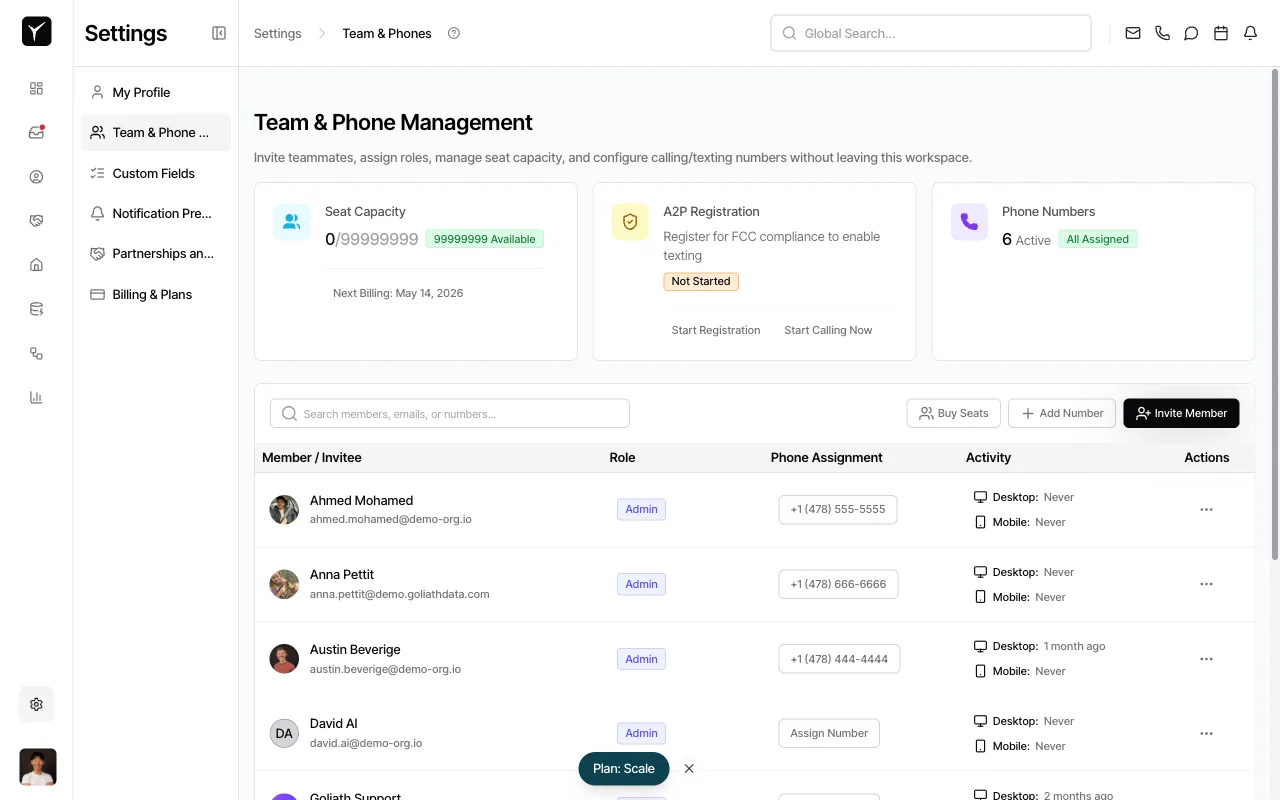
Go to Settings → Team & Phone Management. Locate the A2P Registration card and click Start Registration to begin the compliance process.
-
Provide business information
You’ll be prompted to enter your organization’s legal name, EIN, business type, use case, and sample message templates. This information is submitted to US carriers for approval.
-
Wait for approval
A2P 10DLC registration typically takes a few business days. You will receive a notification once your registration is approved and you can begin sending texts.
Sending a New Text from a Contact Record
Section titled “Sending a New Text from a Contact Record”-
Click the Text tab
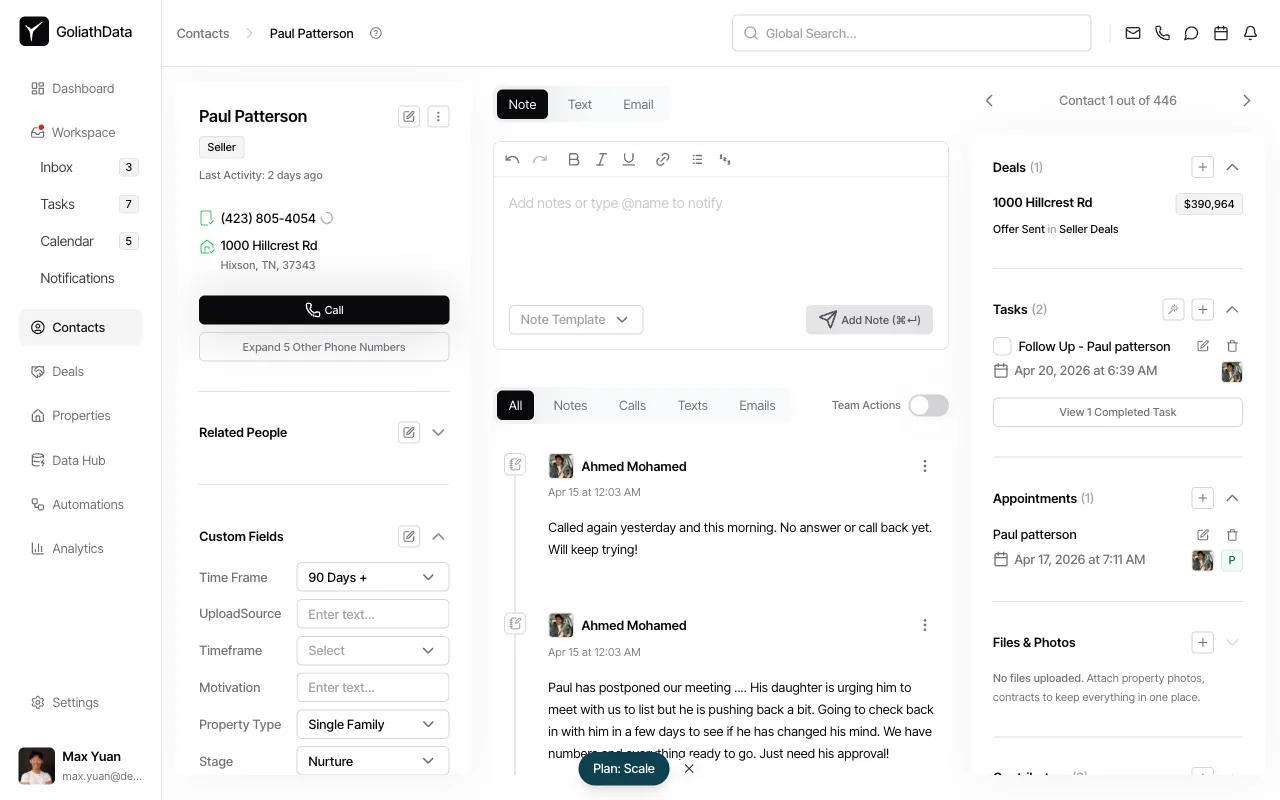
In the contact detail panel, switch to the Text tab at the top of the timeline area.
-
Complete setup if prompted
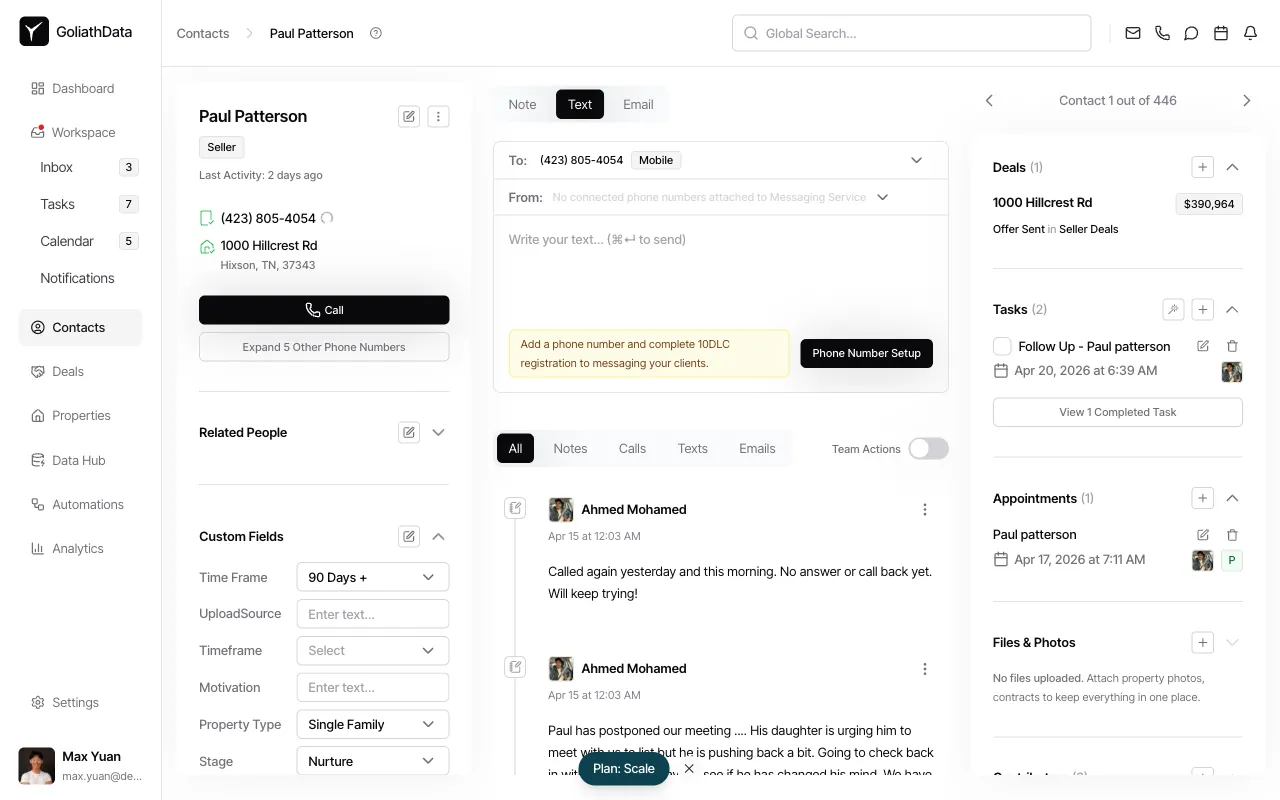
If you haven’t completed A2P registration, you’ll see a warning banner with a Phone Number Setup button. Click it to navigate to the registration flow.
-
Compose your message
Once registration is complete, type your message in the composer. You can use dynamic variables like
{{firstName}}to personalize the text. Press ⌘+↵ (Mac) or Ctrl+Enter (Windows) to send.
Replying to Text Threads in the Inbox
Section titled “Replying to Text Threads in the Inbox”-
Navigate to Inbox
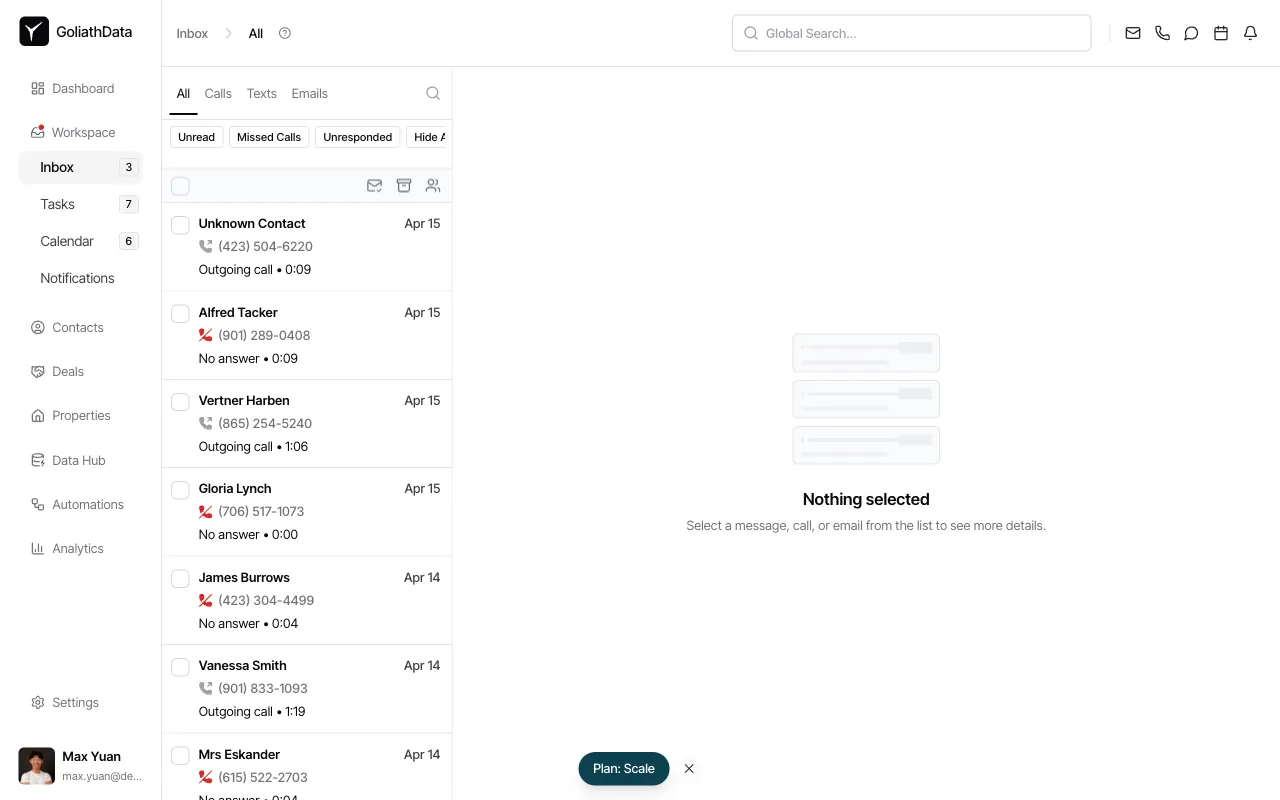
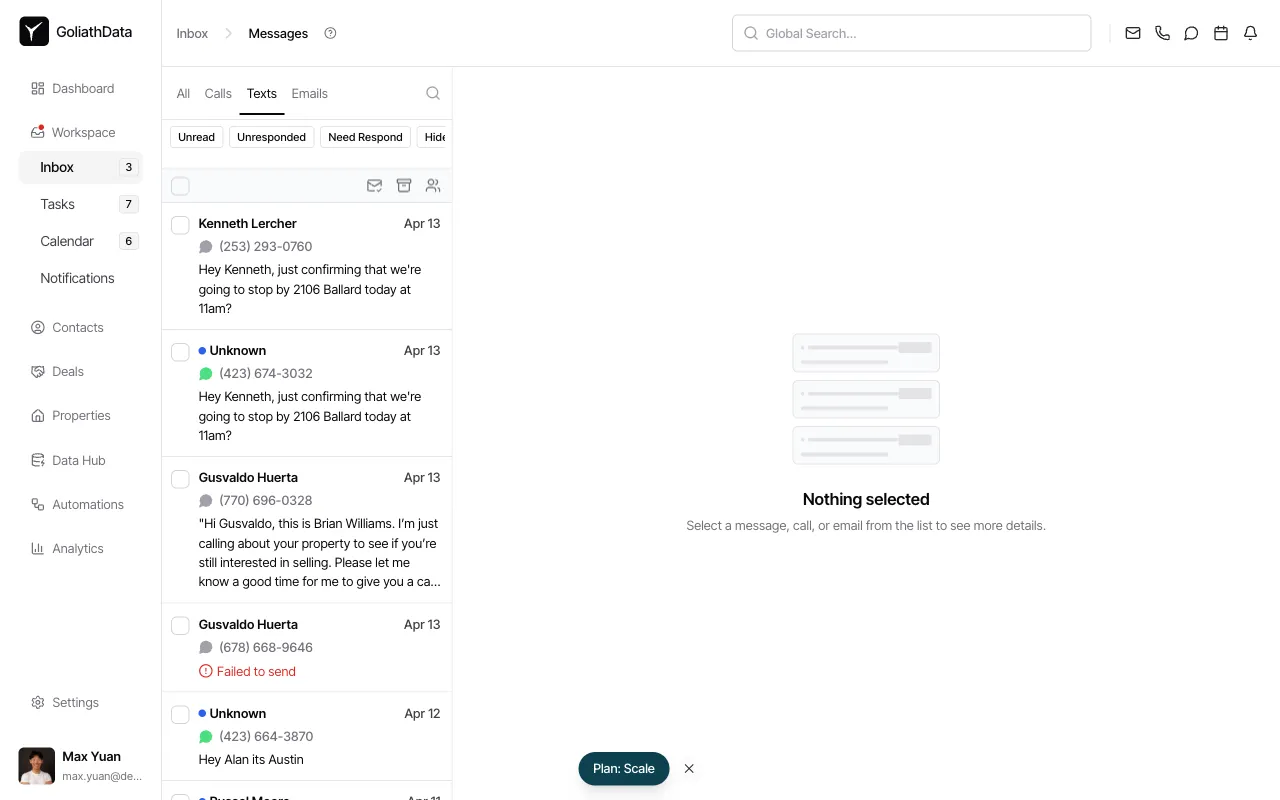
Click Inbox in the left navigation, then select the Texts tab to filter for SMS conversations.
-
Select a conversation
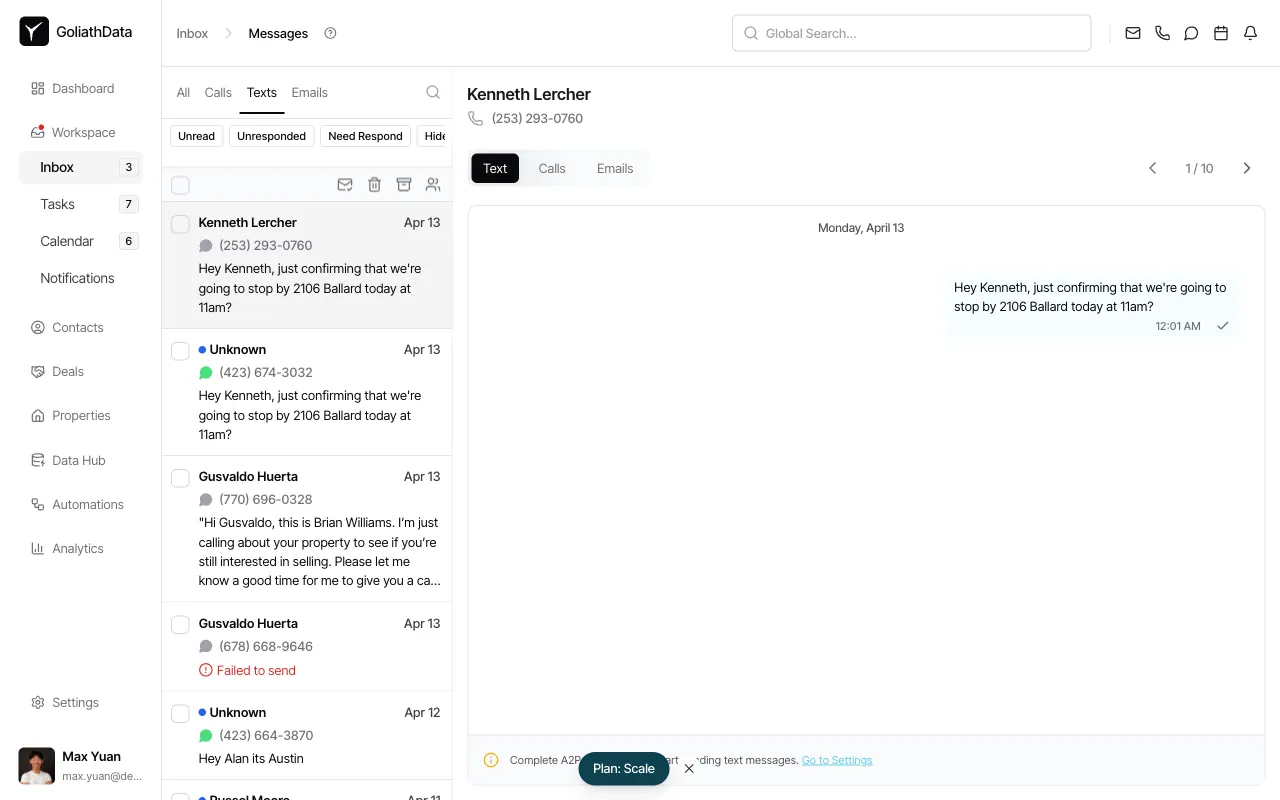
Click on any text thread in the list to open the conversation in the right panel.
-
Review the thread
The conversation history displays in chronological order. You can see sent, delivered, and failed messages.
-
Send your reply
Type your response in the composer at the bottom of the thread and press send. Your reply is added to the unified conversation timeline.
Sending a Text from Anywhere in Goliath
Section titled “Sending a Text from Anywhere in Goliath”You can also compose a new text without navigating to a contact or the Inbox.
-
Click the global Text icon
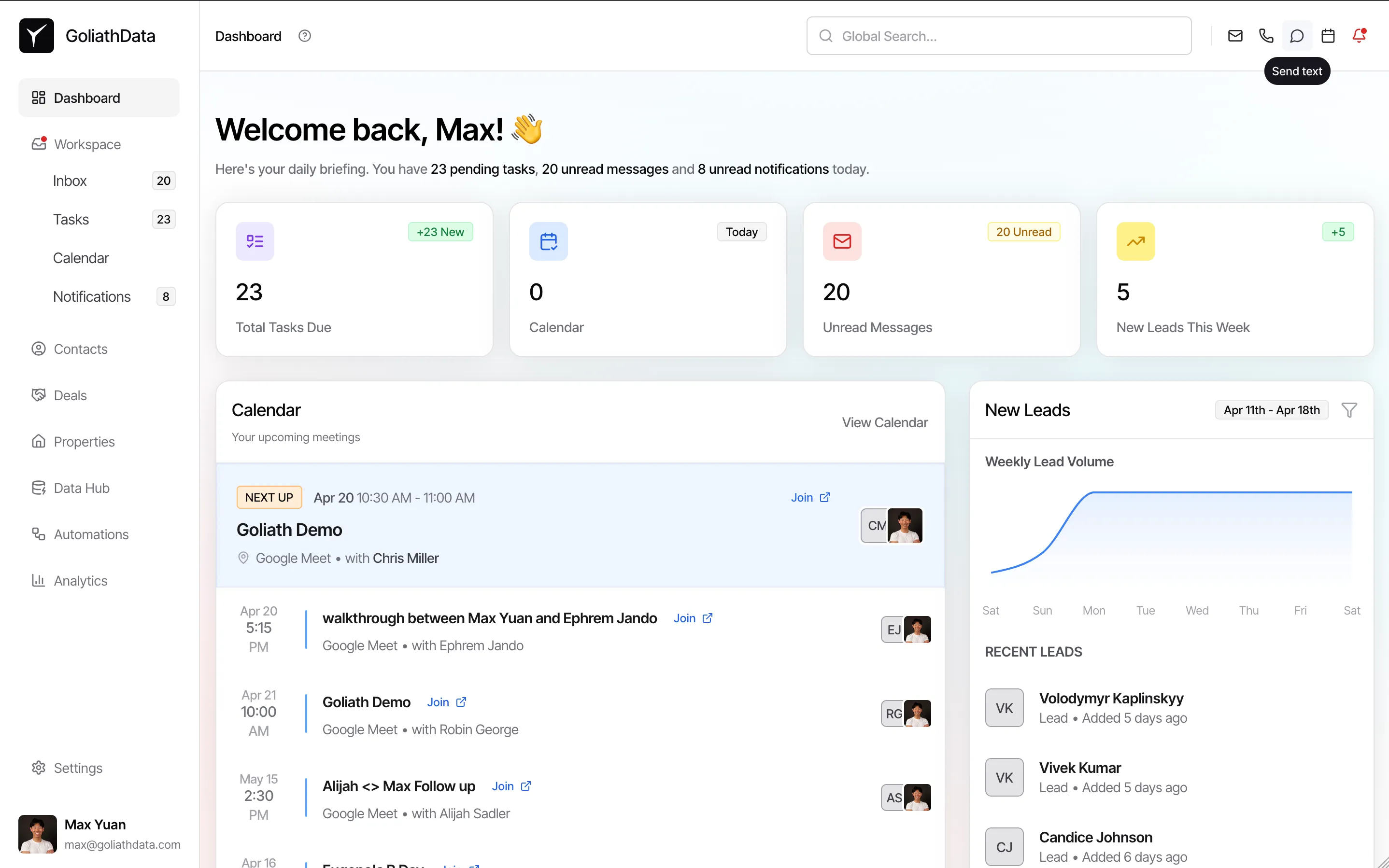
In the top-right quick actions, click the Text icon (speech bubble) to open the Send Text modal.
-
Select recipient and compose
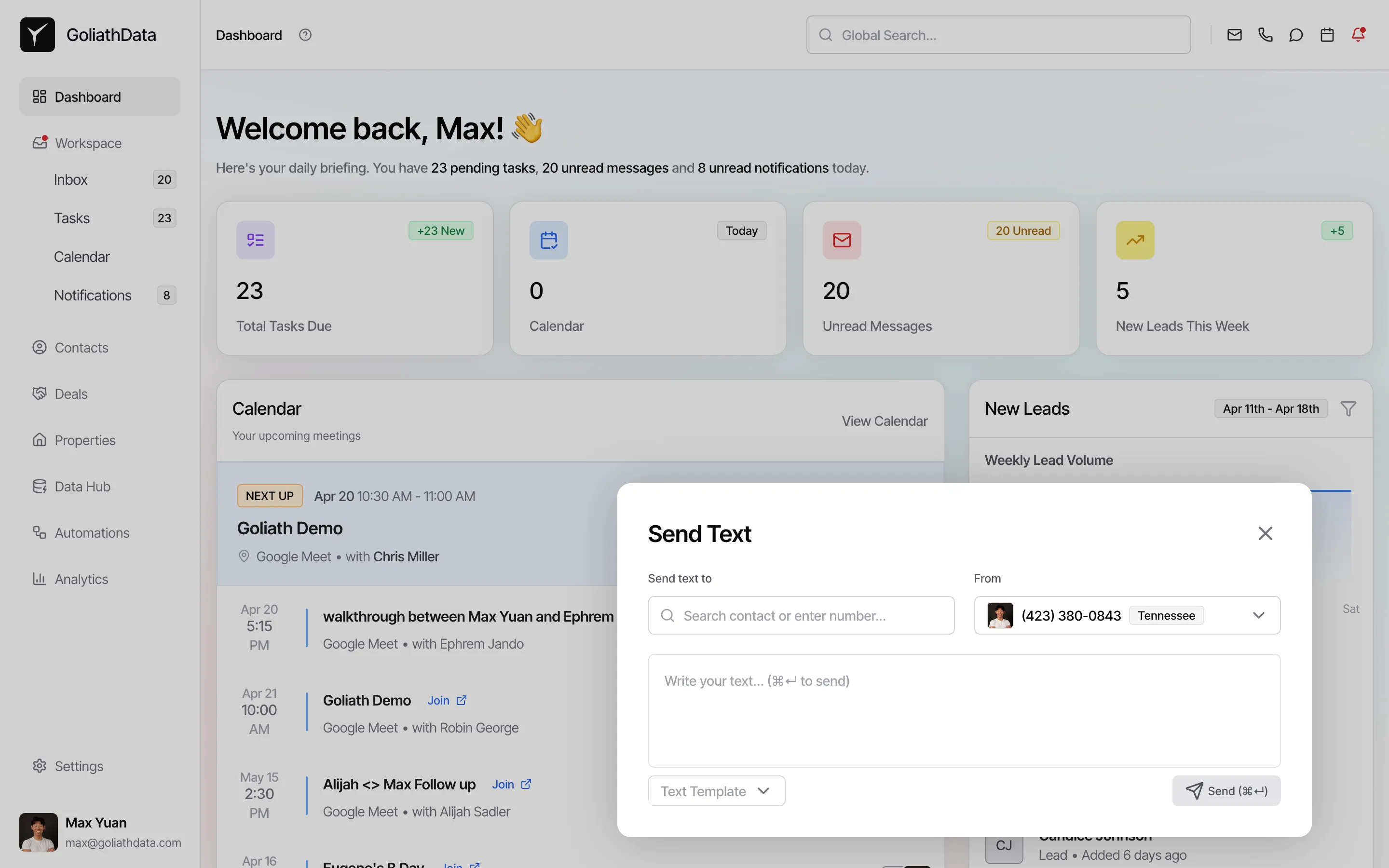
Choose a contact from the To dropdown, write your message, and click Send. If setup is incomplete, you’ll see the Phone Number Setup prompt in the modal.
Frequently Asked Questions
Section titled “Frequently Asked Questions”Q: What is A2P 10DLC and why is it required?
Section titled “Q: What is A2P 10DLC and why is it required?”A2P 10DLC (Application-to-Person 10-Digit Long Code) is a US carrier regulation that requires businesses to register their use case and brand before sending text messages. It reduces spam and ensures message deliverability. Without it, your texts will be blocked by carriers.
Q: How long does A2P registration take?
Section titled “Q: How long does A2P registration take?”Approval typically takes a few business days after you submit your organization’s information. You’ll receive a notification in Goliath when your registration is approved.
Q: What happens if I try to send a text before A2P is approved?
Section titled “Q: What happens if I try to send a text before A2P is approved?”Messages sent before approval will either queue or fail. Goliath will display a warning banner prompting you to complete registration before attempting to send.
Q: Can I use multiple phone numbers?
Section titled “Q: Can I use multiple phone numbers?”Yes. Organization admins can provision multiple phone numbers from the Team & Phone Management page for different use cases or team members.
Q: Are text templates supported?
Section titled “Q: Are text templates supported?”Yes. You can use dynamic variables like {{firstName}}, {{propertyAddress}}, and others in the text composer. Templates can be created and saved for reuse.
Q: Do inbound texts sync automatically?
Section titled “Q: Do inbound texts sync automatically?”Yes. All inbound and outbound texts sync to the contact timeline and the Inbox feed in real time. Your team can reply from any of the three entry points (contact record, Inbox, or global text icon) and the thread stays unified.
Q: Which carriers are supported?
Section titled “Q: Which carriers are supported?”Goliath supports all major US carriers via Twilio. International SMS support varies by region and requires additional configuration.