
Managing Contacts
The contact detail panel in Goliath consolidates everything you need to know about a lead, seller, agent, or other contact in one place. Each contact record captures essential information—phone numbers, email addresses, mailing address, contact type, and assignment—alongside a complete activity timeline of calls, texts, emails, and notes. This centralized view ensures your team never duplicates outreach and can pick up exactly where the last conversation left off.
What Information Goliath Tracks Per Contact
Section titled “What Information Goliath Tracks Per Contact”Basic Contact Information
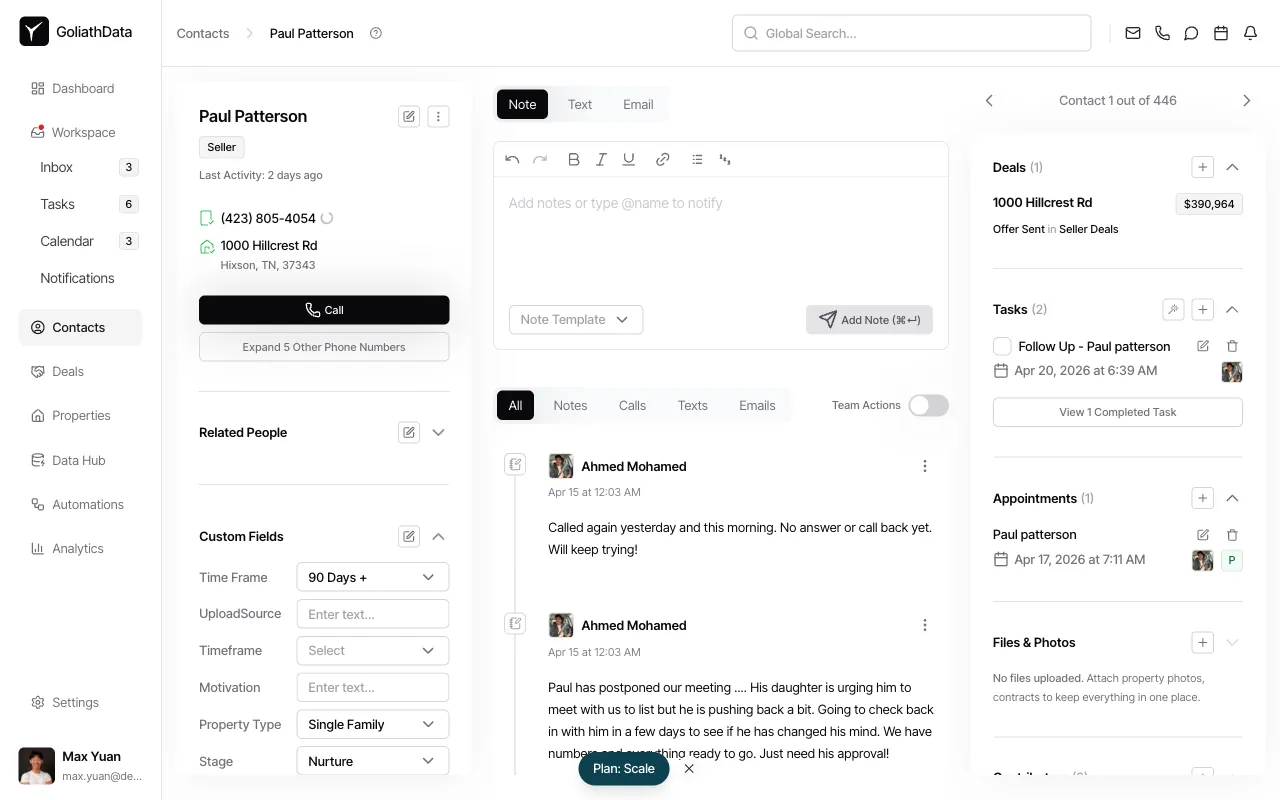
Section titled “Basic Contact Information”Goliath displays the contact’s name, primary phone number, and mailing address prominently at the top of the detail panel. The Expand 5 Other Phone Numbers button reveals additional phone numbers sourced from data enrichment, giving you multiple ways to reach a contact when the primary line doesn’t connect.
Contact Type and Assignment
Section titled “Contact Type and Assignment”The contact type badge (e.g., Seller, Buyer, Agent) indicates the contact’s role in your pipeline. The Agent and Contributors column shows which team member owns the contact and who else has been involved, ensuring accountability and preventing duplicate follow-up.
Activity Timeline
Section titled “Activity Timeline”The timeline in the center panel displays every interaction with the contact—Notes, Calls, Texts, and Emails—in chronological order. Filter the timeline by activity type using the All, Notes, Calls, Texts, or Emails tabs. Toggle Team Actions to see activity from all team members or just your own.
Custom Fields
Section titled “Custom Fields”The Custom Fields section on the left panel captures deal-specific information such as Time Frame, Motivation, Property Type, Stage, and Seller Motivation. These fields help you segment contacts for targeted campaigns and track where each lead stands in your acquisition process.
Linked Deals and Properties
Section titled “Linked Deals and Properties”The right panel displays active Deals and Tasks associated with the contact, along with upcoming Appointments. The Properties with the Same Owner section shows all properties linked to this contact, making it easy to track ownership patterns and cross-sell opportunities.
DNC and Litigator Flags
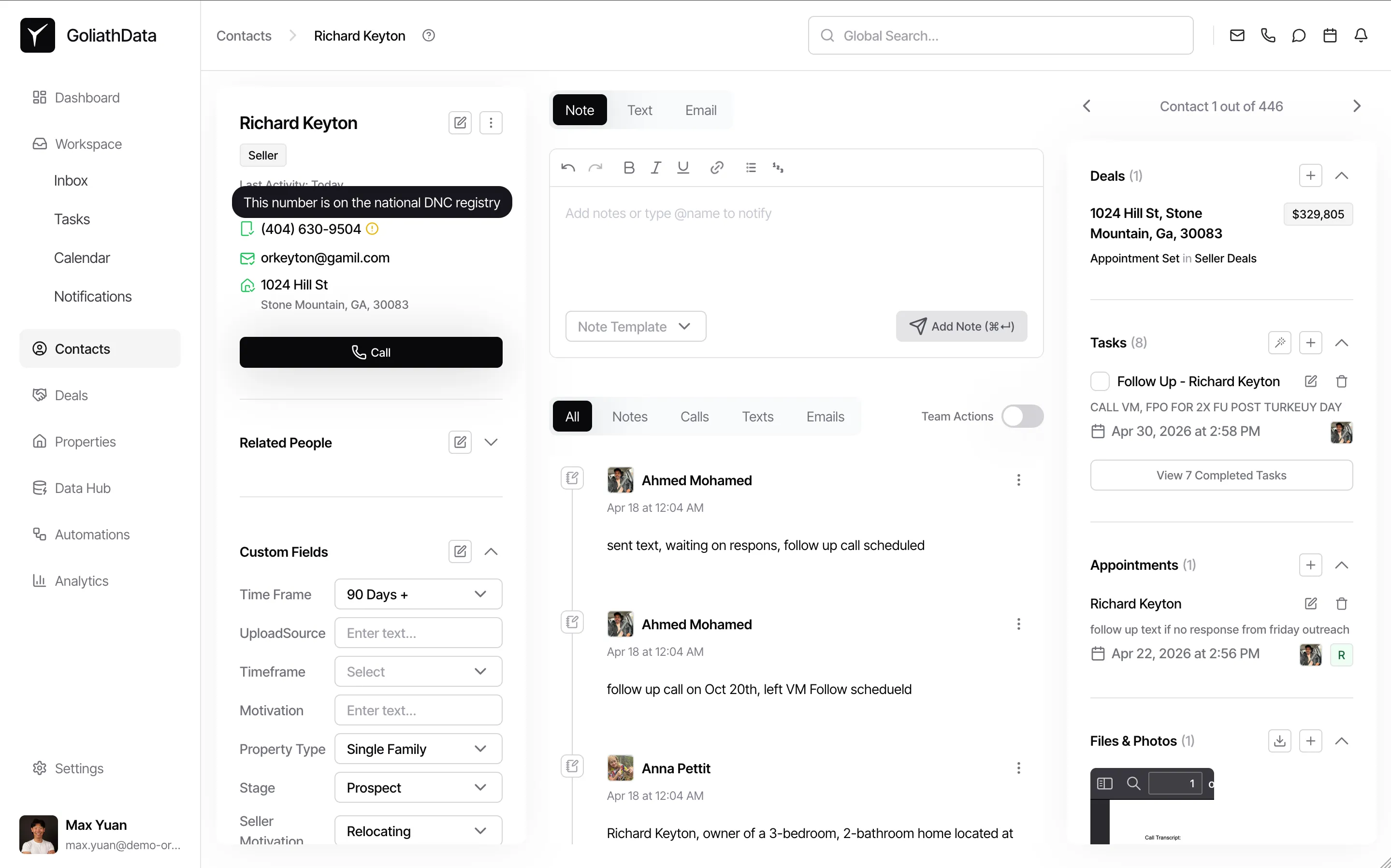
Section titled “DNC and Litigator Flags”Goliath automatically scrubs contact phone numbers against the Do Not Call (DNC) registry and known litigator lists. Numbers flagged as DNC are marked to help your team stay compliant with TCPA regulations. Numbers flagged as belonging to known litigators are surfaced with a warning so you can avoid outreach that could expose your organization to legal risk. These flags appear on the contact’s phone number entries and are checked automatically—no manual action is required.
Tags and Organization
Section titled “Tags and Organization”Tags appear below the custom fields and allow you to organize contacts into segments (e.g., by market, source, or campaign). Tagging contacts makes it easier to filter your contact list and build automation workflows.
Step-by-Step Guide
Section titled “Step-by-Step Guide”-
Open a contact record
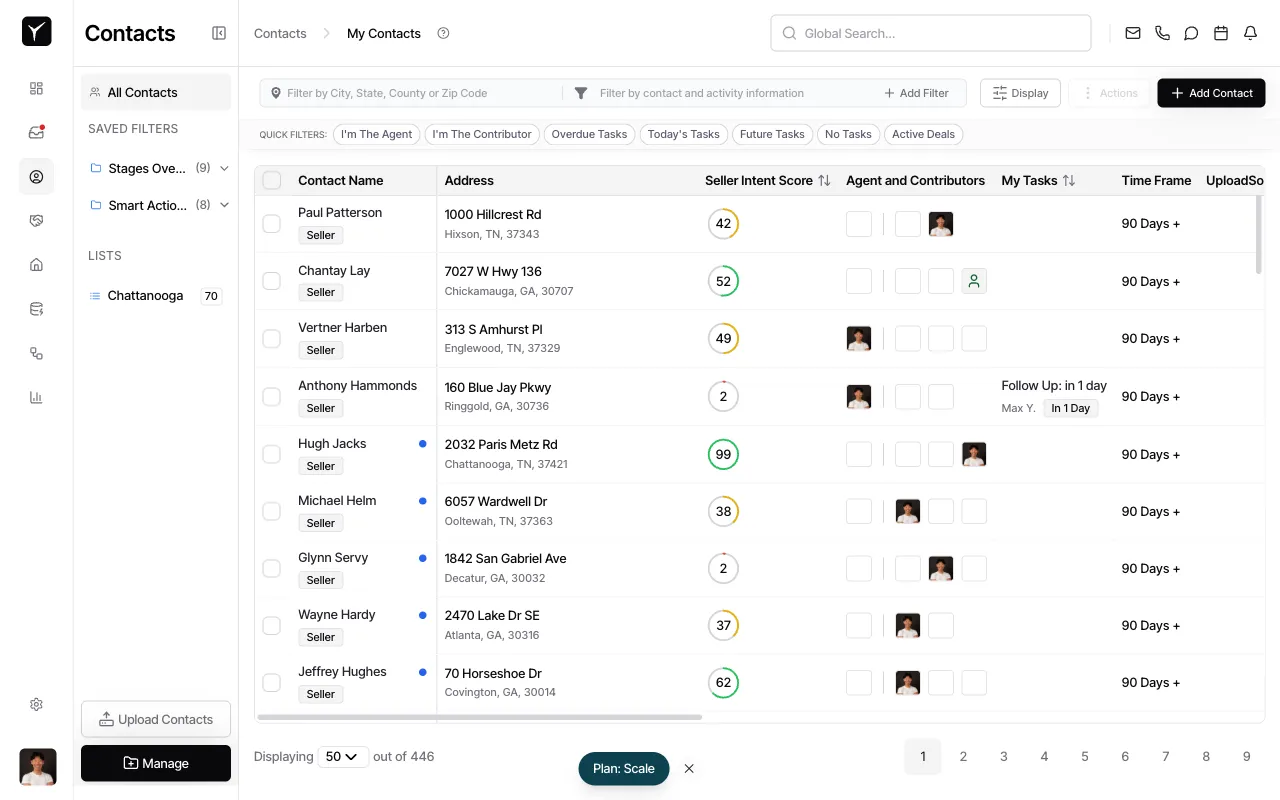
Click any contact name in the Contacts table to open the detail panel.
-
Review contact details and activity
The left panel shows basic information, custom fields, and related people. The center panel displays the activity timeline. The right panel lists linked deals, tasks, appointments, and files.
-
Scroll to explore additional sections
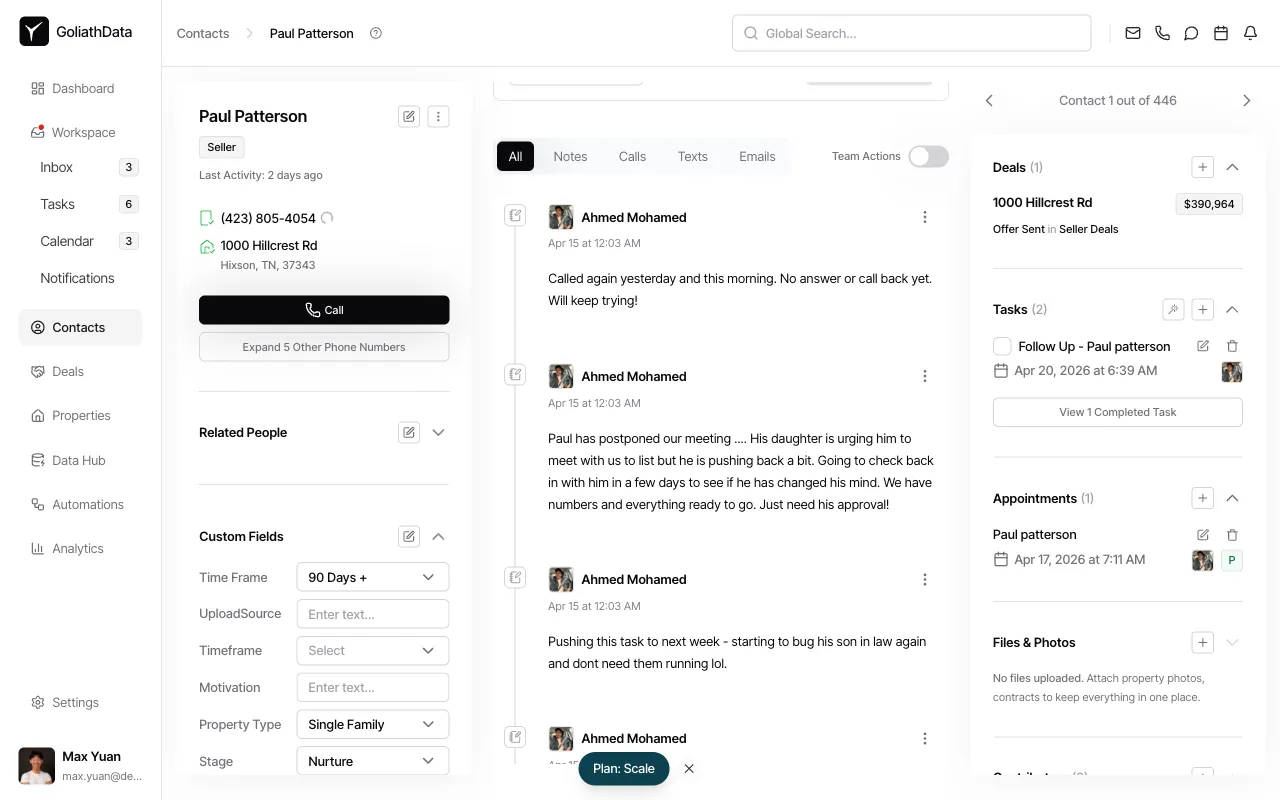
Scroll down the center panel to view older activity. Collapse or expand sections on the right panel to focus on specific areas like Deals, Tasks, or Files & Photos.
Frequently Asked Questions
Section titled “Frequently Asked Questions”Q: How do I edit a contact’s phone number or address?
Section titled “Q: How do I edit a contact’s phone number or address?”Click the edit icon next to the contact’s name at the top of the detail panel to open the contact editor.
Q: What does “Expand 5 Other Phone Numbers” mean?
Section titled “Q: What does “Expand 5 Other Phone Numbers” mean?”Goliath enriches contact records with additional phone numbers from public data sources. Click this button to reveal alternative ways to reach the contact when the primary number doesn’t connect.
Q: Can I see activity from other team members?
Section titled “Q: Can I see activity from other team members?”Yes. Turn on the Team Actions toggle in the activity timeline to view notes, calls, texts, and emails logged by all contributors.
Q: How do I link a property to a contact?
Section titled “Q: How do I link a property to a contact?”Open the Properties with the Same Owner section on the right panel and click to add a property. This tracks ownership patterns and helps you identify portfolio sellers.
Q: What’s the difference between a task and an appointment?
Section titled “Q: What’s the difference between a task and an appointment?”Tasks are follow-up actions (e.g., “Call seller to confirm offer”). Appointments are scheduled meetings with a specific date and time. Both appear in the right panel and on your Calendar.
Q: What does a DNC or litigator flag mean?
Section titled “Q: What does a DNC or litigator flag mean?”A DNC flag means the phone number is registered on the Do Not Call list — contacting it without consent may violate TCPA regulations. A litigator flag means the number is associated with an individual or firm known to file TCPA lawsuits. Goliath surfaces both automatically so your team can make informed decisions before reaching out.