
How Do I Export Contacts?
Export your contacts from Goliath to download a CSV or Excel file containing all contact information, including names, phone numbers, emails, addresses, tags, and custom fields. This is useful when you need to import contacts into another CRM, send lists to a direct mail vendor, or create targeted marketing campaigns based on filtered segments.
Step-by-Step Guide
Section titled “Step-by-Step Guide”-
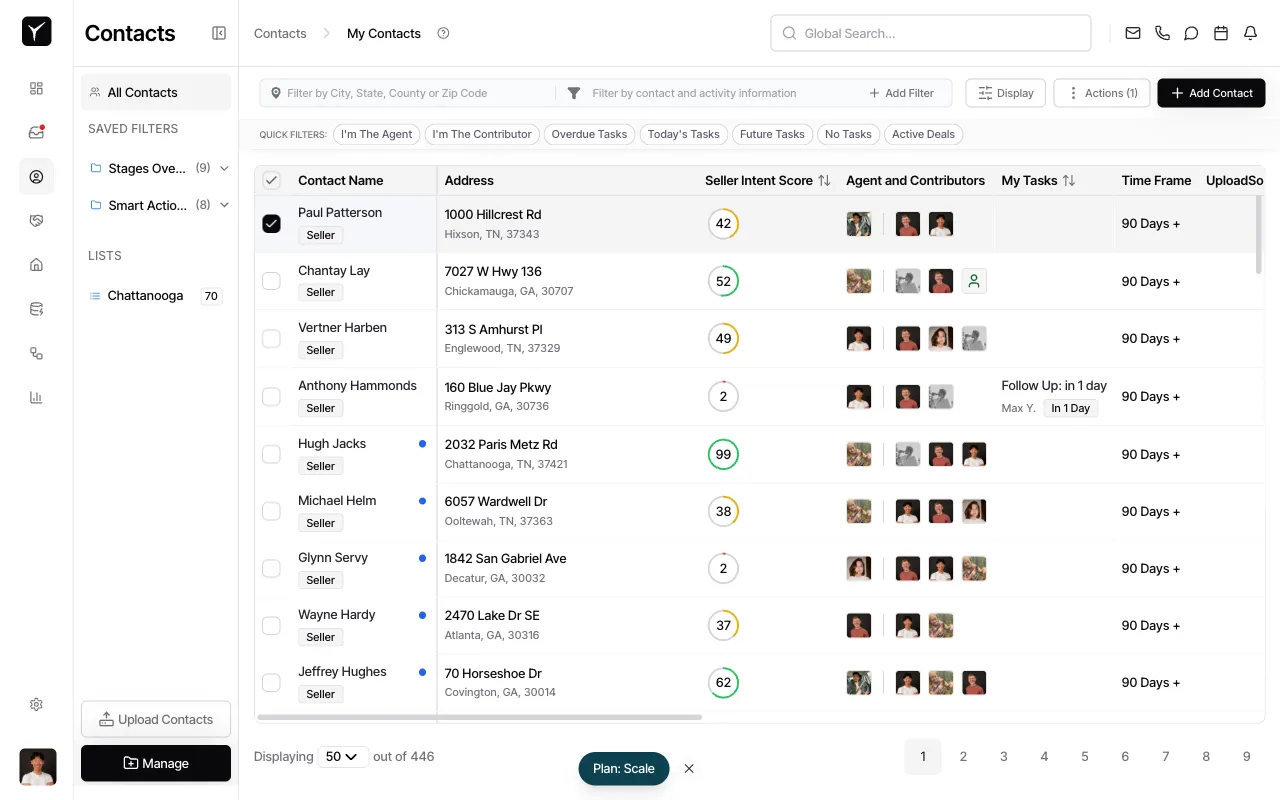
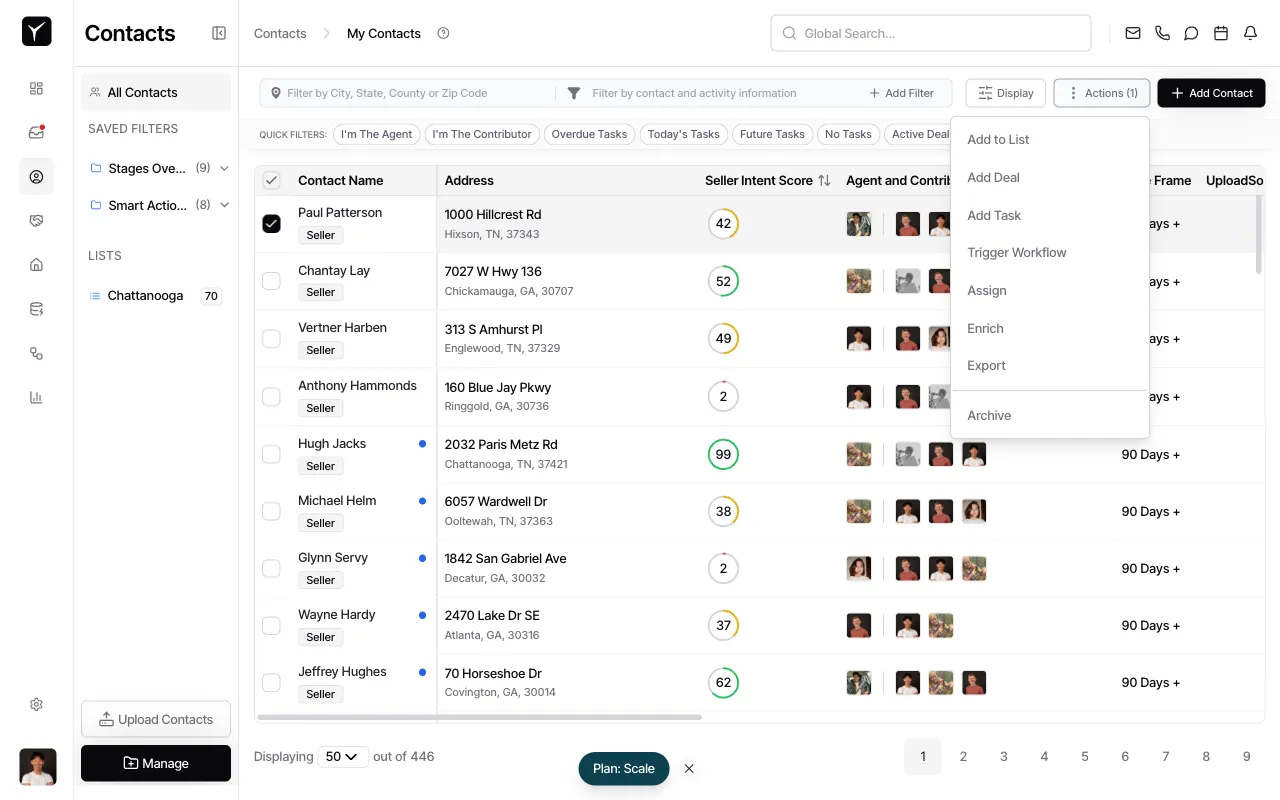
Select contacts and choose Export from the Actions menu
Navigate to the Contacts page. Check the boxes next to the contacts you want to export, or click the Toggle selection menu checkbox in the table header to select all contacts on the current page (or all across all pages). Once at least one contact is selected, click the Actions button that appears in the toolbar, then select Export from the dropdown.
-
Wait for your export to process
Goliath will process your export in the background. When the file is ready, you can download it from Data Hub → Exports. Larger exports may take a few moments to generate.
Frequently Asked Questions
Section titled “Frequently Asked Questions”Q: What format are the exported files?
Section titled “Q: What format are the exported files?”Exports generate either CSV or XLSX (Excel) files containing all contact fields including names, phone numbers, emails, addresses, tags, stages, and any custom fields you’ve created.
Q: Can I export contacts from a saved filter or list?
Section titled “Q: Can I export contacts from a saved filter or list?”Yes. Apply any saved filter or select a list from the sidebar, then use the selection and export workflow. This allows you to create pre-segmented exports for specific campaigns or territories.
Q: How long does an export take?
Section titled “Q: How long does an export take?”Small exports (a few dozen contacts) process almost instantly. Larger exports with hundreds or thousands of contacts are processed in the background and may take a few minutes. You’ll find the completed file in Data Hub → Exports when it’s ready.
Q: Can I export all contacts at once?
Section titled “Q: Can I export all contacts at once?”Yes. Use the Toggle selection menu in the table header and look for the option to select all contacts across all pages. This will queue an export of every contact matching your current filters.