
How to Upload Contacts
Uploading contacts in bulk lets you import hundreds or thousands of leads from a spreadsheet into Goliath in minutes. This is essential when onboarding a new list, migrating from another CRM, or importing leads from a data provider. Goliath supports CSV and XLSX files and automatically detects duplicates during the upload process. Large uploads are processed in the background, so you can continue working while your contacts import.
Step-by-Step Guide
Section titled “Step-by-Step Guide”-
Navigate to Data Hub → Uploads
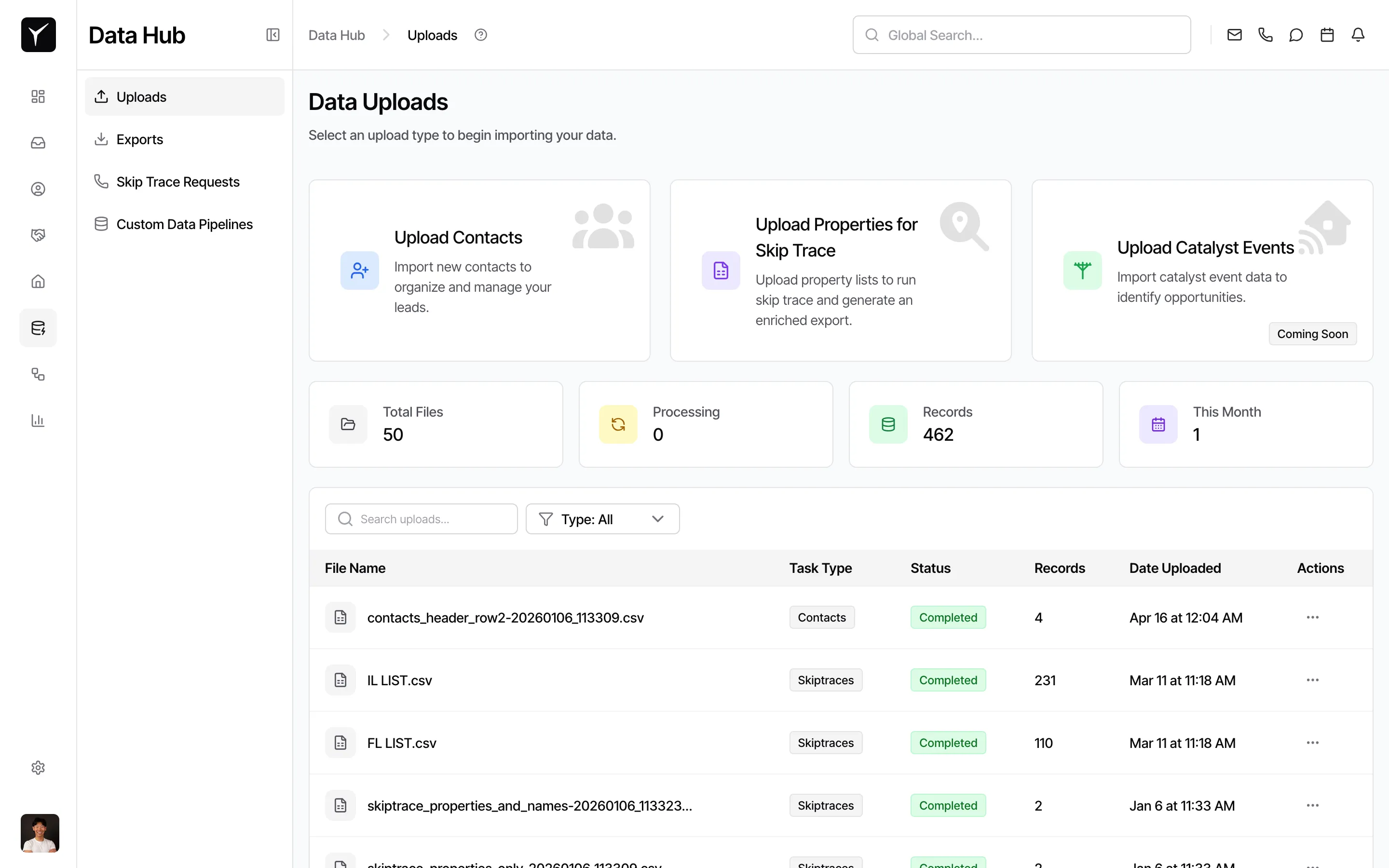
From the left sidebar, click Data Hub, then select Uploads. On the Data Uploads page, click the Upload Contacts card to begin.
-
Choose your upload flow
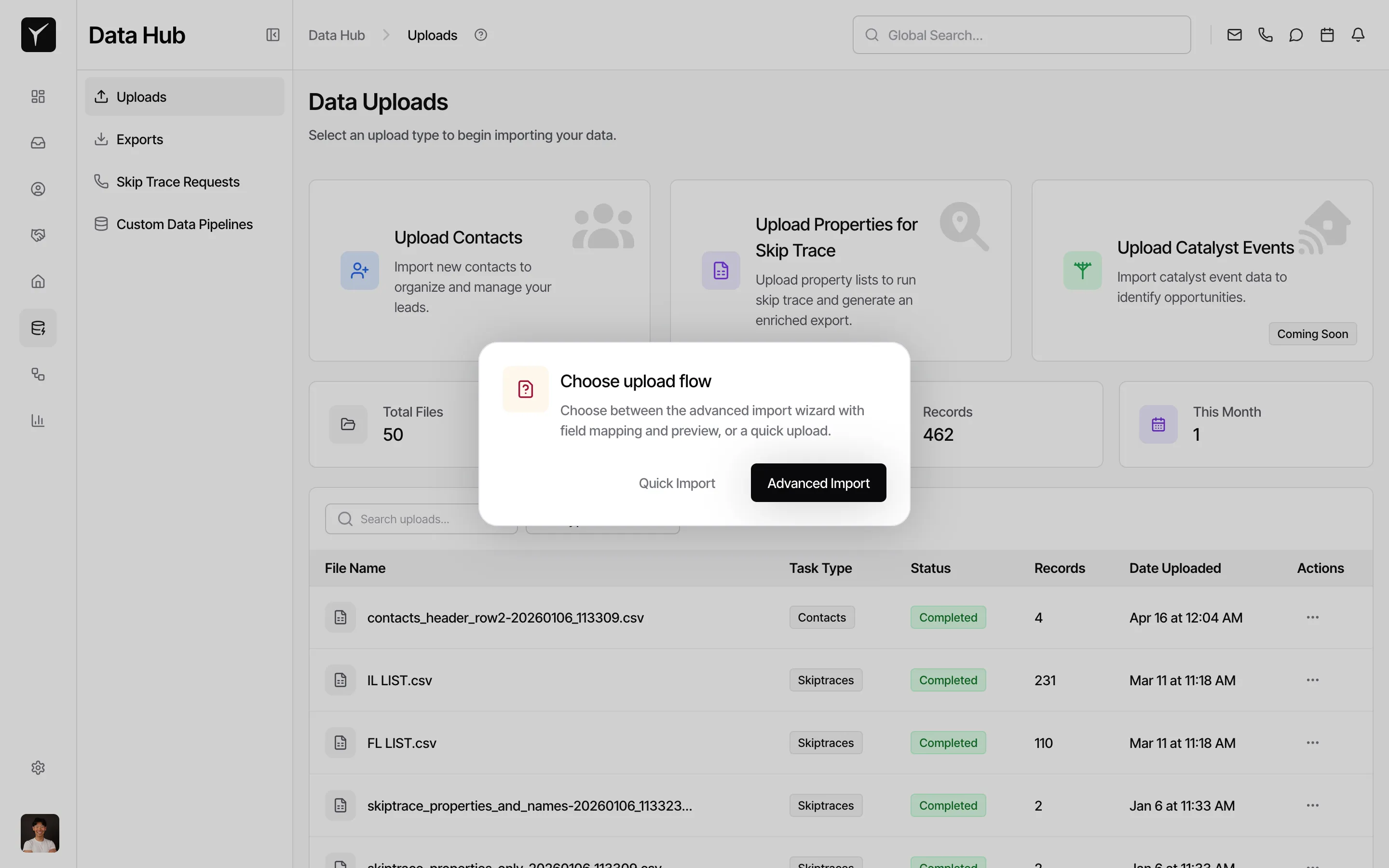
A dialog asks whether you want a Quick Import or Advanced Import. Choose Advanced Import to get the full field mapping and preview wizard — recommended for any upload where you need to control how columns map to Goliath fields. Quick Import skips mapping and uses Goliath’s automatic detection.
-
Select your file
Drag and drop your file onto the upload area, or click to browse. Goliath supports
.csv,.xls, and.xlsxfiles up to 50 MB. Once the file is ready and shows a green Ready status, click Continue To Field Mapping.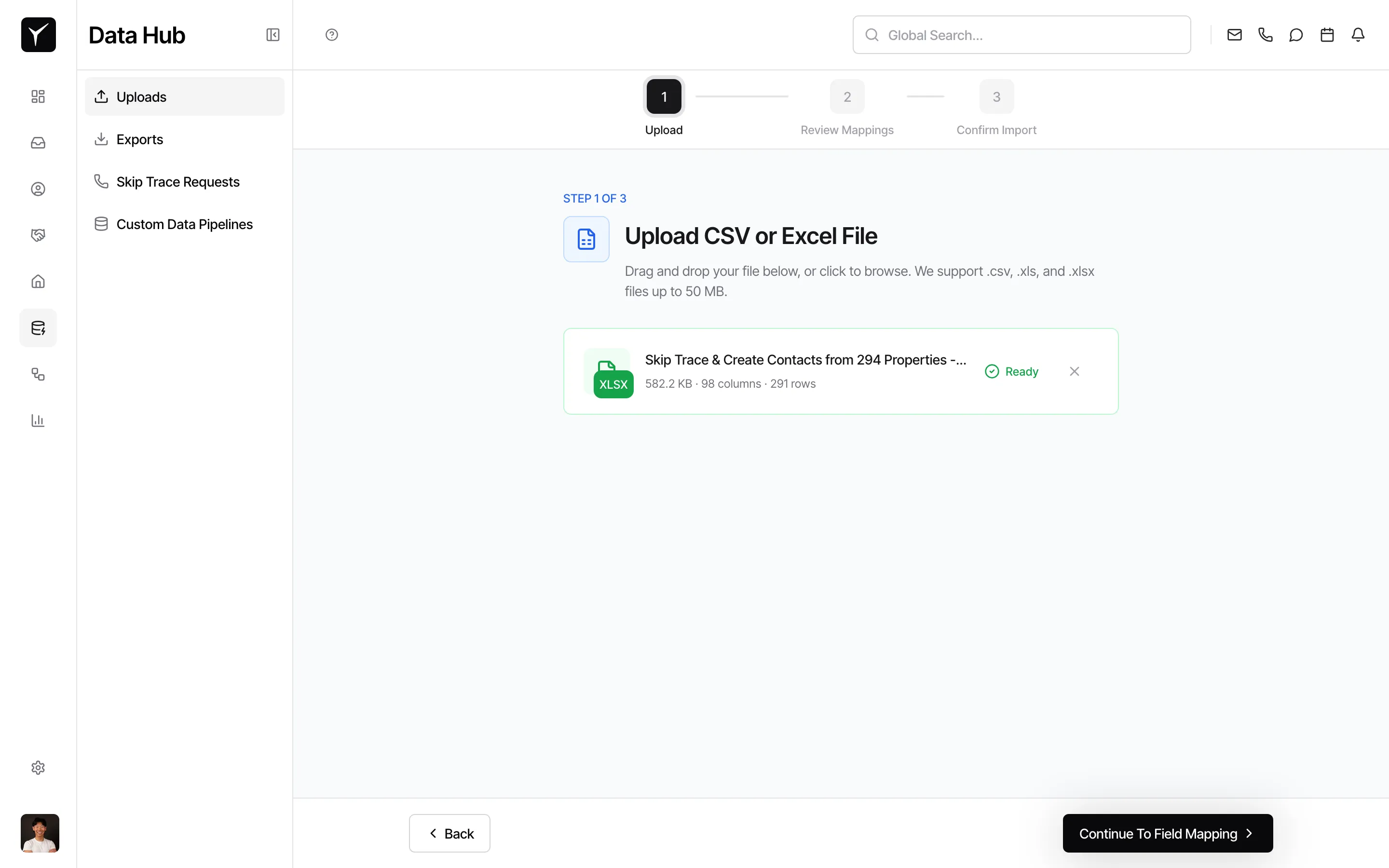
-
Review the auto-detected field mappings
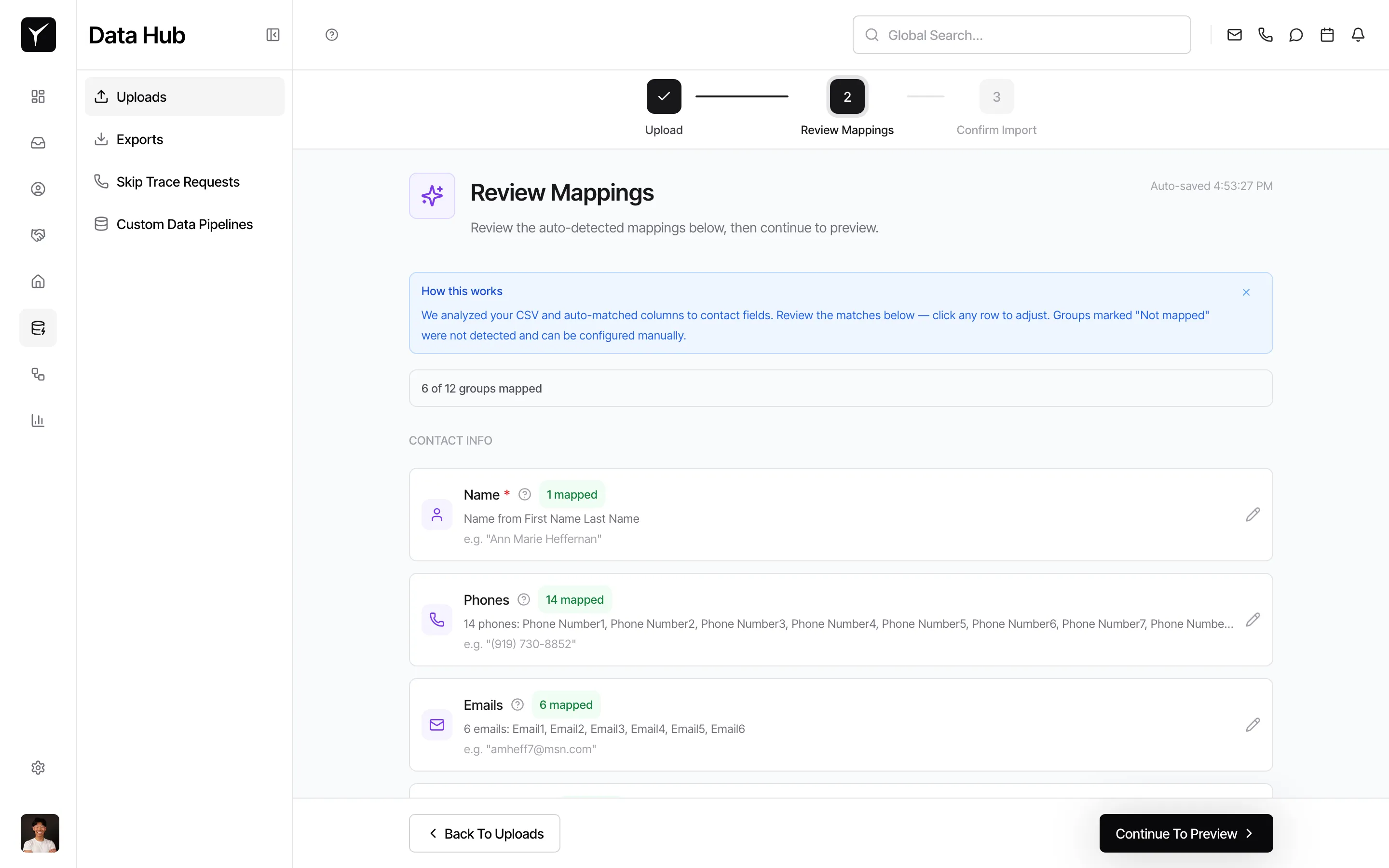
Goliath analyzes your file and automatically maps columns to contact fields like Name, Phones, and Emails. The summary shows how many groups were mapped out of the total detected. Review each mapping — click the edit icon on any row to adjust it. Groups marked “Not mapped” were not detected and can be configured manually.
-
Adjust individual field mappings
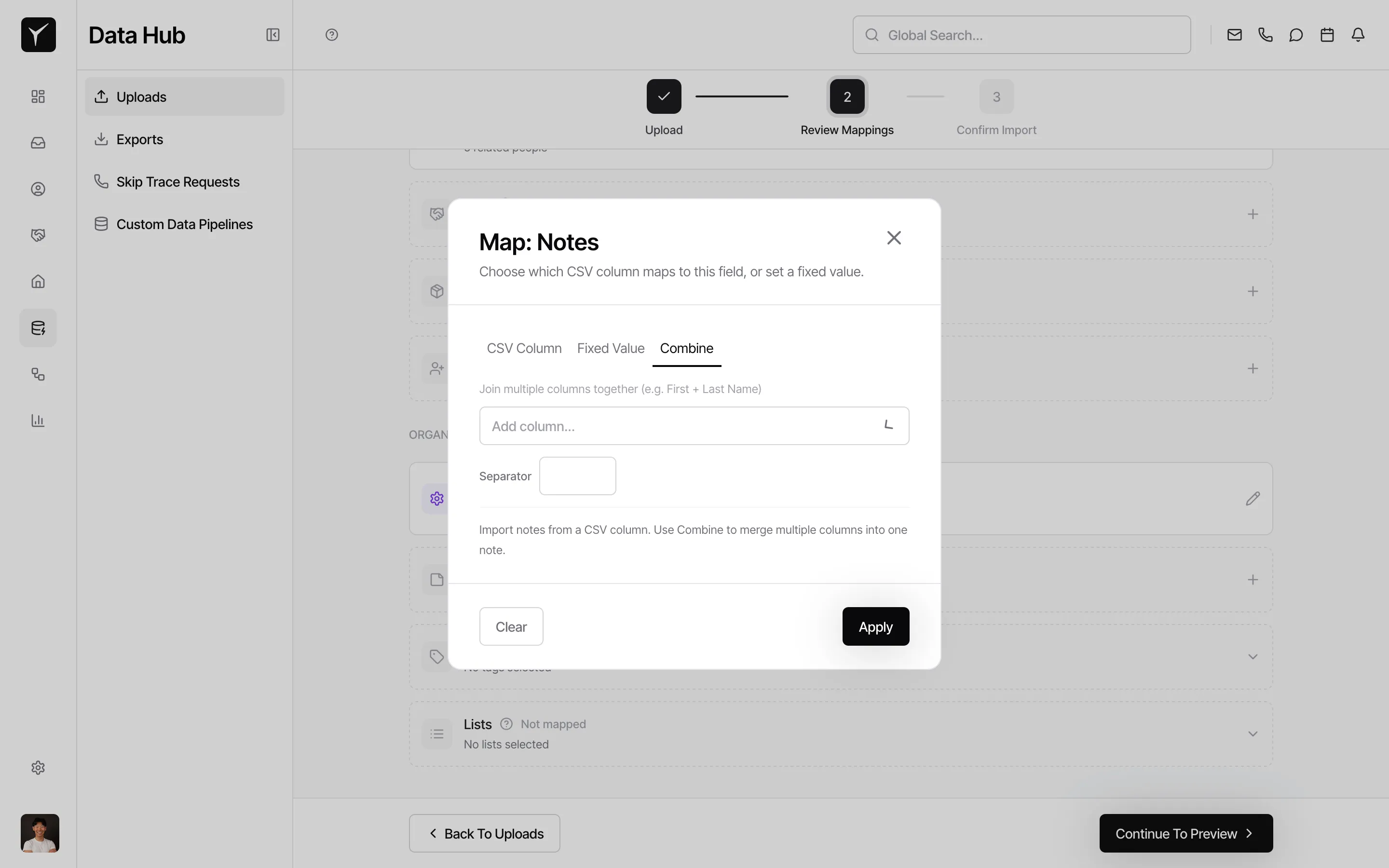
Click the edit icon next to any field to open the mapping dialog. You can map a CSV Column directly, set a Fixed Value applied to every row, or use Combine to join multiple columns together (e.g., merge First Name and Last Name columns into a single Name field). Click Apply when done.
-
Confirm and import
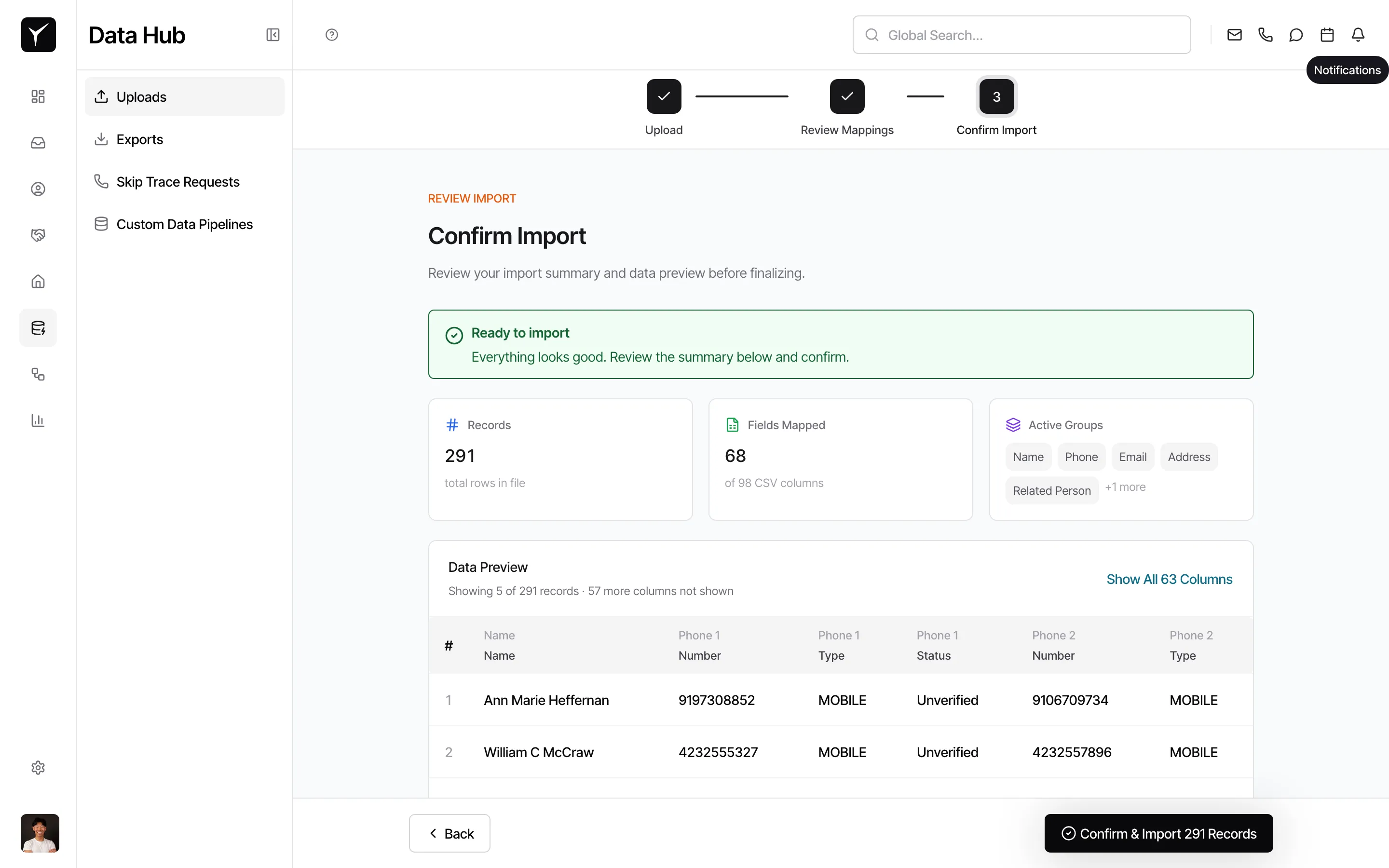
The final screen shows a summary: total records, number of fields mapped, and the active field groups (Name, Phone, Email, Address, etc.). A data preview lets you verify how sample rows will look after import. When everything looks correct, click Confirm & Import to begin the upload.
-
Check upload results
Once complete, you’ll receive a notification. Return to Data Hub → Uploads to view the full results including records imported, updated, or skipped. You can download a report showing any rows that failed validation.
Frequently Asked Questions
Section titled “Frequently Asked Questions”Q: What file formats does Goliath support for contact uploads?
Section titled “Q: What file formats does Goliath support for contact uploads?”Goliath accepts .csv, .xls, and .xlsx files up to 50 MB. Google Sheets must be exported to one of these formats before uploading.
Q: How does Goliath detect duplicate contacts?
Section titled “Q: How does Goliath detect duplicate contacts?”Goliath matches contacts by email address and phone number. If a contact in your file has the same email or phone as an existing contact, it’s flagged as a duplicate and handled according to your merge or skip setting.
Q: What happens if some rows in my file fail to import?
Section titled “Q: What happens if some rows in my file fail to import?”Goliath validates each row during import and skips rows with invalid data (e.g., malformed email addresses or missing required fields). After the upload completes, you can download a report from Data Hub → Uploads showing which rows failed and why.
Q: Can I upload contacts with custom fields?
Section titled “Q: Can I upload contacts with custom fields?”Yes. Any custom fields you’ve created in Goliath will appear as mapping options during the column mapping step. Make sure your file includes a column for each custom field you want to populate.
Q: Is there a limit to how many contacts I can upload at once?
Section titled “Q: Is there a limit to how many contacts I can upload at once?”Goliath supports large bulk uploads, but files over 10,000 rows are processed in the background to avoid performance issues. You’ll receive a notification when the upload completes, and results will be available in Data Hub → Uploads.