
How Do I Connect Zapier?
Zapier connects to Goliath using an API key that you generate within the platform. Once connected, you can use Goliath as a trigger (to watch for events like new contacts or deal changes) or as an action (to create records from other apps). This integration lets you automate workflows between Goliath and thousands of other applications without writing code.
Step-by-Step Guide
Section titled “Step-by-Step Guide”-
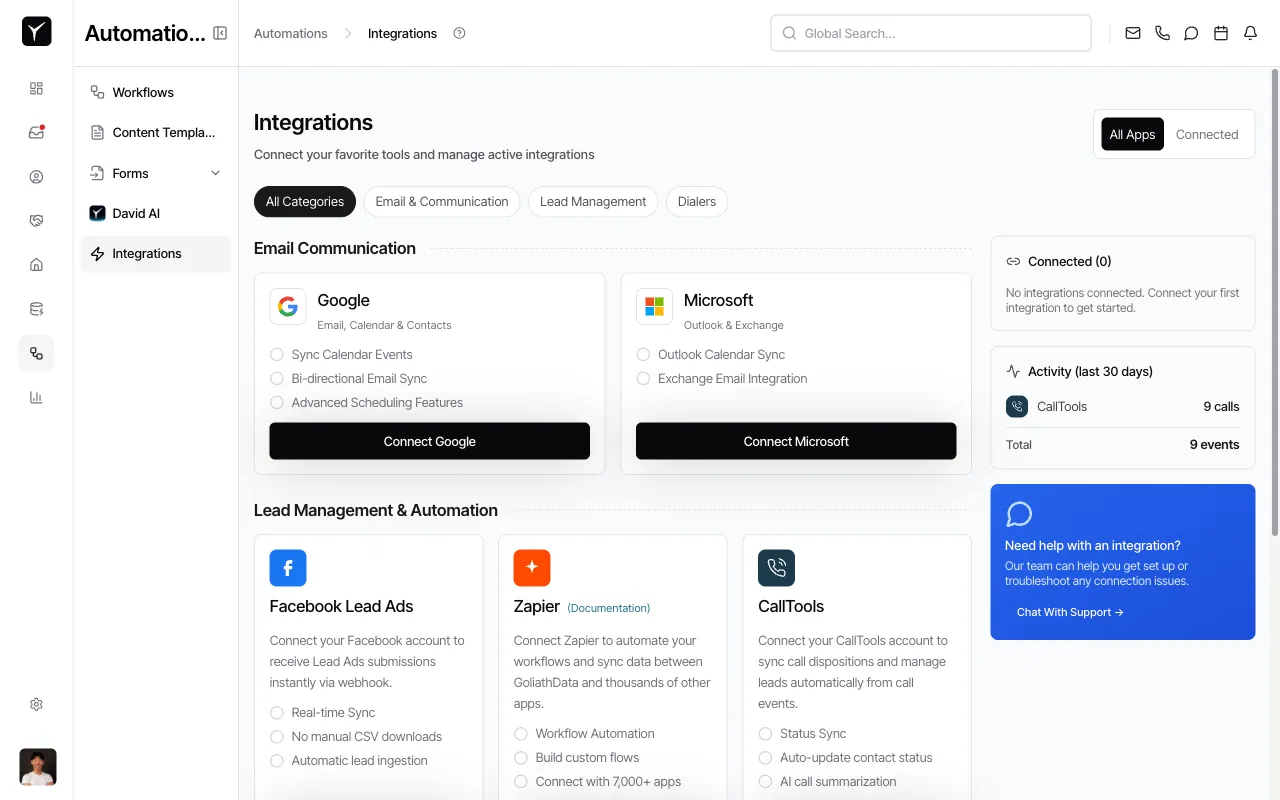
Navigate to the Integrations page
From the left sidebar, click Integrations to open the integrations hub.
-
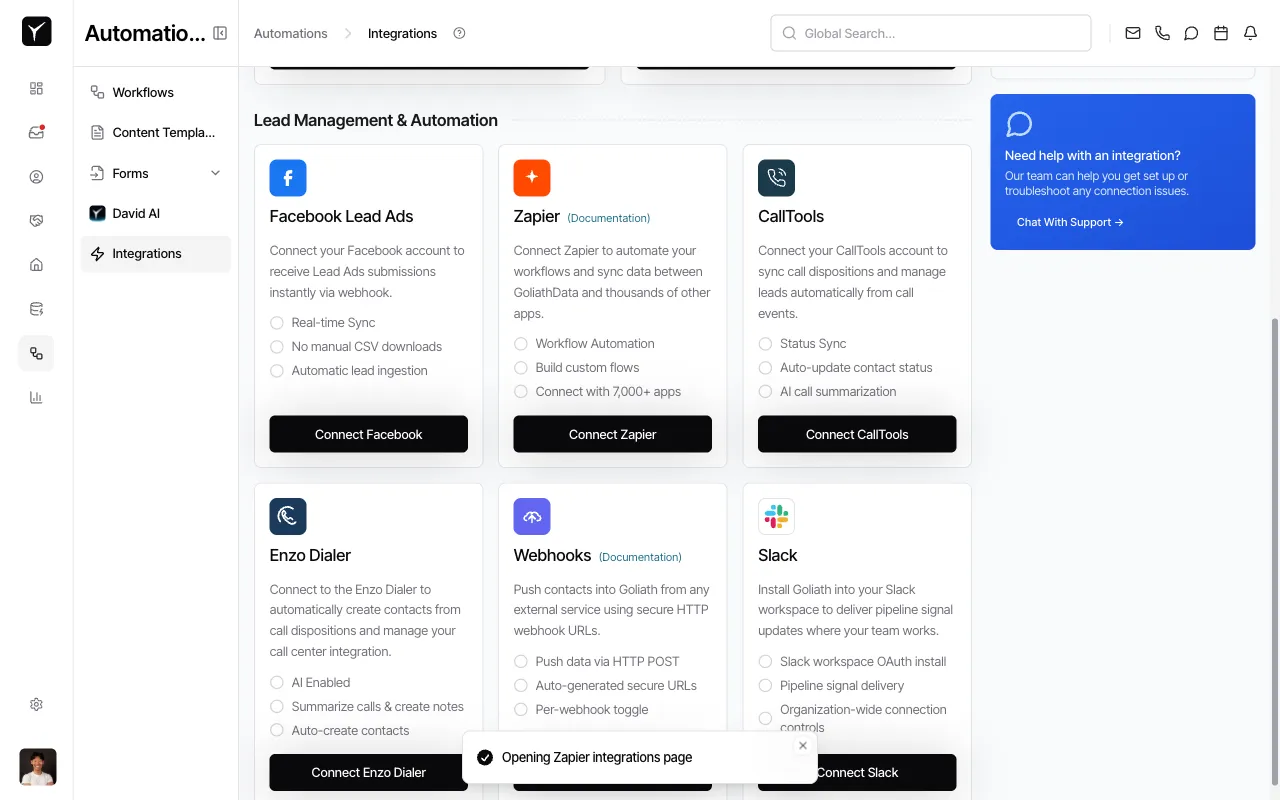
Locate the Zapier integration
Scroll to the Lead Management & Automation section and find the Zapier card. The card displays key capabilities including workflow automation, building custom flows, and connecting with thousands of apps.
-
Open the Zapier setup page
Click the Connect Zapier button on the Zapier card. The page will display a loading indicator as it prepares to navigate to Zapier’s platform.
-
Complete authentication in Zapier
You will be redirected to Zapier’s website where you can create a new Zap or browse pre-built templates. When prompted to authenticate Goliath during Zap setup, paste the API key you generated in Goliath. Once authenticated, Zapier can read from and write to your Goliath account.
Frequently Asked Questions
Section titled “Frequently Asked Questions”Q: How do I generate an API key for Zapier?
Section titled “Q: How do I generate an API key for Zapier?”The API key generation happens within the Goliath Integrations page. The exact UI for key creation may vary—consult the Documentation link on the Zapier card or contact support if you need to manually generate or rotate a key.
Q: Does Zapier cost extra to use with Goliath?
Section titled “Q: Does Zapier cost extra to use with Goliath?”Goliath does not charge extra for Zapier integration, but Zapier itself has tiered pricing based on the number of tasks and Zaps you run. Some Goliath subscription plans may limit or gate Zapier access—check your plan details.
Q: How do I find Goliath when creating a Zap?
Section titled “Q: How do I find Goliath when creating a Zap?”In the Zapier editor, search for “Goliath” or “GoliathData” in the app directory. Goliath will appear as an available trigger or action depending on your workflow needs.
Q: What if my API key is compromised?
Section titled “Q: What if my API key is compromised?”Regenerate the API key from the Goliath Integrations page. This will invalidate the old key, so you must update any existing Zaps with the new key to restore functionality.
Q: When should I use Zapier vs. Incoming Webhooks?
Section titled “Q: When should I use Zapier vs. Incoming Webhooks?”Use Zapier for no-code automation with thousands of pre-built app connectors—ideal for business users. Choose Incoming Webhooks if you need custom scripting, direct API control, or want to avoid dependency on Zapier’s platform.