
Sending Emails
Goliath lets you send emails directly to contacts and reply to existing threads without leaving the platform. Before you can send any emails, you must connect your Google (Gmail) or Microsoft (Outlook) account on the Integrations page. Once connected, all sent and received emails sync bidirectionally to each contact’s timeline.
Connecting Your Email Account
Section titled “Connecting Your Email Account”-
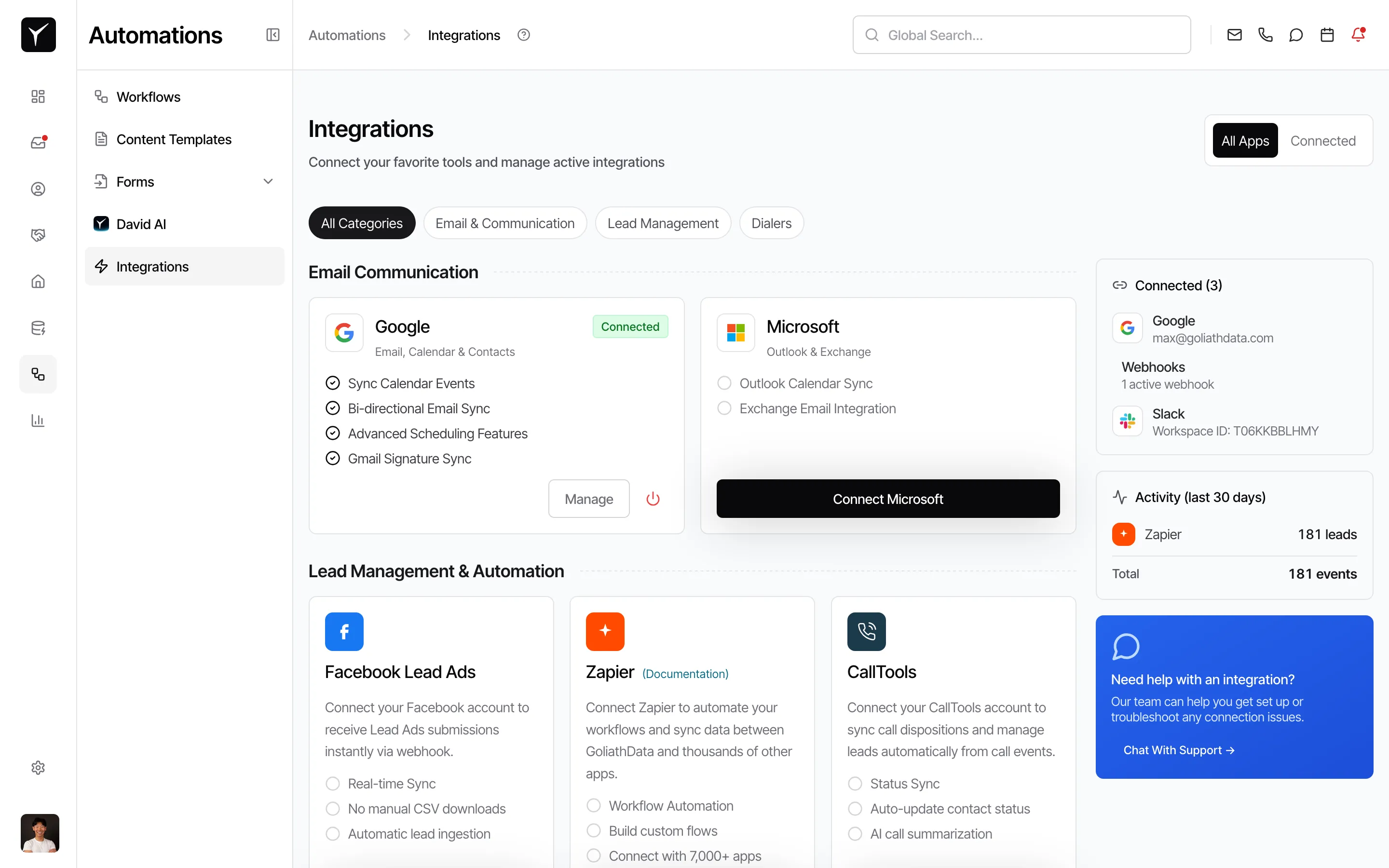
Navigate to Settings → Integrations
Click Settings in the left sidebar, then select Integrations. Under the Email Communication section, choose either Google (Gmail) or Microsoft (Outlook/Exchange) and click Connect. Follow the authorization prompts to grant Goliath access to your email and calendar. Each team member must connect their own individual account — shared accounts are not supported.
Sending a New Email to a Contact
Section titled “Sending a New Email to a Contact”-
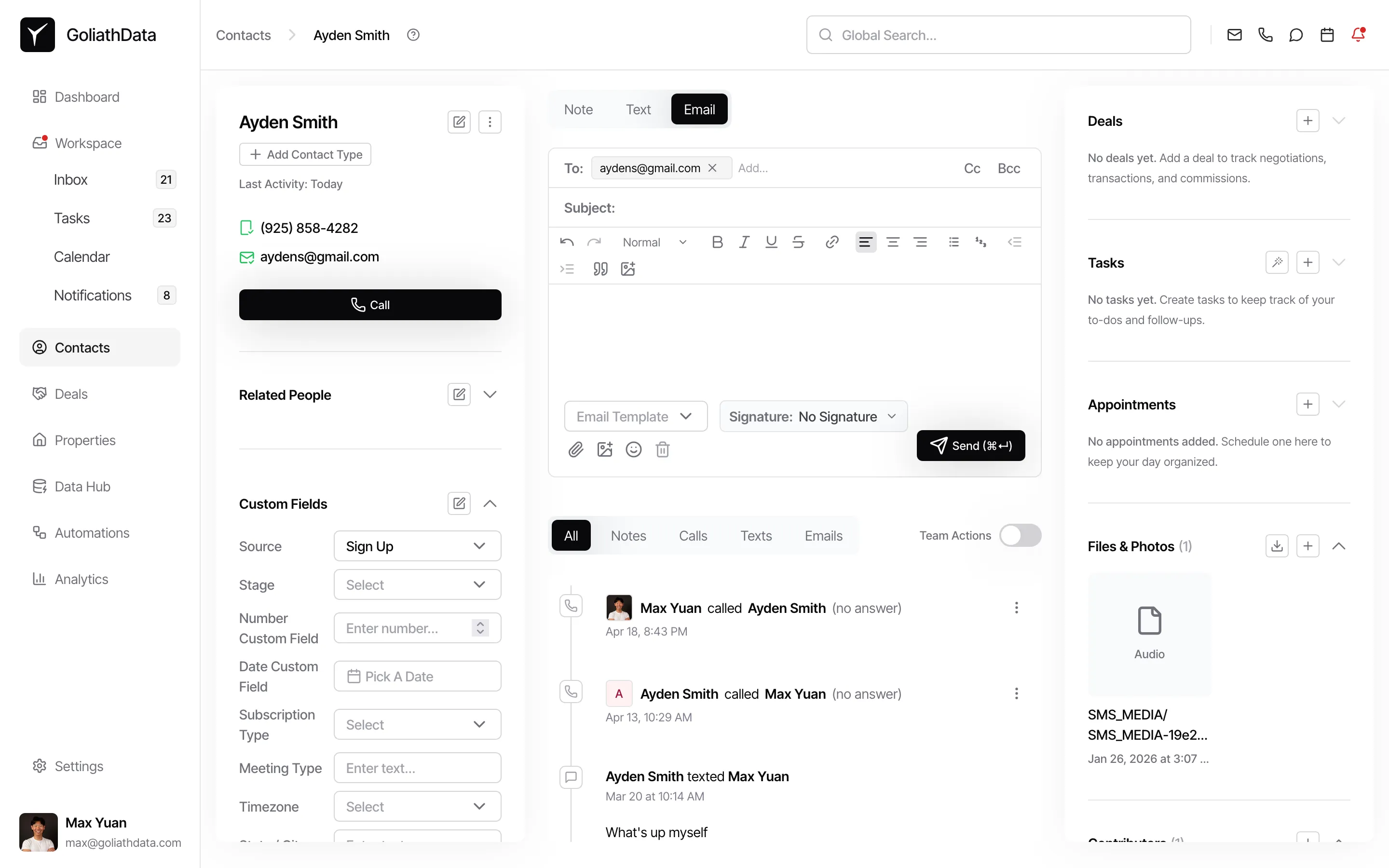
Open the contact and use the Email tab
Navigate to the Contacts page and click a contact name to open their detail panel. Click the Email tab to open the composer. The To field is automatically populated with the contact’s email address. Enter your subject line and message body, optionally insert a saved template via the Email Template dropdown, then send.
Sending an Email from the Quick Actions
Section titled “Sending an Email from the Quick Actions”-
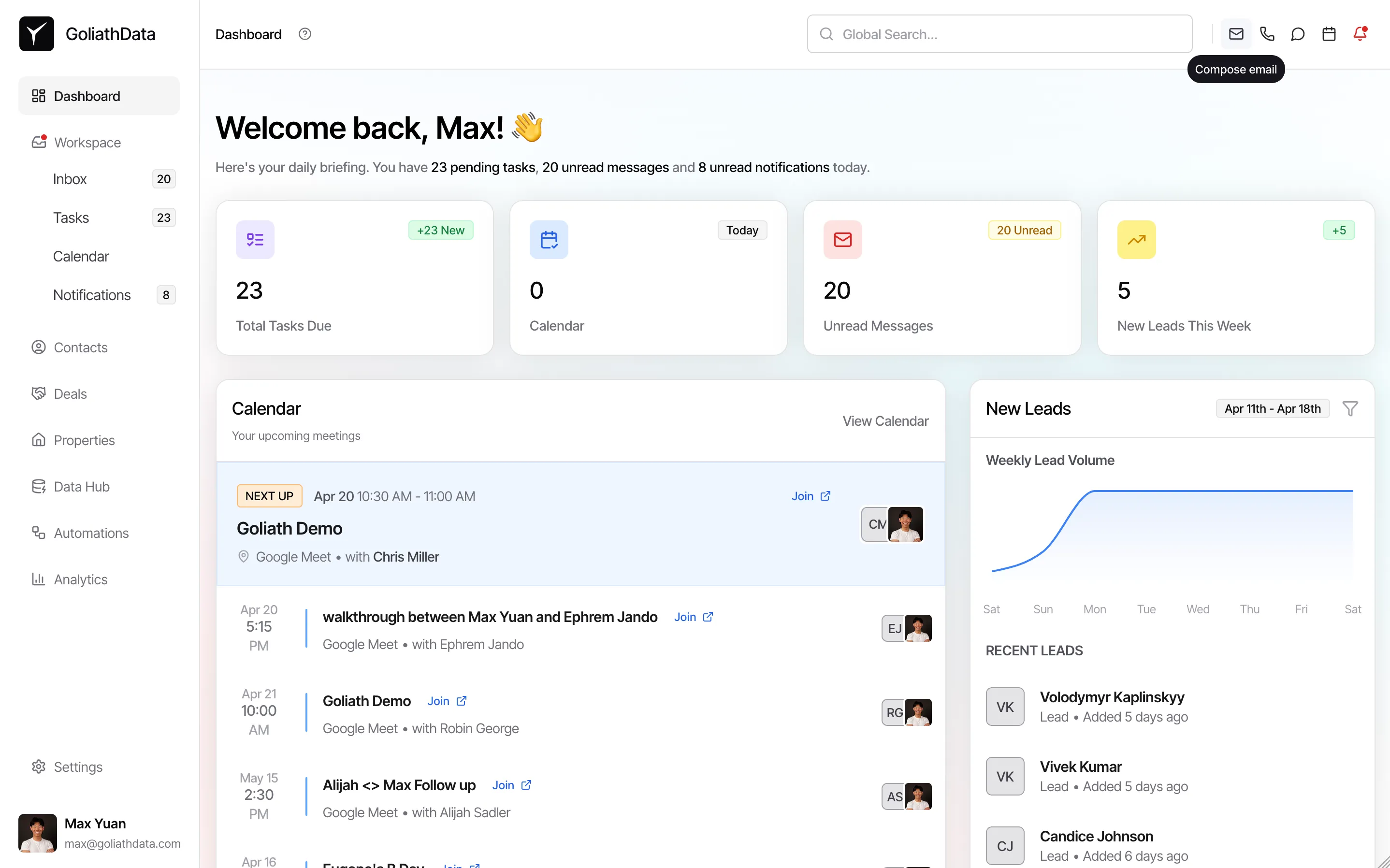
Click the mail icon in the top navigation bar
Click the envelope icon in the top-right corner of the app. This opens the quick-compose panel.
-
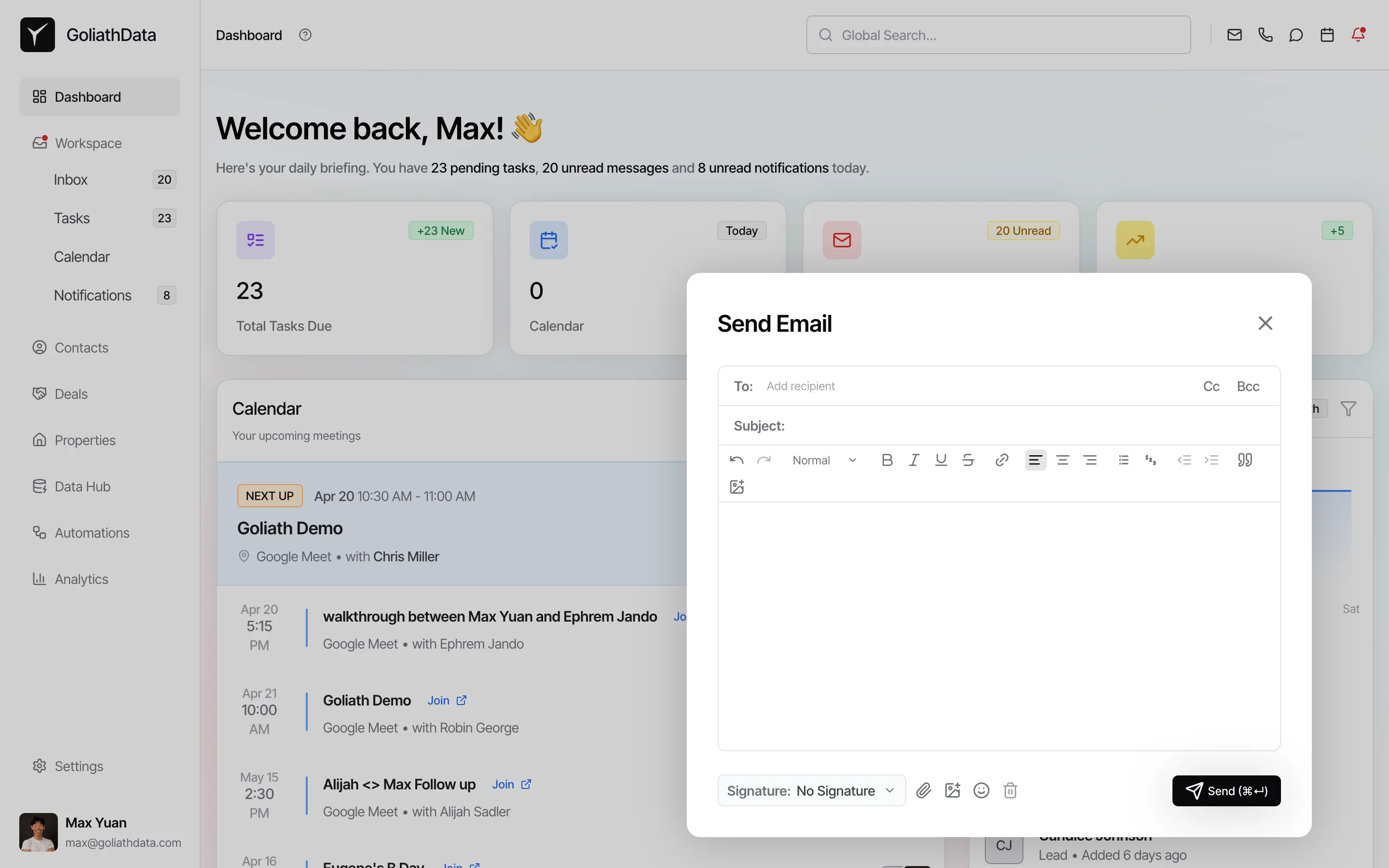
Search for a contact and compose your message
Search for a contact by name or enter an email address directly. Fill in the subject and body, then send. The email is linked to the contact’s record automatically.
Replying to an Existing Email Thread
Section titled “Replying to an Existing Email Thread”-
Open the Inbox and reply
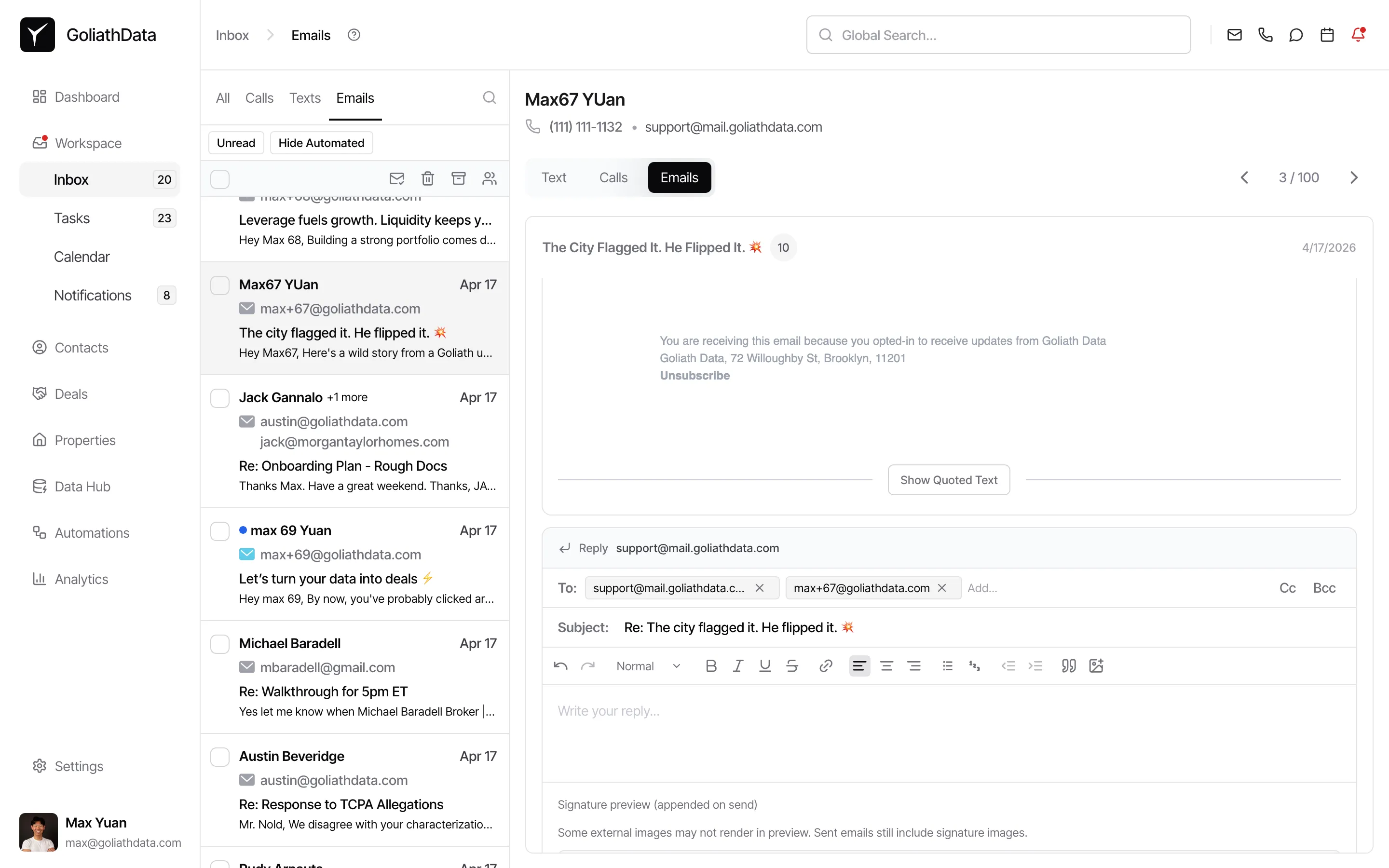
Click Inbox in the left sidebar and select the Emails tab. Click any thread to open it. Scroll to the bottom and click Reply — the composer pre-fills the recipients. Type your response and send. The reply syncs to the contact’s timeline automatically.
Using Email Templates
Section titled “Using Email Templates”Goliath supports email templates with dynamic contact variables. When composing an email, click the Email Template dropdown to select a saved template. Variables like {{firstName}} or {{propertyAddress}} are automatically replaced with the contact’s information when you send the email. For more details, see the Email Templates article.
Frequently Asked Questions
Section titled “Frequently Asked Questions”Q: Which email providers are supported?
Section titled “Q: Which email providers are supported?”Goliath supports Google (Gmail) and Microsoft (Outlook/Exchange) accounts. Connect your account on the Integrations page under Email Communication.
Q: What happens if I disconnect my email?
Section titled “Q: What happens if I disconnect my email?”If you disconnect your email account, you will no longer be able to send or receive emails from Goliath. Existing email history on contact timelines will remain visible, but no new emails will sync until you reconnect.
Q: Does Goliath store my email content?
Section titled “Q: Does Goliath store my email content?”Yes, emails sent and received through Goliath are stored on the platform so they appear in contact timelines and the Inbox. This allows your team to see full conversation history without switching to your email client.
Q: Can multiple team members use the same Gmail account?
Section titled “Q: Can multiple team members use the same Gmail account?”No, each user must connect their own individual email account. Shared accounts are not supported because Goliath syncs emails bidirectionally to each user’s personal inbox.
Q: Where can I find sent emails after I send them?
Section titled “Q: Where can I find sent emails after I send them?”Sent emails appear in two places: on the contact’s timeline under the Emails tab, and in the Workspace Inbox under the Emails tab. Both views show the full thread history.
Q: Can I send emails to multiple contacts at once?
Section titled “Q: Can I send emails to multiple contacts at once?”The contact detail panel composer addresses one contact at a time. You can add additional recipients using the Cc and Bcc fields in the composer. For bulk outreach, consider using Goliath’s automation features.